1. Einleitung
Thank you for choosing the vretti HP4 Mini Thermal Bluetooth Label Printer. This compact and portable device allows you to print labels, notes, photos, and more without ink, connecting seamlessly via Bluetooth to your smartphone. This manual provides detailed instructions to help you set up, operate, and maintain your printer for optimal performance.
2. Lieferumfang
Bitte überprüfen Sie den Packungsinhalt nach dem Auspacken. Sollten Artikel fehlen oder beschädigt sein, kontaktieren Sie bitte unseren Kundenservice.
- 1 x HP4 Label Maker Machine
- 3 x Rolls Die-Cut Labels (14mm x 40mm)
- 1 x Typ-C Ladekabel
- 1 x Bedienungsanleitungen

Image: Package contents of the vretti HP4 printer.
3. Produktmerkmale
- Tintenloser Thermodruck: No need for ink cartridges, reducing operational costs.
- Bluetooth-Konnektivität: Supports Android and iOS devices for wireless printing.
- Tragbares Design: Kompakt und leicht, ideal für den Einsatz unterwegs.
- One-Click Paper Cutting: Integrated cutting function for convenience.
- Lange Akkulaufzeit: Up to 15 hours of standby time on a full charge.
- Vielseitige Anwendung: Suitable for work plans, memos, meeting notes, study notes, shopping lists, and various labeling needs.
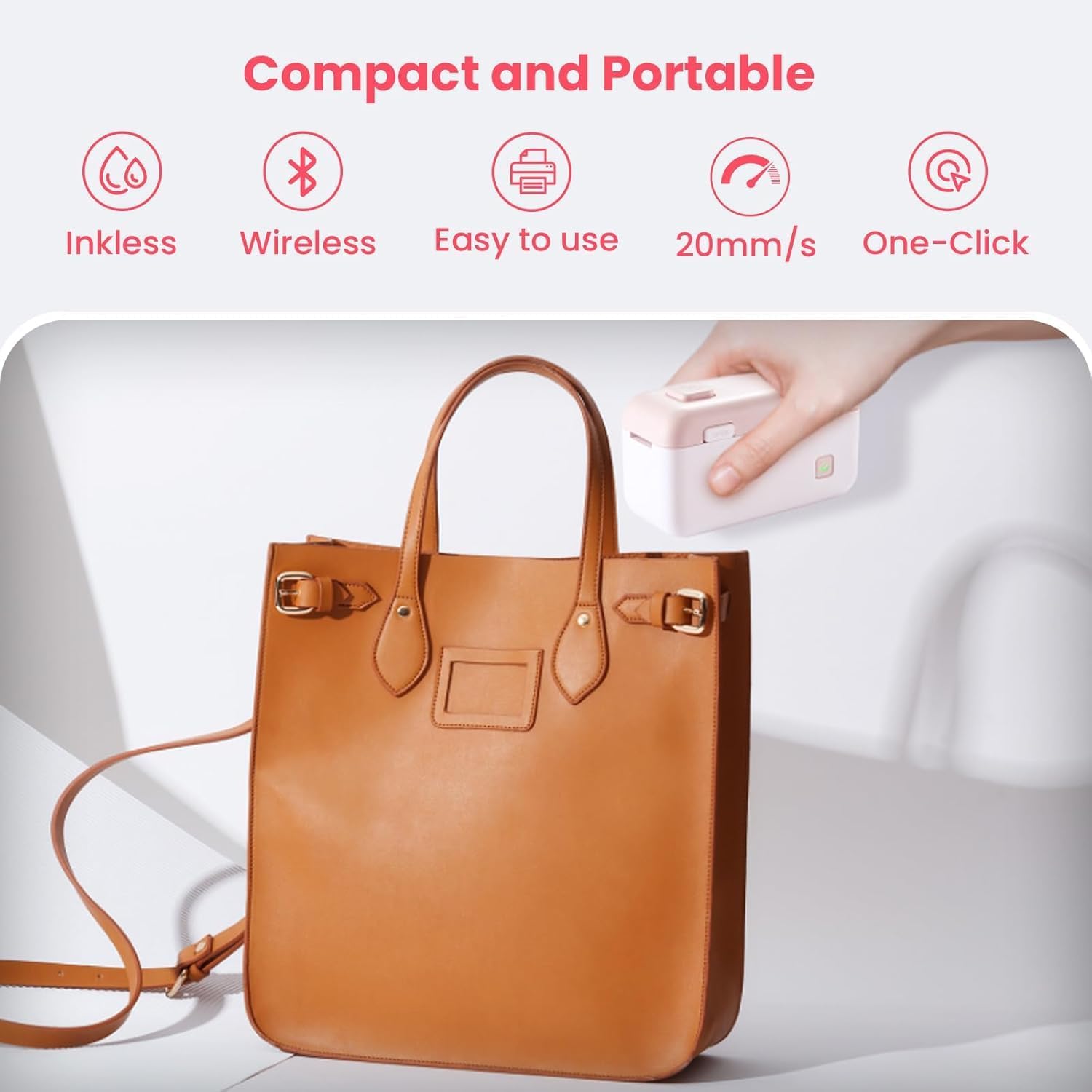
Image: The vretti HP4 printer showcasing its compact and portable features.
4. Installationsanleitung
Follow these steps to set up your vretti HP4 printer:
- Laden Sie den Drucker auf: Connect the provided Type-C charging cable to the printer and a power source. The indicator light will show charging status. Charge immediately if the light turns red.
- Offene Verdeckabdeckung: Gently slide the 'OPEN' switch to open the top cover of the printer.
- Load Print Paper: Insert the label roll into the paper bin, ensuring the printing side faces upwards and the paper feeds smoothly through the slot.
- Einschalten: Halten Sie den Ein-/Ausschalter gedrückt, bis die Kontrollleuchte aufleuchtet.
- Laden Sie die App herunter: Scan the QR code in the included manual or search for "Xeasylabel" in your device's app store (available for Android and iOS).
- Per Bluetooth verbinden: Open the "Xeasylabel" app. In the app, search for available devices and select "HP4" to connect your printer via Bluetooth.
- Cut Paper (Optional): Press the top button to cut the paper if needed after loading.

Image: Step-by-step visual guide for printer setup.
5. Bedienungsanleitung
Once set up, you can begin printing with your vretti HP4 printer:
- Erstelle dein Etikett: Open the "Xeasylabel" app. You can create various label styles, including text, icons, borders, ID codes, QR codes, and images. The app offers a variety of fonts, filter effects, and themes.
- Vorview and Adjust: Vor dem Drucken, vorview your label in the app. Adjust size, position, and content as needed.
- Drucken: Tap the print button in the app. The printer will quickly produce your label.
- Schneiden Sie das Etikett aus: Use the integrated one-click paper cutting function by pressing the designated button on the printer.

Image: The 'Xeasylabel' app interface for label creation.
Anwendungen
The vretti HP4 printer is versatile for various labeling needs:
- Haushaltsorganisation: Labeling canned food, spice jars, storage bins, and more.
- Büro & Schule: Organisieren files, notebooks, office supplies, and creating memos.
- Persönlicher Gebrauch: Labeling craft items, plant tags, or creating personalized stickers.
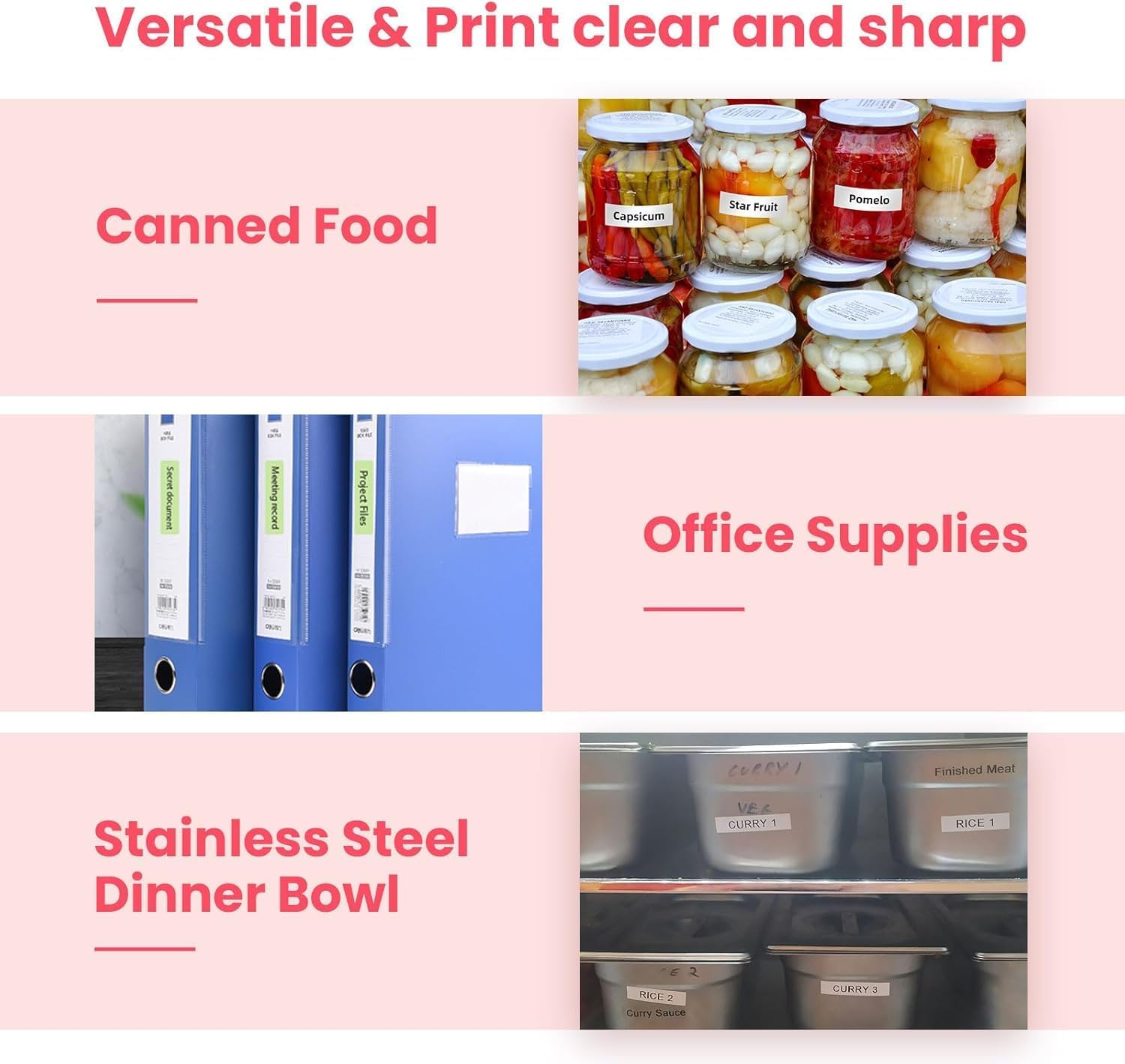

Images: Various applications of the vretti HP4 printer for labeling.
6. Wartung
To ensure the longevity and optimal performance of your vretti HP4 printer, follow these maintenance guidelines:
- Reinigung: Regularly wipe the exterior of the printer with a soft, dry cloth. For the thermal print head, use a cotton swab lightly dampMit Isopropylalkohol reinigen. Stellen Sie sicher, dass der Drucker ausgeschaltet und vor der Verwendung vollständig trocken ist.
- Batteriepflege: Avoid fully discharging the battery frequently. Charge the printer when the indicator light turns red. If storing for an extended period, charge the battery to about 50% every few months.
- Lagerung: Lagern Sie den Drucker an einem kühlen, trockenen Ort, geschützt vor direkter Sonneneinstrahlung und extremen Temperaturen.
- Papierführung: Use only vretti-approved thermal label rolls. Ensure labels are loaded correctly to prevent jams and damage to the print head.
7. Fehlerbehebung
If you encounter issues with your vretti HP4 printer, refer to the following common problems and solutions:
| Problem | Mögliche Ursache | Lösung |
|---|---|---|
| Der Drucker lässt sich nicht einschalten | Niedriger Batteriestand; Ein-/Ausschalter nicht richtig gedrückt | Laden Sie den Drucker auf; Halten Sie den Netzschalter einige Sekunden lang gedrückt. |
| Verbindung über Bluetooth nicht möglich | Bluetooth off; App not open; Printer out of range; Incorrect device selected | Ensure Bluetooth is enabled on your phone; Open the "Xeasylabel" app; Move printer closer to phone; Select "HP4" in the app. |
| Schlechte Druckqualität / Blasser Druck | Low battery; Incorrect label type; Dirty print head; Expired labels | Charge the printer; Ensure you are using thermal labels; Clean the print head; Use fresh label rolls. |
| Papierstau | Incorrect paper loading; Damaged label roll | Open the cover and re-load the paper correctly; Replace the label roll if damaged. |
| Labels are too long/short | Incorrect label size setting in app; Continuous label mode selected | Adjust label size settings in the "Xeasylabel" app to match your label roll; Ensure you are using the correct label type (e.g., die-cut vs. continuous) and settings. |
8. Spezifikationen
| Spezifikation | Detail |
|---|---|
| Modellnummer | HP4 |
| Drucktechnologie | Thermal |
| Konnektivitätstechnologie | Bluetooth |
| Kompatible Geräte | Smartphone (Android, iOS) |
| Maximale Druckauflösung (S/W) | 600 dpi |
| Maximale Blechgröße | 9 Millimeter (label width) |
| Artikelabmessungen (L x B x H) | 11.5 x 11.5 x 5 Zentimeter |
| Besonderheit | Tragbar |
| Im Lieferumfang enthaltene Komponenten | Papierrollen |
9. Garantie und Support
The vretti HP4 Mini Thermal Bluetooth Label Printer comes with a limited warranty. For specific warranty terms and conditions, please refer to the warranty card included in your package or contact vretti customer support.
For technical assistance, troubleshooting, or any other inquiries, please visit the official vretti website or contact their customer service team. Contact information can typically be found on the product packaging or the brand's official online store.


