Einführung
Welcome to the user manual for your Samsung 75-inch QN95C Neo QLED 4K TV. This guide provides essential information for setting up, operating, maintaining, and troubleshooting your television. The Samsung QN95C features Neo QLED technology for stunning picture quality, 4K resolution, and a 144Hz refresh rate for smooth gaming performance. It also includes advanced audio features like Dolby Atmos for an immersive sound experience.

Bild: Vorderseite view of the Samsung QN95C Neo QLED 4K TV, showcasing mit seinem schmalen Rahmen und dem brillanten Display.
Aufstellen
1. Auspacken und Aufstellen
Carefully remove the TV and its components from the packaging. The box typically includes the TV unit and a stand. Ensure you have a clean, flat surface for assembly. Place the TV in a location with adequate ventilation and away from direct sunlight or heat sources.
2. Anbringen des Ständers (falls zutreffend)
If you are not wall-mounting, attach the provided stand to the TV according to the instructions in the separate quick setup guide. Ensure all screws are securely fastened.
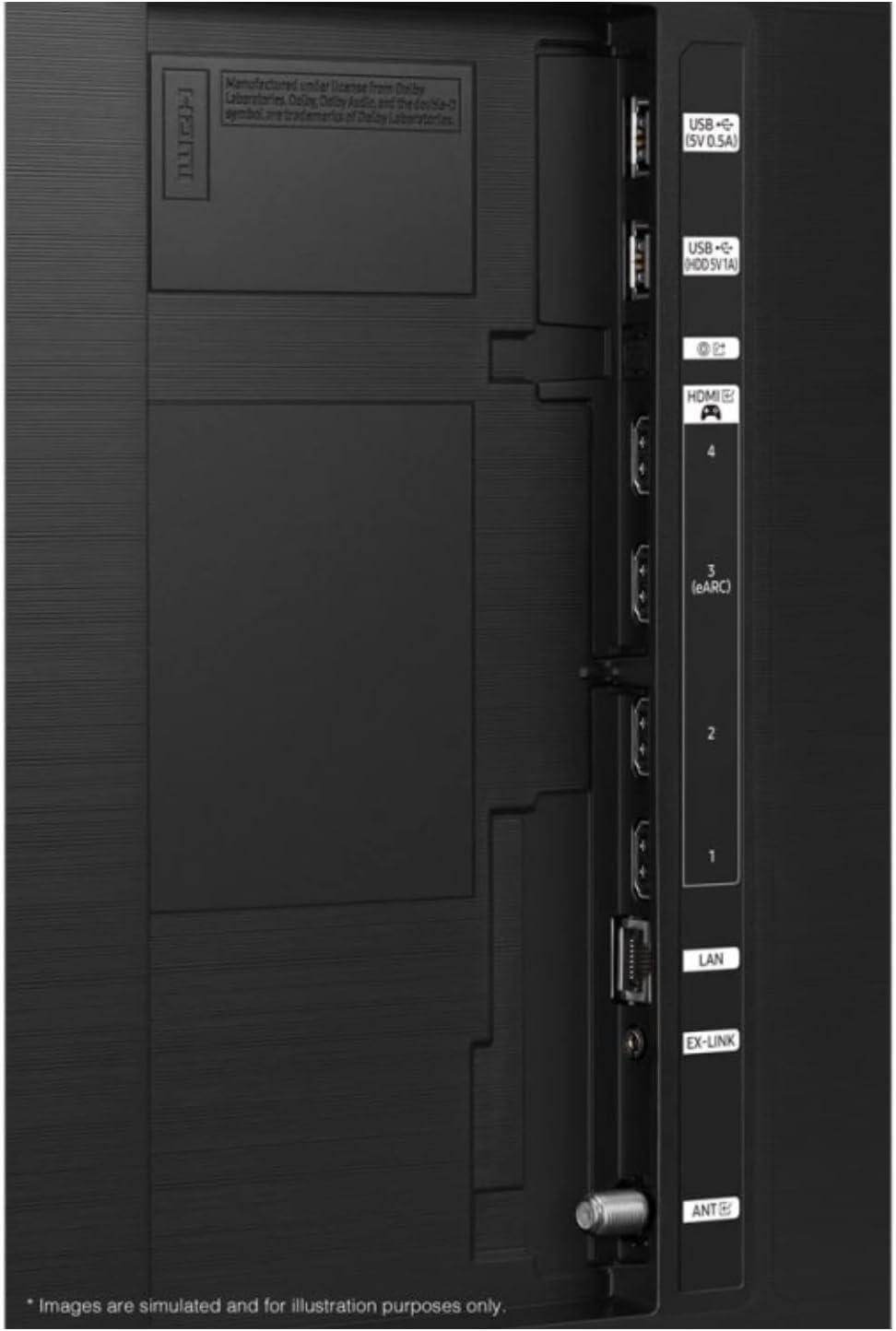
Bild: Seitenansichtfile of the Samsung QN95C Neo QLED 4K TV, illustrating its slim design and the attached stand.
3. Anschließen externer Geräte
Schließen Sie Ihre externen Geräte wie Kabelreceiver, Spielekonsolen oder Soundsysteme an die entsprechenden Anschlüsse auf der Rückseite des Fernsehers an.
- HDMI: For high-definition audio and video. Your TV features multiple HDMI ports, including one with eARC for enhanced audio return channel functionality.
- USB: For connecting USB storage devices (5V 0.5A and 5V 1A ports available).
- LAN: Für eine kabelgebundene Internetverbindung.
- AMEISE: Zum Anschluss einer Antenne für terrestrische Rundfunkübertragungen.

Bild: Detailliert view of the TV's back panel, highlighting the HDMI, USB, LAN, and ANT ports for connecting various devices.
4. Erste Inbetriebnahme und Konfiguration
Plug the power cord into the TV and then into a wall outlet. Press the power button on the TV or remote control. The TV will guide you through the initial setup process, which typically includes:
- Sprachauswahl: Wählen Sie Ihre bevorzugte Sprache.
- Netzwerkverbindung: Connect to your home Wi-Fi network or use a wired LAN connection.
- Smart Setup Options: You will be presented with options to set up your TV using a smartphone (Quick and Easy) or via the remote control (Step-by-Step). Follow the on-screen prompts for your chosen method.
- Kanalsuchlauf: Bei Verwendung einer Antenne sucht der Fernseher nach verfügbaren Kanälen.
- Kontoeinrichtung: Sign in to your Samsung account or create a new one to access Smart TV features and apps.
Bedienung Ihres Fernsehers
1. Grundlegende Steuerelemente
Use the remote control to navigate the TV's interface. Common functions include:
- Leistung: Schalten Sie den Fernseher ein oder aus.
- Volumen: Passen Sie die Lautstärke an.
- Kanal: Change TV channels (if an antenna is connected).
- Quelle/Eingabe: Switch between connected external devices (e.g., HDMI 1, HDMI 2).
- Home "Button: Access the Smart Hub for apps, settings, and other features.
2. Smart-TV-Funktionen
Your Samsung QN95C is a Smart TV, offering access to a wide range of online content and applications. Supported internet services include a web browser and YouTube. You can download additional apps from the Samsung App Store.
3. Bildeinstellungen
Zur Optimierung Ihrer viewing experience, you can adjust various picture settings:
- Bildmodus: Wählen Sie aus Modi wie Standard, Dynamisch, Film oder Filmemacher-Modus.
- Helligkeit Kontrast: Optimieren Sie die Helligkeits- und Kontrastwerte des Displays.
- Farbe/Tönung: Adjust color saturation and hue.
- Schärfe: Enhance the detail of the image.
- Experteneinstellungen: Access advanced calibration options for professional adjustments.
4. Toneinstellungen
The TV supports Dolby Atmos for an immersive audio experience. You can customize sound settings:
- Klangmodus: Wählen Sie aus verschiedenen Klangmodi (z. B. Standard, Adaptiver Klang, Amplify).
- Equalizer: Manually adjust frequency bands.
- Dolby Atmos: Ensure this feature is enabled for compatible content to experience spatial audio.
- Q-Symphonie: If you have a compatible Samsung soundbar, enable Q-Symphony to synchronize the TV speakers and soundbar for richer, more immersive audio.
5. Spielfunktionen
The QN95C is optimized for gaming with a 144Hz refresh rate. Ensure your gaming console is connected to an HDMI port that supports high refresh rates. Activate Game Mode in the TV settings for reduced input lag and optimized picture settings for gaming.
Wartung
1. Reinigen Sie Ihren Fernseher
Um die Bildqualität und Lebensdauer Ihres Fernsehers zu erhalten, befolgen Sie bitte diese Reinigungsrichtlinien:
- Bildschirm: Wischen Sie den Bildschirm vorsichtig mit einem weichen, trockenen Mikrofasertuch ab. Hartnäckige Flecken können Sie mit einem dünnen Tuch entfernen.ampen the cloth with distilled water or a screen-specific cleaning solution (never spray directly onto the screen).
- Rahmen und Ständer: Verwenden Sie ein weiches, trockenes Tuch, um den Staub vom Fernsehrahmen und -fuß abzuwischen.
- Nicht nötig: Vermeiden Sie die Verwendung von Scheuermitteln, Alkohol, Benzol oder Verdünnern, da diese die Oberfläche des Fernsehers beschädigen können.
2. Software-Updates
Regularly check for and install software updates to ensure your TV has the latest features, performance improvements, and security patches. You can usually find this option in the TV's settings menu under Support > Software Update.
Fehlerbehebung
If you encounter issues with your TV, try the following solutions before contacting service.
| Problem | Mögliche Lösung |
|---|---|
| Kein Strom | Vergewissern Sie sich, dass das Netzkabel sowohl am Fernseher als auch an einer funktionierenden Steckdose fest angeschlossen ist. Versuchen Sie es mit einer anderen Steckdose. |
| Kein Bild, aber Ton ist vorhanden | Check the input source. Ensure all cables are securely connected. Try restarting connected devices. |
| Kein Ton, aber ein Bild ist vorhanden. | Check the volume level. Ensure mute is not activated. Verify audio output settings (TV speakers, external sound system). Check audio cables. |
| Fernbedienung funktioniert nicht | Replace the batteries. Ensure there are no obstructions between the remote and the TV. Try pairing the remote again if it's a Bluetooth remote. |
| Keine Verbindung zum WLAN möglich | Check your router and modem. Restart your router. Ensure the Wi-Fi password is correct. Try moving the TV closer to the router or using a wired LAN connection. |
| Bildqualitätsprobleme (z. B. unscharf, verzerrt) | Check the resolution of the input source. Adjust picture settings. Ensure cables are not damaged. |
Technische Daten
Below are the key specifications for the Samsung QN95C Neo QLED 4K TV (QN75QN95CAFXZA):
| Besonderheit | Detail |
|---|---|
| Marke | Samsung |
| Modellname | QN95C |
| Bildschirmgröße | 75 Zoll |
| Display-Technologie | QLED |
| Auflösung | 4K |
| Besonderheit | Wohnung |
| Seitenverhältnis | 16:9 |
| Konnektivitätstechnologie | W-lan |
| Unterstützte Internetdienste | Browser, YouTube |
| Im Lieferumfang enthaltene Komponenten | Ständer, Fernseher |
| ASIN | B0D19GL7JP |
| Datum der ersten Verfügbarkeit | 9. April 2024 |
Garantie und Support
As this product is a renewed item, warranty terms may differ from new products. Please refer to the specific warranty information provided at the time of purchase or contact the seller directly for details regarding your renewed product's warranty coverage.
For technical support, product registration, or further assistance, please visit the official Samsung support website or contact Samsung customer service. Have your TV's model number (QN75QN95CAFXZA) and serial number ready when seeking support.


