CHUWI GemiBook Plus Laptop Benutzerhandbuch
Model: CHUWI GemiBook Plus (HEROBOOK)
15.6 inch Laptop Computer, 8GB LPDDR5 256GB SSD, Intel N100, Windows 11
1. Einleitung
This manual provides essential information for the proper setup, operation, maintenance, and troubleshooting of your CHUWI GemiBook Plus laptop. Please read this manual thoroughly before using your device to ensure optimal performance and longevity.

Bild 1.1: Vorderseite view of the CHUWI GemiBook Plus laptop, showcasing its 15.6-inch display with system specifications like 8GB DDR5 RAM, 256GB SSD, Intel N100 processor, and Windows 11 Home operating system.
2. Lieferumfang
Überprüfen Sie, ob alle Artikel im Paket vorhanden sind:
- CHUWI GemiBook Plus Laptop
- Charger set (Power Adapter and Cable)
- Mehrsprachiges Handbuch
- Konformitätsbescheinigung
3. Produktüberschreitungview
3.1 Hauptmerkmale
- Prozessor: 12th Gen Intel Alder Lake N100 CPU (up to 3.4GHz)
- Erinnerung: 8GB LPDDR5 RAM (4800 MHz)
- Lagerung: 256GB SSD (expandable up to 1TB via M.2 2280 SSD slot)
- Anzeige: 15.6-inch FHD IPS screen (1920 × 1080p, 16:9 aspect ratio)
- Grafik: Intel UHD-Grafik für Intel-Prozessoren der 12. Generation
- Betriebssystem: Windows 11 Home
- Konnektivität: Wi-Fi 6, Bluetooth 5.2, HDMI, USB 3.0, Type-C, RJ45 Ethernet
- Batterie: 38Wh for 6 to 8 hours of usage
- Design: Lightweight (1.74kg) and thin (19mm) with 180° opening hinge
- Sicherheit: Physical camera switch for privacy

Abbildung 3.1: Ein überview of the CHUWI GemiBook Plus's key features, including its 15.6-inch IPS screen, 12th Gen Intel Alder Lake-N100 processor, 38Wh Li-ion battery, FHD resolution, 12th Gen Intel UHD Graphics, 8GB LPDDR5 RAM, 256GB M.2 SSD, and WiFi6+BT5.2 connectivity.
3.2 Anschlüsse und Steckverbinder
Familiarize yourself with the various ports and connectors on your laptop:

Image 3.2: Diagram illustrating the various ports on the CHUWI GemiBook Plus laptop. On one side, it shows the charging port, HDMI port, USB-A 3.0 port, Type-C port, and Audio Jack. On the other side, it displays another Type-C port, USB-A 2.0 port, USB-A 3.0 port, RJ45 LAN Port, and a lock slot.
- Ladeanschluss: Schließen Sie hier das Netzteil an.
- HDMI-Anschluss: Zum Anschluss externer Displays.
- USB-A 3.0-Anschlüsse: Für Hochgeschwindigkeits-Datenübertragung mit kompatiblen Geräten.
- USB-A 2.0-Anschluss: Für Standard-USB-Geräte.
- Typ-C-Anschlüsse: Versatile ports for data, display, and power delivery (check specific functionality).
- Audiobuchse: Für Kopfhörer oder externe Lautsprecher.
- RJ45 LAN-Anschluss: Für kabelgebundene Netzwerkverbindung.
- Schlosssteckplatz: For security cable locks.
4. Erste Schritte (Einrichtung)
4.1 Erstes Einschalten
- Connect the charger to the laptop's charging port and a power outlet.
- Öffnen Sie den Laptopdeckel.
- Press the power button, usually located on the keyboard deck.
- Folgen Sie den Anweisungen auf dem Bildschirm, um die Einrichtung von Windows 11 abzuschließen, einschließlich Sprachauswahl, Netzwerkverbindung und Erstellung des Benutzerkontos.
4.2 Mit WLAN verbinden
- During Windows setup, you will be prompted to connect to a network. Select your Wi-Fi network from the list.
- Geben Sie bei Bedarf das WLAN-Passwort ein.
- Wenn Sie die Einrichtung später vornehmen, klicken Sie auf das WLAN-Symbol in der Taskleiste, wählen Sie Ihr Netzwerk aus und stellen Sie die Verbindung her.
5. Bedienungsanleitung
5.1 Tastatur und Touchpad
The GemiBook Plus features a full-size keyboard and a large touchpad for comfortable interaction.

Bild 5.1: Eine Nahaufnahme view of the CHUWI GemiBook Plus laptop's full-size keyboard and large touchpad, highlighting its ergonomic design for comfortable typing.
- Tastatur: Use for typing and system commands. Function keys (Fn) combined with F1-F12 keys provide additional shortcuts (e.g., volume, brightness).
- Touchpad: Supports multi-touch gestures for navigation, scrolling, and zooming.
5.2 Anzeige
The 15.6-inch FHD IPS screen offers vibrant visuals. The laptop supports a 180° opening angle for flexible viewing.
5.3 WebKamera und Privatsphäre
The laptop includes a webcam for video calls and conferencing. A physical camera switch is provided to block the camera lens, ensuring privacy when not in use.
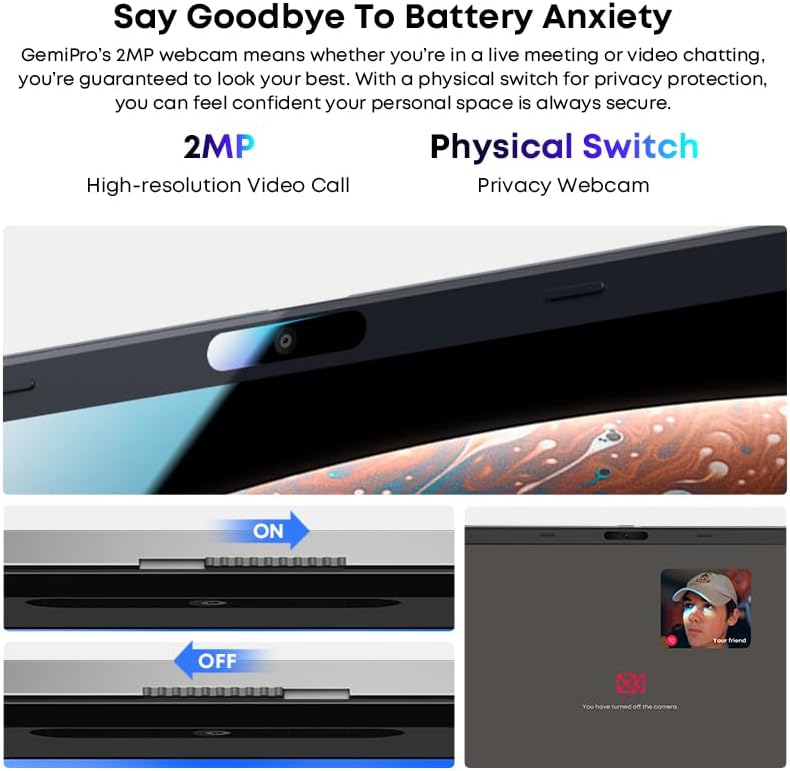
Image 5.2: Close-up of the CHUWI GemiBook Plus webcam with a physical privacy switch. The image shows the switch in both 'ON' (camera exposed) and 'OFF' (camera covered) positions, demonstrating how to physically block the camera lens for enhanced privacy.
5.4 Drahtlose Konnektivität
The GemiBook Plus supports Wi-Fi 6 and Bluetooth 5.2 for fast and stable wireless connections.

Image 5.3: A visual representation of the CHUWI GemiBook Plus's seamless wireless experience, highlighting Wi-Fi 6, Bluetooth 5.2, Ethernet RJ45, and HD Camera features. A user is shown participating in a video call on the laptop.
- WLAN 6: Provides faster internet speeds and improved network efficiency compared to previous Wi-Fi standards.
- Bluetooth 5.2: Zum Anschluss drahtloser Peripheriegeräte wie Kopfhörer, Mäuse und Tastaturen.
6. Batteriemanagement
The laptop is equipped with a 38Wh battery, providing approximately 6 to 8 hours of usage on a full charge. A full recharge typically takes about 3 hours.
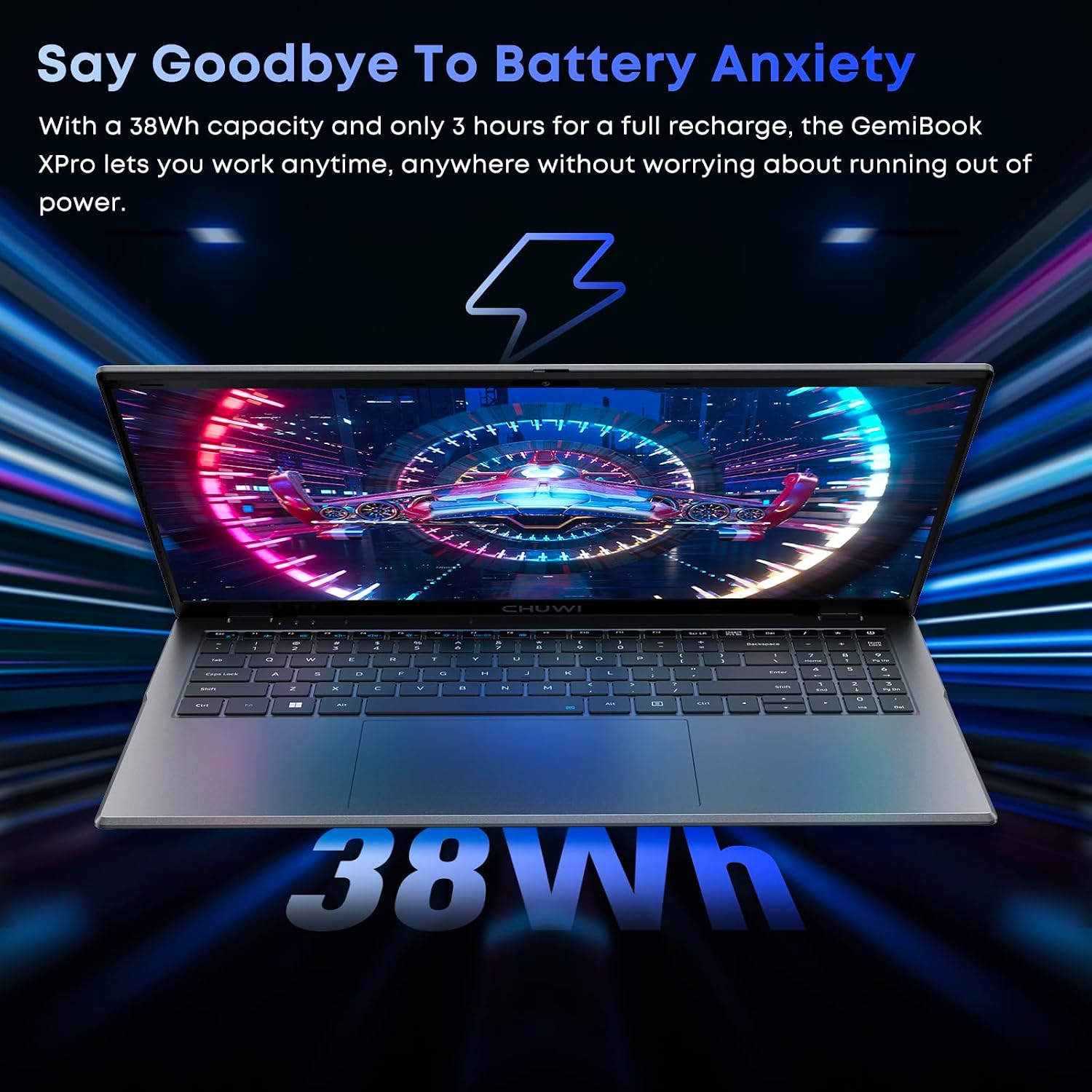
Image 6.1: The CHUWI GemiBook Plus laptop displayed with a visual representation of its 38Wh battery capacity, emphasizing its ability to provide extended usage without frequent recharging.
- Laden: Connect the provided charger to the laptop and a power outlet. The charging indicator light will typically show the charging status.
- Batteriepflege: Um die Akkulaufzeit zu verlängern, sollte der Akku nicht häufig vollständig entladen werden. Bewahren Sie den Laptop bei längerer Nichtbenutzung an einem kühlen, trockenen Ort auf.
7. Wartung und Pflege
- Reinigung: Reinigen Sie Bildschirm und Gehäuse mit einem weichen, fusselfreien Tuch. Bei hartnäckigen Flecken leicht andrücken.ampBefeuchten Sie das Tuch mit Wasser oder einem Bildschirmreiniger. Vermeiden Sie aggressive Chemikalien.
- Lagerung: When not in use, store the laptop in a protective sleeve or bag to prevent scratches and dust accumulation.
- Temperatur: Operate the laptop within recommended temperature ranges. Avoid exposing it to extreme heat or cold.
- Belüftung: Stellen Sie sicher, dass die Lüftungsöffnungen nicht blockiert sind, um eine Überhitzung zu verhindern.
8. Fehlerbehebung
8.1 Häufige Probleme und Lösungen
| Ausgabe | Mögliche Lösung |
|---|---|
| Laptop lässt sich nicht einschalten | Ensure the power adapter is securely connected and the outlet is working. Try a different power outlet. If the battery is completely drained, it may take a few minutes to respond after connecting the charger. |
| Keine Wi-Fi-Verbindung | Prüfen Sie, ob WLAN in den Windows-Einstellungen aktiviert ist. Starten Sie Ihren Router und Ihr Modem neu. Stellen Sie sicher, dass Sie das richtige WLAN-Passwort eingeben. |
| Langsame Leistung | Close unnecessary applications. Check for background processes consuming resources. Ensure Windows is updated. Consider running a disk cleanup. |
| Der Bildschirm ist leer oder flackert. | Adjust screen brightness. Connect to an external monitor to check if the issue is with the laptop screen. Restart the laptop. |
| WebKamera funktioniert nicht | Ensure the physical camera switch is in the 'ON' position. Check privacy settings in Windows to allow apps access to the camera. Update camera drivers. |
9. Technische Daten
| Besonderheit | Spezifikation |
|---|---|
| Stehbildschirm Displaygröße | 15.6 Zoll |
| Bildschirmauflösung | 1920 x 1080 Pixel (FHD) |
| Prozessor | Intel Alder Lake N100 (up to 3.4 GHz) |
| RAM | 8 GB LPDDR5 |
| Festplatte | 256 GB SSD (M.2 2280, erweiterbar auf 1 TB) |
| Grafik-Coprozessor | Intel UHD-Grafik |
| Betriebssystem | Windows 11 |
| Kabelloser Typ | Wi-Fi 6, Bluetooth 5.2 |
| Anzahl der USB 3.0-Anschlüsse | 2 |
| Durchschnittliche Akkulaufzeit | 6 Stunden (38 Wh) |
| Artikelgewicht | 3.7 Pfund (ca. 1.74 kg) |
| Technische Daten | 14 x 0.78 x 9.5 Zoll (ca. 35.5 x 1.98 x 24.1 cm) |
| Farbe | Silber |
10. Garantie und Support
10.1 Gewährleistungsfrist
The CHUWI GemiBook Plus laptop comes with a 1 Jahr Garantie, valid immediately after purchase.
10.2 Kundendienst
CHUWI offers lifetime factory professional support and 24-hour online support. For any issues or inquiries, please contact CHUWI customer service. They aim to provide professional and timely assistance.


