1. Einleitung
This manual provides comprehensive instructions for the setup, operation, and maintenance of your iCON Pro Audio P1-Nano Compact DAW Control Surface with the included D5 Display. Please read this manual thoroughly to ensure proper use and to maximize the functionality of your device.
2. Produktüberschreitungview
2.1 Hauptmerkmale
- Premium DAW Control: Compact USB C-MIDI control surface for powerful DAW control.
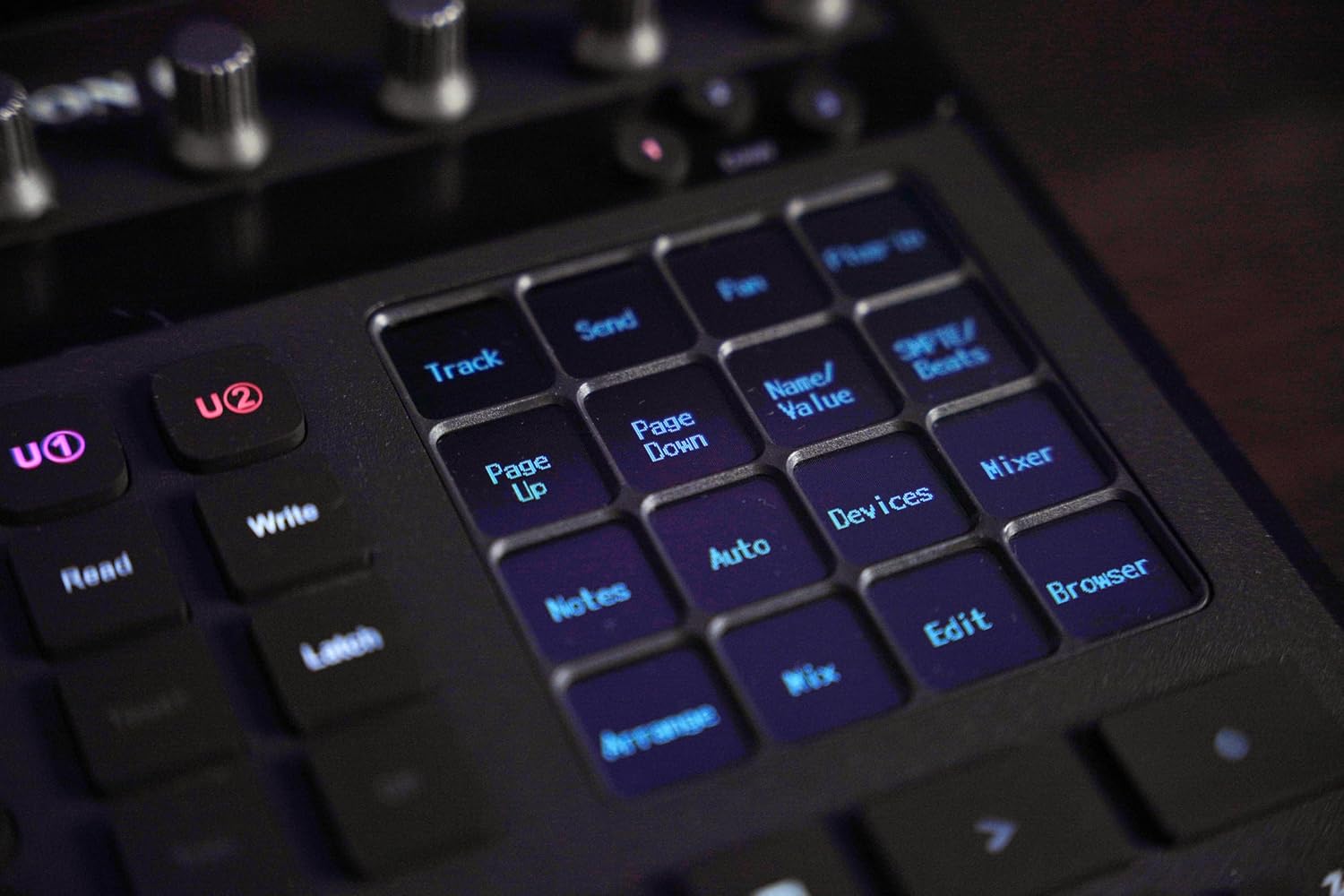
- Customizable Touchscreen Display: 4-inch touchscreen with 5 color-coded layers, offering up to 80 displayable and actionable functions.
- Multi-DAW Compatibility: Seamless integration with popular DAWs including Bitwig, Cubase/Nuendo, Logic Pro X, Ableton Live, and Pro Tools. Control up to three DAWs simultaneously.
- Präzisionssteuerung: Touch-sensitive motorized fader (12-bit resolution), 8 dual-function encoder knobs, illuminated automation command buttons, and a smooth-action jog wheel.
- Durable & Versatile: Robustes Metall casing, compact and portable, supports Mackie Control and HUI protocols. Compatible with MacOS and Windows systems.
- Verbesserter Workflow: Channel control, transport buttons, dedicated flip and master buttons, illuminated zoom and focus functions.
- Included D5 Display: Expands control capabilities with additional visual feedback.
- Benutzerfreundliche Software: iMap™ software for easy configuration and customization.
- Kompatibilität mit Fußschaltern: Supports footswitch pedals with User A & User B 1/4 inch inputs.
2.2 Was ist in der Box?
- Icon Pro Audio P1-Nano control surface
- D5 display unit
3. Einrichtung
3.1 Physische Verbindungen
Connect the P1-Nano to your computer and power source as follows:
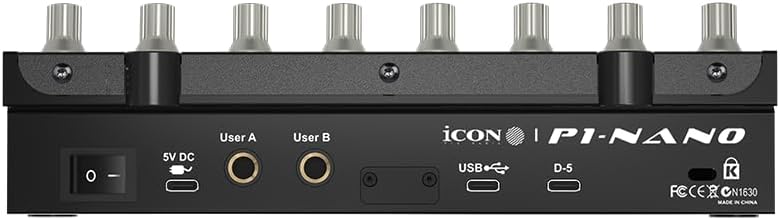
- Connect the P1-Nano to your computer using a USB-C cable.
- Connect the 5V DC power adapter to the P1-Nano and a power outlet.
- Connect the D5 Display unit to the dedicated D5 port on the P1-Nano.
- Optional: Connect footswitch pedals to the User A and User B 1/4 inch inputs for additional control.
3.2 Software Installation and iMap Configuration
To unlock the full potential of your P1-Nano, download and install the iMap software from the official iCON Pro Audio product page. This software allows for comprehensive customization of buttons, hotkeys, and MIDI commands.
The P1-Nano is compatible with both MacOS and Windows systems. Firmware upgrades can be performed via the USB-C connection.
3.3 DAW-Integration
The P1-Nano supports seamless integration with various Digital Audio Workstations (DAWs) using Mackie Control and HUI protocols. It comes with preloaded maps for 18 popular DAWs, including Bitwig, Cubase/Nuendo, Logic Pro X, Ableton Live, and Pro Tools. You can connect to and control up to three DAWs simultaneously.
4. Operating the P1-Nano

4.1 Motorized Fader
The P1-Nano features a single touch-sensitive motorized fader with 12-bit resolution, allowing for precise and automated control over track levels and other parameters within your DAW.
4.2 Encoder Knobs
Eight dual-function encoder knobs provide versatile control over various parameters, such as pan, send levels, plug-in controls, and more. Their dual-functionality allows for deeper control depending on the selected mode or layer.
4.3 Touchscreen Display and Command Layers
The 4-inch touchscreen display is a central feature, offering 5 color-coded layers. These layers provide access to up to 80 displayable and actionable functions, which can be organized in real-time to match your workflow. The display provides visual feedback for selected parameters and commands.
4.4 Transport Controls and Jog Wheel
Dedicated transport buttons (Play, Stop, Record, Fast Forward, Rewind) provide intuitive control over your DAW's playback. The smooth-action jog wheel allows for precise scrubbing, navigation, and editing within your project.
4.5 Navigation and Zoom Functions
Illuminated zoom and focus functions, along with directional buttons, enable efficient navigation through your DAW project, allowing you to quickly locate and adjust specific sections or tracks.
4.6 Master Assign Button
The Master Assign button allows you to quickly assign the motorized fader to control the master track or other designated master parameters within your DAW.
4.7 Footswitch Compatibility
The P1-Nano supports external footswitch pedals via its User A and User B 1/4 inch inputs. These can be configured through the iMap software to trigger various commands, adding hands-free control options to your workflow.
5. D5 Display Unit
The included D5 Display unit integrates seamlessly with the P1-Nano, providing additional visual feedback for track names, parameters, and other critical information, further enhancing your control and monitoring capabilities.

6. Customization with iMap Software
The iMap software is the heart of the P1-Nano's customization. It allows you to tailor the control surface to your specific needs and workflow.
6.1 Tastenfunktionen
Use the drag-and-drop interface within iMap to assign your DAW commands to different buttons on the touchscreen function layers.
6.2 Hotkey-Befehle
Program keyboard hotkeys into the touchscreen function buttons for quick access to frequently used commands.
6.3 MIDI Commands
Set up MIDI commands to use your P1-Nano as a MIDI controller for virtual instruments and other software. The iMap software comes preloaded with maps for 18 popular DAWs, simplifying initial setup.
7. Spezifikationen
| Besonderheit | Detail |
|---|---|
| Artikelgewicht | 2 Pfund |
| Technische Daten | 7.1 x 8.38 x 2.36 Zoll |
| Artikelmodellnummer | IPA-P1NANOD5-BUN |
| Kompatible Geräte | Most devices with a USB or USB-C port |
| Steckertyp | USB |
| Hardware-Schnittstelle | USB |
| Unterstützte Software | Ableton Live (and other major DAWs) |
| Materialtyp | Metall |
| Musikrichtung | Elektronisch |
| Instrumentenschlüssel | Beliebig |
| Anzahl der Mischkanäle | 8 |
| Hardware-Plattform | PC/Mac |
8. Wartung
To ensure the longevity and optimal performance of your P1-Nano, follow these maintenance guidelines:
- Reinigung: Use a soft, dry cloth to clean the surface of the unit. Avoid using abrasive cleaners, solvents, or waxes, as these can damage the finish and electronic components.
- Umfeld: Keep the device in a clean, dry environment. Avoid exposure to extreme temperatures, humidity, or direct sunlight.
- Handhabung: Behandeln Sie das Gerät mit Sorgfalt. Vermeiden Sie es, es fallen zu lassen oder starken Stößen auszusetzen.
9. Fehlerbehebung
If you encounter issues with your P1-Nano, refer to the following common troubleshooting steps:
- Kein Strom/Gerät schaltet sich nicht ein: Ensure the 5V DC power adapter is securely connected to both the unit and a working power outlet. Verify the USB-C cable is properly connected to your computer.
- No DAW Control:
- Check if the P1-Nano is recognized by your computer's operating system.
- Verify that the correct DAW is selected on the P1-Nano and within the iMap software.
- Ensure that Mackie Control or HUI protocols are correctly enabled and configured in your DAW's preferences.
- Restart your DAW and the P1-Nano.
- Fader/Knob Malfunction: Check for any physical obstructions or debris around the fader or knobs. If issues persist, try recalibrating the controls via the iMap software if such an option is available.
- D5 Display Blank/Not Working: Ensure the D5 Display unit is securely connected to the dedicated D5 port on the P1-Nano.
- Firmware-Updates: Regularly check the iCON Pro Audio website for the latest firmware updates, which can resolve bugs and improve performance.
10. Garantie und Support
The iCON Pro Audio P1-Nano is covered by a manufacturer's warranty. For detailed warranty information, product registration, and technical support, please visit the official iCON Pro Audio webAuf dieser Website finden Sie außerdem weitere Ressourcen, häufig gestellte Fragen und Kontaktinformationen zum Kundenservice.


