1. Einleitung
This manual provides detailed instructions for the MACALLY BTZKEY Bluetooth Full-size Keyboard, designed for seamless integration with Apple devices. It features a Japanese layout, a numeric keypad, and multi-pairing capabilities for up to three devices. Please read this manual thoroughly before using the product to ensure proper operation and longevity.

Figure 1: MACALLY BTZKEY Bluetooth Full-size Keyboard
2. Packungsinhalt
Bitte überprüfen Sie den Packungsinhalt, um sicherzustellen, dass alle Artikel vorhanden sind:
- MACALLY BTZKEY Bluetooth Full-size Keyboard
- USB-C-Ladekabel
- Bedienungsanleitung
3. Einrichtung
3.1 Aufladen der Tastatur
The keyboard comes with a built-in 780mAh rechargeable battery. Before initial use, it is recommended to fully charge the keyboard.
- Connect the included USB-C cable to the charging port on the keyboard.
- Verbinden Sie das andere Ende des USB-C-Kabels mit einem USB-Netzteil (nicht im Lieferumfang enthalten) oder einem USB-Anschluss mit Stromversorgung an Ihrem Computer.
- Die Ladeanzeigeleuchte leuchtet während des Ladevorgangs und erlischt, sobald der Akku vollständig geladen ist.
Notiz: The USB-C cable provided is for charging only and does not support data transfer.

Figure 2: Charging the MACALLY BTZKEY Keyboard
3.2 Koppeln mit Geräten
The MACALLY BTZKEY keyboard supports pairing with up to three Bluetooth-enabled devices (MacBook, iMac, iPhone, iPad). You can easily switch between these devices.
- Stellen Sie sicher, dass die Tastatur geladen und eingeschaltet ist.
- Enable Bluetooth on your device (Mac, iPad, iPhone).
- On the keyboard, press and hold one of the dedicated device keys (B1, B2, or B3) for 3-5 seconds until the corresponding indicator light above the key flashes rapidly. This indicates the keyboard is in pairing mode.
- On your device, go to Bluetooth settings and select "BTZKEY" from the list of available devices.
- Sobald die Verbindung hergestellt ist, hört die Kontrollleuchte auf zu blinken und leuchtet einige Sekunden lang dauerhaft, bevor sie ausgeht.
- To switch between paired devices, simply press the corresponding device key (B1, B2, or B3). The keyboard will automatically connect to the last paired device on that channel.
Tipp zur Fehlerbehebung: If pairing fails, it is recommended to delete all existing pairing records for the keyboard on your device and attempt to reconnect.

Figure 3: Multi-Sync Bluetooth Functionality
4. Bedienungsanleitung
4.1 Mac-Specific Layout and Shortcut Keys
This keyboard is designed with a 111-key macOS-specific layout, providing a familiar and efficient typing experience for Apple users. It includes 14 dedicated shortcut keys for quick access to common Mac functions.
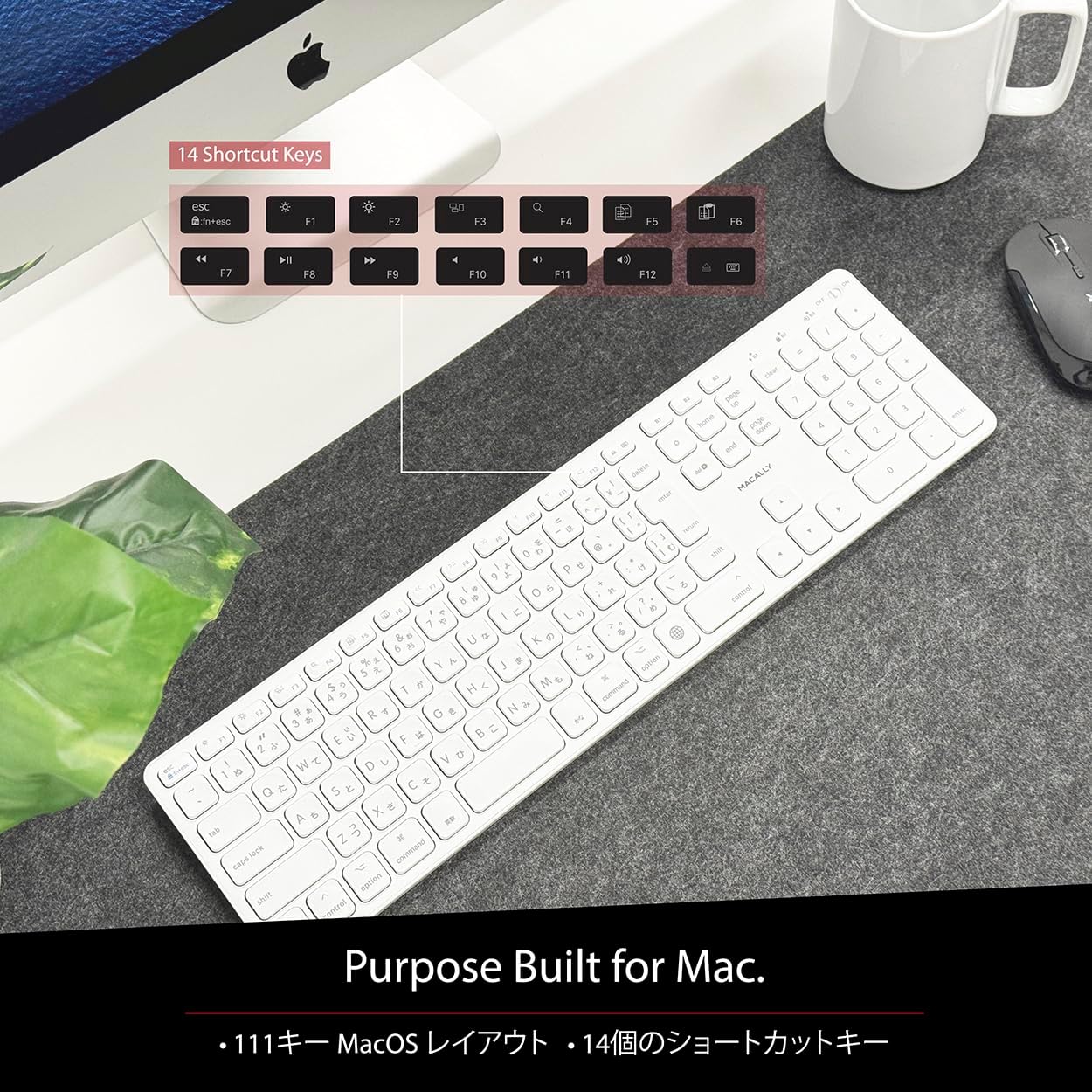
Figure 4: Mac-Specific Layout and Shortcut Keys
4.2 Scissor-Switch Keycaps
The keyboard utilizes quiet scissor-switch keys, offering a smooth, tactile, and quiet typing experience. This design ensures comfortable and efficient typing, whether for extended periods or quick tasks.
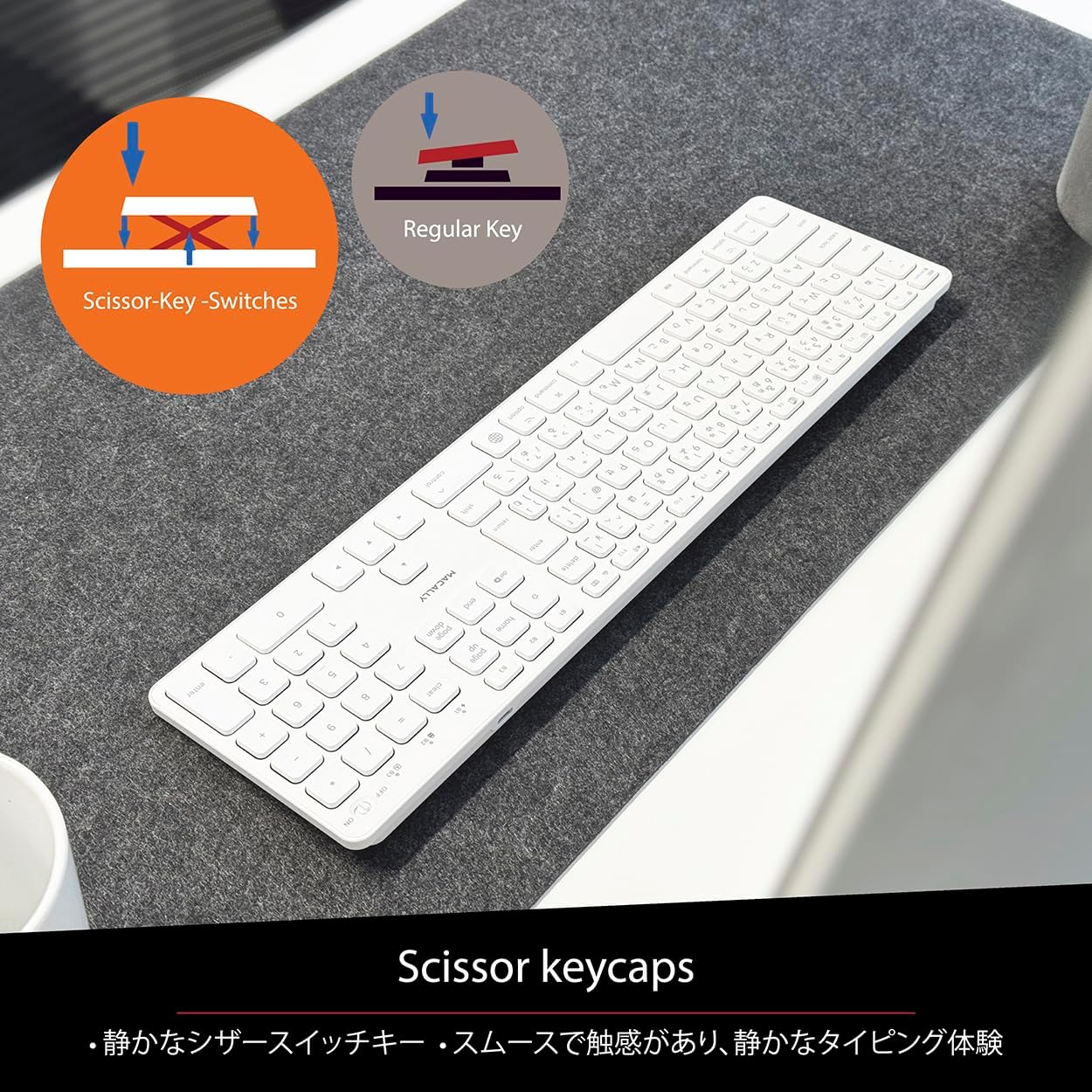
Figure 5: Scissor-Key-Switches Mechanism
4.3 Ergonomie und Design
The keyboard features an integrated kickstand for comfortable typing angles, reducing strain during use. Its slim profile, approximately 0.8 inches (2cm) thick, ensures portability and ergonomic use, complementing any workspace.
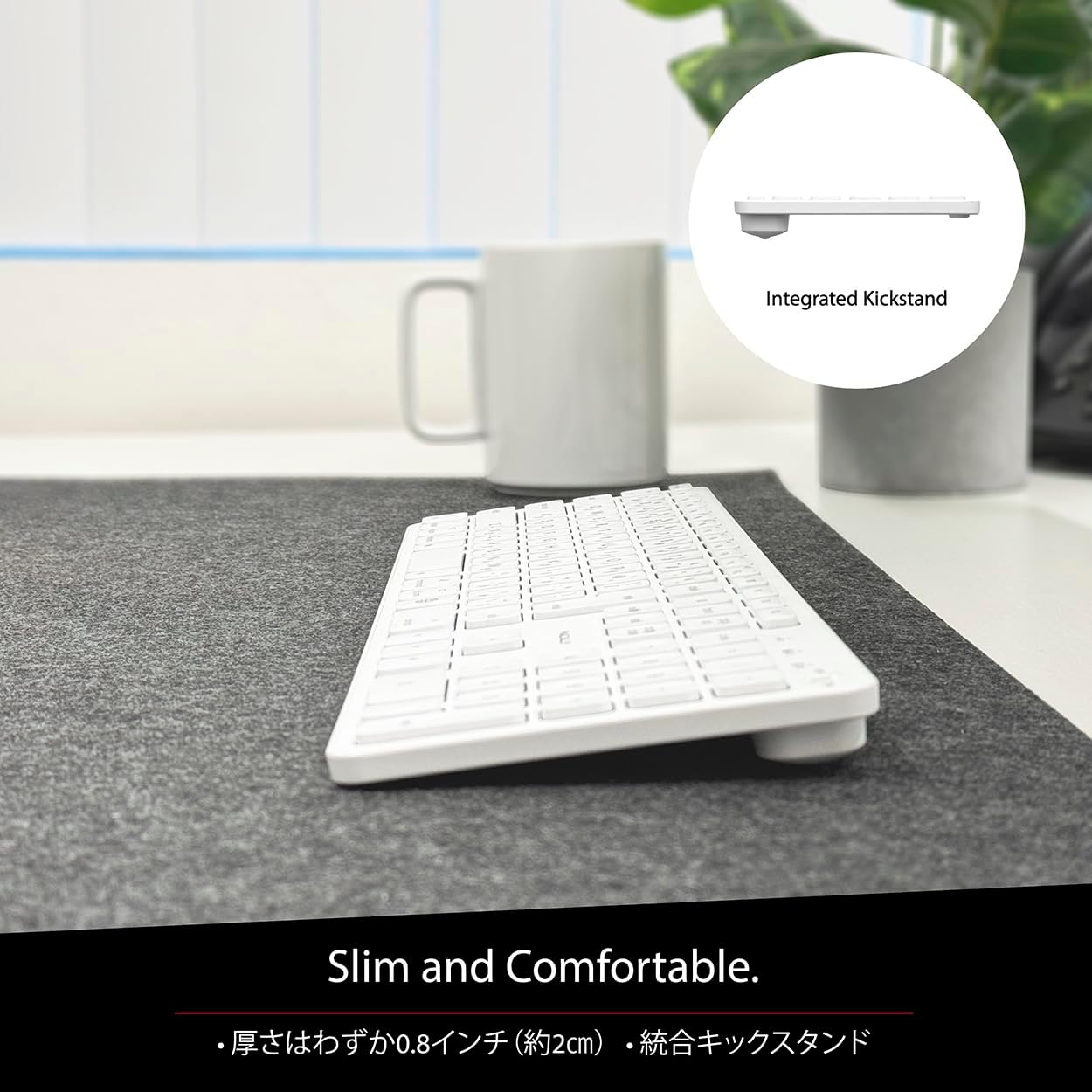
Figure 6: Slim Design with Integrated Kickstand
5. Wartung
Um die Langlebigkeit und optimale Leistung Ihrer Tastatur zu gewährleisten, beachten Sie bitte folgende Wartungshinweise:
- Reinigung: Mit einem weichen, fusselfreien Tuch leichtampReinigen Sie die Tastaturoberfläche anschließend mit Wasser oder einer milden Reinigungslösung. Vermeiden Sie scharfe Chemikalien oder Scheuermittel.
- Staubentfernung: Verwenden Sie Druckluft, um Staub und Schmutz zwischen den Tasten zu entfernen.
- Batteriepflege: Avoid exposing the keyboard to extreme temperatures. Charge the keyboard regularly, even if not in frequent use, to maintain battery health.
- Lagerung: Bei längerer Nichtbenutzung sollte die Tastatur an einem kühlen, trockenen Ort und vor direkter Sonneneinstrahlung geschützt aufbewahrt werden.
6. Fehlerbehebung
If you encounter issues with your MACALLY BTZKEY keyboard, please refer to the following common problems and solutions:
| Problem | Mögliche Ursache | Lösung |
|---|---|---|
| Tastatur verbindet sich nicht/koppelt nicht | Bluetooth off, low battery, pairing conflict | Ensure Bluetooth is enabled on device. Charge keyboard. Delete existing pairing records on device and re-pair. |
| Keys unresponsive or repeating characters | Low battery, software glitch, interference | Charge keyboard. Restart device. Re-pair keyboard. Minimize interference from other wireless devices. |
| Wechsel zwischen Geräten nicht möglich | Device not properly paired to channel | Ensure each device is paired to a unique channel (B1, B2, B3). Re-pair if necessary. |
| Kurze Akkulaufzeit | Frequent use, aging battery | Ensure full charge before use. Reduce backlight usage if applicable (not on this model). Battery life may decrease over time. |
Wenn das Problem nach dem Ausprobieren dieser Lösungen weiterhin besteht, wenden Sie sich bitte an den Kundensupport.
7. Spezifikationen
| Besonderheit | Beschreibung |
|---|---|
| Marke | Macally |
| Hersteller | MACALLY |
| Serie | BTZKEY |
| Produktabmessungen (L x B x H) | 42 x 14 x 2 cm |
| Produktmodellnummer | BTZKEY |
| Farbe | Weiß |
| Batterien im Lieferumfang enthalten | Ja |
| Lithium-Akkupack | In Geräten enthaltene Batterien |
| Gewicht der Lithiumbatterie | 2 g |
| Artikelgewicht | 610 g |
| Kompatible Geräte | Laptop (MacBook Pro/Air, iMac, Mac Mini, Mac Pro, iPad, iPhone) |
| Konnektivitätstechnologie | Bluetooth |
| Tastaturbeschreibung | Office-Tastatur |
| Empfohlene Verwendung für das Produkt | Geschäft |
| Besonderheit | Wiederaufladbar |
| Anzahl der Schlüssel | 111 |
| Im Lieferumfang enthaltene Komponenten | USB-Kabel |
8. Garantie und Support
For detailed warranty information, technical support, and customer service, please refer to the official MACALLY website or contact their support channels directly. It is recommended to keep your purchase receipt as proof of purchase for any warranty claims.
9. Offizielle Produktvideos
Official product videos, if available and relevant, would be embedded here to provide visual guidance on setup, features, or troubleshooting. Please note that video content is subject to availability and may require an internet connection to view.
(No official seller videos were available in the provided product data to embed at this time.)


