Einführung
This manual provides detailed instructions for the TECPHILE iPad Keyboard Case, Model T5509D. It covers setup, operation, maintenance, and troubleshooting to ensure optimal use of your device. Please read this manual thoroughly before using the product.
Kompatibilität
The TECPHILE iPad Keyboard Case (Model T5509D) is specifically designed for the following iPad Pro 12.9-inch models:
- iPad Pro 12.9-inch (6th Generation, 2022): Modelle A2436, A2764, A2437, A2766
- iPad Pro 12.9-inch (5th Generation, 2021): Modelle A2378, A2379, A2461, A2462
- iPad Pro 12.9-inch (4th Generation, 2020): Modelle A2233, A2229, A2069, A2232
- iPad Pro 12.9-inch (3rd Generation, 2018): Modelle A1876, A2014, A1895, A1983
Diese Hülle ist mit keinem anderen iPad-Modell kompatibel.

Image: Compatibility chart for TECPHILE iPad Keyboard Case. Please verify your iPad model number on the back of your device to ensure compatibility.
Packungsinhalt
Bitte prüfen Sie beim Öffnen des Pakets, ob alle Artikel vorhanden sind:
- TECPHILE iPad Keyboard Case (with integrated kickstand and pencil holder)
- Detachable Wireless Backlit Keyboard
- USB-C-Ladekabel
- Benutzerhandbuch (dieses Dokument)
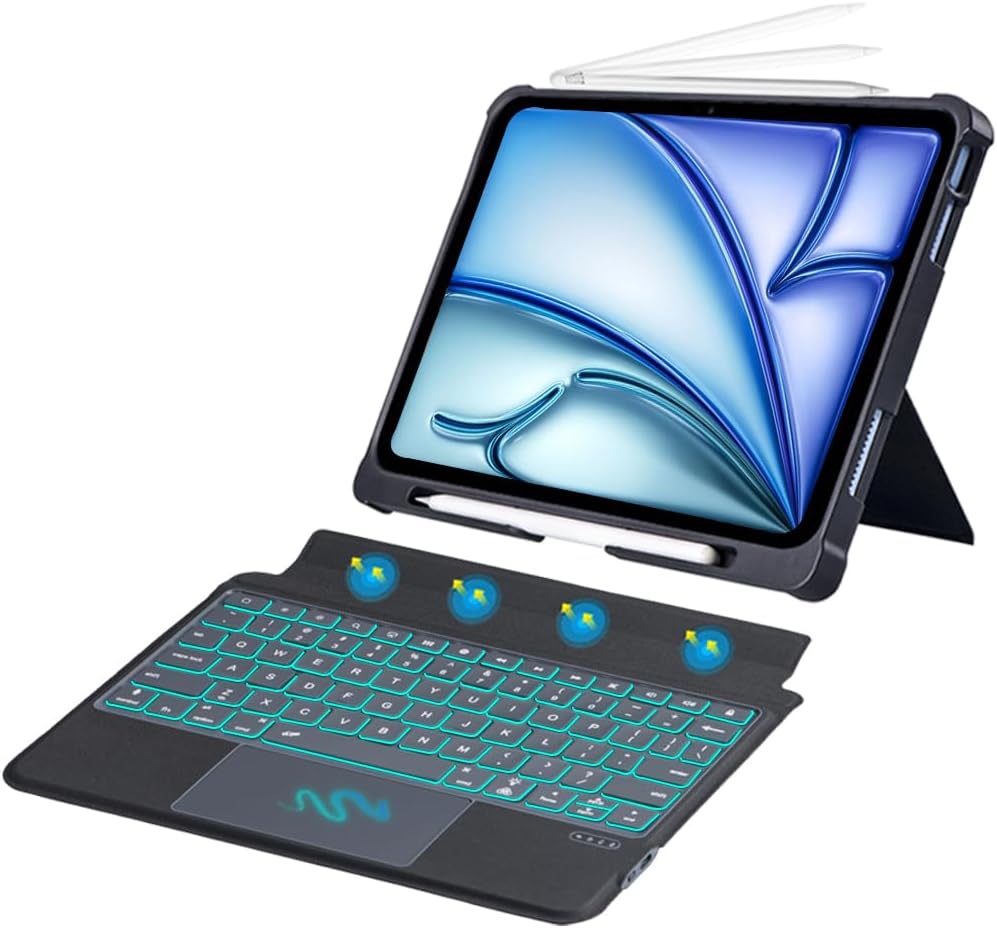
Bild: Überview of the TECPHILE iPad Keyboard Case components, including the case with an iPad and the detached wireless keyboard.
Installationshandbuch
1. Anbringen Ihres iPads an der Hülle
- Gently align your iPad Pro 12.9-inch with the case.
- Insert the iPad into the protective shell, ensuring all corners are securely fitted. The case provides full protection and features honeycomb heat release design.
- The case includes a dedicated pencil holder and supports wireless charging for your Apple Pencil.
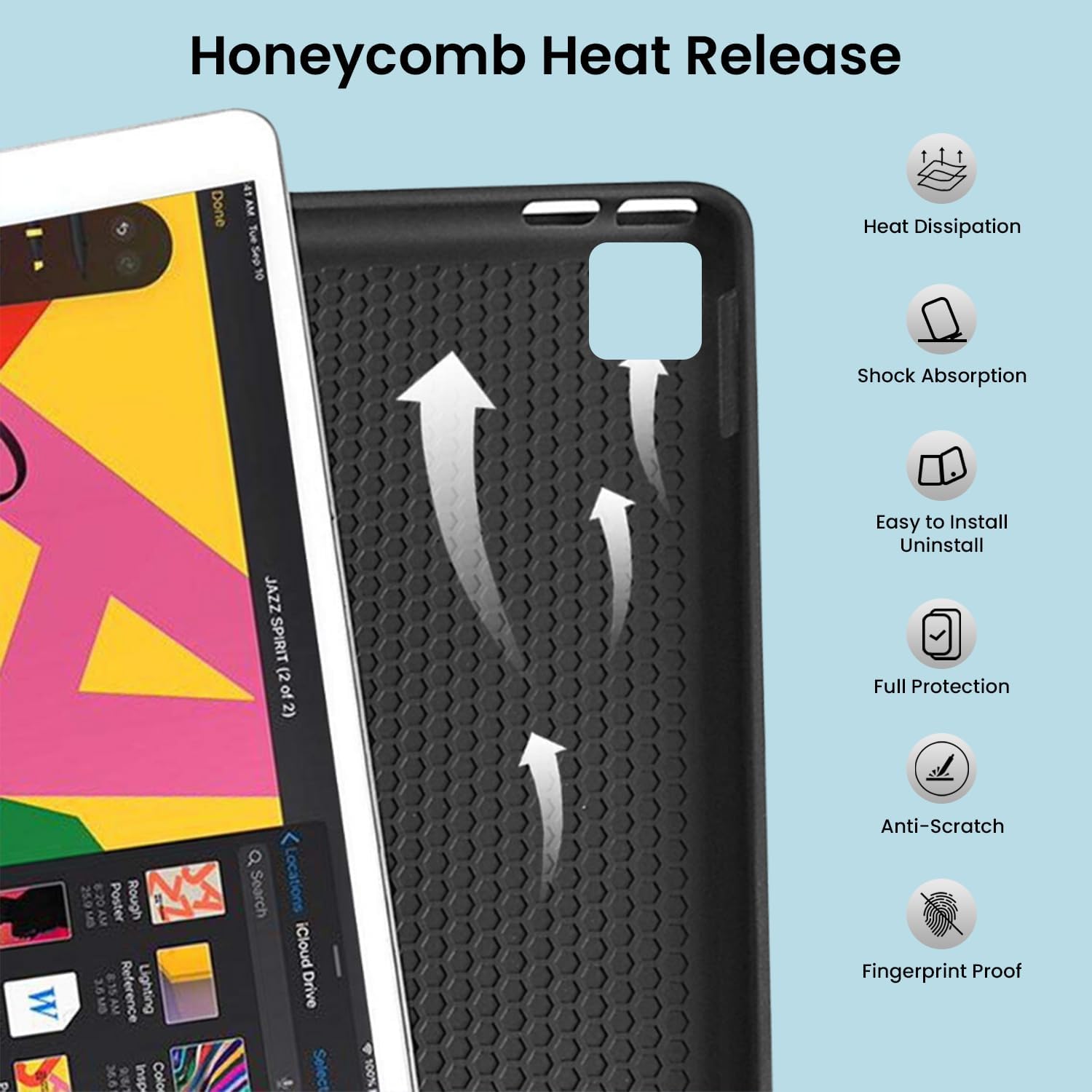
Image: Detail of the case's honeycomb structure for heat dissipation and protective features.

Image: Illustrates the wireless charging capability for the Apple Pencil and the integrated pencil holder.
2. Aufladen der Tastatur
Before initial use, fully charge the keyboard. The keyboard has a 500mAh battery capacity.
- Suchen Sie den USB-C-Ladeanschluss an der Seite der Tastatur.
- Connect the provided USB-C cable to the keyboard and a power source (e.g., USB wall adapter, computer USB port).
- The charging indicator light will illuminate. Once fully charged, the light may change or turn off.
A full charge provides approximately 80 hours of use without backlight or 5 hours with backlight enabled.

Image: Keyboard charging port and battery performance details.
3. Verbinden der Tastatur über Bluetooth
Die Tastatur verbindet sich drahtlos via Bluetooth mit Ihrem iPad.
- Stellen Sie sicher, dass die Tastatur geladen und eingeschaltet ist.
- Drücken Sie auf der Tastatur die Fn+Z keys simultaneously. The Bluetooth indicator light will start blinking, indicating it's in pairing mode.
- Gehen Sie auf Ihrem iPad zu Einstellungen > Bluetooth.
- Schalten Sie Bluetooth ein. Ihr iPad sucht dann nach verfügbaren Geräten.
- Locate and tap "Bluetooth Keyboard" (or similar name) in the list of devices to connect.
- Sobald die Verbindung hergestellt ist, hört die Bluetooth-Anzeigeleuchte auf der Tastatur auf zu blinken.

Image: Visual guide for Bluetooth pairing process.
Bedienungsanleitung
Tastaturfunktionen
The detachable keyboard features a QWERTY layout with additional function keys for iPad control.
- Steuerung der Hintergrundbeleuchtung: Drücken Fn + 💡 (light bulb icon) to turn on/off the backlight and cycle through 7 different colors. Press Fn + ☀️ (sun icon) to adjust the 3 levels of brightness.
- Full Shortcut Row: Access common iPad functions directly from the top row of keys.
- Intelligent Voice Input Function: Utilize the dedicated key for voice input.

Bild: Detailliert view of the keyboard's backlit keys and function controls.
Smart Multi-Gesture Trackpad
The integrated large trackpad supports multi-touch gestures for enhanced navigation.
- Grundlegende Navigation: Move the cursor by sliding your finger across the trackpad.
- Click Functions: Supports right and left click functions.
- Multi-Finger Gestures: Utilize native iPad multi-finger gestures for scrolling, swiping, and other actions. Refer to your iPad's settings for a full list of supported gestures.
- Turn On/Off Trackpad: Drücken Fn + 🖱️ (trackpad icon) to enable or disable the trackpad.
Adjustable Kickstand and Usage Modes
The case features an adjustable kickstand that allows for multiple viewing angles and usage modes.
- Typmodus: Position the iPad upright with the keyboard attached for a laptop-like experience.
- View Modus: Adjust the kickstand to a comfortable angle for watching videos or presentations without the keyboard.
- Lesemodus: Fold the keyboard behind the iPad for a tablet-like reading experience.
- Skizzenmodus: Lower the angle for drawing or writing with the Apple Pencil.
The kickstand offers a seamless range of angles, smoothly reclining from 30° to 160° while maintaining stability.

Image: Various usage modes enabled by the adjustable kickstand and detachable keyboard.
Automatische Weck-/Schlaffunktion
The keyboard case includes an auto wake/sleep function to conserve battery life. Closing the case will put your iPad to sleep, and opening it will wake it up.
Wartung
- Reinigung: Verwenden Sie ein weiches,amp Verwenden Sie ein Tuch, um die Außenseite des Gehäuses und die Tastatur abzuwischen. Vermeiden Sie aggressive Chemikalien oder scheuernde Materialien.
- Lagerung: Bewahren Sie das Tastaturetui bei längerer Nichtbenutzung an einem kühlen, trockenen Ort auf. Stellen Sie sicher, dass die Tastatur ausgeschaltet ist, um die Batterielebensdauer zu verlängern.
- Batteriepflege: Um die Akkulaufzeit zu verlängern, vermeiden Sie häufiges vollständiges Entladen der Tastatur. Laden Sie sie regelmäßig auf.
Fehlerbehebung
Tastatur verbindet sich nicht
- Überprüfen Sie die Leistung: Stellen Sie sicher, dass die Tastatur eingeschaltet ist und über ausreichend Akkuladung verfügt.
- Bluetooth erneut koppeln:
- Gehen Sie auf Ihrem iPad zu Einstellungen > Bluetooth.
- Forget or unpair the "Bluetooth Keyboard" if it appears in "My Devices".
- Starten Sie Ihr iPad neu.
- Put the keyboard into pairing mode (press Fn+Z).
- Suchen nach and connect to the keyboard again on your iPad.
- Interferenz: Entfernen Sie sich von anderen drahtlosen Geräten, die Störungen verursachen könnten.
Tasten reagieren nicht
- Batteriestand: Laden Sie die Tastatur vollständig auf.
- Bluetooth Verbindung: Stellen Sie sicher, dass die Tastatur ordnungsgemäß über Bluetooth verbunden ist.
- Neustart: Schalten Sie die Tastatur aus und wieder ein.
Trackpad funktioniert nicht
- Enable Trackpad: Stellen Sie sicher, dass das Trackpad durch Drücken aktiviert ist. Fn + 🖱️ (trackpad icon).
- iPad-Einstellungen: Check iPad accessibility settings for pointer control.
- Trackpad reinigen: Stellen Sie sicher, dass die Oberfläche des Trackpads sauber und frei von Verunreinigungen ist.
Technische Daten
| Modellname | T5509D |
| Kompatibilität | iPad Pro 12.9" (6th, 5th, 4th, 3rd Gen) |
| Konnektivität | Bluetooth |
| Tastaturlayout | QWERTY |
| Hintergrundbeleuchtung | 7 Farben, 3 Helligkeitsstufen |
| Trackpad | Large Multi-Gesture Trackpad |
| Batteriekapazität | 500 mAh (Lithium-Ionen) |
| Battery Life (Non-backlight) | Bis zu 80 Stunden |
| Akkulaufzeit (Hintergrundbeleuchtung) | Bis zu 5 Stunden |
| Ladeanschluss | USB-C |
| Technische Daten | 29 x 24 x 2 cm |
| Artikelgewicht | 735 g |
| Material | Leatherite and ABS Plastic |
| Besondere Merkmale | Adjustable Kickstand (30°-160°), Detachable Keyboard, Pencil Holder, Wireless Pencil Charging Support, Auto Wake/Sleep, Honeycomb Heat Release |
Garantie und Support
For warranty information or technical support, please refer to the documentation included with your purchase or contact TECPHILE customer service through the retailer where the product was purchased. Please have your model number (T5509D) and purchase details ready when contacting support.
