1. Einleitung
This manual provides essential information for using your new Tecno Spark 20C smartphone. It covers device setup, basic operations, maintenance tips, and troubleshooting common issues. Please read this manual carefully to ensure proper and safe use of your device.
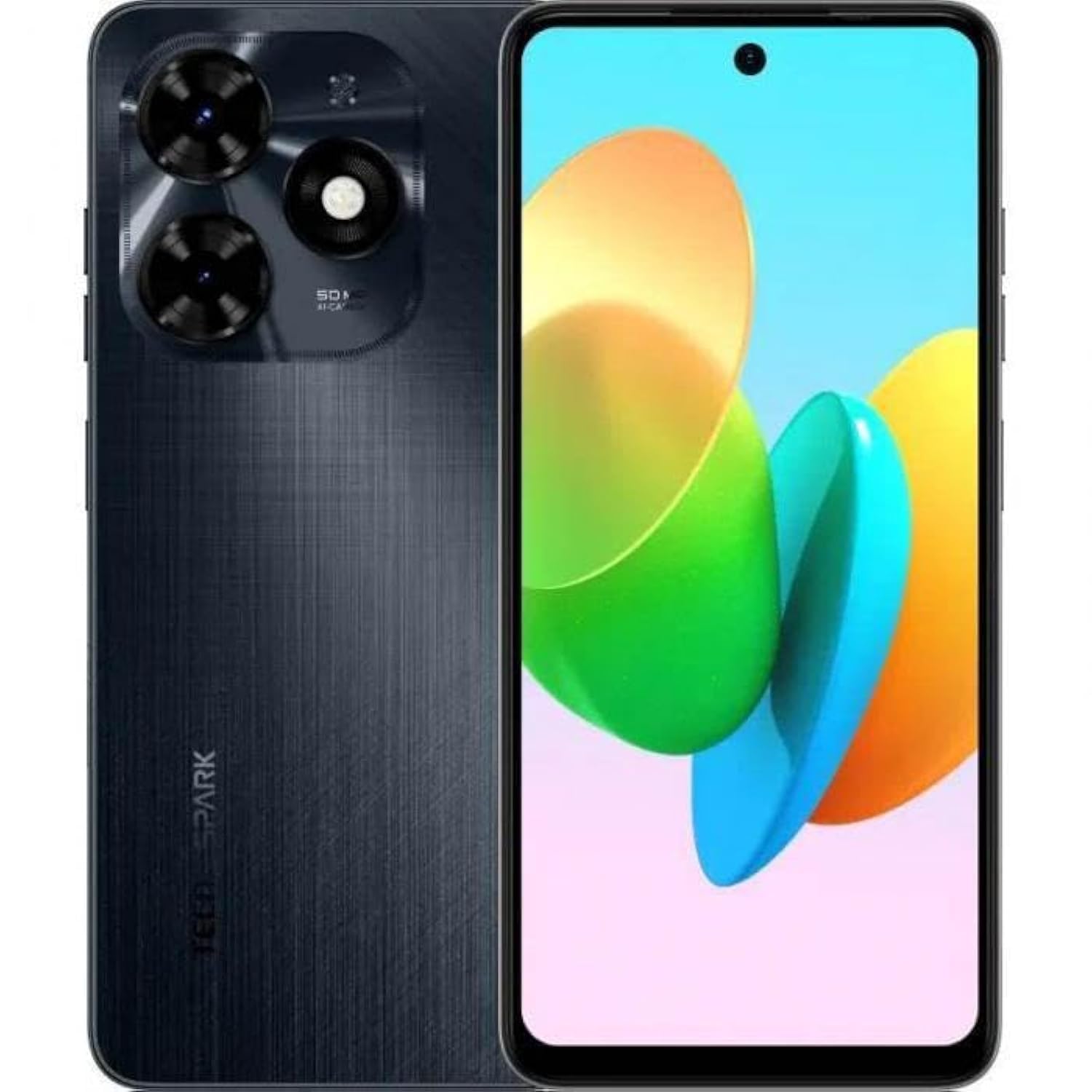
Bild 1.1: Vorderseite view of the Tecno Spark 20C smartphone.
2. Packungsinhalt
Upon unboxing your Tecno Spark 20C, please verify that the following items are included:
- Tecno Spark 20C Smartphone
- Netzteil
- USB-Ladekabel
- SIM-Auswerferwerkzeug
- Kurzanleitung
- Garantiekarte
3. Gerät überview
The Tecno Spark 20C features a 6.6-inch HD+ display. The device is equipped with a 50-megapixel main camera on the rear and an 8-megapixel front camera. Physical buttons typically include power/lock and volume controls. Ports usually include a USB charging port and a 3.5mm audio jack.
4. Einrichtung
4.1. SIM- und MicroSD-Karten installieren
- Suchen Sie den SIM-Karten-Einschub an der Seite Ihres Geräts.
- Führen Sie das SIM-Auswurfwerkzeug in die kleine Öffnung neben dem Fach ein und drücken Sie vorsichtig, bis das Fach herausspringt.
- Legen Sie Ihre Nano-SIM-Karte(n) und/oder Ihre microSD-Karte in die dafür vorgesehenen Steckplätze des Kartenfachs ein. Achten Sie darauf, dass die goldenen Kontakte nach unten zeigen.
- Setzen Sie das Fach vorsichtig wieder in das Gerät ein.
4.2. Erste Inbetriebnahme und Konfiguration
- Halten Sie den Ein-/Ausschalter gedrückt, bis das Tecno-Logo erscheint.
- Folgen Sie den Anweisungen auf dem Bildschirm, um Ihre Sprache und Region auszuwählen, eine WLAN-Verbindung herzustellen und Ihr Google-Konto einzurichten.
- You may also be prompted to set up a screen lock (PIN, pattern, or fingerprint).
4.3. Aufladen des Geräts
Verbinden Sie das USB-Kabel mit dem Ladeanschluss Ihres Telefons und das andere Ende mit dem Netzteil. Stecken Sie das Netzteil in eine Steckdose. Das Akkusymbol auf dem Bildschirm zeigt den Ladestatus an. Für eine optimale Akkulaufzeit verwenden Sie bitte das mitgelieferte Ladegerät und Kabel.
5. Betrieb
5.1. Grundlegende Navigation
Your Tecno Spark 20C uses a touchscreen interface. Common gestures include:
- Klopfen: To open apps, select items, or confirm actions.
- Wischen: Zum Durchblättern von Bildschirmen, Listen oder Seiten.
- Prise: Um Bilder zu vergrößern oder zu verkleinern und web Seiten.
- Lange drücken: Um auf Kontextmenüs zuzugreifen oder App-Symbole zu verschieben.
5.2. Anrufe tätigen und Nachrichten senden
Um einen Anruf zu tätigen, öffnen Sie die Telefon Geben Sie in der App die Nummer ein und tippen Sie auf das Anrufsymbol. Um eine Nachricht zu senden, öffnen Sie die App. Nachrichten app, tap the new message icon, enter the recipient's number or select from contacts, and type your message.
5.3. Verwendung der Kamera
Öffnen Sie die Kamera app. The Tecno Spark 20C features a 50-megapixel main camera with AI image processing algorithms and an 8-megapixel front camera. Tap the shutter button to take a photo. Swipe to switch between photo, video, and other modes like panorama. AI features can automatically optimize settings for different scenes.
5.4. Internetverbindung
Access the internet via Wi-Fi or mobile data (4G). To connect to Wi-Fi, go to Einstellungen > Netzwerk & Internet > WLAN, turn Wi-Fi on, and select your desired network. To enable mobile data, go to Einstellungen > Netzwerk & Internet > Mobilfunknetz and toggle Mobile data on.
5.5. NFC for Contactless Payments
The Tecno Spark 20C includes an NFC module. To use contactless payments, ensure NFC is enabled in Einstellungen > Verbundene Geräte > NFC. Set up your preferred payment app and hold your phone near a compatible payment terminal.
6. Wartung
6.1. Reinigen Ihres Geräts
Use a soft, lint-free cloth to gently wipe the screen and body of your phone. Avoid using harsh chemicals or abrasive materials, which can damage the device's finish or screen coating.
6.2. Batteriepflege
To prolong battery life, avoid exposing your phone to extreme temperatures. It is recommended to keep the battery charge between 20% and 80% for daily use. Avoid completely draining the battery frequently.
6.3. Software-Updates
Prüfen Sie regelmäßig, ob Software-Updates verfügbar sind, um sicherzustellen, dass Ihr Gerät über die neuesten Funktionen, Sicherheitspatches und Leistungsverbesserungen verfügt. Gehen Sie zu Einstellungen > System > Systemupdate um verfügbare Updates zu überprüfen und zu installieren.
7. Fehlerbehebung
This section addresses common issues you might encounter with your Tecno Spark 20C.
- Gerät lässt sich nicht einschalten: Ensure the battery is charged. Connect the charger and wait a few minutes before attempting to power on again. If it still doesn't turn on, try a forced restart by holding the Power button for about 10-15 seconds.
- Bildschirm reagiert nicht: If the screen is frozen, perform a forced restart. If the issue persists, ensure your hands are clean and dry, and the screen is free of debris.
- Network issues (no signal/Wi-Fi): Check if Airplane mode is off. For mobile data, ensure your SIM card is properly inserted and mobile data is enabled in settings. For Wi-Fi, try forgetting the network and reconnecting, or restart your router.
- Apps stürzen ab oder frieren ein: Try clearing the app's cache and data in Einstellungen > Apps > [App-Name] > Speicher & Cache. If the problem continues, uninstall and reinstall the app. Ensure your device's software is up to date.
8. Spezifikationen
Key technical specifications for the Tecno Spark 20C:
| Betriebssystem | Android T |
| Prozessor | Achtkernprozessor |
| Netzwerk | 4G |
| Bildschirmgröße | 6.6 Zoll HD+ |
| Auflösung | 720*1612 |
| Installierter RAM | 4 GB |
| Interner Speicher | 256 GB |
| Batteriekapazität | 5000 mAh (as per product description) |
| Konnektivitätstechnologie | 4G, GSM |
| Mobilfunkanbieter | Für alle Träger freigeschaltet |
| Technische Daten | 16.3 x 8 x 0.8 cm; 410 g |
9. Garantie und Support
Your Tecno Spark 20C smartphone comes with a limited warranty. Please refer to the warranty card included in your package for detailed terms and conditions, including coverage period and service procedures. For technical support or further assistance, please visit the official Tecno webWebsite oder wenden Sie sich an den Kundendienst.


