1. Einleitung
Thank you for choosing the Darmoshark N3PRO 8K Wireless Gaming Mouse. This manual provides detailed instructions for setting up, operating, and maintaining your new gaming mouse. Please read this manual thoroughly before use to ensure optimal performance and longevity of the product.
2. Packungsinhalt
- Darmoshark N3PRO Wireless Gaming Mouse
- USB-C zu USB-A Ladekabel
- 2.4G USB-Empfänger
- Bedienungsanleitung

Image: The Darmoshark N3PRO wireless gaming mouse shown with its accompanying 2.4G USB receiver.
3. Produktüberschreitungview
The Darmoshark N3PRO features a lightweight, ergonomic design with multiple connectivity options and programmable buttons.
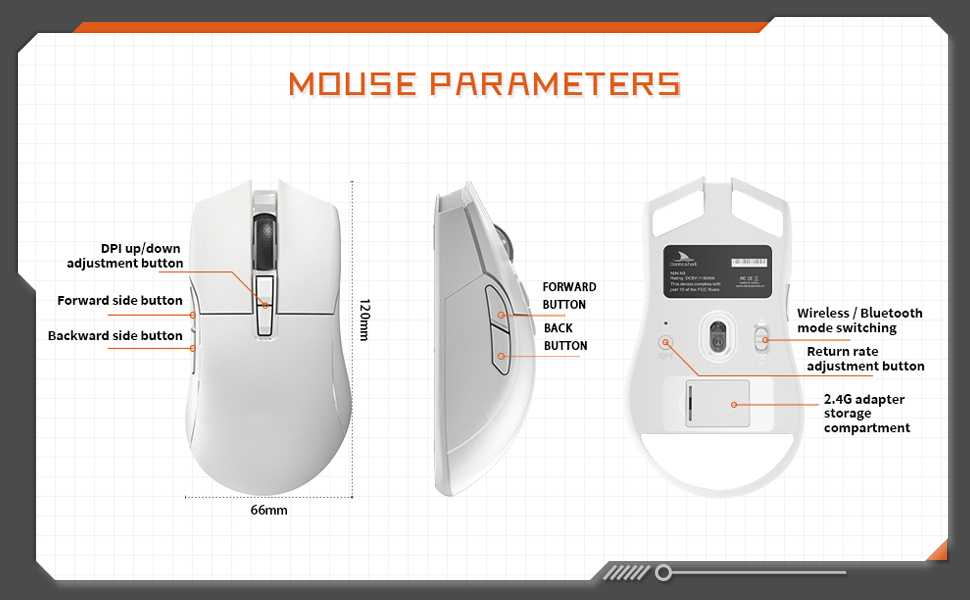
Image: A diagram illustrating the Darmoshark N3PRO mouse from top, side, and bottom views, with labels for buttons and dimensions. Key labels include DPI up/down adjustment button, forward side button, backward side button, forward button, back button, wireless/Bluetooth mode switching, return rate adjustment button, and 2.4G adapter storage compartment.
Tastenfunktionen:
- Linksklick-Taste: Standardfunktion der linken Maustaste.
- Rechtsklick-Schaltfläche: Standardfunktion der rechten Maustaste.
- Scrollrad: Scrollen nach oben/unten und Mittelklickfunktion.
- DPI Up/Down Adjustment Buttons: Adjust the mouse's sensitivity (DPI) levels.
- Forward Side Button: Default function is 'Forward' in web Browser/Anwendungen.
- Backward Side Button: Default function is 'Back' in web Browser/Anwendungen.
- Mode Switch (Bottom): Toggles between 2.4G wireless and Bluetooth modes.
- Return Rate Adjustment Button (Bottom): Adjusts the polling rate.
4. Einrichtung
The Darmoshark N3PRO supports three connection modes: Wired (USB-C), 2.4G Wireless, and Bluetooth 5.0. You can connect up to 3 devices simultaneously.

Image: The Darmoshark N3PRO mouse connected to a laptop via a 2.4G receiver, to a device via USB-C cable, and wirelessly to a smartphone via Bluetooth 5.0, illustrating its tri-mode connectivity.
4.1 Kabelverbindung
- Verbinden Sie das USB-C-Ende des Ladekabels mit der Maus.
- Verbinden Sie das USB-A-Ende des Ladekabels mit einem freien USB-Anschluss Ihres Computers.
- The mouse will be automatically detected and ready for use. This mode also charges the mouse.
4.2 2.4G-Drahtlosverbindung
- Suchen Sie den 2.4-GHz-USB-Empfänger, der sich normalerweise in einem Fach an der Unterseite der Maus befindet.
- Stecken Sie den 2.4-GHz-USB-Empfänger in einen freien USB-Anschluss Ihres Computers.
- Slide the mode switch on the bottom of the mouse to the 2.4G position.
- Die Maus stellt automatisch eine Verbindung her.
4.3 Bluetooth-Verbindung
- Schieben Sie den Modusschalter an der Unterseite der Maus in die Bluetooth-Position.
- Öffnen Sie die Bluetooth-Einstellungen auf Ihrem Computer oder Gerät.
- Suchen nach new devices and select "Darmoshark N3PRO" from the list.
- Befolgen Sie die Anweisungen auf dem Bildschirm, um den Kopplungsvorgang abzuschließen.
5. Bedienungsanleitung
5.1 DPI-Anpassung
The mouse features a PAW3395 optical sensor with adjustable DPI settings up to 26000 DPI. Use the dedicated DPI adjustment buttons on the top of the mouse to cycle through preset DPI levels. The current DPI level may be indicated by an LED color change or through the software.
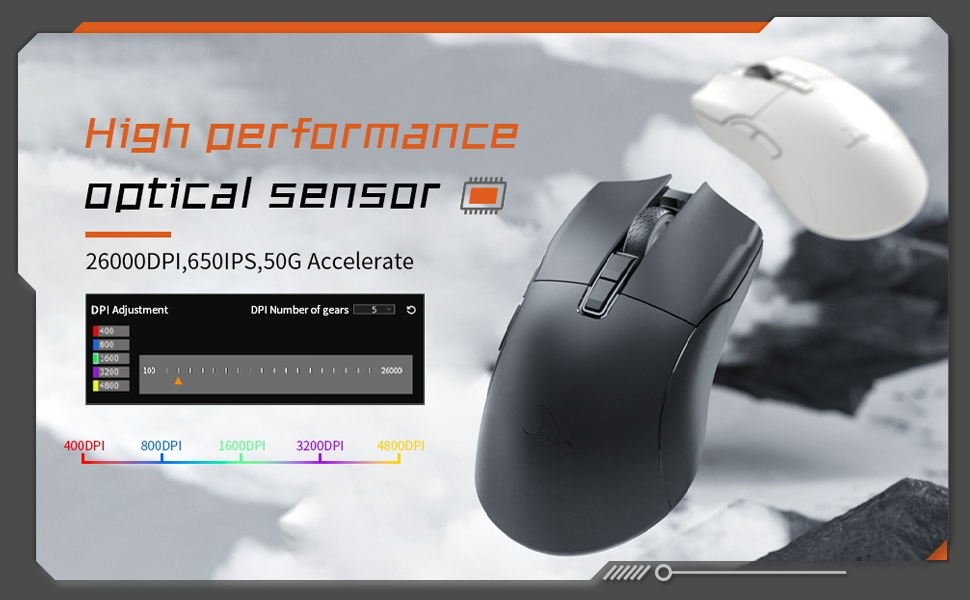
Image: The Darmoshark N3PRO mouse with a blue glowing light, highlighting its adjustable DPI (up to 26000) and IPS (650) settings for precision and speed.
5.2 Anpassung der Wahlbeteiligung
The polling rate can be adjusted using the button on the underside of the mouse or through the customization software. The N3PRO supports polling rates up to 8000Hz for ultra-responsive tracking.
5.3 Programmable Buttons and Software Customization
The Darmoshark N3PRO features 7 programmable buttons. To customize button functions, DPI settings, macros, and other advanced features, download the official Darmoshark software from the manufacturer's website. The software allows for personalized configurations to suit your preferences.
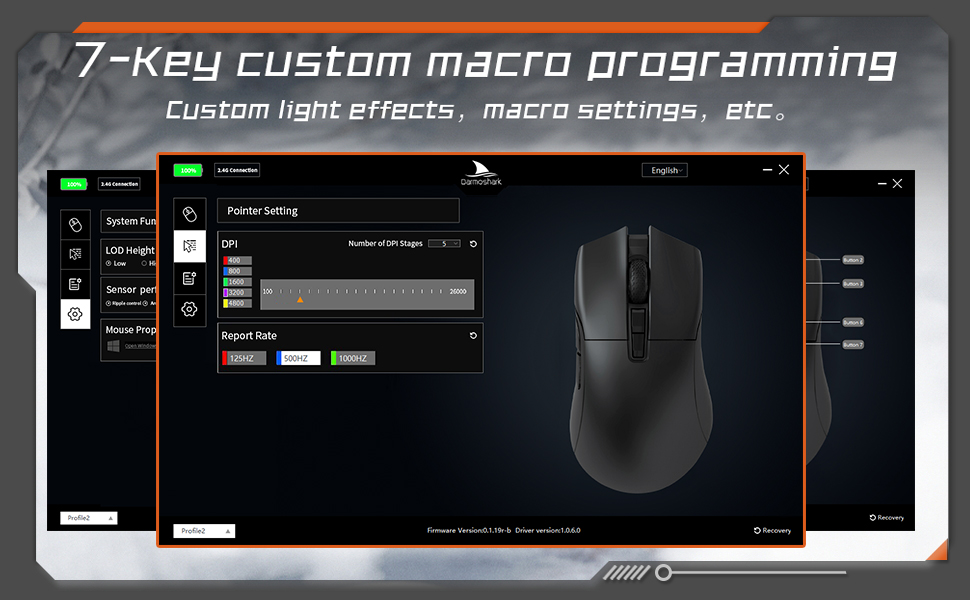
Image: A screenshot of the Darmoshark N3PRO customization software interface, showing options for DPI settings, polling rate, and button assignments, with a visual representation of the mouse.
5.4 Aufladen der Maus
Connect the mouse to your computer using the provided USB-C cable. The mouse will charge automatically. A full charge provides approximately 80 hours of battery life (depending on usage and polling rate). The mouse is equipped with a 300mAh Lithium Ion battery.

Image: A close-up of the Darmoshark N3PRO mouse, indicating its 300mAh battery capacity.
6. Wartung
- Reinigung: Reinigen Sie die Maus mit einem weichen, trockenen Tuch. Bei hartnäckigem Schmutz kann ein leicht feuchtes Tuch hilfreich sein.amp Man kann ein Tuch verwenden, um sicherzustellen, dass keine Flüssigkeit in die Maus eindringt.
- Sensor: Keep the optical sensor on the underside of the mouse clean and free from dust or debris for accurate tracking.
- Lagerung: Bei längerer Nichtbenutzung sollte die Maus an einem trockenen, kühlen Ort aufbewahrt werden.
- Batteriepflege: Vermeiden Sie häufiges vollständiges Entladen des Akkus. Laden Sie die Maus auf, wenn die Akkuanzeige schwach ist.
7. Fehlerbehebung
| Problem | Lösung |
|---|---|
| Maus reagiert nicht (kabelgebunden) |
|
| Mouse not responding (2.4G Wireless) |
|
| Maus reagiert nicht (Bluetooth) |
|
| Ungenaue Verfolgung oder Cursorverzögerung |
|
| Die Tasten funktionieren nicht wie erwartet |
|
8. Spezifikationen
- Modell: unterstützt
- Konnektivität: Tri-Mode (2.4G Wireless, Bluetooth 5.0, USB-C Wired)
- Sensor: Optischer Sensor PAW3395
- DPI: Bis zu 26000 DPI
- Tracking-Geschwindigkeit: 650 IPS
- Beschleunigung: 50 G
- Abfragerate: Up to 8000Hz (wired/2.4G, depending on settings)
- Tasten: 7 programmierbare Tasten
- Gewicht: Ca. 64g
- Abmessungen: 120mm x 66mm x 40mm (Length x Width x Height)
- Batterie: 300 mAh Lithium-Ionen-Akku (wiederaufladbar)
- Lebensdauer eines Tastendrucks: 60 million clicks (approx.)
- Kompatibilität: PC, Laptop, Windows, Linux (Bluetooth for various devices)
9. Garantie und Support
Darmoshark products are designed for reliability and performance. For warranty information, technical support, or to download the latest software and drivers, please visit the official Darmoshark webBesuchen Sie die Website oder kontaktieren Sie den Kundenservice. Bewahren Sie Ihren Kaufbeleg für Garantieansprüche auf.
Hinweis: Produktspezifikationen und -merkmale können ohne vorherige Ankündigung geändert werden.


