1. Einleitung
The Flashpoint R2 Nano Remote is a compact and advanced wireless flash trigger designed for Panasonic and Olympus camera systems. It offers precise control over your flash settings through an intuitive touchscreen interface and OLED display, enhancing your photography experience with seamless integration and reliable performance.
Zu den Hauptmerkmalen gehören:
- Nahtlose Integration: Full TTL compatibility with Olympus/Panasonic cameras for optimal exposure.
- Ultimate Reliability: Stable 2.4 GHz radio frequency with 32 channels, ensuring consistent triggering up to 328 feet (100 meters).
- Hochgeschwindigkeitssynchronisierung (HSS): Achieve sync speeds up to 1/8000s for creative effects and motion freezing.
- Intuitive Touchscreen-Steuerung: Responsive interface for quick and easy adjustments.
- Versatile Group Control: Manage up to 16 groups (A-F, 0-9) independently for complex lighting setups.
2. Lieferumfang
Upon unboxing your Flashpoint R2 Nano, please verify that all components are present:
- Flashpoint R2 Nano Remote
- USB-C-Ladekabel
- Aufbewahrungstasche
- Benutzerhandbuch (dieses Dokument)
3. Produktüberschreitungview
Familiarize yourself with the components and controls of your R2 Nano remote.
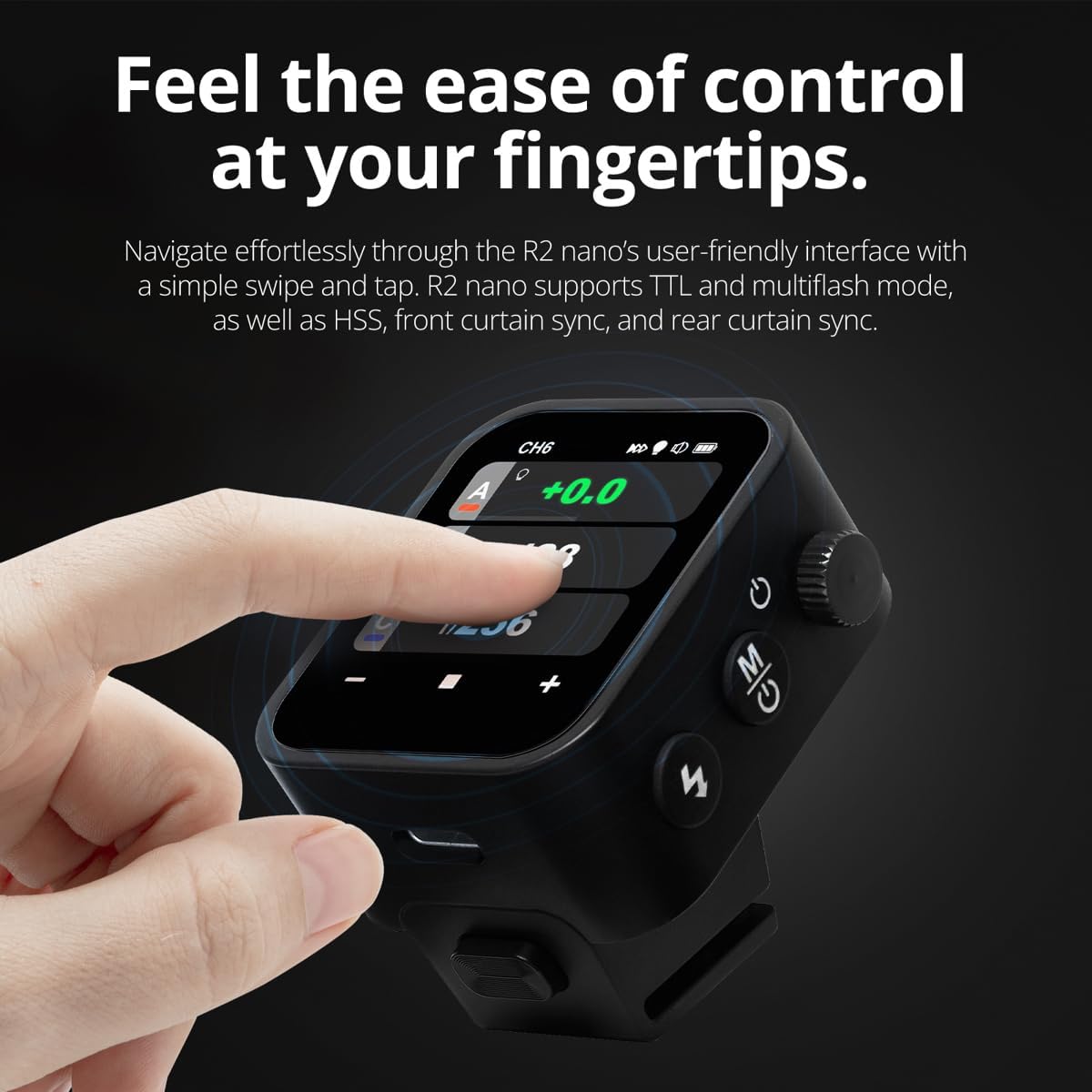
Abbildung 3.1: Vorder- und Seitenansicht View of the R2 Nano with Key Components Labeled.
- Touch-Screen: Main interface for settings and control.
- Wählen Sie das Wählrad: Zum Navigieren in Menüs und zum Anpassen von Werten.
- Stromschalter: Schaltet das Gerät ein/aus.
- Test-Taste: Löst einen Testblitz aus.
- Installing/Detaching Button: Releases the remote from the hotshoe.
- Montageschlitz: Connects to the camera's hotshoe.
- USB-C-Ladeanschluss: Zum Aufladen des Akkus.

Figure 3.2: R2 Nano Touchscreen Interface Details.
- Kanal (CH): Displays the current wireless channel (e.g., CH6).
- Group (A, B, C, etc.): Indicates the active flash groups.
- Ausgangsleistungspegel: Shows the flash power setting (e.g., +0.0, 1/128).
- Parameters - / +: Touch controls for decreasing/Inkrementasing-Werte.
- Synchronisierungsmodi: Icons indicating sync modes (e.g., HSS, front curtain, rear curtain).
- Modellierung Lamp: Icon for modeling lamp Status.
- Batterieanzeige: Zeigt den aktuellen Batteriestand an.
4. Einrichtung
4.1 Laden des Akkus
The R2 Nano is equipped with a built-in rechargeable lithium battery. Before first use, fully charge the device.
- Locate the USB-C charging port on the side of the R2 Nano.
- Schließen Sie das mitgelieferte USB-C-Ladekabel an den Anschluss an.
- Verbinden Sie das andere Ende des Kabels mit einem USB-Netzteil (nicht im Lieferumfang enthalten) oder einem USB-Anschluss Ihres Computers.
- The battery indicator on the screen will show charging status. A full charge from 0% to 100% typically takes approximately 2 hours.

Figure 4.1: Charging the R2 Nano via USB-C.
4.2 Montage an der Kamera
The R2 Nano features an easy-mounting, durable hotshoe design for secure attachment to your camera.
- Stellen Sie sicher, dass Ihre Kamera ausgeschaltet ist.
- Slide the R2 Nano's mounting slot onto your camera's hotshoe.
- Drücken Sie vorsichtig, bis es einrastet, um eine sichere Verbindung zu gewährleisten.
- To detach, press the Installing/Detaching Button and slide the remote off.

Figure 4.2: Mounting the R2 Nano on a Camera Hotshoe.
5. Bedienungsanleitung
5.1 Ein-/Ausschalten
- To power on, press and hold the Power Switch until the screen illuminates.
- To power off, press and hold the Power Switch until the screen turns off.
5.2 Navigation auf der Touchscreen-Oberfläche
The R2 Nano features a responsive touchscreen and a select dial for intuitive control.

Figure 5.1: High Definition OLED Screen Interface.
- Berührungsinteraktion: Tap on a group (A, B, C, etc.) to select it for adjustment. Tap on parameters like power level to modify them.
- Wählen Sie das Wählrad: Rotate the dial to scroll through options or adjust values. Press the dial to confirm selections.
- Parameteranpassung: Use the on-screen '-' and '+' buttons or the Select Dial to change flash power, exposure compensation, or other settings.

Figure 5.2: Touchscreen Interaction for Settings Adjustment.
5.3 Setting Channels and Groups
To avoid interference and control multiple flashes, set appropriate channels and groups.
- Access the channel settings through the touchscreen menu. Select a channel from 1 to 32. Ensure your flash units are set to the same channel.
- Assign flash units to different groups (A-F, 0-9) to control them independently. The R2 Nano allows control of up to 16 groups.
5.4 Flash Modes (TTL, Manual, Multi-flash)
The R2 Nano supports various flash modes to suit different shooting scenarios.
- TTL (Durch-die-Linse): Automatically adjusts flash output for correct exposure. Ideal for fast-paced shooting where lighting conditions change frequently.
- Manuell (M): Allows precise control over flash power output (e.g., 1/1 to 1/256). Suitable for consistent lighting setups and creative control.
- Mehrfachblitz (Stroboskop): Feuert während einer einzigen Belichtung eine Reihe schneller Blitze ab, um mehrere Bewegungen eines Motivs festzuhalten.
5.5 Sync Modes (HSS, Front Curtain, Rear Curtain)
Select the appropriate sync mode based on your shutter speed and desired effect.
- HSS (High-Speed Sync): Enables flash synchronization at shutter speeds faster than the camera's native sync speed (up to 1/8000s). Useful for overpowering ambient light or using wide apertures in bright conditions.
- Synchronisation des vorderen Vorhangs: The flash fires at the beginning of the exposure. This is the standard sync mode.
- Synchronisation des hinteren Vorhangs: The flash fires just before the second curtain closes. This creates a streaking effect behind moving subjects, giving a sense of motion.
6. Wartung
Proper maintenance ensures the longevity and optimal performance of your R2 Nano remote.
- Reinigung: Use a soft, dry cloth to clean the exterior of the device. For the touchscreen, use a microfiber cloth specifically designed for electronics. Avoid using harsh chemicals or abrasive materials.
- Lagerung: When not in use, store the R2 Nano in its provided storage bag to protect it from dust and scratches. Store in a cool, dry place away from direct sunlight and extreme temperatures.
- Batteriepflege: Um die Lebensdauer des Akkus zu verlängern, sollte häufiges vollständiges Entladen vermieden werden. Bei längerer Lagerung sollte der Akku alle paar Monate auf etwa 50 % aufgeladen werden.
- Hotshoe-Kontakte: Keep the hotshoe contacts clean and free of debris to ensure reliable communication with your camera.
7. Fehlerbehebung
If you encounter issues with your Flashpoint R2 Nano, refer to the following common problems and solutions.
| Problem | Mögliche Ursache | Lösung |
|---|---|---|
| Gerät lässt sich nicht einschalten. | Batterie ist leer. | Laden Sie das Gerät mit dem USB-C-Kabel auf. |
| Blitzgeräte zünden nicht. | Incorrect channel or group settings. | Ensure the R2 Nano and flash units are set to the same channel and correct groups. |
| Blitzgeräte zünden nicht. | Remote not securely mounted. | Ensure the R2 Nano is fully seated in the camera's hotshoe. |
| Inconsistent flash triggering. | Umwelteinflüsse. | Change the wireless channel to one with less interference. Ensure no obstructions between remote and flash. |
| Touchscreen reagiert nicht. | Vorübergehender Softwarefehler. | Schalten Sie das Gerät aus, warten Sie einige Sekunden und schalten Sie es dann wieder ein. |
| HSS funktioniert nicht. | Camera or flash not set to HSS mode. | Verify HSS is enabled on both the R2 Nano and your compatible flash unit. Ensure camera shutter speed is above sync speed. |
8. Spezifikationen
| Besonderheit | Detail |
|---|---|
| Modell | Flashpoint R2 Nano |
| Kompatibilität | Panasonic and Olympus Cameras |
| Drahtlose Frequenz | 2.4 GHz |
| Kanäle | 32 |
| Gruppen | 16 (AF, 0-9) |
| Drahtlose Reichweite | Bis zu 100 Meter (328 Fuß) |
| Synchronisierungsgeschwindigkeit | Bis zu 1/8000s (HSS) |
| Anzeige | Touchscreen OLED |
| Batterie | Eingebaute wiederaufladbare Lithiumbatterie |
| Ladeanschluss | USB-C |
| Technische Daten | 5.25 x 4.25 x 2.5 Zoll |
| Artikelgewicht | 6.4 Unzen |
| Hersteller | Flammpunkt |
| Datum der ersten Verfügbarkeit | 19. Juni 2024 |
9. Garantie und Support
Flashpoint products are designed for reliability and performance. For warranty information, technical support, or service inquiries, please refer to the official Flashpoint webBesuchen Sie unsere Website oder wenden Sie sich an Ihren autorisierten Händler.
Bitte bewahren Sie Ihren Kaufbeleg für eventuelle Garantieansprüche auf.