1. Einleitung
This manual provides detailed instructions for setting up and operating your Creative Live! Meet 4K UHD Conference Webcam (Model VF0950). Please read this manual thoroughly before using the device to ensure optimal performance and proper handling.

Figure 1: Creative Live! Meet 4K UHD Conference WebNocken
2. Lieferumfang
Überprüfen Sie, ob alle Artikel im Paket vorhanden sind:
- Creative Live! Meet 4K UHD Konferenz WebNocken
- Kurzanleitung
3. Einrichtung
3.1 Anschließen der WebNocken
- Place the Creative Live! Meet 4K webcam securely on top of your monitor or a flat surface. The adjustable clip allows for stable positioning.
- Verbinden Sie webSchließen Sie die Kamera mithilfe des mitgelieferten USB-Kabels an Ihren Computer an. webcam is UVC compliant and does not require additional driver installation for basic functionality.
- Der webcam is compatible with PC and Mac operating systems.
- Open your preferred video conferencing application (e.g., Zoom, Skype, WebEx, Teams) and select the Creative Live! Meet 4K as your video and audio input device.
Video 1: Demonstrates connecting the webcam, adjusting the ring light, and basic remote control functions like flip, mirror, and zoom.
4. Bedienung des WebNocken
4.1 4K UHD-Videoqualität
The Creative Live! Meet 4K delivers 4K UHD resolution at 2160p @ 30 frames per second, providing highly detailed and smooth visuals for your conferences and streams.

Figure 2: Illustrates the 4K UHD clarity of the webcam's video output.
4.2 E-PTZ and Digital Zoom
Utilize the Electronic Pan-Tilt-Zoom (E-PTZ) feature with 7X digital zoom to adjust your view. This allows you to frame participants optimally, from a group presentation to a close-up head-to-shoulder view, without physically moving the device.

Figure 3: Demonstrates the wide-angle view and digital zoom capabilities for various framing needs.
4.3 Breit Viewing-Winkel
Der webcam features a wide viewing angle of 115°, ensuring comprehensive coverage suitable for multiple participants or capturing a broad visual area.
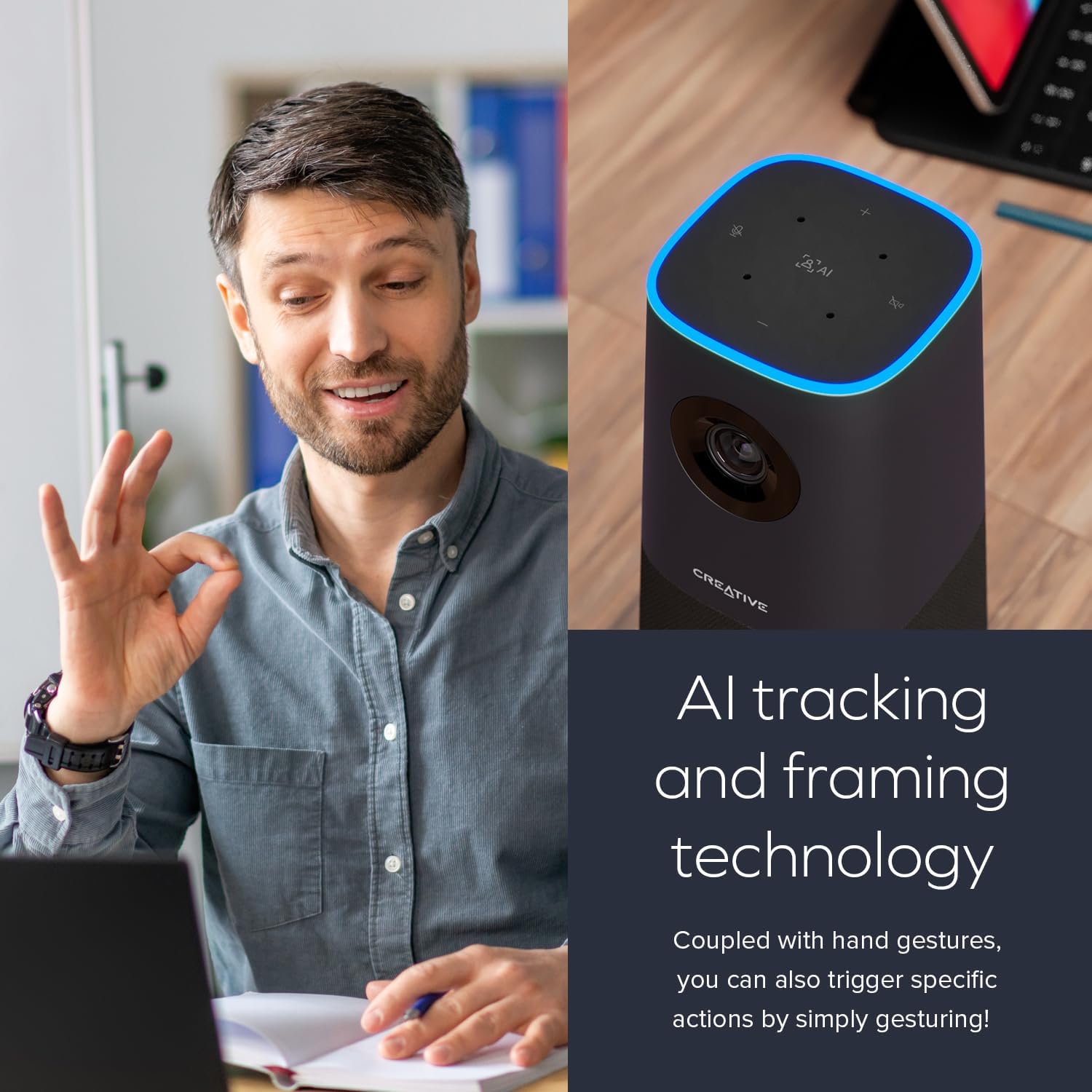
Figure 4: Shows the extensive field of view provided by the 115° wide-angle lens.
4.4 Built-in Microphones and Speaker
Equipped with four ultra-sensitive omni-directional microphones, the webcam captures your voice clearly and accurately. The integrated speaker provides natural and realistic audio playback.

Figure 5: Highlights the built-in microphone array and speaker for integrated audio.
4.5 AI Technology and SmartComms Kit
Der webcam incorporates AI tracking and framing technology to keep the subject in focus. For Windows users, the downloadable Creative app includes the SmartComms Kit, offering features like NoiseClean-out to reduce background noise for clearer communication.
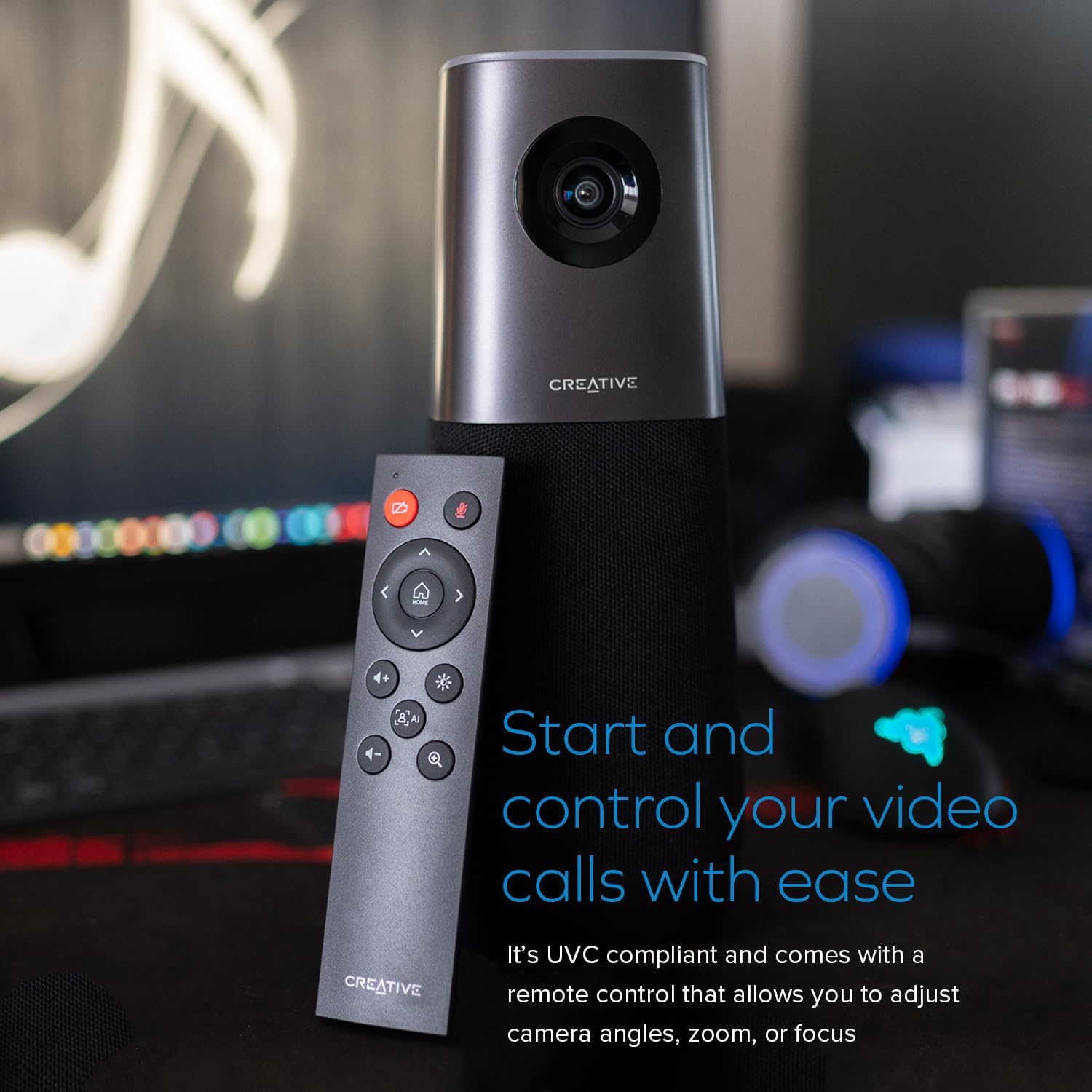
Figure 6: Illustrates the AI tracking and framing capabilities of the webNocken.

Figure 7: Shows the Creative app interface for managing SmartComms features.
Video 2: Highlights 4K resolution, 120-degree FOV, and auto-focus features of a 4K webNocken.
5. Wartung
5.1 Reinigung
To maintain optimal image quality, gently clean the webcam lens with a soft, lint-free cloth. Avoid using harsh chemicals or abrasive materials that could scratch the lens or damage the device.
5.2 Speicherung
Bewahren Sie die . bei Nichtgebrauch auf webBewahren Sie die Kamera an einem kühlen, trockenen Ort auf und schützen Sie sie vor direkter Sonneneinstrahlung und extremen Temperaturen.
6. Fehlerbehebung
6.1 No Video/Audio Output
- Stellen Sie sicher, dass das USB-Kabel fest mit beiden Geräten verbunden ist. webKamera und Ihr Computer.
- Überprüfen Sie, ob die webcam is selected as the primary video and audio device in your operating system settings and within your video conferencing application.
- Versuchen Sie, die Verbindung herzustellen. webSchließen Sie die Kamera an einen anderen USB-Anschluss Ihres Computers an.
- Starten Sie Ihren Computer und die Videokonferenzanwendung neu.
6.2 Schlechte Bildqualität
- Stellen Sie sicher, dass die Linse sauber und frei von Staub und Fingerabdrücken ist.
- Check your video conferencing application settings to confirm that 4K resolution is selected, if supported.
- Sorgen Sie für ausreichende Beleuchtung in Ihrer Umgebung.
6.3 Probleme mit der KI-basierten Nachverfolgung
- Ensure you are within the optimal range and visibility for the webcam's AI tracking.
- Check for any obstructions in front of the camera.
- Update the Creative app for Windows to the latest version to ensure optimal AI performance.
7. Spezifikationen
| Besonderheit | Detail |
|---|---|
| Technische Daten | 3.85 x 3.85 x 10 Zoll |
| Artikelgewicht | 3.32 Pfund |
| Modellnummer | VF0950 |
| Hersteller | Kreativlabore |
| Videoauflösung | 4K UHD (2160p @ 30 fps) |
| Digital Zoom | 7X |
| Viewing-Winkel | 115° |
| Mikrofone | 4 x Omni-directional |
| Kompatibilität | PC, Mac (UVC compliant) |
8. Garantie und Support
For warranty information and technical support, please refer to the official Creative Labs website or contact their customer service. Details can typically be found in the Quick Start Guide included with your product.