1. Einleitung
The H3C Magic NX15 is a high-performance Gigabit Wi-Fi 6 router designed to provide a fast and reliable internet experience. Featuring a vertical design, full gigabit network ports, and Wi-Fi 6 (802.11ax) technology on the 5GHz band, it ensures high-speed connectivity. Equipped with four high-gain external antennas and EasyMesh compatibility, it offers wide and flexible network signal coverage. Enhanced security is provided through WPA3 encryption. This manual provides essential information for setting up, operating, and maintaining your H3C Magic NX15 router.
2. Packungsinhalt
Bitte überprüfen Sie den Packungsinhalt sorgfältig. Sollten Artikel fehlen oder beschädigt sein, wenden Sie sich bitte an Ihren Händler.
- H3C Magic NX15 AX1500 Dual Band Gigabit Wi-Fi 6 Router
- Netzteil
- Ethernet-Kabel
- Kurzinstallationsanleitung (dieses Handbuch)
3. Produktüberschreitungview
Familiarize yourself with the components and interfaces of your H3C Magic NX15 router.
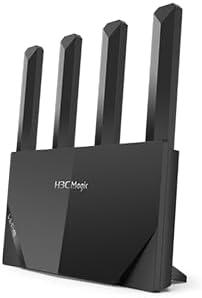
Abbildung 3.1: Front view of the H3C Magic NX15 router, showcasing its vertical design and four external antennas.
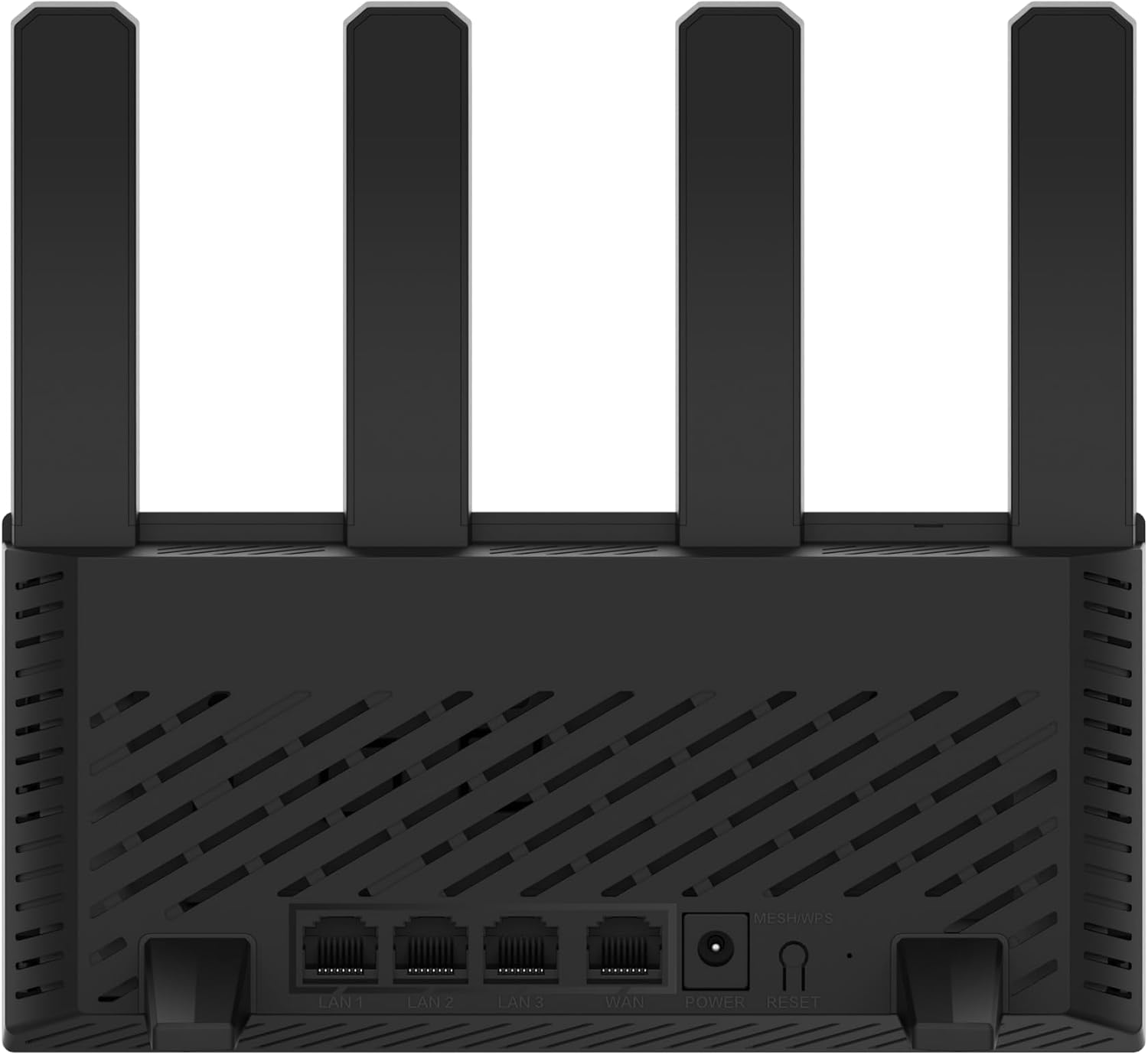
Abbildung 3.2: Hinteren view of the H3C Magic NX15 router, displaying the LAN ports, WAN port, power input, and Reset/WPS button.

Abbildung 3.3: Spitze view of the H3C Magic NX15 router, highlighting the ventilation design for heat dissipation.

Abbildung 3.4: Seite view of the H3C Magic NX15 router, showing the sleek profile and additional ventilation slots.
Port and Button Descriptions:
- WAN-Port: Verbindet sich mit dem Netzwerk Ihres Modems oder Ihres Internetdienstanbieters (ISP).
- LAN-Anschlüsse (LAN1, LAN2, LAN3): Verbinden Sie sich mit kabelgebundenen Geräten wie Computern, Spielekonsolen oder Smart-TVs.
- Stromanschluss: Wird an das mitgelieferte Netzteil angeschlossen.
- Reset/WPS-Taste:
- Press briefly to activate WPS (Wi-Fi Protected Setup) for easy connection of compatible devices.
- Press and hold for approximately 5-10 seconds to restore the router to factory default settings.
- Antennen: Four high-gain external antennas for optimal Wi-Fi signal coverage.
4. Installationsanleitung
Follow these steps to set up your H3C Magic NX15 router for the first time.
- Router auspacken: Nehmen Sie den Router und sämtliches Zubehör vorsichtig aus der Verpackung.
- Positionieren Sie den Router: Place the router in a central location in your home or office, away from obstructions and sources of interference (e.g., microwaves, cordless phones). Ensure good ventilation.
- An die Stromversorgung anschließen: Connect the included power adapter to the router's power port and then plug the adapter into a power outlet. Wait for the router to power on and its indicator lights to stabilize.
- Verbindung zum Modem herstellen: Connect one end of the provided Ethernet cable to the WAN port on your H3C Magic NX15 router and the other end to your modem's LAN port.
- Geräte anschließen (optional): For wired connections, connect an Ethernet cable from one of the router's LAN ports to your computer or other network device.
- Mit WLAN verbinden:
- Suchen Sie auf Ihrem Computer oder Mobilgerät nach verfügbaren WLAN-Netzwerken.
- Wählen Sie den auf dem Etikett an der Unterseite Ihres Routers aufgedruckten WLAN-Netzwerknamen (SSID) aus.
- Enter the Wi-Fi password (also printed on the router's label) when prompted.
- Verwaltungsseite für den Access Router:
- Öffnen Sie ein web Browser (z. B. Chrome, Firefox, Edge).
- Geben Sie die Standard-IP-Adresse ein (normalerweise
192.168.1.1orh3cmagic.com) into the address bar and press Enter. Refer to the router's label for the exact address. - Follow the on-screen instructions to complete the initial setup, including setting a new administrator password and configuring your internet connection type (e.g., PPPoE, DHCP, Static IP).
5. Bedienungsanleitung
This section details the key features and how to operate your H3C Magic NX15 router.
5.1 Dual-Band Wi-Fi Operation
The H3C Magic NX15 supports dual-band Wi-Fi (2.4GHz and 5GHz) for optimal performance. It features intelligent band steering, which automatically directs your devices to the best available band (2.4GHz for wider coverage, 5GHz for higher speeds) without manual selection.
- 2.4-GHz-Band: Provides wider coverage and better penetration through walls, suitable for general browsing and devices further from the router.
- 5-GHz-Band: Offers higher speeds and lower latency, ideal for streaming 4K video, online gaming, and high-bandwidth applications, typically for devices closer to the router.
5.2 Intelligent Management via Mobile App
Manage your router conveniently using the dedicated H3C mobile application. The app allows for easy network settings configuration, network speed optimization, and various other operations.
- Laden Sie die App herunter: Suchen nach the "H3C Magic" app in your device's app store (Google Play Store for Android or Apple App Store for iOS).
- Installieren und starten: Installieren Sie die App und öffnen Sie sie.
- Einloggen: Use your router's administrator credentials to log in to the app.
- Einstellungen verwalten: Mit der App können Sie:
- Change Wi-Fi names and passwords.
- Überwachen Sie angeschlossene Geräte.
- Richten Sie die Kindersicherung ein.
- Configure guest Wi-Fi networks.
- Optimize network performance.
5.3 EasyMesh for Whole-Home Wi-Fi
The H3C Magic NX15 supports EasyMesh technology, allowing you to expand your Wi-Fi coverage by adding additional compatible H3C mesh units. This creates a seamless whole-home Wi-Fi network, eliminating dead zones in large or complex house types.
- Refer to the EasyMesh setup guide provided with your additional mesh units for detailed instructions on expanding your network.
- Ensure all mesh units are compatible with the EasyMesh standard.
5.4 Netzwerksicherheitsfunktionen
The router includes multiple functions to enhance your private network's security:
- WPA3-Verschlüsselung: Provides the latest and strongest Wi-Fi security protocol.
- Access Allowlist/Denylist: Control which devices can connect to your network based on their MAC addresses.
- Gast-WLAN: Richten Sie ein separates WLAN-Netzwerk für Gäste ein, damit Ihr Hauptnetzwerk sicher und privat bleibt.
- Kindersicherung: Internetzugriffszeiten verwalten und ungeeignete Inhalte für bestimmte Geräte blockieren.
These security features can be configured via the router's web management interface or the H3C mobile app.
6. Wartung
Proper maintenance ensures the longevity and optimal performance of your H3C Magic NX15 router.
- Platzierung: Keep the router in a well-ventilated area, away from direct sunlight, heat sources, and moisture. The stereoscopic heat dissipation design with a large metal heat sink helps maintain stable operation.
- Reinigung: Regularly dust the router's exterior and ventilation slots with a soft, dry cloth. Do not use liquid cleaners or aerosols.
- Firmware-Updates: Überprüfen Sie regelmäßig, ob Firmware-Updates über den Router verfügbar sind, und installieren Sie diese. web management interface or the mobile app. Firmware updates often include performance improvements, new features, and security patches.
- Neustart: Sollten Netzwerkprobleme auftreten, versuchen Sie, den Router neu zu starten, indem Sie das Netzteil für 10 Sekunden vom Stromnetz trennen und es dann wieder anschließen.
- Sicherheit: Ändern Sie regelmäßig Ihr WLAN-Passwort und Ihr Router-Administratorpasswort in sichere, einzigartige Kombinationen.
7. Fehlerbehebung
In diesem Abschnitt werden häufig auftretende Probleme behandelt und Lösungen angeboten.
| Problem | Mögliche Ursache | Lösung |
|---|---|---|
| Kein Internetzugang |
|
|
| Wi-Fi Signal Weak or Unstable |
|
|
| Zugriff auf die Router-Verwaltungsseite nicht möglich |
|
|
| Forgot Router Administrator Password | Passwort vergessen | Press and hold the Reset/WPS button on the router for 5-10 seconds to restore factory default settings. You will then need to reconfigure the router. |
8. Spezifikationen
Detailed technical specifications for the H3C Magic NX15 router.
| Besonderheit | Detail |
|---|---|
| Modellname | H3C Magic NX15 |
| Artikelmodellnummer | H3C Magic NX15-UK |
| Marke | H3C |
| Wireless-Standard | 802.11ax (WLAN 6) |
| Frequenzbandklasse | Dualband (2.4 GHz & 5 GHz) |
| Antennen | 4 externe Antennen mit hoher Verstärkung |
| Häfen | Gigabit WAN, Gigabit LAN (x3) |
| Besondere Merkmale | Access Point Mode, EasyMesh, WPA3 Security, Parental Control, Guest Wi-Fi, App Management |
| Abmessungen (Paket) | 21 x 19.4 x 6.3 cm |
| Gewicht (Paket) | 500 g |
| Hersteller | H3C |
| Ursprungsland | China |
| Erstes verfügbares Datum | 24. August 2024 |
9. Garantie und Support
The H3C Magic NX15 router comes with a standard manufacturer's warranty. For specific warranty terms and conditions, please refer to the warranty card included in your product packaging or visit the official H3C webWebsite.
Technische Unterstützung:
If you encounter any issues or have questions regarding your H3C Magic NX15 router, please contact H3C technical support.
- Online-Hilfe: Visit the official H3C support webWebsite mit häufig gestellten Fragen, Anleitungen zur Fehlerbehebung und Treiber-/Firmware-Downloads.
- Kontaktinformationen: Refer to the H3C website or your product documentation for regional contact numbers and email support.
Please have your product model number (H3C Magic NX15-UK) and serial number ready when contacting support.


