Einführung
Dieses Handbuch enthält detaillierte Anweisungen für die Einrichtung, den Betrieb und die Wartung Ihrer Nulea KM75 Advanced Ergonomic Wireless Tastatur- und Maus-Kombination. Bitte lesen Sie dieses Handbuch vor der ersten Verwendung des Produkts sorgfältig durch, um optimale Leistung und Langlebigkeit zu gewährleisten.
Packungsinhalt
- Nulea KM75 Ergonomische kabellose Tastatur
- Nulea Ergonomische kabellose Maus
- 2.4-GHz-USB-Empfänger (gemeinsam für Tastatur und Maus)
- USB-C-Ladekabel
- Benutzerhandbuch (dieses Dokument)
Produkt überview
Tastaturfunktionen
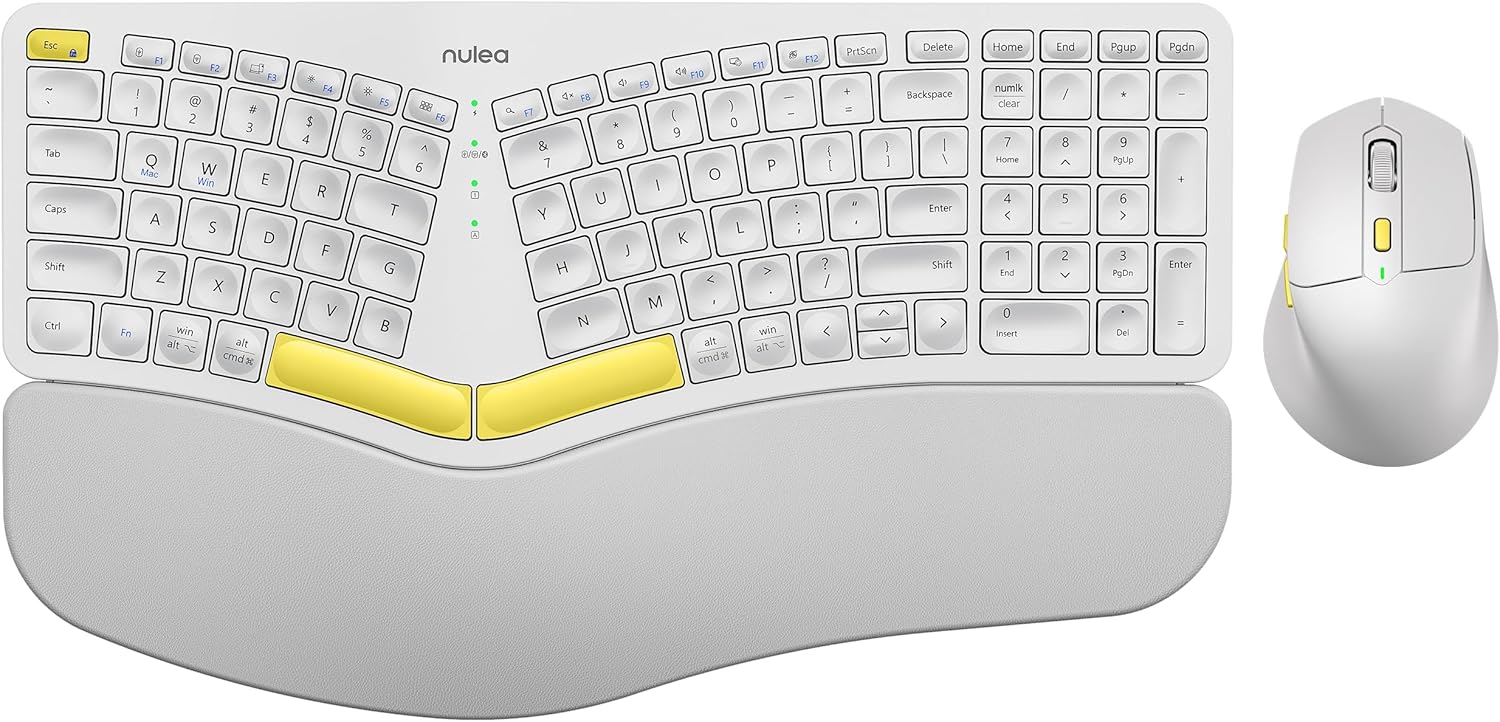
Abbildung: Das ergonomische Tastatur- und Maus-Set Nulea KM75. Die Tastatur verfügt über ein geschwungenes, geteiltes Layout mit integrierter Handballenauflage, die Maus ist ergonomisch geformt. Beide sind weiß mit gelben Akzenten.
- Ergonomisch gebogenes und geteiltes Keyframe: Entwickelt, um Handgelenke und Unterarme in eine natürliche Position zu bringen.
- Integrierte Handballenauflage: Verfügt über eine weiche Memory-Schaumschicht zur Unterstützung des Handgelenks.
- Verstellbares Neigungsdesign: Ermöglicht eine optimale Positionierung der Tastatur.
- Konnektivität mehrerer Geräte: Unterstützt USB-Kabel, 2.4-GHz-USB-Empfänger und Bluetooth.
- Wiederaufladbarer Akku: 500 mAh Kapazität mit USB-C-Ladefunktion.
- Automatischer Schlafmodus: Spart Energie nach 30 Minuten Inaktivität.
Mausfunktionen

Abbildung: Nahaufnahme der ergonomischen Nulea-Maus, die ihr skulpturales Design für eine natürliche Handhaltung mit integrierten Handballen- und Daumenablagen zeigt. Die Maus ist weiß mit gelben Akzenten.
- Ergonomisch geformtes Design: Integrierte Handflächen- und Daumenablagen für eine natürliche Handposition.
- Einstellbare DPI-Einstellungen: Für eine präzise Cursorsteuerung.
- Vorwärts-/Rückwärtstasten: Für bequeme web Navigation.
- Konnektivität mehrerer Geräte: Unterstützt 2.4-GHz-USB-Empfänger und Bluetooth.
- Wiederaufladbarer Akku: 300 mAh Kapazität mit USB-C-Ladefunktion.
- Automatischer Schlafmodus: Spart Energie nach 30 Minuten Inaktivität.
Aufstellen
1. Aufladen der Geräte
Laden Sie Tastatur und Maus vor der ersten Benutzung vollständig mit dem mitgelieferten USB-C-Kabel auf. Verbinden Sie das USB-C-Ende mit dem Gerät und das USB-A-Ende mit einer Stromquelle (z. B. einem USB-Anschluss am Computer oder einem USB-Netzteil).

Abbildung: Illustration der Tastatur und Maus, die zum Laden über USB-C-Kabel verbunden sind. Die Tastatur verfügt über einen 500-mAh-Akku, die Maus über einen 300-mAh-Akku.
Die Kontrollleuchten zeigen den Ladestatus an und erlöschen, sobald der Akku vollständig geladen ist. Eine vollständige Ladung ermöglicht einen Betrieb von etwa zwei Monaten.
2. Verbindung über 2.4-GHz-USB-Empfänger
- Suchen Sie den 2.4-GHz-USB-Empfänger. Er befindet sich üblicherweise in einem Fach an der Unterseite der Maus.
- Stecken Sie den USB-Empfänger in einen freien USB-A-Anschluss Ihres Computers.
- Schalten Sie Tastatur und Maus mit den jeweiligen Netzschaltern ein.
- Drücken Sie für die Tastatur Fn + F2 2.4-GHz-Modus auswählen.
- Stellen Sie bei der Maus den Moduswahlschalter an der Unterseite auf 2.4 GHz ein.
- Die Geräte sollten sich automatisch verbinden.

Abbildung: Nahaufnahme der Unterseite der Maus, die das Aufbewahrungsfach für den 2.4-GHz-USB-Empfänger zeigt.
3. Verbindung über Bluetooth
- Schalten Sie Tastatur und Maus ein.
- Drücken Sie für die Tastatur Fn + F3 Um den Bluetooth-Modus auszuwählen, blinkt die Kontrollleuchte. Dies signalisiert den Kopplungsmodus.
- Stellen Sie bei der Maus den Moduswahlschalter an der Unterseite auf Bluetooth ein. Die Kontrollleuchte blinkt.
- Aktivieren Sie auf Ihrem Gerät (Computer, Tablet, Smartphone) Bluetooth und suchen Sie nach neuen Geräten.
- Wählen Sie aus der Liste der verfügbaren Geräte „Nulea Keyboard“ und „Nulea Mouse“ zum Koppeln aus.
- Befolgen Sie die Anweisungen auf dem Bildschirm, um den Kopplungsvorgang abzuschließen.
4. Verbindung über Kabelmodus
- Verbinden Sie das USB-C-Ladekabel mit der Tastatur oder Maus und das USB-A-Ende mit Ihrem Computer.
- Drücken Sie für die Tastatur Fn + F1 um den kabelgebundenen Modus auszuwählen.
- Schalten Sie bei der Maus den Moduswahlschalter an der Unterseite auf kabelgebundenen Modus.
- Die Geräte funktionieren als kabelgebundene Peripheriegeräte.

Abbildung: Diagramm zur Veranschaulichung der einfachen Anschlussmöglichkeiten des Nulea KM75. Durch Drücken von Fn+F1 wird eine kabelgebundene Verbindung hergestellt, durch Fn+F2 eine 2.4-GHz-Verbindung und durch Fn+F3 eine Bluetooth-Verbindung, wodurch die Verbindung zu mehreren Geräten wie PCs, Laptops und Mobilgeräten ermöglicht wird.
5. Wechseln zwischen Geräten
Das Nulea KM75 Combo-Keyboard unterstützt die Verbindung mehrerer Geräte. Sie können zwischen bis zu drei verbundenen Geräten (einem kabelgebundenen, einem 2.4-GHz- und einem Bluetooth-Gerät) wechseln, indem Sie die entsprechenden Funktionstasten auf der Tastatur drücken (Fn + F1/F2/F3und die Modusauswahl an der Maus anpassen.
Bedienungsanleitung
Tastaturnutzung
- Ergonomisches Design: Die gebogene und geteilte Tastenanordnung ist für eine natürliche Hand- und Handgelenkpositionierung konzipiert. Nehmen Sie sich etwas Zeit, um sich an dieses Layout zu gewöhnen und optimalen Komfort zu gewährleisten.
- Verstellbare Neigungsbeine: Diese Füße befinden sich an der Unterseite der Tastatur und ermöglichen es Ihnen, den Tippwinkel für individuellen Komfort anzupassen.

Abbildung: Ein Benutzer demonstriert die verstellbaren Neigungsfüße der Nulea KM75-Tastatur und zeigt, wie der Tippwinkel für ergonomischen Komfort angepasst werden kann.
- Funktionstasten (Fn): Viele Tasten verfügen über Zweitfunktionen, die durch Gedrückthalten der Taste zugänglich sind. Fn Drücken Sie die entsprechende Taste und anschließend die gewünschte Funktionstaste (z. B. Mediensteuerung, Lautstärke). Die jeweiligen Funktionen entnehmen Sie bitte der Legende auf den Tastenkappen.
Mausnutzung
- DPI-Anpassung: Verwenden Sie die DPI-Umschalttaste, die sich normalerweise in der Nähe des Scrollrads befindet, um zwischen verschiedenen Empfindlichkeitsstufen (DPI) umzuschalten. Dies ermöglicht eine präzise Steuerung oder eine schnellere Cursorbewegung.

Abbildung: Nahaufnahme der ergonomischen Maus Nulea, die die DPI-Taste und die Kontrollleuchte zur Einstellung der Cursorempfindlichkeit hervorhebt.
- Seitentasten: Die seitlichen Tasten (typischerweise links für Rechtshänder) sind oft für die Vorwärts- und Rückwärtsnavigation vorprogrammiert. web Browser bzw file Entdecker.
Wartung
- Reinigung: Reinigen Sie die Oberflächen von Tastatur und Maus mit einem weichen, trockenen Tuch. Bei hartnäckigem Schmutz kann ein leicht feuchtes Tuch hilfreich sein.amp Ein Tuch mit milder Seife kann verwendet werden, wobei darauf zu achten ist, dass keine Flüssigkeit in das Gerät gelangt. Scharfe Chemikalien oder scheuernde Materialien sind zu vermeiden.
- Batteriepflege: Um die Akkulaufzeit zu verlängern, vermeiden Sie häufiges vollständiges Entladen des Geräts. Laden Sie es auf, sobald die Akkuanzeige leuchtet. Bewahren Sie das Gerät bei längerer Nichtbenutzung an einem kühlen, trockenen Ort auf.
- Lagerung: Bewahren Sie den USB-Empfänger bei Nichtgebrauch in dem dafür vorgesehenen Fach an der Maus auf, um einen Verlust zu vermeiden.
Fehlerbehebung
- Gerät verbindet sich nicht:
- Stellen Sie sicher, dass sowohl Tastatur als auch Maus eingeschaltet sind.
- Vergewissern Sie sich, dass auf beiden Geräten und Ihrem Computer der richtige Verbindungsmodus (2.4 GHz, Bluetooth, Kabelgebunden) ausgewählt ist.
- Bei Verwendung von 2.4 GHz muss sichergestellt sein, dass der USB-Empfänger fest an einen funktionierenden USB-Anschluss angeschlossen ist.
- Stellen Sie bei Bluetooth sicher, dass Bluetooth auf Ihrem Gerät aktiviert ist und sich die Geräte im Kopplungsmodus befinden. Versuchen Sie gegebenenfalls, die Geräte erneut zu koppeln.
- Stellen Sie sicher, dass die Geräte aufgeladen sind.
- Versuchen Sie, Ihren Computer und die Geräte neu zu starten.
- Verzögerung oder zeitweise Verbindungsunterbrechung:
- Um Störungen zu reduzieren, bringen Sie die Geräte näher an den USB-Empfänger oder Ihren Computer heran.
- Vermeiden Sie es, den Empfänger in der Nähe anderer drahtloser Geräte oder großer Metallgegenstände aufzustellen.
- Stellen Sie sicher, dass die Batterien ausreichend geladen sind.
- Tasten reagieren nicht oder Maus bewegt sich nicht:
- Überprüfen Sie den Batteriestand und laden Sie ihn bei Bedarf auf.
- Stellen Sie sicher, dass die Geräte ordnungsgemäß angeschlossen sind (siehe oben „Gerät verbindet sich nicht“).
- Entfernen Sie jeglichen Schmutz um die Tasten und den Maussensor herum.
Technische Daten
| Besonderheit | Detail |
|---|---|
| Marke | Nulea |
| Modell | KM75 |
| Konnektivität | Bluetooth, 2.4-GHz-USB, Kabelgebunden (USB-C) |
| Tastaturbatterie | 500 mAh Lithium |
| Mausbatterie | 300 mAh Lithium |
| Kompatibles Betriebssystem | Windows, MacOS, Android |
| Besondere Merkmale | Ergonomisches Design, gebogener/geteilter Tastenrahmen, integrierte Handballenauflage, einstellbare Neigung, einstellbare Maus-DPI |
| Artikelgewicht | 4.2 Pfund (zusammen) |
| Verpackungsabmessungen | 16.97 x 11.69 x 2.05 Zoll |
Garantie und Support
Nulea-Produkte sind auf Zuverlässigkeit und Leistung ausgelegt. Informationen zu Garantie, technischem Support und Kundendienst finden Sie auf der offiziellen Nulea-Website unter den angegebenen Kontaktdaten. webBitte bewahren Sie Ihren Kaufbeleg für Garantieansprüche auf.


