1. Einleitung
This manual provides essential information for the installation, operation, and maintenance of your ZOTAC GAMING GeForce RTX 4070 Ti SUPER SOLID OC 16GB graphics card. Please read this manual thoroughly before installation to ensure proper functionality and to prevent damage.

Image 1.1: ZOTAC GAMING GeForce RTX 4070 Ti SUPER SOLID OC 16GB Graphics Card and its retail packaging.
2. Packungsinhalt
Überprüfen Sie, ob alle Artikel im Paket vorhanden sind:
- ZOTAC GAMING GeForce RTX 4070 Ti SUPER SOLID OC 16GB Graphics Card
- GPU-Stützständer
- Benutzerhandbuch (dieses Dokument)
- Power Adapter Cable (if applicable, check your specific model)
3. Systemanforderungen
- PCI-Express-kompatibles Motherboard mit einem Dual-Width-x16-Grafiksteckplatz
- Minimum 750W power supply with three available 8-pin PCIe power connectors (or equivalent 12VHPWR connector)
- Minimum 16GB system memory
- Microsoft Windows 10/11 64-bit or Linux 64-bit operating system
- Internet connection for driver installation
4. Installationsanleitung
4.1. Vorbereitung
- Schalten Sie Ihren Computer aus und ziehen Sie das Netzkabel ab.
- Öffnen Sie das Gehäuse Ihres Computers.
- Erden Sie sich, um jegliche statische Elektrizität abzuleiten.
4.2. Installation der Grafikkarte
- Locate an available PCI Express x16 slot on your motherboard.
- Entfernen Sie die erforderlichen Erweiterungssteckplatzabdeckungen von Ihrem Computergehäuse.
- Carefully insert the graphics card into the PCIe x16 slot until it is fully seated. Ensure the retention clip locks into place.
- Befestigen Sie die Grafikkarte mit Schrauben am Gehäuse.
- Connect the required power cables from your power supply to the graphics card. This model typically requires three 8-pin PCIe power connectors or a single 12VHPWR connector. Ensure all connections are secure.
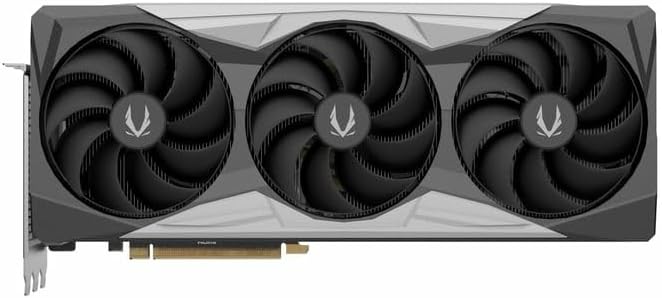
Bild 4.1: Vorderseite view of the graphics card, showing the triple fan design.
4.3. Installing the GPU Support Stand
The included GPU support stand helps prevent sag and provides additional stability for the graphics card. Follow the instructions provided with the stand for proper installation within your PC case.
4.4. Closing the Case and Connecting Peripherals
- Schließen Sie Ihr Computergehäuse.
- Connect your monitor(s) to the display outputs on the graphics card (DisplayPort or HDMI).
- Reconnect the power cable and other peripherals to your computer.

Bild 4.2: Hinten view of the graphics card, showing three DisplayPort outputs and one HDMI output.
5. Bedienungsanleitung
5.1. Treiberinstallation
- Schalten Sie Ihren Computer ein.
- Once the operating system loads, download the latest graphics drivers from the official NVIDIA webSeite? ˅ (www.nvidia.com/drivers) or the ZOTAC webSeite? ˅ (www.zotac.com/support).
- Folgen Sie den Anweisungen auf dem Bildschirm, um die Treiberinstallation abzuschließen. Ein Neustart des Systems kann erforderlich sein.
5.2. Software-Dienstprogramme
ZOTAC provides utilities such as FireStorm for monitoring and adjusting graphics card settings, including fan speed control (Active Fan Control, FREEZE Fan Stop) and performance profiles. These can be downloaded from the ZOTAC webWebsite.
6. Wartung
- Staubentfernung: Periodically clean dust from the graphics card fans and heatsink using compressed air. Ensure the computer is powered off and unplugged before cleaning.
- Treiber-Updates: Keep your graphics drivers updated to ensure optimal performance and compatibility.
- Temperaturüberwachung: Use monitoring software to keep track of the graphics card's temperature during operation. Excessive temperatures can indicate poor airflow or dust buildup.

Bild 6.1: Schräg view of the graphics card, highlighting its robust cooling solution.
7. Fehlerbehebung
- Keine Anzeigeausgabe:
- Stellen Sie sicher, dass das Monitorkabel fest mit der Grafikkarte und dem Monitor verbunden ist.
- Vergewissern Sie sich, dass die Grafikkarte vollständig im PCIe-Steckplatz sitzt.
- Check that all power cables are properly connected to the graphics card.
- Testen Sie es nach Möglichkeit mit einem anderen Monitor oder Kabel.
- Systeminstabilität oder Abstürze:
- Ensure graphics drivers are correctly installed and up to date.
- Check for adequate power supply capacity.
- Überwachen Sie die Temperaturen, um eine Überhitzung zu vermeiden.
- Verify system memory (RAM) stability.
- Fan Noise or Malfunction:
- Reinigen Sie die Lüfter und den Kühlkörper vom Staub.
- Ensure no cables are obstructing fan rotation.
- Use ZOTAC FireStorm utility to check fan speed settings.
8. Spezifikationen
| Besonderheit | Detail |
|---|---|
| Modellnummer | ZT-D40730R-10P |
| Grafikprozessor | NVIDIA GeForce RTX 4070 Ti SUPER |
| Videospeicher | 16 GB GDDR6X |
| Speicherschnittstelle | 256-Bit |
| Speichertakt | 21000 MHz (Effektiv) |
| Motoruhr | Boost: 2640 MHz |
| Anzeigeausgänge | 3 x DisplayPort 1.4a, 1 x HDMI 2.1a |
| HDCP Unterstützung | Ja |
| Maximale digitale Auflösung | Up to 4K (7680x4320 @60Hz) |
| PCI Express | PCI Express 4.0 x16 |
| Empfohlenes Netzteil | 750 W |
| Stromanschlüsse | 1 x 12VHPWR (or 3 x 8-pin PCIe via adapter) |
| Abmessungen (LxBxH) | 16.73 x 11.54 x 3.94 Zoll (ca.) |
| Gewicht | 2.2 Pfund (ca.) |
| Kühlsystem | IceStorm 2.0 Advanced Cooling, Triple 100mm Fans, FREEZE Fan Stop, Active Fan Control |
| Merkmale | NVIDIA DLSS 3.5, Ray Tracing, Metal Backplate, GPU Support Stand |
9. Garantie und Support
For detailed warranty information, please refer to the warranty card included with your product or visit the official ZOTAC website's support section. ZOTAC provides technical support and resources for their products.
- ZOTAC-Unterstützung WebWebsite: www.zotac.com/support
- Produktregistrierung: Register your product on the ZOTAC website to activate your warranty and receive product updates.