1. Einleitung
The Canon PIXMA TS3750i is a compact, affordable, and user-friendly multifunction inkjet printer designed for home and small office use. It offers versatile functionalities including printing, copying, and scanning. This printer supports wireless connectivity, enabling convenient operation from various devices, and features borderless photo printing. It is also compatible with the PIXMA Print Plan for automated ink delivery.
2. Sicherheitshinweise
Please read all safety instructions before using the printer to ensure safe and proper operation. Keep this manual for future reference.
- Do not place the printer in unstable locations.
- Halten Sie den Drucker von Wasser und Feuchtigkeit fern.
- Verwenden Sie ausschließlich das mit dem Drucker gelieferte Netzkabel.
- Do not attempt to disassemble or modify the printer.
- Ziehen Sie vor der Reinigung oder wenn der Drucker längere Zeit nicht benutzt wird, den Netzstecker.
3. Packungsinhalt
Bitte überprüfen Sie, ob alle folgenden Artikel in Ihrem Paket enthalten sind:
- Canon PIXMA TS3750i Printer
- Inkjet Cartridges (initial set)
- Stromkabel
- Setup CD-ROM (for Windows only)
- Handbücher und andere Dokumente
4. Einrichtung
4.1 Auspacken und Aufstellen
- Remove the printer from its packaging and remove all protective tapes and packing materials.
- Place the printer on a stable, flat surface with adequate space around it for ventilation and operation.
4.2 Stromanschluss
- Connect the supplied power cable to the printer's power input.
- Stecken Sie das andere Ende des Stromkabels in eine Wandsteckdose.
- Drücken Sie die Netztaste, um den Drucker einzuschalten.
4.3 Installation der Tintenpatrone
- Open the printer's top cover to access the cartridge holder.
- Remove the protective tape from the ink cartridges.
- Setzen Sie die Farb- und Schwarztintenpatronen in die jeweiligen Steckplätze ein, bis sie einrasten.
- Schließen Sie die obere Abdeckung.
4.4 Papier einlegen
- Open the paper support and pull out the paper output tray.
- Load paper (e.g., A4, photo paper) into the rear paper tray, ensuring it is aligned with the paper guides.
- Passen Sie die Papierführungen an die Breite des Papiers an.
4.5 Software and Wireless Setup
For initial setup and to enable wireless printing, follow these steps:
- Für PC: Insert the Setup CD-ROM (Windows only) and follow the on-screen instructions to install drivers and software.
- For PC/Mac/Mobile: Besuchen Sie den Canon website for your region and download the latest drivers and the Canon PRINT Inkjet/SELPHY app.
- Follow the instructions within the software or app to connect the printer to your Wi-Fi network. The printer supports one-touch wireless connectivity for easier setup.
- For mobile devices, ensure your device is connected to the same Wi-Fi network as the printer.
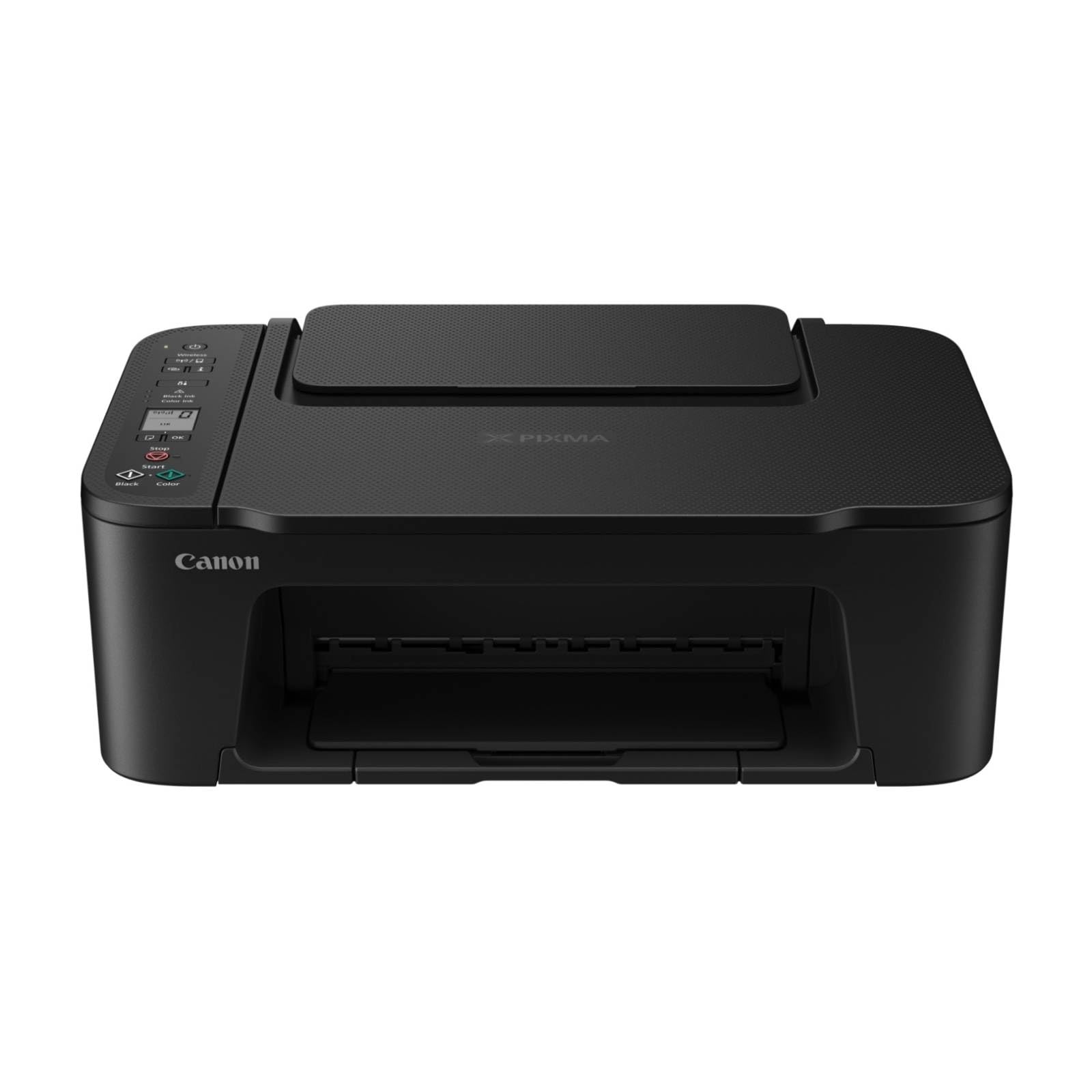
Abbildung 1: Vorderseite view of the Canon PIXMA TS3750i printer, showing its compact design and control panel.
5. Bedienungsanleitung
5.1 Dokumente und Fotos drucken
- Stellen Sie sicher, dass der Drucker eingeschaltet und mit Ihrem Gerät verbunden ist (über WLAN oder USB).
- Load the appropriate paper type and size into the rear paper tray.
- Öffnen Sie das Dokument oder Foto, das Sie drucken möchten, auf Ihrem Computer oder Mobilgerät.
- Wählen Sie in Ihrer Anwendung die Druckoption aus.
- In the print dialog, select the Canon PIXMA TS3750i as your printer. Adjust settings such as paper size, media type, print quality, and borderless printing (for photos up to 12.7 x 18 cm).
- Klicken Sie auf „Drucken“.
5.2 Dokumente kopieren
- Heben Sie den Scannerdeckel an.
- Place the document face-down on the scanner glass, aligning it with the alignment mark.
- Schließen Sie den Scannerdeckel vorsichtig.
- On the printer's control panel, press the Black button for a monochrome copy or the Color button for a color copy.
- To make multiple copies (up to 20), press the desired copy button repeatedly for the number of copies needed.
5.3 Scannen von Dokumenten und Fotos
- Ensure the printer is connected to your computer or mobile device.
- Legen Sie das Dokument oder Foto mit der bedruckten Seite nach unten auf das Scannerglas.
- On your computer, open the scanning software (e.g., Canon IJ Scan Utility) or on your mobile device, open the Canon PRINT Inkjet/SELPHY app.
- Select the scan option and adjust settings such as document type, resolution, and destination folder.
- Starten Sie den Scan. Das gescannte Bild wird am von Ihnen angegebenen Speicherort gespeichert.
5.4 Mobile Printing and Scanning
The Canon PIXMA TS3750i supports printing and scanning directly from smartphones and tablets using the Canon PRINT Inkjet/SELPHY app or Apple AirPrint. Ensure your mobile device and printer are connected to the same Wi-Fi network.
- Canon PRINT Inkjet/SELPHY App: Download and install the app from your device's app store. Use the app to select photos or documents for printing, or to initiate scans directly to your mobile device.
- Apple AirPrint: For iOS devices, you can print directly from AirPrint-enabled applications without installing additional drivers. Select the print option from the app and choose your PIXMA TS3750i printer.
- Wi-Fi PictBridge: Connect directly to compatible cameras for photo printing.
6. Wartung
6.1 Drucker reinigen
- Exterieur: Wischen Sie die Außenseite des Druckers mit einem weichen, fusselfreien Tuch ab.ampVerwenden Sie ein fusselfreies Tuch. Verwenden Sie keine Scheuermittel oder Lösungsmittel.
- Scannerglas: Reinigen Sie das Scannerglas vorsichtig mit einem weichen, fusselfreien Tuch, das mit etwas Glasreiniger angefeuchtet ist. Achten Sie darauf, dass keine Rückstände zurückbleiben.
- Druckkopf: If print quality declines (e.g., streaks, faded colors), perform a print head cleaning from the printer's utility software on your computer or through the Canon PRINT Inkjet/SELPHY app.
6.2 Austauschen der Tintenpatronen
- When an ink cartridge is low or empty, a message will appear on the printer's display or in the software.
- Open the printer's top cover. The cartridge holder will move to the replacement position.
- Drücken Sie die leere Patrone nach unten, um sie zu entriegeln, und ziehen Sie sie dann heraus.
- Unpack the new Canon genuine ink cartridge and remove the protective tape.
- Setzen Sie die neue Kartusche in den entsprechenden Steckplatz ein, bis sie hörbar einrastet.
- Close the top cover. The printer will perform an initialization process.
6.3 Behebung von Papierstaus
- If a paper jam occurs, an error message will appear.
- Schalten Sie den Drucker aus und ziehen Sie das Netzkabel ab.
- Carefully open the printer covers (top cover, rear cover if applicable) to locate the jammed paper.
- Gently pull the jammed paper out in the direction of the paper path. Avoid tearing the paper.
- Stellen Sie sicher, dass alle zerrissenen Papierstücke entfernt werden.
- Close all covers, plug in the power cord, and turn on the printer.
7. Fehlerbehebung
Refer to the following common issues and their solutions. For more detailed troubleshooting, consult the Canon support webWebsite.
- Printer is not turning on: Stellen Sie sicher, dass das Netzkabel sowohl mit dem Drucker als auch mit einer funktionierenden Steckdose fest verbunden ist.
- Kann nicht drucken:
- Check if the printer is powered on and connected to your device (Wi-Fi or USB).
- Verify that ink cartridges are installed correctly and have sufficient ink.
- Stellen Sie sicher, dass das Papier korrekt im Papierfach eingelegt ist.
- Restart your computer/mobile device and the printer.
- Check printer drivers and software for updates.
- Schlechte Druckqualität:
- Perform a print head cleaning and nozzle check from the printer utility.
- Ensure you are using genuine Canon ink cartridges.
- Check print settings for appropriate paper type and print quality.
- Probleme mit der drahtlosen Verbindung:
- Ensure the printer and your device are on the same Wi-Fi network.
- Restart your wireless router, printer, and device.
- Re-run the wireless setup process.
- Check for any firewall settings blocking communication.
- Papierstau: Follow the instructions in Section 6.3 to clear any jammed paper.
8. Spezifikationen
| Modellname | PIXMA TS3750i |
| Drucktechnologie | Tintenstrahl |
| Funktionen | Drucken, kopieren, scannen |
| Konnektivitätstechnologie | USB, WLAN |
| Maximale Druckgeschwindigkeit (Monochrom) | 7.7 ppm |
| Maximale Druckgeschwindigkeit (Farbe) | 4 ppm |
| Druckerausgabe | Farbe |
| Duplexdruck | Ja |
| Max. Mediengröße | A4 |
| Unterstützte Blattgrößen | A4, A5, B5, Custom (Width 89 mm - 215.9 mm, Length 127 mm - 676 mm) |
| Max. Eingangskapazität | 60 Blatt |
| Scannertyp | Pritsche |
| Max Copies per Run | 20 |
| Kompatible Geräte | Laptops, PCs, Smartphones, Tablets |
| Besondere Merkmale | Borderless printing, Lightweight, Auto Power On, Display screen |
| Produktabmessungen (T x B x H) | 32.7 x 43.5 x 14.5 cm |
| Produktgewicht | 4.19 kg |
| Energieaufnahme | 9 Watt |
9. Garantie und Support
This Canon PIXMA TS3750i printer comes with a standard manufacturer's warranty. Please refer to the warranty card included in your package for specific terms and conditions, including warranty period and coverage details.
For technical support, product registration, driver downloads, and additional troubleshooting resources, please visit the official Canon support website for your region. You can also find contact information for customer service there.
- Online-Hilfe: www.canon.com/support (Please replace with your regional Canon support link)
- Produktregistrierung: Registering your product helps Canon provide you with better service and support.


