Einführung
This manual provides instructions for the BIGASUO Frameo 10.1-inch and 15.6-inch WiFi Digital Picture Frames. These frames allow you to instantly share photos and videos with family and friends using the Frameo app. Please read this manual thoroughly before operating your device to ensure proper use and optimal performance.
The 10.1-inch model features a 1280 x 800 HD IPS touch screen, while the 15.6-inch model offers a 1920 x 1080 FHD IPS touch screen with an integrated LED light.
Packungsinhalt
- BIGASUO Frameo 10.1-inch Digital Picture Frame
- BIGASUO Frameo 15.6-inch Digital Picture Frame
- Netzteile (x2)
- Bedienungsanleitung
- Stands (x2)
Aufstellen
1. Einschalten
- Connect the power adapter to the digital picture frame.
- Stecken Sie den Netzadapter in eine Steckdose. Der Rahmen schaltet sich automatisch ein.
2. Erstkonfiguration
- Folgen Sie den Anweisungen auf dem Bildschirm, um Ihre Sprache und Zeitzone auszuwählen.
- Connect the frame to your Wi-Fi network. Select your network from the list and enter the password.
3. Installing the Frameo App
Um Fotos und Videos an Ihren Bilderrahmen zu senden, müssen Sie die Frameo-App auf Ihr Smartphone oder Tablet herunterladen.
- For Android devices, search for "Frameo" in the Google Play Store.
- For iOS devices, search for "Frameo" in the Apple App Store.

Image: Instructions for downloading the Frameo app from app stores, showing a smartphone with the app interface and a digital frame displaying a family photo. This image illustrates the instant and wireless sharing capability.

Image: A smartphone displaying the Frameo app interface, with an arrow indicating wireless sharing of photos to a digital picture frame. The frame shows a photo of people enjoying watermelon, demonstrating instant wireless sharing.
4. Pairing Your Frame with the App
- Öffne die Frameo-App auf deinem Smartphone.
- Follow the app's instructions to add a new frame. You will typically need to enter a unique code displayed on your digital picture frame.
- Once paired, you can start sending photos and videos.
Bedienungsanleitung
Fotos und Videos senden
- Über die Frameo-App: Open the Frameo app, select the photos or videos you wish to send, choose the recipient frame, and tap send. Note that videos sent via the Frameo app are limited to 15 seconds in length.
- Über SD-Karte: Insert an SD card containing photos (JPG/JPEG/BMP/PNG) or videos (MP4) into the frame's SD card slot. The frame will detect the card and allow you to import media. There is no time limit for videos imported via SD card.
- Via USB Drive (15.6-inch model only): For the 15.6-inch frame, you can also insert a USB drive with media files into the USB port to import photos and videos.

Image: A digital picture frame displaying various family photos, with icons for SD card and USB drive, highlighting the 32GB internal memory and support for external storage options.
Frame Settings and Features
- Automatisch drehen: The frames automatically adjust photo orientation based on how the frame is positioned (horizontal or vertical).
- Wandmontage: Both frames can be placed on a desk using the included stand or mounted on a wall.
- Display Captions: You can add captions to your photos via the Frameo app. These captions will be displayed in the lower-left corner of the frame.
- Benutzerdefinierte Einstellungen: Access the frame's settings menu to adjust:
- Slideshow mode and interval
- Wiedergabereihenfolge
- Hiding or publishing images
- Einstellbare Helligkeit
- Sleep mode schedule
- Mehrbenutzerverbindung: Your digital frame supports connections from multiple users, allowing various family members or friends to send photos to the same frame. You can also send photos to multiple frames from one app.

Image: A digital picture frame displaying a group photo, surrounded by multiple user profile icons, illustrating the multi-user connection feature where several people can send photos to the frame.

Image: Two digital picture frames, one in portrait orientation on a desk and another in landscape orientation mounted on a wall, demonstrating the auto-rotate and wall-mounted features.
15.6-inch Frame Specific Features
- Customized LED Lighting Effect: The 15.6-inch frame includes an LED light. You can adjust the color, turn the light on/off, and modify its brightness through the frame's settings.

Image: A 15.6-inch digital picture frame displaying a family photo, with an overlay showing the settings menu for customizing LED lighting effects, including color adjustment and brightness control.
Wartung
Reinigung des Rahmens
- Wischen Sie den Bildschirm vorsichtig mit einem weichen, fusselfreien Tuch ab. Bei hartnäckigen Flecken leicht andrücken.ampDas Tuch mit Wasser oder einer Bildschirmreinigungslösung befeuchten.
- Do not use abrasive cleaners or solvents, as these can damage the screen or frame finish.
- Wipe the frame's body with a dry, soft cloth.
Sichern und Wiederherstellen
The frame includes a backup and restore function within its settings. It is recommended to regularly back up your photos and settings to an SD card to prevent data loss.
Fehlerbehebung
- Rahmen lässt sich nicht einschalten: Stellen Sie sicher, dass das Netzteil sowohl mit dem Rahmen als auch mit einer funktionierenden Steckdose fest verbunden ist.
- Es kann keine WLAN-Verbindung hergestellt werden: Verify your Wi-Fi password is correct. Ensure the frame is within range of your Wi-Fi router. Try restarting your router and the frame.
- Fotos/Videos werden nicht angezeigt:
- Check if the Frameo app is successfully paired with your frame.
- Ensure your device has an active internet connection when sending via the app.
- Überprüfen Sie, ob die Medien files are in supported formats (JPG/JPEG/BMP/PNG for photos, MP4 for videos).
- Wenn Sie eine SD-Karte oder einen USB-Stick verwenden, stellen Sie sicher, dass dieser ordnungsgemäß eingesteckt ist und die files are in the root directory or easily accessible folders.
- Der Bildschirm reagiert nicht: Try restarting the frame by unplugging and re-plugging the power adapter. If the issue persists, contact customer support.
Technische Daten
10.1-inch Frame
| Bildschirmgröße: | 10.1 Zoll |
| Anzeigetyp: | IPS HD-Touchscreen |
| Auflösung: | 1280 x 800 |
| Interner Speicher: | 32 GB |
| Fotoformate: | JPG, JPEG, BMP, PNG |
| Videoformate: | MP4 |
| Externer Speicher: | SD-Karte |
15.6-inch Frame
| Bildschirmgröße: | 15.6 Zoll |
| Anzeigetyp: | IPS FHD Touch Screen with LED Light |
| Auflösung: | 1920 x 1080 |
| Interner Speicher: | 32 GB |
| Fotoformate: | JPG, JPEG, BMP, PNG |
| Videoformate: | MP4 |
| Externer Speicher: | SD-Karte, USB-Laufwerk |
Allgemeine Spezifikationen:
- Konnektivität: W-lan
- App-Kompatibilität: Frameo (Android & iOS)
- Montagemöglichkeiten: Desk Stand, Wall Mountable
- ASIN: B0DHGWC2YT

Image: A 10.1-inch digital photo frame displaying a family photo, surrounded by icons and text highlighting its key features such as Frameo app compatibility, WiFi, photo/video support, IPS touchscreen, multi-user connectivity, 32GB built-in memory, sleep mode, slideshow, and adjustable brightness.
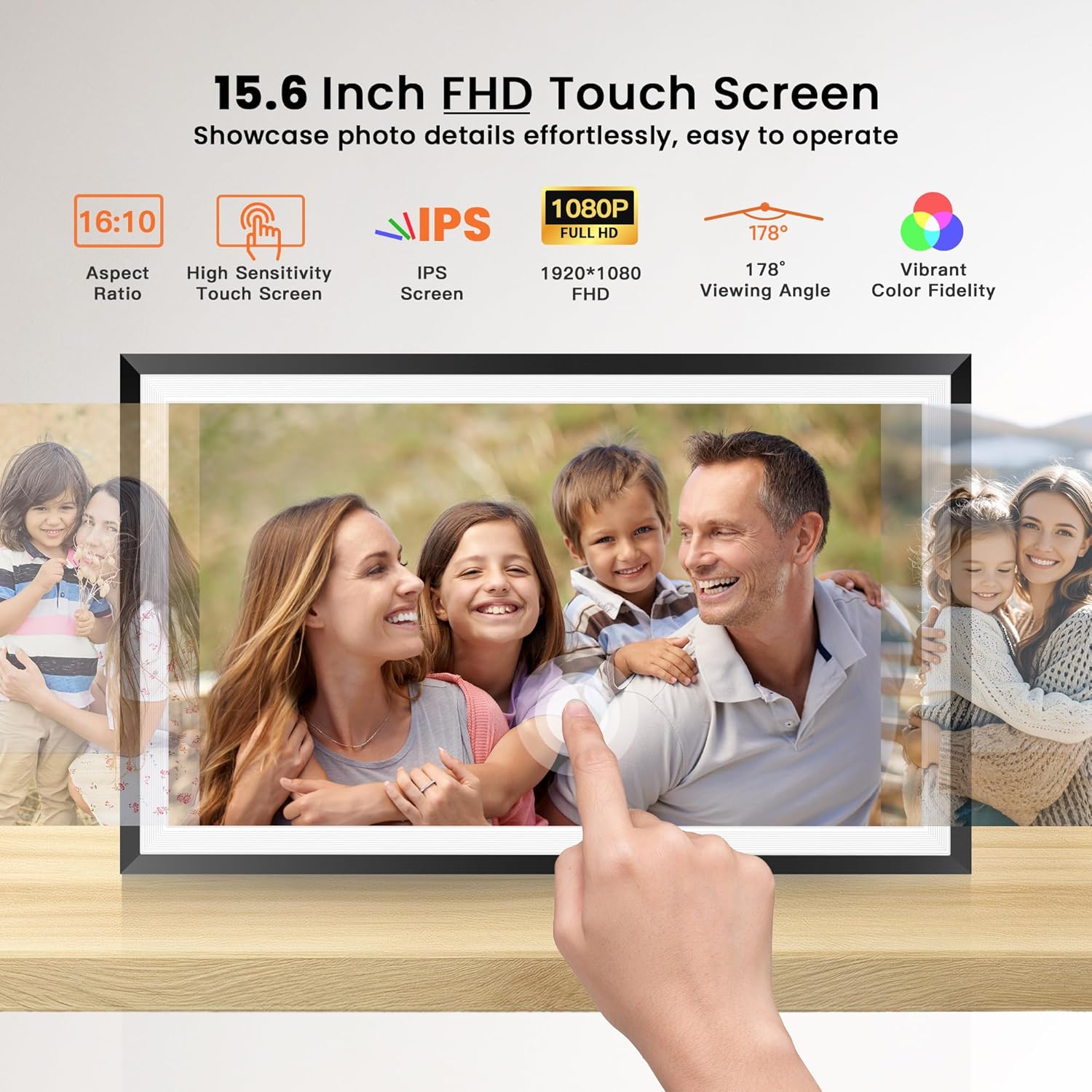
Image: A 15.6-inch digital photo frame displaying a family photo, with an overlay detailing its FHD touch screen specifications including 16:10 aspect ratio, high sensitivity touch, IPS screen, 1920x1080 FHD resolution, 178-degree viewing angle, and vibrant color fidelity.
Garantie und Support
Garantieinformationen
Please refer to the warranty card included in your product packaging or visit the official BIGASUO website for detailed warranty information regarding your digital picture frames.
Kundenservice
For technical assistance, troubleshooting not covered in this manual, or other inquiries, please contact BIGASUO customer support. Contact details can typically be found on the product packaging, the official BIGASUO webWebsite oder über Ihre Einkaufsplattform.


