1. Produktüberschreitungview
The Darmoshark M5PRO is a lightweight, tri-mode wireless gaming mouse designed for precision and versatility. It features a PAW3950 optical sensor, up to 30000 DPI, and 5 programmable buttons. The mouse supports 8K wireless, Bluetooth, and wired connections.

Image 1.1: The Darmoshark M5PRO mouse (red) and its 8K wireless receiver.

Image 1.2: Key features of the M5PRO mouse, including its sensor, polling rate, and microcontroller.
Video 1.1: Ein überview of the Darmoshark M5PRO Wireless Gaming Mouse, showcasing its design and various color options.
2. Einrichtungsanweisungen
2.1 Aufladen der Maus
Before initial use, ensure the mouse is fully charged. Connect the provided USB-C cable to the mouse and a power source (e.g., computer USB port, USB wall adapter). The LED indicator will show charging status.

Image 2.1: The M5PRO mouse is equipped with a 300mAh lithium battery for extended use.
2.2 Verbindungsmodi
The M5PRO mouse supports three connection modes: 8K wireless, Bluetooth, and wired USB-C.
2.2.1 8K Wireless Connection
- Connect the 8K wireless receiver to an available USB port on your computer.
- Turn on the mouse and select the 8K wireless mode using the switch on the bottom of the mouse.
- Die Maus sollte automatisch eine Verbindung zum Empfänger herstellen.

Image 2.2: The 8K wireless receiver provides a high-speed connection for the M5PRO mouse.
2.2.2 Bluetooth-Verbindung
- Turn on the mouse and select the Bluetooth mode using the switch on the bottom of the mouse.
- Öffnen Sie auf Ihrem Computer oder Gerät die Bluetooth-Einstellungen und suchen Sie nach neuen Geräten.
- Select "Darmoshark M5PRO" from the list of available devices to pair.
2.2.3 Kabelverbindung
- Connect the USB-C cable to the mouse and the other end to a USB port on your computer.
- Die Maus schaltet automatisch in den kabelgebundenen Modus und beginnt mit dem Ladevorgang.
3. Bedienungsanleitung
3.1 Tastenfunktionen
The M5PRO mouse features 5 programmable buttons:
- Linksklick-Taste
- Rechtsklick-Taste
- Scrollrad (klickbar)
- Vorwärtstaste (Seite)
- Rückwärtstaste (Seite)
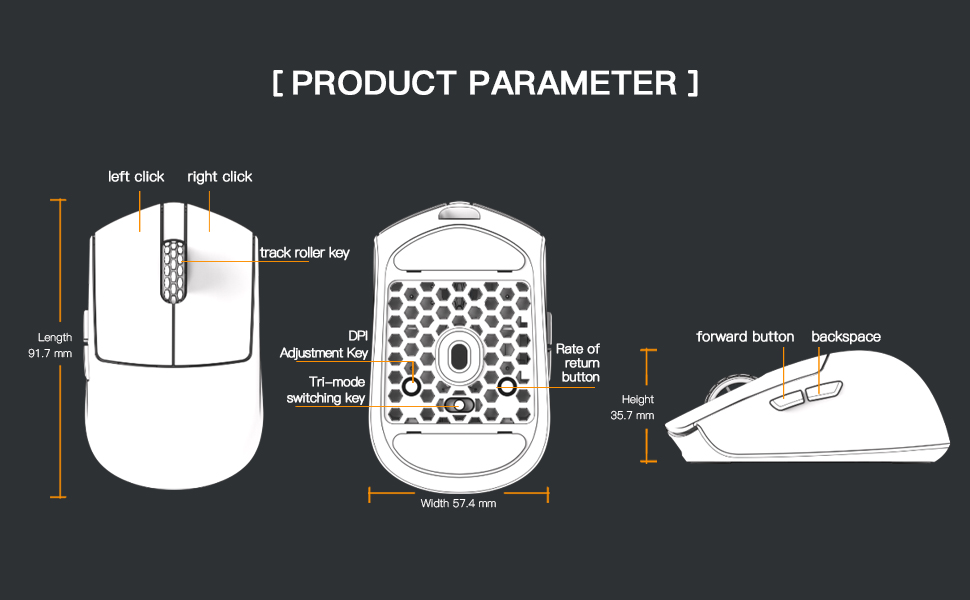
Image 3.1: Diagram illustrating the button layout and dimensions of the M5PRO mouse.
3.2 DPI-Anpassung
The DPI (Dots Per Inch) sensitivity can be adjusted using the dedicated DPI adjustment key located on the bottom of the mouse. Press the button to cycle through preset DPI levels. The current DPI level may be indicated by an LED color change (refer to software for specific mappings).
3.3 Modus-Umschaltung
Use the switch on the bottom of the mouse to select between 8K wireless, Bluetooth, and wired modes.
3.4 Softwareanpassung
For advanced customization, including button remapping, macro creation, and DPI fine-tuning, download the proprietary drivers from the official Darmoshark website. The software allows for personalized settings to optimize your experience.
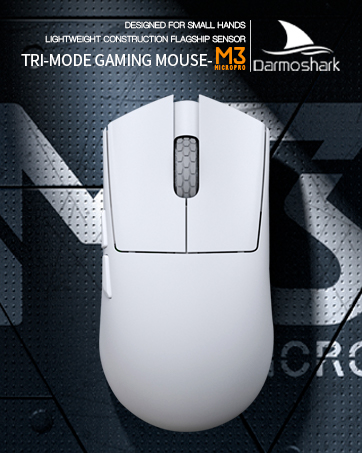
Image 3.2: The proprietary driver software allows for extensive customization of mouse settings.
4. Wartung
4.1 Reinigung
Reinigen Sie die Maus mit einem weichen, trockenen Tuch. Bei hartnäckigem Schmutz kann ein leicht feuchtes Tuch hilfreich sein.amp Ein Tuch kann verwendet werden, achten Sie aber darauf, dass keine Feuchtigkeit in die Maus eindringt. Vermeiden Sie die Verwendung von scharfen Chemikalien oder scheuernden Materialien.
4.2 Speicherung
Bewahren Sie die Maus bei längerer Nichtbenutzung an einem kühlen, trockenen Ort, geschützt vor direkter Sonneneinstrahlung und extremen Temperaturen, auf. Schalten Sie die Maus aus, um die Batterielebensdauer zu verlängern.

Abbildung 4.1: Explosionszeichnung view of the M5PRO mouse, highlighting its internal structure and lightweight components.
5. Fehlerbehebung
5.1 Maus reagiert nicht
- Batterie prüfen: Ensure the mouse is charged. Connect it via USB-C cable to charge.
- Verbindung prüfen: Verify the correct mode (8K wireless, Bluetooth, or wired) is selected on the mouse.
- Receiver/Cable: For 8K wireless, ensure the receiver is securely plugged into a working USB port. For wired, ensure the cable is properly connected.
- Bluetooth erneut koppeln: If using Bluetooth, try removing the device from your computer's Bluetooth settings and re-pairing it.
5.2 Probleme mit der Cursorbewegung
- Sensor reinigen: Ensure the optical sensor on the bottom of the mouse is clean and free from debris.
- Oberfläche: Use the mouse on a suitable surface, preferably a mouse pad, for optimal tracking.
- DPI-Einstellung: Adjust the DPI sensitivity to a comfortable level.
5.3 Software Not Detecting Mouse
- Kabelverbindung: Connect the mouse via USB-C cable to ensure the software can detect it.
- Software neu installieren: Try uninstalling and reinstalling the proprietary drivers.
- Firmware Update: Check the Darmoshark website for any available firmware updates for the mouse.
6. Spezifikationen
| Besonderheit | Spezifikation |
|---|---|
| Marke | Darmoshark |
| Modell | M5PRO |
| Konnektivitätstechnologie | 8K Wireless, Bluetooth, Wired (USB-C) |
| Bewegungserkennungstechnologie | Optischer Sensor PAW3950 |
| Maximale DPI | 30000 DPI |
| Abfragerate | Up to 8KHz (8K wireless mode) |
| Anzahl der Tasten | 5 (Programmierbar) |
| Gewicht | Ungefähr 38 Gramm |
| Batterie | 1 Lithium-Ionen-Akku (im Lieferumfang enthalten) |
| Kompatibilität | Windows, Apple Mac |
Image 6.1: The PAW3950 optical sensor is a core component for precise tracking.
7. Garantie und Support
For warranty information and technical support, please refer to the official Darmoshark webBesuchen Sie die Website oder kontaktieren Sie den Kundenservice. Bewahren Sie Ihren Kaufbeleg für Garantieansprüche auf.
Offizieller Darmoshark WebWebsite: Darmoshark Store


