1. Einleitung
The CHUWI LarkBox X is a compact and powerful mini PC designed for a wide range of applications, from light office work and 4K video playback to online education and design tasks. Featuring the 12th Gen Intel Alder Lake-N100 Processor, 12GB LPDDR5 RAM, and a 512GB SSD, it offers robust performance in a small form factor. This manual provides detailed instructions for setting up, operating, maintaining, and troubleshooting your LarkBox X Mini PC.
2. Packungsinhalt
Bitte überprüfen Sie, ob alle Artikel im Paket vorhanden sind:
- CHUWI LarkBox X Mini-PC
- Netzteil
- HDMI-Kabel
- VESA Mount Kit (Screws included)
- Benutzerhandbuch (dieses Dokument)
- USB-C Hub (optional, may vary by package)

Image: The CHUWI LarkBox X Mini PC shown alongside an included USB-C hub, highlighting its compact design and accessory.
3. Produktüberschreitungview & Häfen
Familiarize yourself with the various ports and components of your LarkBox X Mini PC.
Schnittstellen an Vorder- und Rückseite
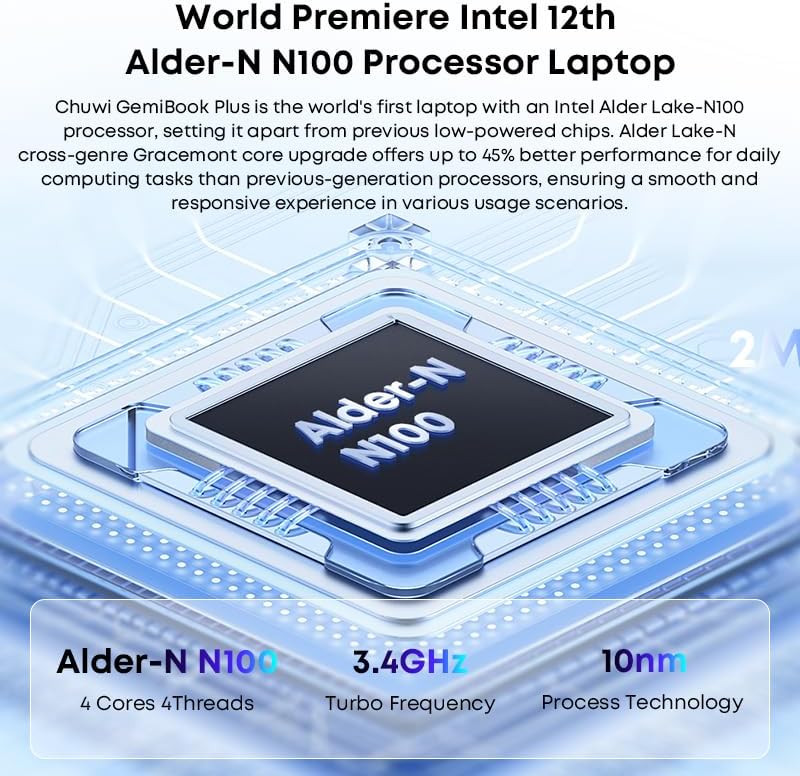
Image: A diagram illustrating the various ports on the front and rear panels of the LarkBox X Mini PC, including USB, audio, power, and display outputs.
- Vorderseite:
- 2 x USB 3.0 Gen1-Anschlüsse
- 1 x USB-C Port (Full-featured)
- 1 x 3.5mm Audio Jack (Headphone/Microphone Combo)
- Netzschalter
- Rückwand:
- 2 x USB 3.2 Gen2-Anschlüsse
- 2 x RJ45 Gigabit LAN Ports
- 1 x HDMI 2.0-Anschluss
- 1 x DisplayPort (DP)
- 1 x DC Power Input Jack
Included USB-C Hub (if applicable)

Image: The included USB-C hub, detailing its ports including USB-A, TF/SD card reader, and its compatibility with various devices for extended connectivity.
The optional USB-C hub expands connectivity, typically including additional USB-A ports, an SD/TF card reader, and potentially an HDMI output, allowing for more peripherals and external storage.
4. Ersteinrichtung
Follow these steps to set up your LarkBox X Mini PC for the first time:
- Display anschließen: Connect your monitor(s) to the Mini PC using the HDMI, DisplayPort, or full-featured USB-C port.
- Peripheriegeräte anschließen: Schließen Sie Ihre Tastatur, Maus und alle anderen USB-Geräte an die verfügbaren USB-Anschlüsse an.
- Netzwerk verbinden (optional): For a wired connection, connect an Ethernet cable to one of the RJ45 LAN ports. For Wi-Fi, you will configure it during the Windows setup.
- Strom anschließen: Insert the power adapter cable into the DC Power Input Jack on the rear panel, then plug the adapter into a power outlet.
- Einschalten: Drücken Sie den Netzschalter an der Vorderseite. Das System startet.
- Windows Setup: Folgen Sie den Anweisungen auf dem Bildschirm, um die Ersteinrichtung von Windows 11 abzuschließen, einschließlich Sprache, Region, Netzwerkverbindung und Erstellung des Benutzerkontos.
5. Bedienungsanleitung
Your LarkBox X Mini PC comes pre-installed with Windows 11. Basic operation is similar to any standard Windows desktop computer.
Grundlegende Bedienung
- Ein-/Ausschalten: Drücken Sie den Netzschalter zum Einschalten. Zum Herunterfahren klicken Sie in Windows auf die Schaltfläche „Start“ und wählen dann „Ein/Aus“ > „Herunterfahren“.
- Neustart: Im Startmenü wählen Sie Ein/Aus > Neustart.
- Schlafmodus: Im Startmenü wählen Sie Ein/Aus > Ruhezustand.
Konnektivität
- W-lan: To connect to a wireless network, click the Wi-Fi icon in the taskbar, select your network, enter the password, and click Connect. The device supports Wi-Fi 6 for fast and stable connections.
- Bluetooth: To pair Bluetooth devices (e.g., keyboard, mouse, speakers), go to Settings > Bluetooth & devices, turn on Bluetooth, and select 'Add device'. The device supports Bluetooth 5.2.
- USB-Geräte: Simply plug in your USB devices (e.g., external hard drives, flash drives) into the available USB 3.0 or USB 3.2 Gen2 ports.
6. Leistung und Speicherung
The LarkBox X is equipped with advanced components for efficient performance and ample Speicher.

Image: An illustration highlighting the 12GB LPDDR5 RAM and 512GB PCIe SSD, indicating the system's memory and storage capabilities.
- Prozessor: Powered by the 12th Gen Intel Alder Lake-N100 Processor (4C/4T, up to 3.4GHz), providing efficient performance for daily computing tasks.
- Erinnerung: Features 12GB LPDDR5 RAM, ensuring smooth multitasking and application performance.
- Lagerung: Comes with a 512GB PCIe SSD for fast boot times and quick application loading. The M.2 2280 SATA3 SSD slot supports storage upgrades up to 1TB.
- Grafik: Integrated Intel UHD Graphics supports 4K@60Hz resolution, suitable for media consumption and light graphics tasks.
7. Multi-Screen Display Configuration
The LarkBox X supports simultaneous output to up to three screens, enhancing productivity and entertainment.

Image: The LarkBox X Mini PC connected to three external monitors, demonstrating its triple-screen 4K@60Hz output capability for an expanded workspace.
You can connect up to three displays using a combination of the following ports:
- 1 x HDMI 2.0-Anschluss (unterstützt 4K@60Hz)
- 1 x DisplayPort (DP) (supports 4K@60Hz)
- 1 x Full-featured USB-C Port (supports 4K@60Hz video output)
So konfigurieren Sie mehrere Bildschirme in Windows 11:
- Schließen Sie alle gewünschten Monitore an den Mini-PC an.
- Right-click on an empty area of the desktop and select 'Display settings'.
- Unter „Mehrere Displays“ können Sie Ihre Displays erkennen, identifizieren und anordnen.
- Wählen Sie aus, wie Ihr Desktop auf den Bildschirmen angezeigt werden soll (z. B. „Diese Bildschirme erweitern“, „Diese Bildschirme duplizieren“).
8. Wartung & Pflege
Proper maintenance ensures the longevity and optimal performance of your LarkBox X Mini PC.
- Reinigung: Regularly clean the exterior with a soft, dry cloth. Do not use liquid cleaners or aerosols. Ensure ventilation openings are free from dust and debris. The built-in fan cooling system helps manage heat, but keeping vents clear is crucial.
- Software-Updates: Keep your Windows operating system and drivers updated to ensure security, stability, and performance. Go to Settings > Windows Update to check for updates.
- Umgebungsbedingungen: Betreiben Sie den Mini-PC in einem gut belüfteten Bereich, fern von direkter Sonneneinstrahlung, Wärmequellen und übermäßiger Feuchtigkeit.
- Energieverwaltung: Use only the provided power adapter. Avoid frequent power cycles.
9. Fehlerbehebung
This section addresses common issues you might encounter with your LarkBox X Mini PC.
| Problem | Mögliche Lösung |
|---|---|
| No power/System does not turn on |
|
| Kein Bild auf dem Monitor |
|
| Probleme mit der Wi-Fi-Verbindung |
|
| Das System ist langsam oder reagiert nicht. |
|
10. Technische Daten
Detailed specifications for the CHUWI LarkBox X Mini PC.
| Besonderheit | Spezifikation |
|---|---|
| Modellname | LarkBox |
| Prozessor | Intel Alder Lake-N100 (4 Kerne/4 Threads, bis zu 3.4 GHz) |
| Grafik | Intel UHD-Grafik (integriert) |
| RAM | 12 GB LPDDR5 |
| Lagerung | 512GB PCIe SSD (M.2 2280 SATA3 slot, upgradeable to 1TB) |
| Betriebssystem | Windows 11 |
| Kabellose Konnektivität | Wi-Fi 6 (802.11ax), Bluetooth 5.2 |
| Ethernet | 2 x Gigabit RJ45 LAN Ports |
| USB-Anschlüsse | 2 x USB 3.2 Gen2, 2 x USB 3.0 Gen1 |
| Videoausgang | 1 x HDMI 2.0 (4K@60Hz), 1 x DisplayPort (4K@60Hz), 1 x Full-featured USB-C (4K@60Hz) |
| Audio Port | 1 x 3.5 mm Audiobuchse |
| Maße | Ca. 5.0 x 5.0 x 1.9 Zoll (12.7 x 12.7 x 4.8 cm) |
| Gewicht | Ca. 400g |
11. Garantie und Support
CHUWI products are designed for reliability and performance. For warranty information and technical support, please refer to the warranty card included with your product or visit the official CHUWI website. You can also contact CHUWI customer service directly for assistance with product issues, troubleshooting, or general inquiries.
Official CHUWI WebWebsite: www.chuwi.com


