1. Einleitung
The 8BitDo 64 Bluetooth Controller is designed for enhanced gaming experiences across multiple platforms. This manual provides essential information for setting up, operating, and maintaining your controller.
Kompatibilität: Analogue 3D, Switch, Switch 2, Windows, Android.
Konnektivität: Bluetooth or Wired USB.
2. Packungsinhalt
- 8BitDo 64 Bluetooth-Controller
- USB-C-Kabel
- Bedienungsanleitung (dieses Dokument)
3. Controller vorbeiview

Abbildung 1: Vorderseite View. This image displays the front of the 8BitDo 64 Bluetooth Controller, highlighting the classic button layout including the D-pad, analog stick, A, B, X, Y buttons, and central function buttons like Start and Select.

Abbildung 2: Zurück View. This image shows the rear of the controller, featuring the S/D mode switch for different input modes and the product information label.

Abbildung 3: Oben View. This image illustrates the top edge of the controller, detailing the L/R shoulder buttons, Z-triggers, and the USB-C charging/connection port.

Figure 4: Hall Effect Joystick. Eine detaillierte view of the controller's Hall Effect Joystick, known for its precision and durability.
4. Einrichtung
4.1 Laden des Controllers
Connect the supplied USB-C cable to the controller's USB-C port and the other end to a USB power source (e.g., computer, USB wall adapter). The LED indicators will show charging status and turn off when fully charged.
4.2 Firmware Update (Critical)
It is highly recommended to update your controller's firmware before first use, especially for compatibility with Analogue 3D and Switch 2. Firmware updates often include critical bug fixes and performance improvements.
- Besuchen Sie den offiziellen 8BitDo-Support. webWebsite.
- Download the latest firmware update tool for your operating system (Windows/macOS).
- Connect your 8BitDo 64 Bluetooth Controller to your computer using the USB-C cable.
- Follow the on-screen instructions in the update tool to complete the firmware update.
4.3 Verbinden über Bluetooth
Ensure the controller is charged and updated before attempting Bluetooth connection.
4.3.1 Mode Selection (S/D Switch)
The switch on the back of the controller allows you to select between 'S' (Switch/Analogue 3D) and 'D' (Windows/Android) input modes. Ensure the correct mode is selected for your device.
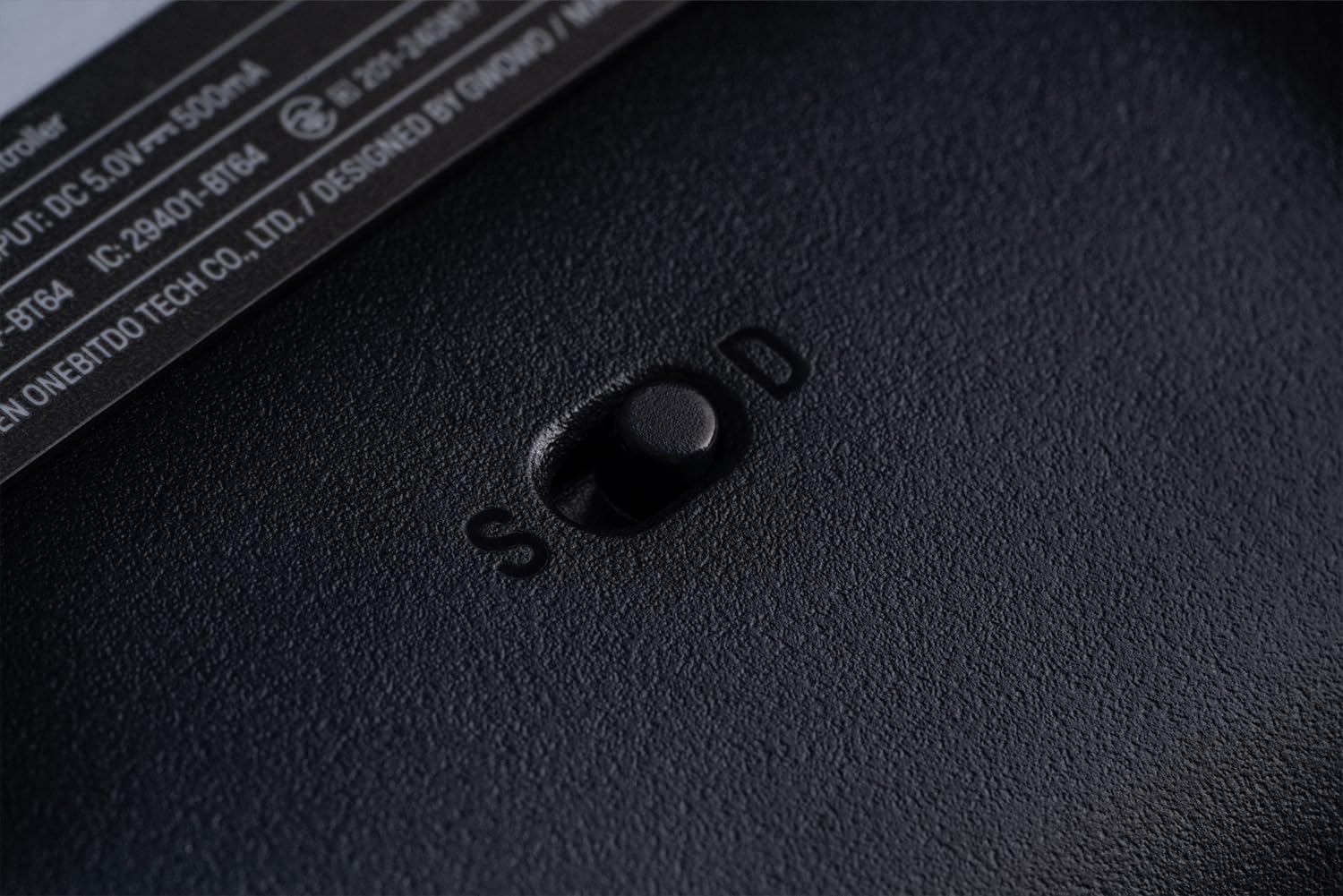
Figure 5: S/D Mode Switch. This image highlights the physical switch on the controller's rear for selecting input modes.
4.3.2 Pairing with Analogue 3D / Switch / Switch 2
- Set the mode switch on the back of the controller to 'S'.
- Press and hold the Start button on the controller for 3 seconds until the LED indicators begin to flash rapidly.
- On your Analogue 3D or Switch console, navigate to the controller pairing menu.
- Select the 8BitDo 64 Bluetooth Controller from the list of available devices.
- The LED indicators on the controller will become solid when successfully paired.
4.3.3 Pairing with Windows / Android
- Set the mode switch on the back of the controller to 'D'.
- Press and hold the Start button on the controller for 3 seconds until the LED indicators begin to flash rapidly.
- On your Windows PC or Android device, enable Bluetooth and search for new devices.
- Select the 8BitDo 64 Bluetooth Controller from the list of available devices.
- The LED indicators on the controller will become solid when successfully paired.
4.4 Connecting via Wired USB
For a wired connection, simply connect the 8BitDo 64 Bluetooth Controller to your device (PC, Switch dock, Analogue 3D) using the supplied USB-C cable. The controller will automatically switch to wired mode.
5. Bedienungsanleitung
5.1 Tastenlayout und Funktionen
The 8BitDo 64 Bluetooth Controller features a layout inspired by classic N64 controllers, adapted for modern gaming.
- Analog-Stick: Primäre Bewegungssteuerung.
- Steuerkreuz: Richtungseingang.
- A/B-Tasten: Main action buttons.
- C-Buttons (Triangle, Circle, Square, Cross): Context-sensitive actions, often camera control or specific game functions.
- Start-Taste: Pause, Menüzugriff.
- Schulterknöpfe (L/R): Zusätzliche Aktionsschaltflächen.
- Z-Triggers (L/R): Located on the underside of the shoulder buttons, providing quick access for specific actions like aiming or shielding.
5.2 Turbo-Funktion
The Turbo function allows a button to be pressed repeatedly as long as it is held down. To activate/deactivate:
- Halten Sie die Taste gedrückt, der Sie die Turbo-Funktion zuweisen möchten.
- While holding the button, press the Star button (Turbo button). The LED will flash to confirm activation.
- Zum Deaktivieren wiederholen Sie den Vorgang.
5.3 Vibrationsfunktion
Vibration is supported on Analogue 3D and Switch (Nintendo 64 Online only). The intensity of vibration is game-dependent and cannot be manually adjusted on the controller.
6. Wartung
- Halten Sie den Controller trocken und schützen Sie ihn vor extremen Temperaturen.
- Reinigen Sie den Controller mit einem weichen, trockenen Tuch. Verwenden Sie keine scharfen Chemikalien oder Scheuermittel.
- Vermeiden Sie es, den Controller fallen zu lassen oder starken Stößen auszusetzen.
- Bewahren Sie den Controller bei Nichtgebrauch an einem sicheren Ort auf, um Beschädigungen zu vermeiden.
7. Fehlerbehebung
- Controller verbindet sich nicht: Ensure the mode switch (S/D) is set correctly for your device. Try re-pairing the controller. Ensure the controller is charged.
- Tasten reagieren nicht: Check for any physical obstructions. Ensure the controller's firmware is up to date.
- Eingabeverzögerung: Ensure you are within the optimal range for Bluetooth connectivity. Try a wired connection to rule out wireless interference.
- Probleme mit Firmware-Updates: Ensure you are using the correct update tool for your operating system and controller model. Try a different USB port or cable.
8. Spezifikationen
| Modellnummer | 6922621507161 |
| Konnektivität | Bluetooth 5.0 (Support Bluetooth LE), Wired USB |
| Eingang | Gleichstrom 5 V === 500 mA |
| Batterie | 1 Lithium-Ionen-Akku (im Lieferumfang enthalten) |
| Maße | 15.94 x 8.07 x 12.4 Zoll |
| Gewicht | 7.05 Unzen |
9. Garantie und Support
For warranty information, technical support, or further assistance, please visit the official 8BitDo webBesuchen Sie die Website oder kontaktieren Sie direkt den Kundenservice. Bewahren Sie Ihren Kaufbeleg für Garantieansprüche auf.


