1. Einleitung
Thank you for choosing the LOFREE Zero ARTZ Mechanical Keyboard and Terrazzo Mouse combo. This manual provides essential information for setting up, operating, and maintaining your new devices. The Zero ARTZ keyboard features a 75% layout, hot-swappable switches, and versatile connectivity options including Bluetooth, 2.4GHz wireless, and USB-C. The accompanying Terrazzo Mouse offers dual-mode connectivity and adjustable DPI settings for enhanced productivity.

Image: The LOFREE Terrazzo Mouse, featuring its unique speckled design.
2. Packungsinhalt
Bitte vergewissern Sie sich, dass alle Artikel in Ihrem Paket vorhanden sind:
- LOFREE Zero ARTZ Mechanical Keyboard
- LOFREE Terrazzo Mouse
- USB-C-auf-USB-A-Kabel
- 2.4-GHz-Funkempfänger
- Tastenkappenabzieher (für Hot-Swap-fähige Schalter)
- Switch Puller (for hot-swappable switches)
- Benutzerhandbuch (dieses Dokument)
3. Einrichtung
3.1 Aufladen der Geräte
Sowohl Tastatur als auch Maus sind mit wiederaufladbaren Batterien ausgestattet. Vor dem ersten Gebrauch wird empfohlen, beide Geräte vollständig aufzuladen.
- Connect the provided USB-C cable to the charging port on the keyboard and mouse.
- Verbinden Sie das andere Ende des USB-C-Kabels mit einem USB-Netzteil (nicht im Lieferumfang enthalten) oder einem USB-Anschluss Ihres Computers.
- Die Ladeanzeigeleuchte leuchtet während des Ladevorgangs und erlischt oder ändert ihre Farbe, wenn der Akku vollständig geladen ist.
3.2 Keyboard Connectivity
The Zero ARTZ keyboard supports three connection modes: Bluetooth, 2.4GHz Wireless, and USB-C wired.
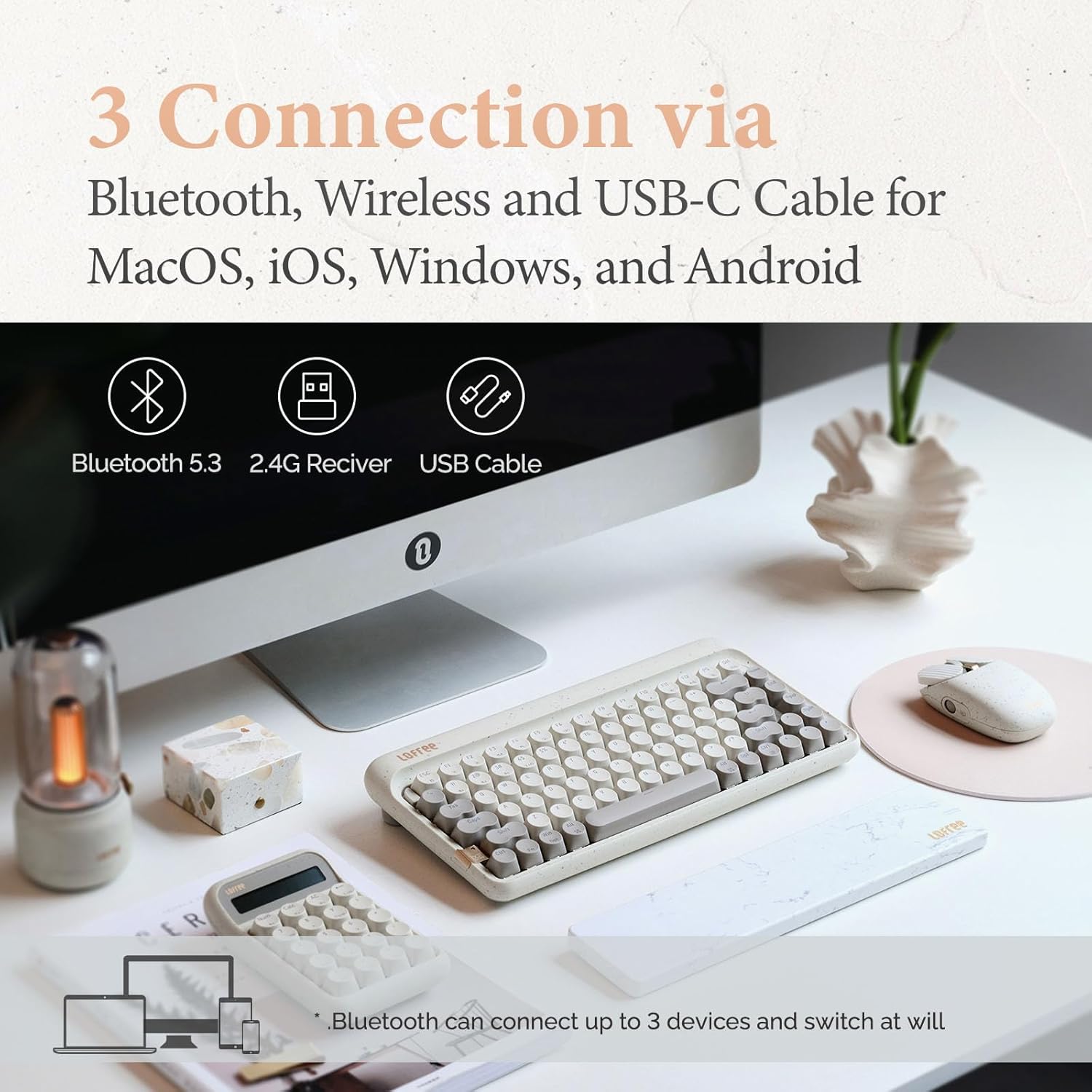
Image: Illustration showing the three connection methods: Bluetooth 5.3, 2.4G Receiver, and USB Cable, compatible with MacOS, iOS, Windows, and Android.
3.2.1 Bluetooth-Verbindung
- Locate the mode switch on the keyboard and set it to 'BT' (Bluetooth).
- Drücken und halten Fn + 1, Fn + 2, oder Fn + 3 for 3-5 seconds until the indicator light flashes rapidly, indicating pairing mode. The keyboard can store up to three Bluetooth devices.
- On your device (computer, tablet, smartphone), enable Bluetooth and search for 'LOFREE Zero ARTZ'.
- Wählen Sie die zu koppelnde Tastatur aus. Die Kontrollleuchte hört auf zu blinken, sobald die Verbindung hergestellt ist.
- Um zwischen gekoppelten Bluetooth-Geräten zu wechseln, drücken Sie Fn + 1, Fn + 2, oder Fn + 3 knapp.
3.2.2 2.4-GHz-Funkverbindung
- Locate the mode switch on the keyboard and set it to '2.4G'.
- Insert the 2.4GHz wireless receiver into an available USB port on your computer.
- Die Tastatur sollte sich automatisch verbinden. Falls nicht, drücken Sie Fn + 4 um die Kopplung einzuleiten.
3.2.3 Kabelgebundene USB-C-Verbindung
- Locate the mode switch on the keyboard and set it to 'USB'.
- Verbinden Sie das mitgelieferte USB-C-Kabel der Tastatur mit dem USB-Anschluss Ihres Computers.
- The keyboard will be recognized as a standard USB device and is ready for use.
3.3 Mouse Connectivity
The Terrazzo Mouse supports dual-mode connection: Bluetooth and 2.4GHz Wireless.
3.3.1 Bluetooth-Verbindung
- Locate the mode switch on the bottom of the mouse and set it to 'BT'.
- Press and hold the Bluetooth pairing button (usually near the mode switch) for 3-5 seconds until the indicator light flashes.
- On your device, enable Bluetooth and search for 'LOFREE Terrazzo Mouse'.
- Select the mouse to pair. The indicator light will stop flashing once connected.
- The mouse can connect to 2 devices simultaneously. Use the pairing button to switch between them.
3.3.2 2.4-GHz-Funkverbindung
- Locate the mode switch on the bottom of the mouse and set it to '2.4G'.
- Insert the 2.4GHz wireless receiver into an available USB port on your computer.
- Die Maus sollte sich automatisch verbinden.
4. Bedienungsanleitung
4.1 Tastaturfunktionen
The Zero ARTZ keyboard is designed for optimal typing experience with a gasket mount structure and 1000Hz polling rate.

Abbildung: Explosionszeichnung view of the LOFREE keyboard showing the Gasket Mount, Keycaps, Switches, Gasket Pad, Poron, PCBA IXPE Foam, EVA Foam, EVA Pad, Upper Case, and Bottom Case layers.
4.1.1 Funktionstastenkombinationen (Fn)
Verwenden Sie die Fn key in combination with other keys to access special functions:
- Fn + 1/2/3: Switch between Bluetooth devices.
- Fn + 4: Activate 2.4GHz wireless pairing.
- Fn + Q/W/E/R: (Specific to some models) Switch between operating system layouts (e.g., Mac/Windows). Refer to the keycap legends for specific OS modes.
- Fn+F1-F12: Multimedia and system control keys (e.g., volume, playback, screen brightness). The specific functions are indicated by icons on the keycaps.
4.1.2 Betriebssystemkompatibilität
The keyboard is compatible with MacOS, iOS, Windows, and Android. Ensure the correct operating system mode is selected if available, typically via a switch or Fn key combination, to ensure proper key mapping.

Image: A user typing on the LOFREE keyboard, highlighting the 1000Hz Polling Rate for responsive input.
4.2 Mausfunktionen
The Terrazzo Mouse features an ergonomic design and adjustable sensitivity.

Image: A hand comfortably resting on the LOFREE Terrazzo Mouse, demonstrating its ergonomic design.
4.2.1 DPI-Anpassung
The mouse offers 5 adjustable DPI levels to suit different preferences and tasks. Press the DPI button (usually located on the top or bottom of the mouse) to cycle through the available DPI settings. The indicator light may change color or flash to indicate the current DPI level.
4.2.2 Thumb Wheel and Button
The mouse includes a thumb wheel and an additional button for multi-gesture use, enhancing navigation and productivity. Refer to your operating system's mouse settings for customization options.
5. Wartung
5.1 Reinigung
To maintain the appearance and functionality of your devices:
- Verwenden Sie ein weiches, trockenes, fusselfreies Tuch, um die Oberflächen von Tastatur und Maus abzuwischen.
- Bei hartnäckigen Verschmutzungen leicht dampBefeuchten Sie das Tuch mit Wasser oder einem milden, nicht scheuernden Reinigungsmittel. Vermeiden Sie übermäßige Feuchtigkeit.
- To clean between keycaps, use compressed air or a small brush.
5.2 Hot-Swap-fähige Schalter
The Zero ARTZ keyboard features hot-swappable switches, allowing for easy replacement without soldering.
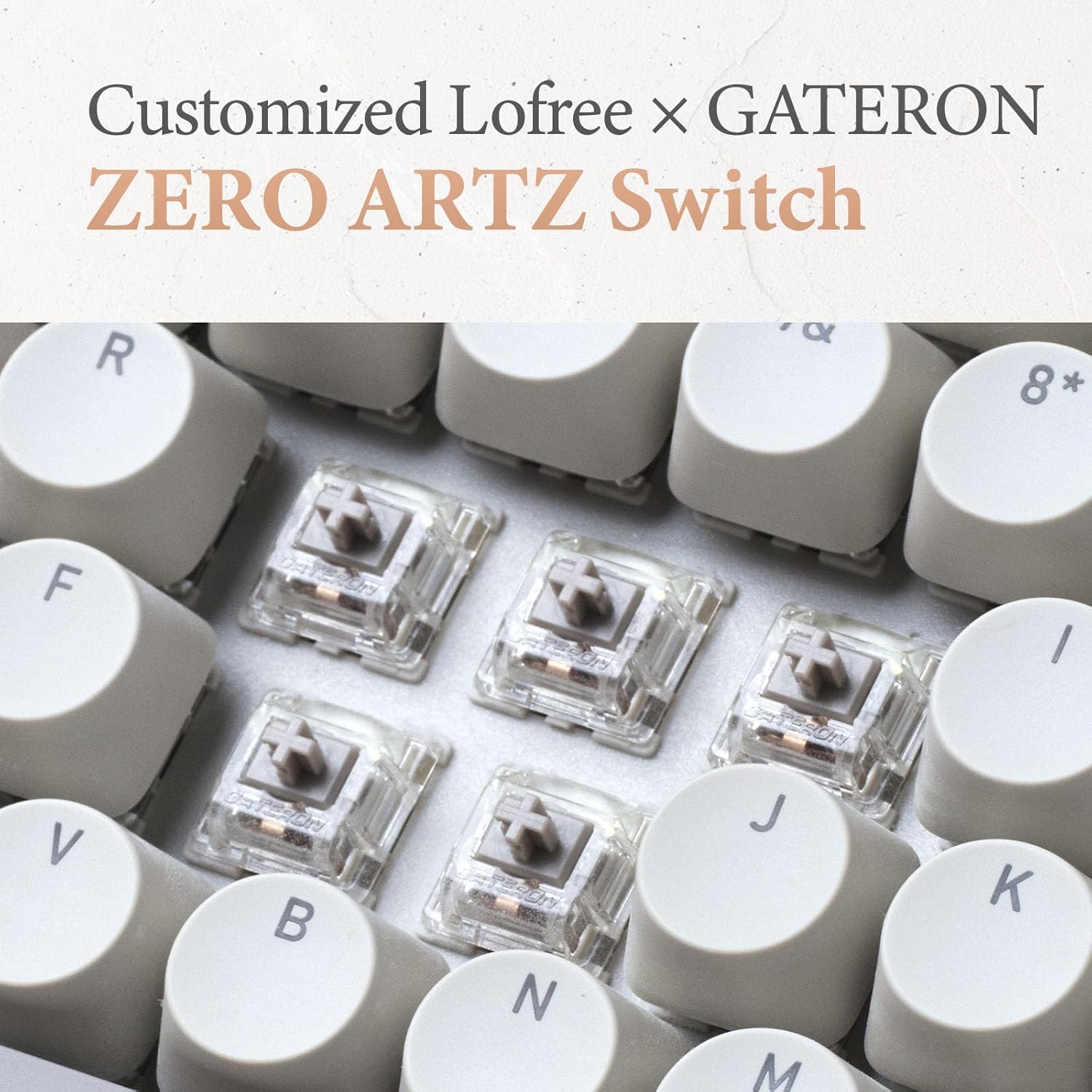
Image: Close-up of the customized LOFREE x GATERON ZERO ARTZ switches installed in the keyboard.
- Verwenden Sie den mitgelieferten Tastenkappenabzieher, um die gewünschte Tastenkappe vorsichtig zu entfernen.
- Use the provided switch puller to gently grip the switch from its top and bottom clips, then pull it straight up to remove.
- Richten Sie die Pins des neuen Schalters an den Löchern auf der Platine aus und drücken Sie ihn fest nach unten, bis er einrastet. Achten Sie darauf, dass die Pins nicht verbogen sind.
- Tauschen Sie die Tastenkappe aus.
5.3 Batteriepflege
So verlängern Sie die Akkulaufzeit:
- Vermeiden Sie häufiges vollständiges Entladen des Akkus.
- Bewahren Sie die Geräte an einem kühlen, trockenen Ort auf, wenn sie längere Zeit nicht benutzt werden.
- Recharge the devices when the low battery indicator appears. The mouse has an approximate 50-day battery life on a single charge, depending on usage.
6. Fehlerbehebung
6.1 Verbindungsprobleme
- Gerät verbindet sich nicht über Bluetooth: Ensure the keyboard/mouse is in pairing mode. Check your device's Bluetooth settings and try re-pairing. Ensure no other devices are interfering.
- 2.4GHz wireless not working: Ensure the 2.4GHz receiver is securely plugged into a USB port. Try a different USB port. Ensure the keyboard/mouse is set to 2.4G mode.
- Wired connection issues: Ensure the USB-C cable is properly connected to both the keyboard and the computer. Try a different USB-C cable or port.
6.2 Tastatur/Maus reagiert nicht
- Überprüfen Sie den Batteriestand und laden Sie ihn bei Bedarf auf.
- Ensure the correct connection mode (Bluetooth, 2.4G, USB) is selected on the device.
- Starten Sie Ihren Computer oder Ihr Gerät neu.
- For the keyboard, ensure the correct operating system mode (Mac/Windows) is selected.
6.3 DPI Adjustment Not Working (Mouse)
- Stellen Sie sicher, dass die Maus eingeschaltet und angeschlossen ist.
- Press the DPI button firmly. If there's no visual indicator, try moving the mouse after each press to feel the change in sensitivity.
7. Spezifikationen
| Besonderheit | Detail |
|---|---|
| Marke | LOFREE |
| Modell | Zero ARTZ |
| Tastaturlayout | 75% QWERTY |
| Konnektivitätstechnologie | Bluetooth 5.3, 2.4-GHz-Funkverbindung, USB-C-Kabelverbindung |
| Kompatible Geräte | Laptop, Personal Computer, Smartphone, Tablet (Windows, Mac OS, iOS, Android) |
| Stromquelle | Batteriebetrieben (wiederaufladbar) |
| Tastaturabfragerate | 1000 Hz |
| Tastaturschalter | Customized LOFREE x GATERON ZERO ARTZ (Linear) |
| Tastatur-Tastenkappen | Dual Color PBT |
| Maus-DPI-Stufen | 5 Einstellbare Stufen |
| Akkulaufzeit der Maus | Ca. 50 Tage (je nach Nutzung) |
| ASIN | B0DKJB48FR |
| Datum der ersten Verfügbarkeit | 22. Oktober 2024 |
8. Garantie und Support
LOFREE products are covered by a limited warranty. For detailed warranty information, please refer to the warranty card included with your product or visit the official LOFREE website. If you encounter any issues or require technical assistance, please contact LOFREE customer support through their official channels.
- Offizieller LOFREE WebWebsite: www.lofree.co
- Kundenunterstützung E-Mail: Siehe Produktverpackung oder webWebsite für aktuelle Kontaktinformationen.