1. Einleitung
This manual provides detailed instructions for the installation, operation, and maintenance of your BISOFICE 80mm Receipt Printer. Please read this manual thoroughly before using the printer to ensure proper function and to prevent damage.
The BISOFICE 80mm Receipt Printer is a high-efficiency thermal printer designed for various business environments, including retail, restaurants, and supermarkets. It features fast printing, an auto cutter, and supports both USB and LAN connections.
2. Sicherheitshinweise
- Der Drucker darf weder Wasser noch Feuchtigkeit ausgesetzt werden.
- Ensure the power supply matches the printer's requirements.
- Avoid touching the thermal print head immediately after printing, as it may be hot.
- Use only specified thermal paper.
- Do not attempt to disassemble or repair the printer yourself. Contact support if issues arise.
3. Packungsinhalt
Überprüfen Sie, ob alle Artikel im Paket vorhanden sind:
- BISOFICE 80mm Receipt Printer
- Thermopapierrolle
- Netzteil
- USB-Kabel
- Netzkabel
- Benutzerhandbuch (dieses Dokument)

Figure 3.1: Included items in the BISOFICE 80mm Receipt Printer package.
4. Produktüberschreitungview
The BISOFICE 80mm Receipt Printer is designed for efficient and reliable thermal printing. Key features include a fast print speed of 200mm/s and an integrated auto cutter for clean receipt separation.
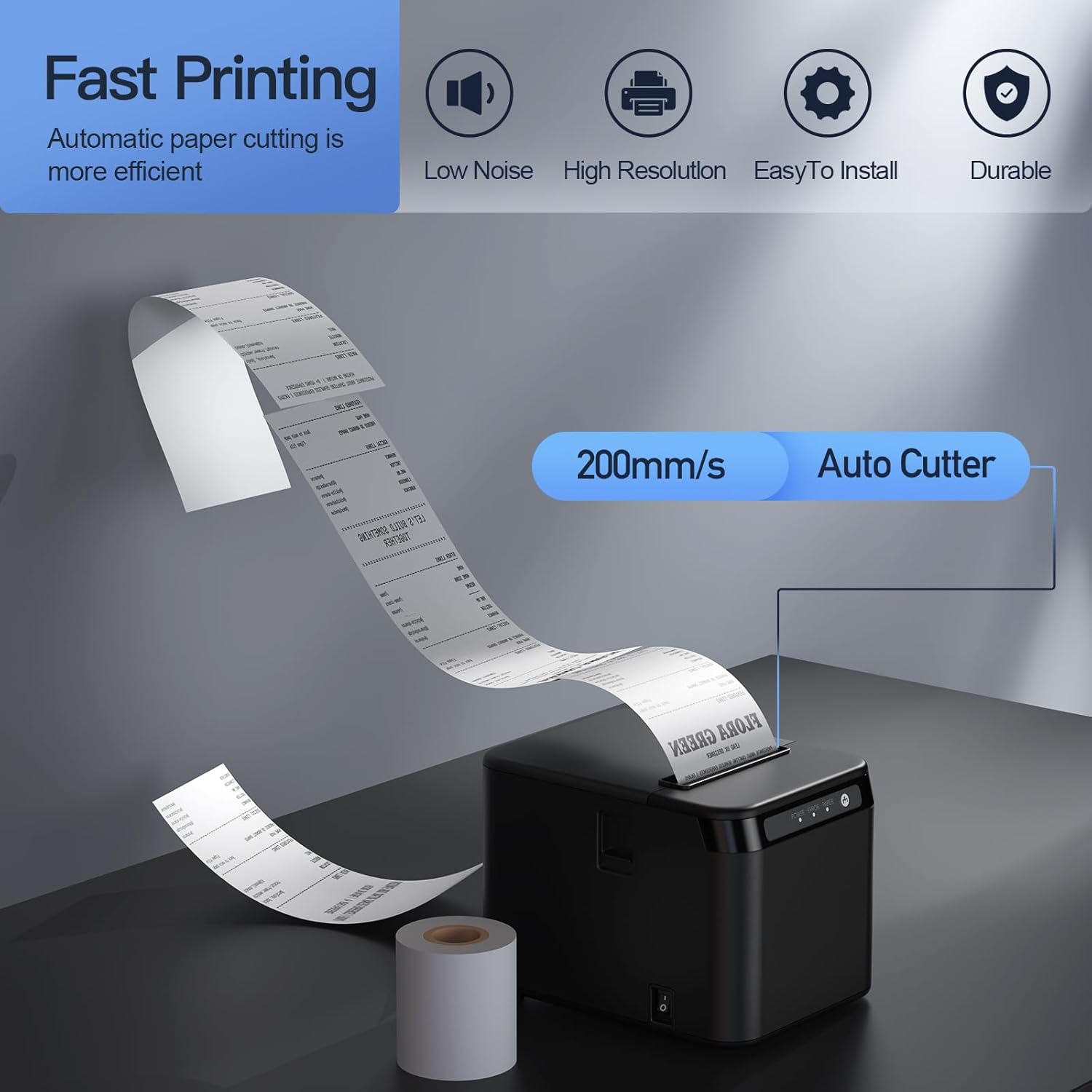
Figure 4.1: Printer features: 200mm/s speed and auto cutter.
This thermal printer operates without ink cartridges or ribbons, reducing operational costs. It uses standard 80mm thermal paper rolls.
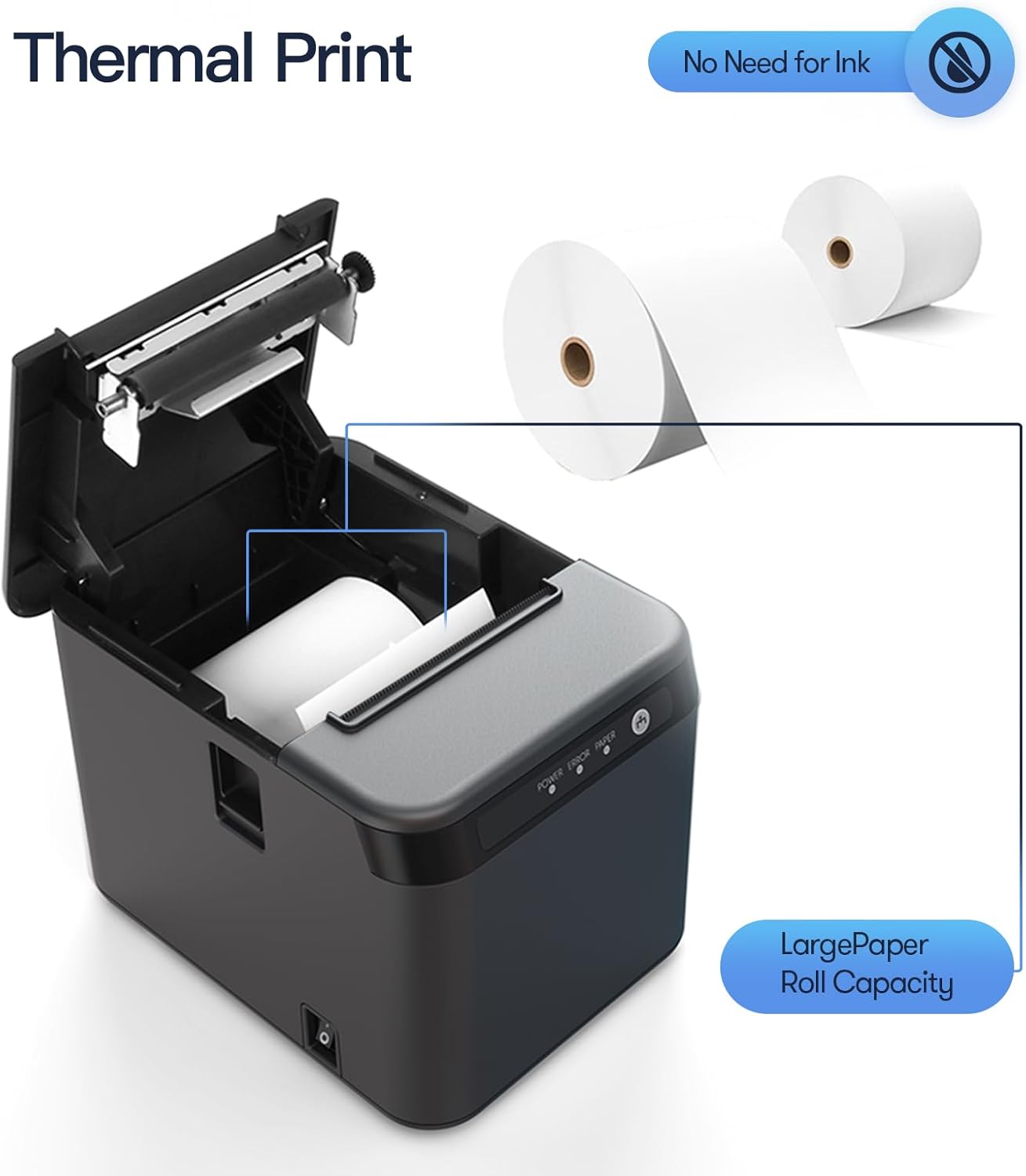
Figure 4.2: Thermal printing mechanism and paper roll capacity.
4.1 Printer Components and Ports
Familiarize yourself with the printer's external components and connection ports:

Abbildung 4.3: Vorder- und Rückseite view of the printer with labeled components and ports.
- Cover Open Button: Releases the top cover to access the paper compartment.
- Feed-Button: Manually feeds paper.
- Kontrollleuchten: Display printer status (Power, Error, Paper).
- Schaltertaste: Ein/Aus-Schalter.
- LAN-Anschluss: Connects to a network for Ethernet printing.
- USB-Anschluss: Connects to a computer for USB printing.
- Cash Port: Connects to a cash drawer.
- Stromanschluss: Wird mit dem Netzteil verbunden.
5. Einrichtung
5.1 Einlegen von Thermopapier
- Press the cover open button to open the printer's top cover.
- Insert the thermal paper roll into the compartment, ensuring the paper feeds from the bottom and the leading edge extends slightly past the cutter.
- Schließen Sie den oberen Deckel fest, bis er einrastet.
5.2 Anschlusskabel
- Stromanschluss: Schließen Sie den Netzadapter an den Stromanschluss des Druckers an und stecken Sie dann das Netzkabel in eine geeignete Steckdose.
- USB-Verbindung: For direct connection to a computer, plug one end of the USB cable into the printer's USB port and the other end into an available USB port on your computer.
- LAN-Verbindung: For network printing, connect an Ethernet cable from the printer's LAN port to your network router or switch.
- Anschluss Kassenlade: If using a cash drawer, connect its cable to the printer's Cash port.
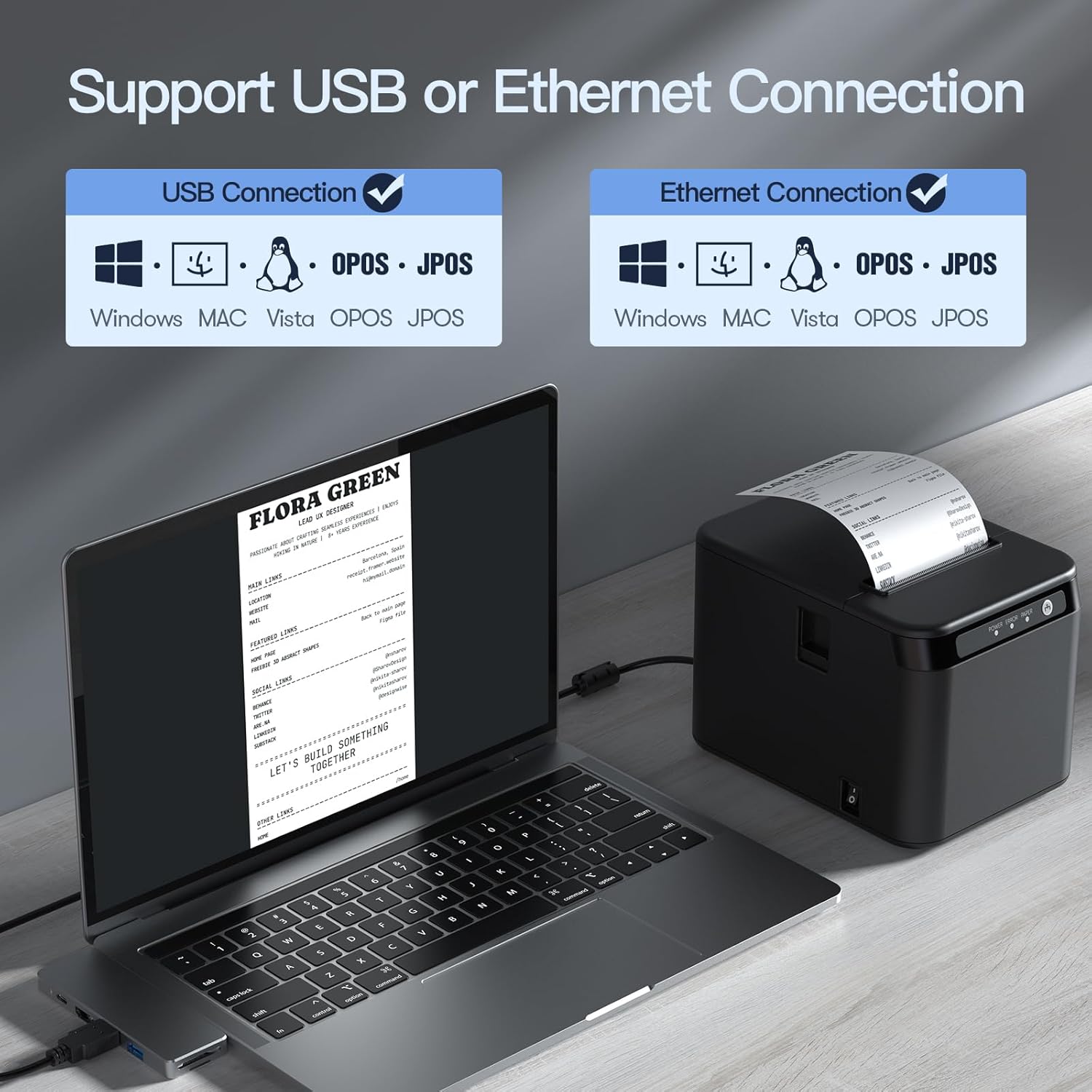
Figure 5.1: USB and Ethernet connection options.

Abbildung 5.2: Bspample of LAN connection setup.
5.3 Treiberinstallation
The printer requires drivers for proper communication with your computer. Drivers are typically provided on a CD or can be downloaded from the manufacturer's website. The printer is compatible with Windows XP/VISTA/7/8/10, Linux, and macOS.
- Insert the driver CD or navigate to the driver download page on the Bisofice webWebsite.
- Select the appropriate driver for your operating system (Windows, Linux, or macOS).
- Befolgen Sie die Anweisungen auf dem Bildschirm, um die Treiberinstallation abzuschließen.
- Starten Sie Ihren Computer nach der Installation neu, falls Sie dazu aufgefordert werden.
Note: Some users have reported needing to download drivers from a specific Chinese website. Refer to the support section if the provided drivers do not work.
6. Bedienung
6.1 Grundlegendes Drucken
- Stellen Sie sicher, dass der Drucker eingeschaltet und mit Ihrem Computer oder Netzwerk verbunden ist.
- Open the document or application from which you wish to print (e.g., POS software, text editor).
- Select the BISOFICE 80mm Receipt Printer from your printer options.
- Initiate the print command. The printer will automatically print the receipt and use its auto cutter.
6.2 Wandmontage
The printer features two hanging holes on the bottom for wall mounting, allowing you to save counter space.
- Identify a suitable location on a wall for mounting.
- Measure the distance between the two hanging holes on the printer's base.
- Drill two corresponding holes in the wall and insert appropriate wall anchors and screws (not included).
- Carefully align the printer's hanging holes with the screws and mount the printer securely.

Figure 6.1: Desktop and wall-mount usage scenarios.
7. Wartung
7.1 Drucker reinigen
Regelmäßige Reinigung trägt zur Erhaltung der Druckqualität bei und verlängert die Lebensdauer des Druckers.
- Exterieur: Wipe the printer's exterior with a soft, damp Tuch. Verwenden Sie keine scharfen Chemikalien oder Scheuermittel.
- Thermal Print Head: Gently clean the thermal print head with an alcohol swab or a specialized thermal printer cleaning pen. Ensure the printer is off and cooled down before cleaning.
- Papierpfad: Entfernen Sie Papierstaub oder -reste aus dem Papierweg mit einer weichen Bürste oder Druckluft.
7.2 Austauschen von Papierrollen
When the paper roll is depleted or running low, replace it following the steps in Section 5.1.
8. Fehlerbehebung
This section addresses common issues you might encounter with your BISOFICE 80mm Receipt Printer.
8.1 Häufige Probleme und Lösungen
| Problem | Mögliche Ursache | Lösung |
|---|---|---|
| Der Drucker lässt sich nicht einschalten. | Kein Strom, Netzteil/Netzkabel defekt. | Überprüfen Sie die Stromanschlüsse. Stellen Sie sicher, dass die Steckdose funktionsfähig ist. |
| Kein Ausdruck. | No paper, paper jammed, incorrect driver, loose connection. | Load paper correctly. Clear any jams. Reinstall drivers. Check USB/LAN cable connections. |
| Schlechte Druckqualität. | Dirty print head, low-quality thermal paper. | Clean the thermal print head (Section 7.1). Use high-quality thermal paper. |
| Auto cutter not working. | Paper jam, cutter mechanism obstruction. | Clear any paper jams. Power cycle the printer. |
| Der Drucker wird vom Computer nicht erkannt. | Incorrect/missing drivers, loose USB/LAN cable. | Install or reinstall the correct drivers. Ensure cables are securely connected. Try a different USB port. |
| Incompatible with Square or iPad. | Specific software/hardware limitations. | This printer is not compatible with Square POS systems or iPads. Verify compatibility with your specific POS software before purchase. |
8.2 Status der Kontrollleuchte
- Power Light (Solid Green): Printer is on and ready.
- Error Light (Flashing Red): Indicates an error (e.g., paper jam, print head error).
- Paper Light (Flashing Red): Indicates low or no paper.
9. Spezifikationen
| Besonderheit | Detail |
|---|---|
| Modell | ZGV9622812387288LP |
| Druckverfahren | Thermodirekt |
| Druckgeschwindigkeit | Bis zu 200 mm/Sek. |
| Papierbreite | 80 mm |
| Druckbreite | 72 mm |
| Max Paper Roll Diameter | 83 mm |
| Auflösung | 576 Punkte / Linie |
| Schnittstelle | USB + LAN (Ethernet) |
| Automatischer Cutter | Ja |
| Betriebssystemkompatibilität | Windows XP/VISTA/7/8/10, Linux, macOS |
| Abmessungen (ca.) | 128mm (B) x 173mm (T) x 127mm (H) |
| Artikelgewicht | 2.68 Pfund (ca. 1.22 kg) |
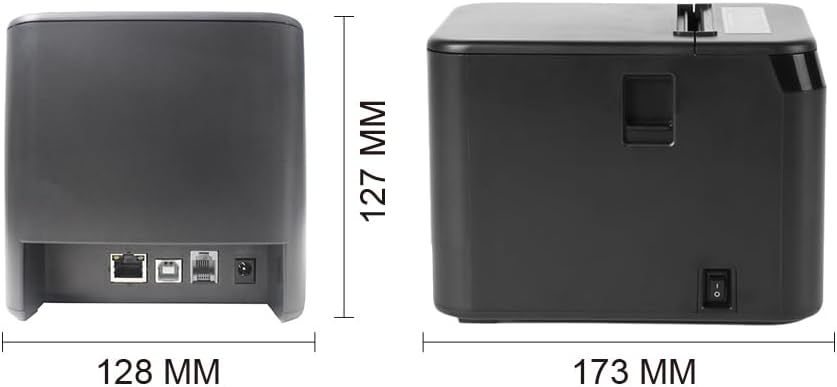
Figure 9.1: Printer dimensions.
10. Garantie und Support
For warranty information, technical support, or service inquiries, please contact Bisofice customer service through your purchase platform or the official Bisofice website. Please have your model number (ZGV9622812387288LP) and purchase date available when contacting support.
Note: Information regarding specific warranty periods was not available at the time of this manual's creation. Please refer to your product's packaging or the seller's terms for details.


