1. Produktüberschreitungview
This manual provides instructions for the SABLUTE KL386 Wireless Keyboard and Mouse Combo. This combo offers a compact, quiet, and rechargeable solution for your computing needs, featuring backlit keys and an RGB mouse.
Packungsinhalt:
- Kabellose Tastatur
- Drahtlose Maus
- USB-Empfänger (2.4 GHz)
- USB-A zu USB-C Adapter
- USB-C-Ladekabel
- Bedienungsanleitung
Komponentenidentifikation:
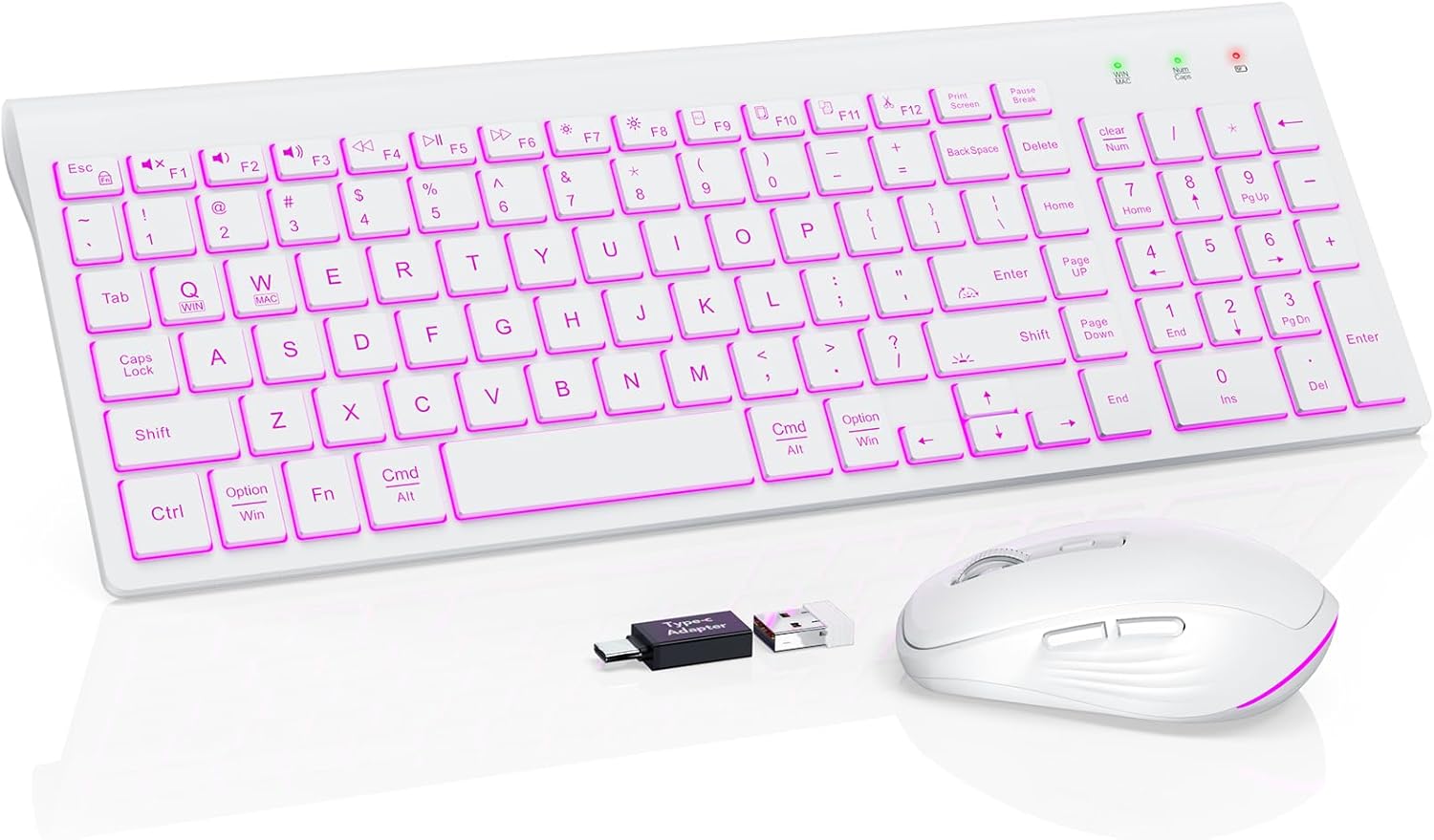
Image: The SABLUTE KL386 wireless keyboard and mouse combo, including the USB receiver and USB-C adapter.
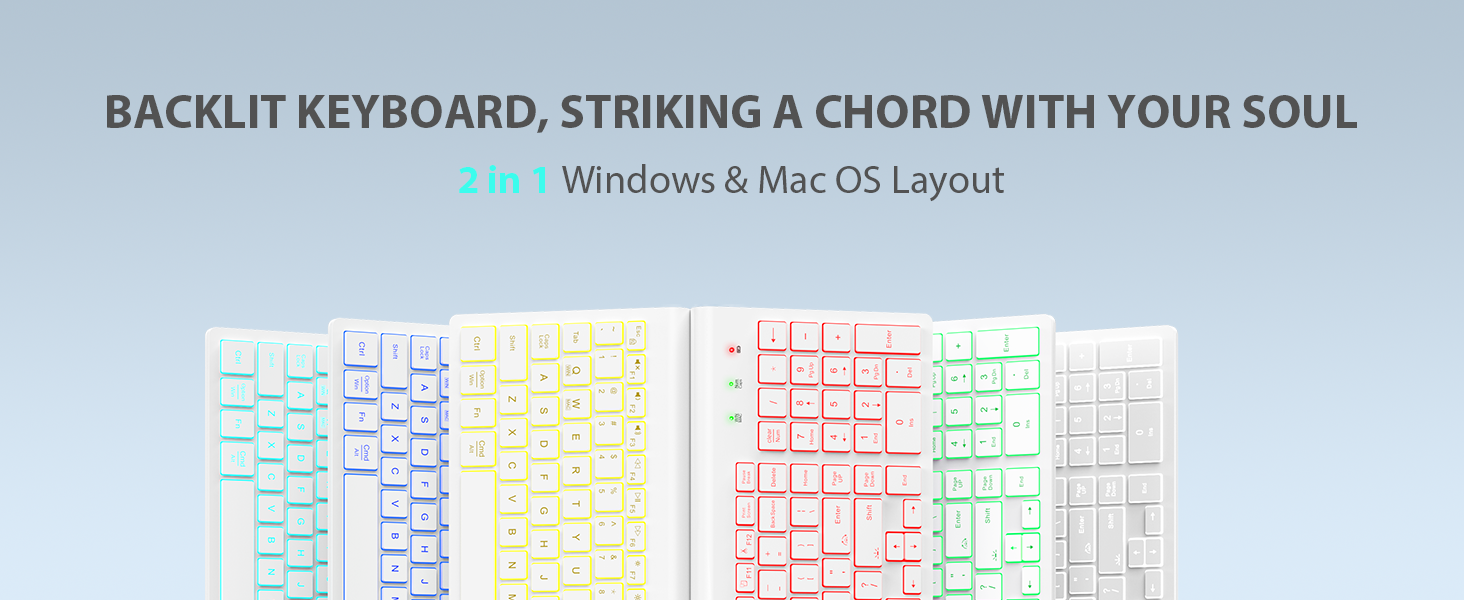
Bild: Detailliert view of the SABLUTE KL386 keyboard layout, highlighting key functions and indicators.
2. Einrichtungsanweisungen
2.1 Aufladen der Geräte
Before initial use, fully charge both the keyboard and mouse.
- Connect the provided USB-C charging cable to the charging port on the keyboard and mouse.
- Verbinden Sie das andere Ende des Kabels mit einer USB-Stromquelle (z. B. einem USB-Anschluss am Computer oder einem USB-Netzteil).
- Die Ladeanzeigeleuchte leuchtet während des Ladevorgangs und erlischt, sobald der Akku vollständig geladen ist.

Image: Illustration of the keyboard and mouse connected via USB-C cables for charging, showing battery capacity indicators.
2.2 Anschließen der drahtlosen Kombination
The keyboard and mouse share a single USB receiver for connection.
- Suchen Sie den USB-Empfänger, der sich normalerweise im Batteriefach der Maus befindet.
- Plug the USB receiver into an available USB-A port on your computer. If your computer only has USB-C ports, use the included USB-A to USB-C adapter.
- Turn on the power switch located on the back of both the keyboard and the mouse.
- The devices are plug-and-play and should connect automatically within a few seconds.
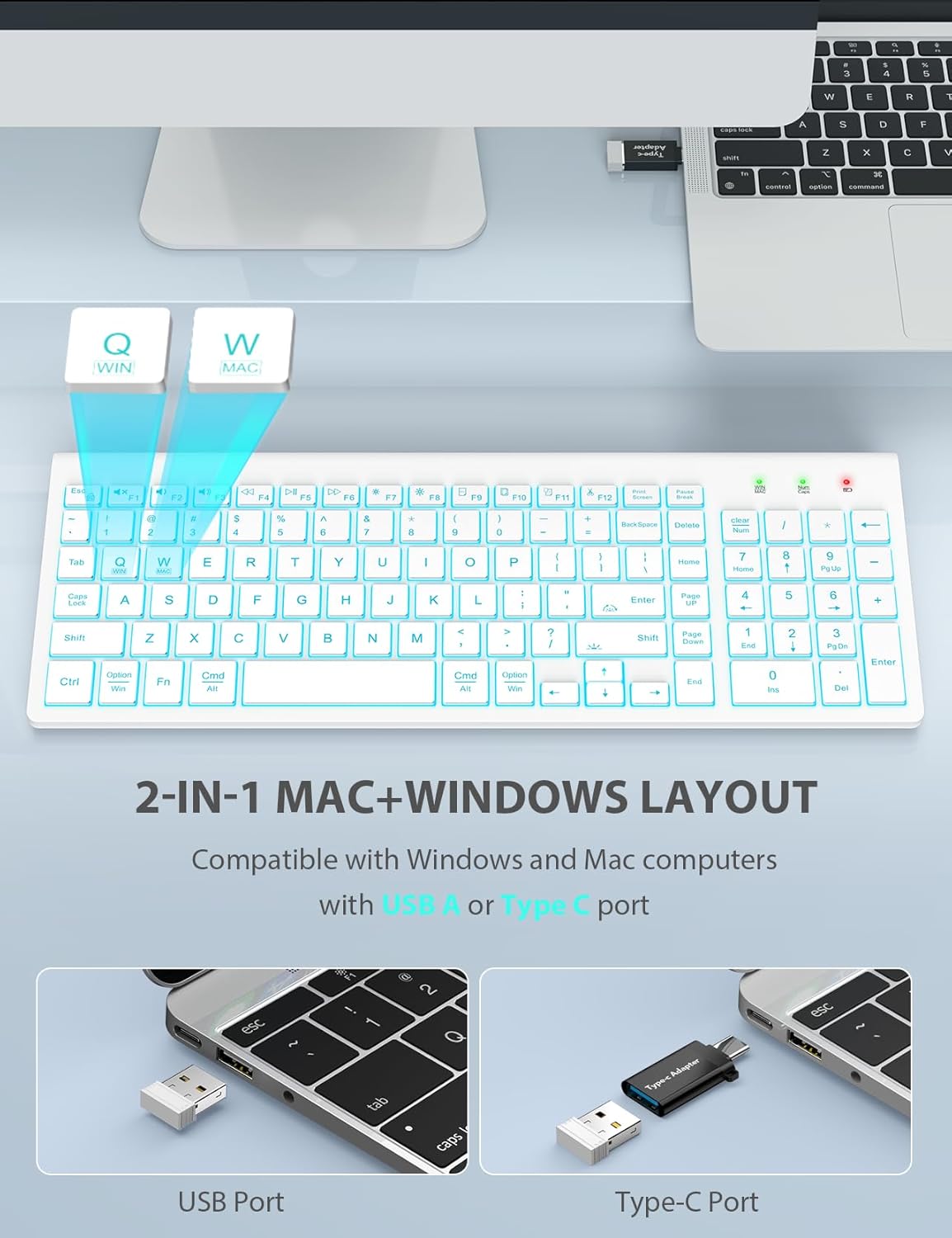
Image: A laptop connected to the wireless keyboard via a USB receiver, demonstrating the use of both USB-A and USB-C ports with the adapter.
2.3 Switching System Layout (Windows/Mac)
The keyboard supports both Windows and Mac layouts.
- Zum Aktivieren der Mac-Layout: Drücken Sie Fn + W. A red indicator light will confirm the switch.
- Zum Aktivieren der Windows-Layout: Drücken Sie Fn + Q. A green indicator light will confirm the switch.
3. Bedienungsanleitung
3.1 Steuerung der Tastatur-Hintergrundbeleuchtung
The keyboard features a 7-color switchable backlight with 4 adjustable brightness levels.
- Turn On/Off/Adjust Brightness: Drücken Sie Fn + Umschalt. Cycle through Off, Low, Mid, and High brightness levels.
- Farben wechseln: Drücken Sie Fn + Eingabetaste. Cycle through the 7 available backlight colors.
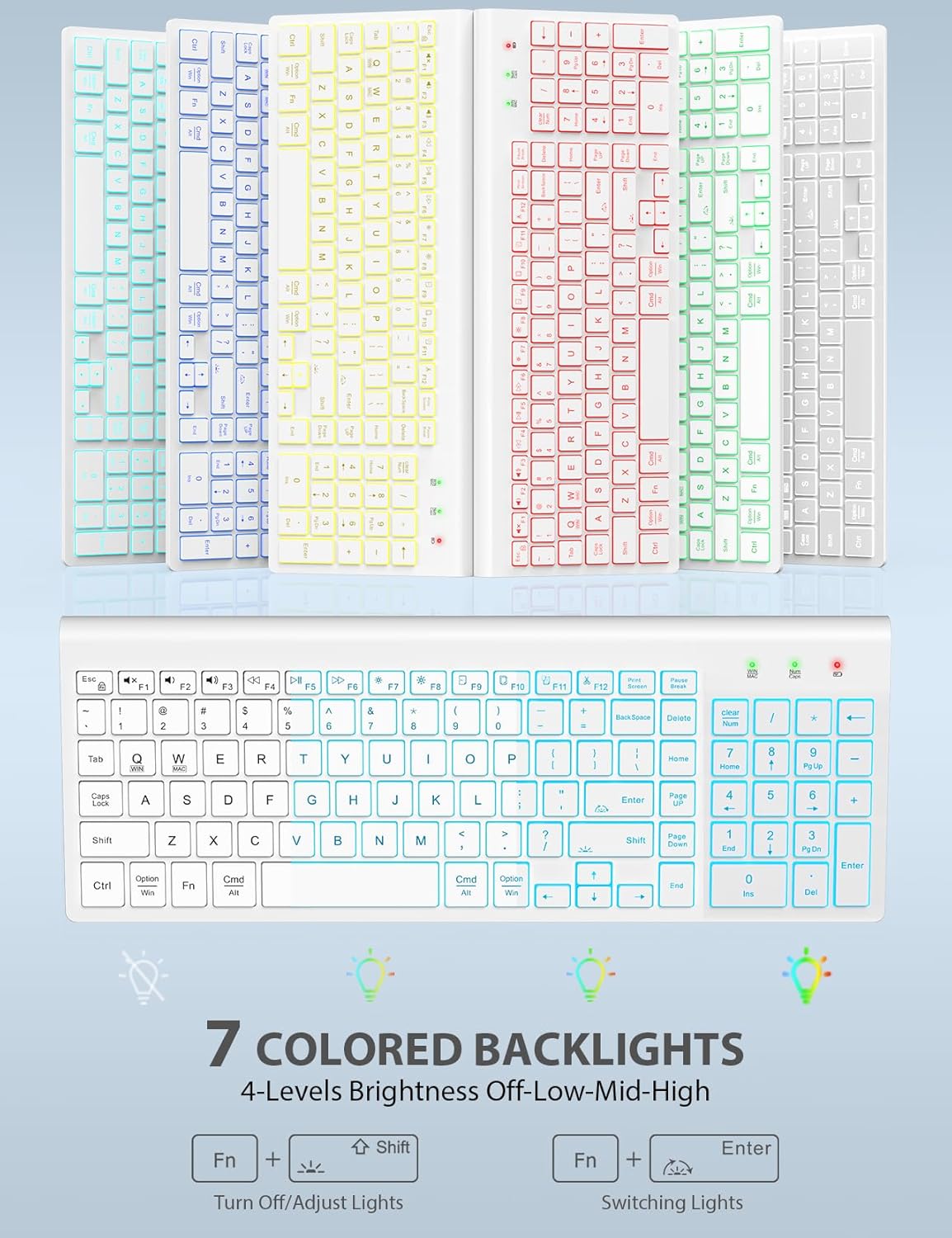
Image: The keyboard displaying various backlight colors, illustrating the 7-color options and brightness levels.
3.2 RGB-Beleuchtung der Maus
The mouse features automatic color-changing RGB lighting.
- The RGB lighting changes colors automatically during use.
- To turn the mouse backlight on or off, use the dedicated "backlight switching" button on the mouse.

Image: The wireless mouse showcasing its RGB lighting and highlighting the tracking speed and quiet click features.
3.3 Multimedia Function Hotkeys
The keyboard includes 12 convenient multimedia shortcut keys (F1-F12).
- To enable one-key operation of the F1-F12 multimedia functions, press Fn + ESC. This will toggle the "Fn Lock" feature.

Image: Diagram illustrating the Fn + ESC key combination to enable one-key operation of multimedia functions (F1-F12).
3.4 Mausfunktionen
- Tracking Speed Button: Located on the top of the mouse, this button allows you to adjust the DPI (sensitivity) for different tracking speeds.
- Vorwärts-/Rückwärts-Tasten: Located on the side of the mouse, these buttons facilitate faster web Navigation.
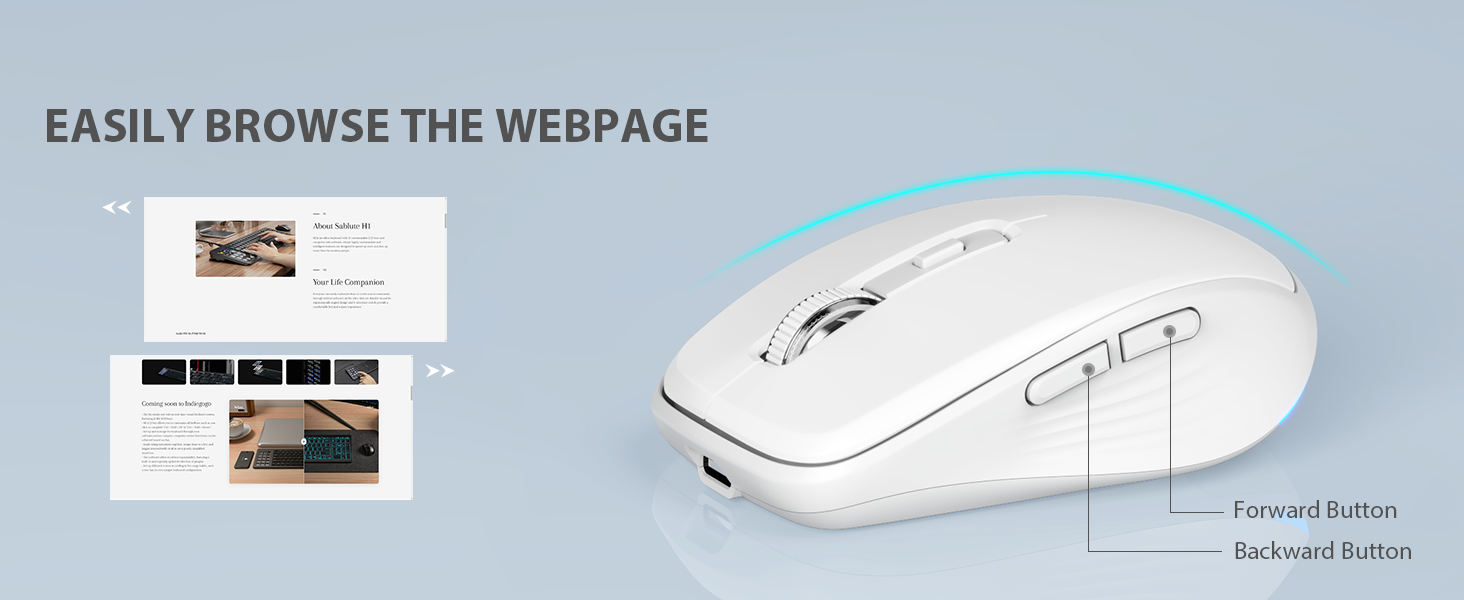
Image: Close-up of the wireless mouse, highlighting the forward and backward navigation buttons for web Surfen.
3.5 Intelligenter Schlafmodus
Both the keyboard and mouse feature an automatic sleep function to conserve battery power.
- Nach 10 Minuten Inaktivität wechselt die Tastatur in den Ruhemodus.
- Die Maus wechselt nach 15 Minuten Inaktivität in den Schlafmodus.
- To wake up either device, simply type any key on the keyboard or click any button on the mouse.
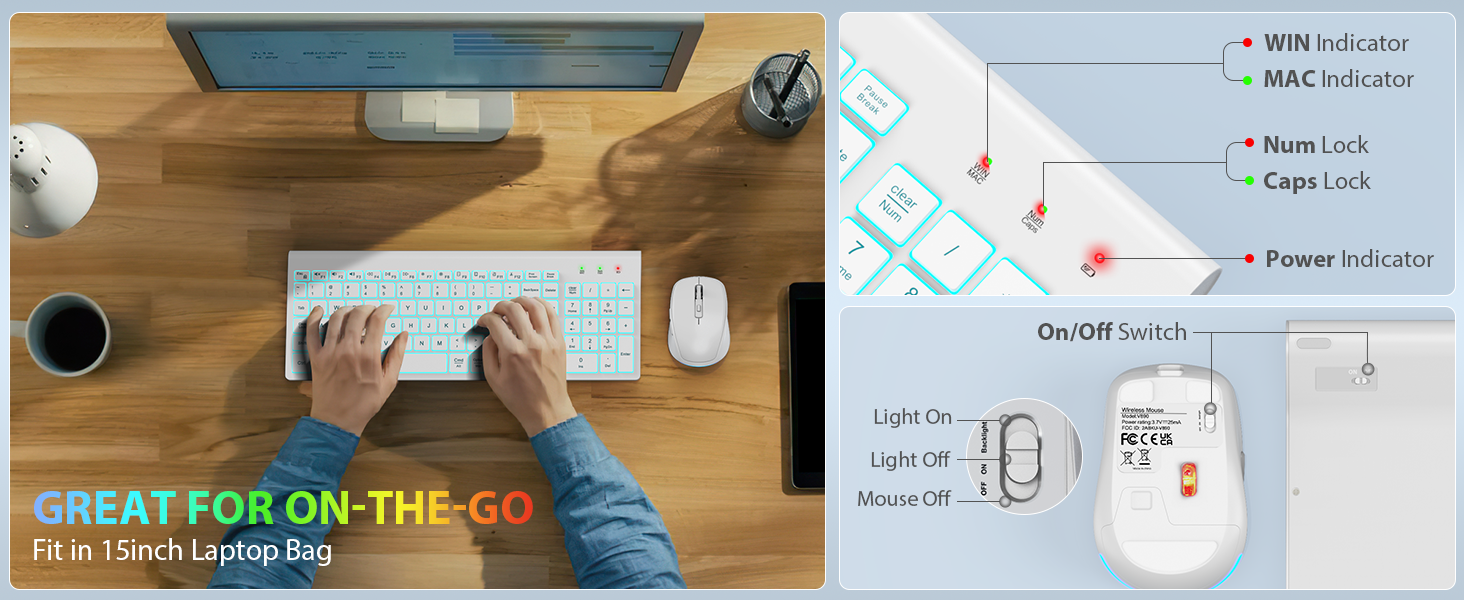
Image: Visual representation of the smart sleep mode feature, indicating idle times for both the keyboard and mouse before entering sleep.
4. Wartung
4.1 Reinigung
- Verwenden Sie ein weiches, trockenes Tuch, um die Oberflächen von Tastatur und Maus zu reinigen.
- Bei hartnäckigen Verschmutzungen leicht dampBefeuchten Sie das Tuch mit Wasser oder einer milden Reinigungslösung. Vermeiden Sie übermäßige Feuchtigkeit.
- Verwenden Sie keine scharfen Chemikalien, Scheuermittel oder Lösungsmittel.
4.2 Batteriepflege
- Recharge the devices when the battery indicator lights show low power.
- Um die Lebensdauer der Batterie zu verlängern, sollte eine häufige vollständige Entladung vermieden werden.
- Wenn Sie die Geräte über einen längeren Zeitraum lagern, laden Sie sie auf etwa 50 % auf und bewahren Sie sie an einem kühlen, trockenen Ort auf.
5. Fehlerbehebung
5.1 Verbindungsprobleme
- Keine Verbindung: Ensure the USB receiver is securely plugged into a working USB port. Try a different USB port.
- Geräte reagieren nicht: Check if both the keyboard and mouse are powered on. Ensure they are sufficiently charged.
- Interferenz: Move the devices closer to the USB receiver. Avoid placing the receiver near other wireless devices or large metal objects that might cause interference.
5.2 Backlight Not Working (Keyboard)
- Stellen Sie sicher, dass die Tastatur aufgeladen ist.
- Drücken Fn + Umschalt um die Helligkeitsstufen durchzuschalten und die Hintergrundbeleuchtung einzuschalten.
5.3 Tasten oder Maus reagieren nicht
- Laden Sie die Geräte auf.
- Turn the devices off and then on again.
- Remove and re-insert the USB receiver.
- Test the devices on a different computer to rule out system-specific issues.
6. Spezifikationen
| Besonderheit | Beschreibung |
|---|---|
| Technische Daten | 14.8 x 5.4 x 0.78 Zoll |
| Artikelgewicht | 1.52 Pfund |
| Batterien | 1 Lithium-Ionen-Akku erforderlich (im Lieferumfang enthalten) |
| Konnektivitätstechnologie | Funkfrequenz (2.4 GHz) |
| Besondere Merkmale | Backlit, Lightweight, Portable, Rechargeable, Spill-Resistant, Quiet Operation, Smart Sleep Mode |
| Kompatible Geräte | Chromebook, Notebook, MacBook Pro, MacBook Air, iMac, Tablet, Fernseher, Smartphone, Windows XP/Vista/7/8/10/X |
| Tastaturbeleuchtung | 7 switchable colors, 4 brightness levels |
| Mausbeleuchtung | Automatischer RGB-Farbwechsel |
| Tastatur-Standby-Zeit | 365 Tage |
| Maus-Standby-Zeit | 270 Tage |
7. Garantie und Support
7.1 Garantieinformationen
SABLUTE provides 24 months of support for this product. If you encounter any issues, please contact our customer service team.
7.2 Kundendienst
For technical assistance or warranty claims, please contact SABLUTE USA customer service:
- Telefon: 1-888-905-9607 (US)
- Betriebsstunden: Monday - Friday, 9:00 AM - 1:00 PM PST and 2:00 PM - 6:00 PM PST

Image: A customer service representative with a headset, indicating available support.


