1. Einleitung
This manual provides detailed instructions for the installation, operation, and maintenance of your VANBAR 2-in-1 Android Car Wireless Adapter. This device converts your car's wired Apple CarPlay or Android Auto system into a wireless connection, enhancing convenience and user experience.
2. Sicherheitshinweise
- Versuchen Sie nicht, das Gerät zu zerlegen oder zu modifizieren.
- Halten Sie das Gerät von Wasser, Feuchtigkeit und extremen Temperaturen fern.
- Ensure the device is securely placed to avoid obstruction while driving.
- Bedienen Sie das Gerät verantwortungsbewusst und vermeiden Sie Ablenkungen während der Fahrt.
3. Packungsinhalt
Bitte prüfen Sie das Paket auf folgende Artikel:
- VANBAR 2-in-1 Wireless Adapter (Model: Carplay01)
- USB-A-zu-USB-C-Adapterkabel
- Benutzerhandbuch (dieses Dokument)
4. Produktüberschreitungview
The VANBAR 2-in-1 Wireless Adapter is a compact device designed to enable wireless Apple CarPlay and Android Auto in compatible vehicles. It features a durable alloy casing for efficient heat dissipation and includes both USB-A and USB-C connectivity options.

Image 4.1: VANBAR 2-in-1 Wireless Adapter showing USB-A and USB-C connectivity. The adapter is a small black square with a USB cable attached, and an additional USB-C adapter is shown.

Image 4.2: Diagram illustrating the internal structure of the adapter, highlighting the glass and metal alloy components for excellent heat dissipation.
5. Einrichtungsanweisungen
Befolgen Sie diese Schritte für die Ersteinrichtung:
- Schließen Sie den Adapter an:
Plug the VANBAR wireless adapter into your car's USB port that supports wired Apple CarPlay or Android Auto. Use the provided USB-C adapter if your car has a USB-C port.
- Kopplung über Bluetooth:
Aktivieren Sie auf Ihrem Smartphone Bluetooth und WLAN. Suchen nach the adapter's Bluetooth name (e.g., "VANBAR-XXXX") and pair with it. Confirm any pairing requests on your phone and car display.
- Automatische Verbindung:
Once paired, the adapter will automatically connect to your phone via Wi-Fi to initiate Apple CarPlay or Android Auto. The car's display should switch to the CarPlay or Android Auto interface.

Image 5.1: Visual guide for connecting the adapter to the car's USB port, pairing via Bluetooth, and the automatic connection process.
6. Bedienungsanleitung
After successful setup, the adapter will automatically connect to your smartphone when you start your car. You can then use Apple CarPlay or Android Auto wirelessly.
- Navigation: Use your preferred navigation apps directly on your car's display.
- Musik & Medien: Stream music, podcasts, and audiobooks.
- Anrufe & Nachrichten: Make and receive calls, and send/receive messages using voice commands or the car's interface.
- Sprachsteuerung: Utilize Siri (for Apple CarPlay) or Google Assistant (for Android Auto) for hands-free operation.

Abbildung 6.1: Beispielample of a car display showing multiple CarPlay functions simultaneously, including navigation, music playback, and an incoming call.

Image 6.2: Illustration of different control methods for the car's infotainment system, including touchscreen, steering wheel buttons, and a central rotary knob.
7. Kompatibilität
This wireless adapter is designed for vehicles equipped with factory-wired Apple CarPlay or Android Auto. It supports:
- Fahrzeuge: Compatible with most car models from 2015 onwards that have wired CarPlay/Android Auto.
- Smartphones:
- Apple CarPlay: Requires iPhone with iOS 10 or later.
- Android Auto: Requires Android phone with Android 11 or later.
For detailed compatibility lists, please refer to the official resources:
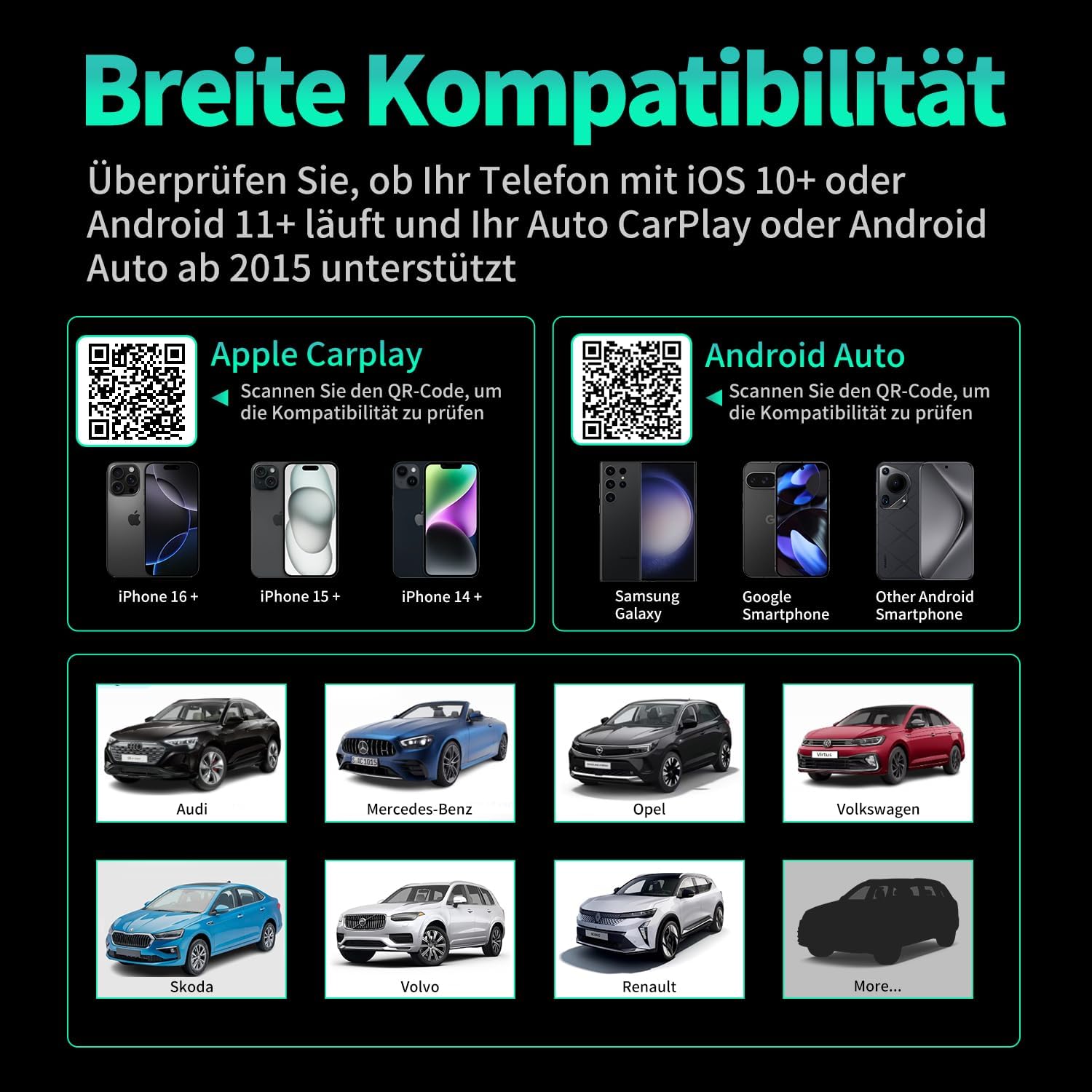
Abbildung 7.1: Kompatibilität überview displaying supported iPhone models (14+, 15+, 16+), Samsung Galaxy, Google, and other Android smartphones, along with car brands like Audi, Mercedes-Benz, Opel, Volkswagen, Skoda, Volvo, and Renault.
8. Wartung
- Reinigung: Wischen Sie das Gerät mit einem weichen, trockenen Tuch ab. Verwenden Sie keine flüssigen Reinigungsmittel oder Scheuermittel.
- Lagerung: Bewahren Sie das Gerät an einem kühlen, trockenen Ort auf, wenn es längere Zeit nicht benutzt wird.
- Firmware-Updates: Überprüfen Sie die Angaben des Herstellers webDie Website sollte regelmäßig auf verfügbare Firmware-Updates überprüft werden, um optimale Leistung und Kompatibilität zu gewährleisten.
9. Fehlerbehebung
| Problem | Mögliche Ursache | Lösung |
|---|---|---|
| Der Adapter verbindet sich nicht mit dem Auto. | Incorrect USB port, car not compatible, loose connection. | Ensure the adapter is plugged into the correct USB port that supports wired CarPlay/Android Auto. Verify car compatibility. Re-plug the adapter firmly. |
| Phone not connecting to adapter. | Bluetooth/Wi-Fi off, incorrect pairing, phone OS not supported. | Ensure Bluetooth and Wi-Fi are enabled on your phone. Forget previous Bluetooth connections and re-pair. Check phone OS version for compatibility (iOS 10+, Android 11+). |
| Zeitweise Verbindungsabbrüche oder Verzögerungen. | Interference, weak signal, outdated firmware. | Ensure no other devices are causing Wi-Fi interference. Try restarting both the car's infotainment system and your phone. Check for firmware updates. |
| CarPlay/Android Auto startet nicht. | CarPlay/Android Auto not enabled in car settings, app issues. | Check your car's infotainment settings to ensure CarPlay/Android Auto is enabled. Restart your phone and the car's system. |
10. Spezifikationen
| Modellnummer | Carplay01 |
| Marke | VANBAR |
| Konnektivitätstechnologie | Bluetooth 5.0, Wi-Fi (2.4 GHz + 5 GHz), USB |
| Kompatible Geräte | Smartphones (iOS 10+, Android 11+) |
| Steckertyp | USB Type A, USB Type C (with adapter) |
| Technische Daten | 1 x 5.5 x 4.5 cm |
| Artikelgewicht | 12 g |
| Farbe | Schwarz |
| Besondere Merkmale | Wireless Android Auto, Wireless Apple CarPlay, GPS Navigation, Spotify, iHeart Radio support |
11. Garantie und Support
For warranty information and technical support, please refer to the official VANBAR webBesuchen Sie die Website oder kontaktieren Sie direkt den Kundenservice. Bewahren Sie Ihren Kaufbeleg für Garantieansprüche auf.


