1. Einleitung
Vielen Dank für Ihren Einkauf.asing the Xtrike-Me GH-511 Stereo Gaming Headset. This manual provides essential information for setting up, operating, maintaining, and troubleshooting your new headset. Please read it carefully before use to ensure optimal performance and longevity of your device.

Bild 1.1: Vorderseite view of the Xtrike-Me GH-511 Stereo Gaming Headset, showcasing its transparent design and dynamic RGB lighting on the earcups and headband.
2. Sicherheitshinweise
- Um Gehörschäden vorzubeugen, vermeiden Sie längeres Hören bei hoher Lautstärke.
- Setzen Sie das Headset keinen extremen Temperaturen, hoher Luftfeuchtigkeit oder direkter Sonneneinstrahlung aus.
- Halten Sie das Gerät von Wasser und anderen Flüssigkeiten fern.
- Versuchen Sie nicht, das Headset zu zerlegen oder zu verändern. Dadurch erlischt die Garantie.
- Handle the cables with care to prevent damage.
3. Packungsinhalt
Bitte prüfen Sie das Paket auf folgende Artikel:
- Xtrike-Me GH-511 Stereo Gaming Headset
- Benutzerhandbuch (dieses Dokument)
Falls Artikel fehlen oder beschädigt sind, wenden Sie sich bitte an Ihren Händler.
4. Einrichtung
The Xtrike-Me GH-511 headset features a wired connection with multiple plugs for comprehensive compatibility.
4.1 Verbindung zu Ihrem Gerät herstellen
- Audioverbindung: Locate the two 3.5mm jack plugs. One is for audio (typically green or with a headphone icon) and the other is for the microphone (typically pink or with a microphone icon). Connect these plugs to the corresponding audio output and microphone input ports on your PC, laptop, or adapter.
- RGB-Beleuchtungsleistung: Connect the USB plug to an available USB port on your PC, console (PS4, PS5), or any USB power source. This connection powers the dynamic RGB lighting feature of the headset.
- Console/Mobile Connection: For devices with a single 3.5mm combo jack (e.g., most mobile phones, some laptops, and console controllers), you may need a 3.5mm Y-splitter adapter (not included) to combine the headset's separate audio and microphone jacks into a single 4-pole 3.5mm plug. The USB connection is still required for RGB lighting.

Image 4.1: Diagram illustrating the USB plug for lighting, 3.5mm plug for audio, and 3.5mm plug for microphone, indicating connections for multiple devices.
4.2 Anpassung für mehr Komfort
Adjust the headband to fit comfortably over your head. The earcups are designed to sit over your ears for optimal sound isolation and comfort during extended use.
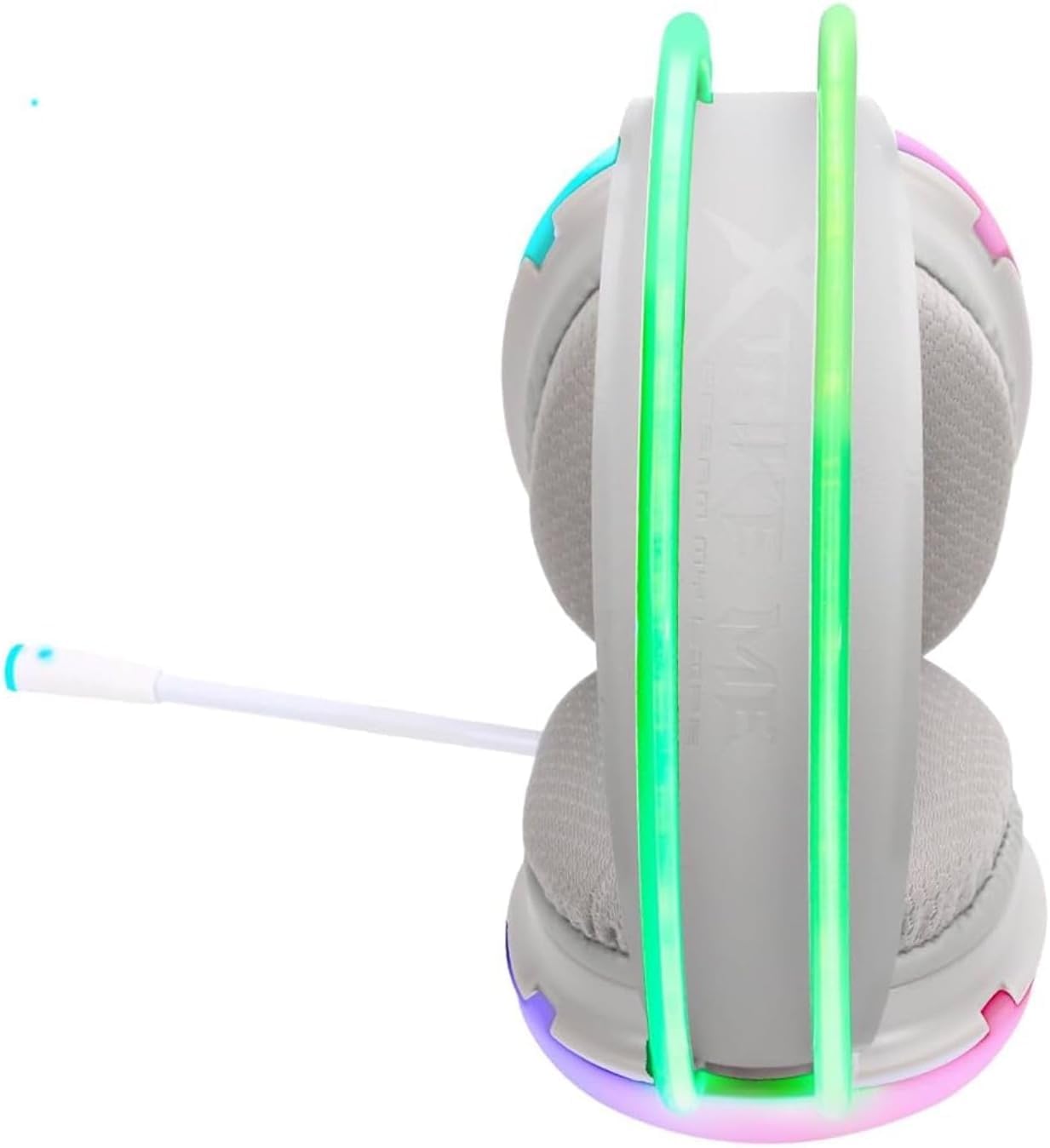
Abbildung 4.2: Seite view of the headset, highlighting the adjustable headband and soft earcups for comfortable wear.
5. Bedienungsanleitung
5.1 Audiowiedergabe
Once connected, your headset should automatically be recognized by your device. Ensure the headset is selected as the default audio output device in your system settings. Adjust the volume using your device's controls or the in-line remote control on the headset cable, if available.
5.2 Mikrofonnutzung
The GH-511 features an omnidirectional, noise-reduction microphone. Position the microphone appropriately near your mouth for clear communication. Ensure the microphone is enabled and selected as the default input device in your system settings. If your headset has an in-line remote, check for a microphone mute switch.

Abbildung 5.1: Seite view of the headset, showing the flexible microphone boom extended for use.
5.3 Dynamische RGB-Beleuchtung
The dynamic RGB lighting on the earcups and headband will activate automatically once the USB plug is connected to a powered USB port. The lighting provides an aesthetic enhancement to your gaming experience.

Bild 5.2: Schräg view of the headset, illustrating the dynamic RGB lighting effects on the earcups and headband.
6. Wartung
- Reinigung: Reinigen Sie das Headset mit einem weichen, trockenen Tuch. Verwenden Sie keine Scheuermittel oder Lösungsmittel.
- Lagerung: Store the headset in a cool, dry place when not in use. Avoid tangling the cables.
- Kabelpflege: Do not pull on the cables forcefully or bend them sharply, as this can cause internal damage.
7. Fehlerbehebung
7.1 Kein Ton vom Headset
- Stellen Sie sicher, dass der 3.5-mm-Audiostecker vollständig in den richtigen Anschluss Ihres Geräts eingesteckt ist.
- Überprüfen Sie die Lautstärkeeinstellungen Ihres Geräts und stellen Sie sicher, dass das Headset als Standard-Wiedergabegerät ausgewählt ist.
- Verify that the volume control on the headset's in-line remote (if present) is not set to minimum or muted.
- Testen Sie das Headset mit einem anderen Gerät, um ein gerätespezifisches Problem auszuschließen.
7.2 Mikrofon funktioniert nicht
- Ensure the 3.5mm microphone jack is fully inserted into the correct port on your device.
- Überprüfen Sie die Toneinstellungen Ihres Geräts und stellen Sie sicher, dass das Headset-Mikrofon als Standardaufnahmegerät ausgewählt ist.
- Verify that the microphone mute switch on the in-line remote (if present) is not activated.
- Stellen Sie sicher, dass das Mikrofon richtig positioniert ist.
7.3 RGB-Beleuchtung funktioniert nicht
- Stellen Sie sicher, dass der USB-Stecker fest mit einem USB-Anschluss verbunden ist, der Strom liefert.
- Try connecting the USB plug to a different USB port or power source.
8. Spezifikationen
| Modellname | GH-511 |
| Konnektivitätstechnologie | Verdrahtet |
| Kopfhöreranschluss | 2x 3.5mm (Audio, Mic) + USB (for RGB) |
| Kopfhörer-Formfaktor | Über dem Ohr |
| Mikrofon | Omnidirectional, Noise-Reduction |
| RGB-Beleuchtung | Dynamic RGB on Headband and Earcups |
| Kompatible Geräte | PC, Laptops, Mobile Phones, PS4, PS5 |
| Material | Plastik |
| Artikelgewicht | 325 Gramm |
| Impedanz | 3330 Ohm |
| Kabelfunktion | Behoben |
| Steuerungstyp | Basic In-line Controls |
9. Garantie und Support
For warranty information and technical support, please refer to the documentation provided with your purchase or contact the retailer where you purchased the Xtrike-Me GH-511 headset. Keep your proof of purchase for warranty claims.


