1. Einführung und Endeview
This manual provides essential information for the setup, operation, and maintenance of your CHUWI Hi10 X2 Tablet Keyboard with Touchpad. Designed specifically for the CHUWI Hi10 X2 and Hi10 X1 Windows tablets, this 2-in-1 magnetic keyboard transforms your tablet into a versatile laptop, enhancing productivity and convenience.
The keyboard features a magnetic docking interface for seamless connection, eliminating the need for separate charging or Bluetooth pairing. Its ultra-slim and portable design makes it ideal for various uses, from business and education to everyday tasks and gaming.
2. Produktmerkmale
- Magnetic Docking Interface: Designed for CHUWI Hi10 X2 / Hi10 X1 Windows tablets, ensuring easy and stable connection.
- No Charging or Pairing Required: The docking magnetic suction design provides energy efficiency and a faster input response time compared to Bluetooth keyboards.
- Integriertes Touchpad: Supports multi-touch gestures for responsive navigation and control.
- Verbessertes Tipperlebnis: Features a borderless keyboard with well-spaced keys and optimized key travel for accuracy and comfort.
- 2-in-1-Funktionalität: Transforms your tablet into a versatile laptop instantly, complete with a sturdy stand for optimal viewwinkeln.
- Ultra Slim and Portable: Lightweight and easy to attach or remove, making it convenient for travel and daily use.

Image: The CHUWI Hi10 X2 Tablet Keyboard provides an enhanced typing experience with its well-spaced keys, designed for comfort and precision.

Image: The high-precision touchpad supports multi-touch gestures for responsive navigation and control.
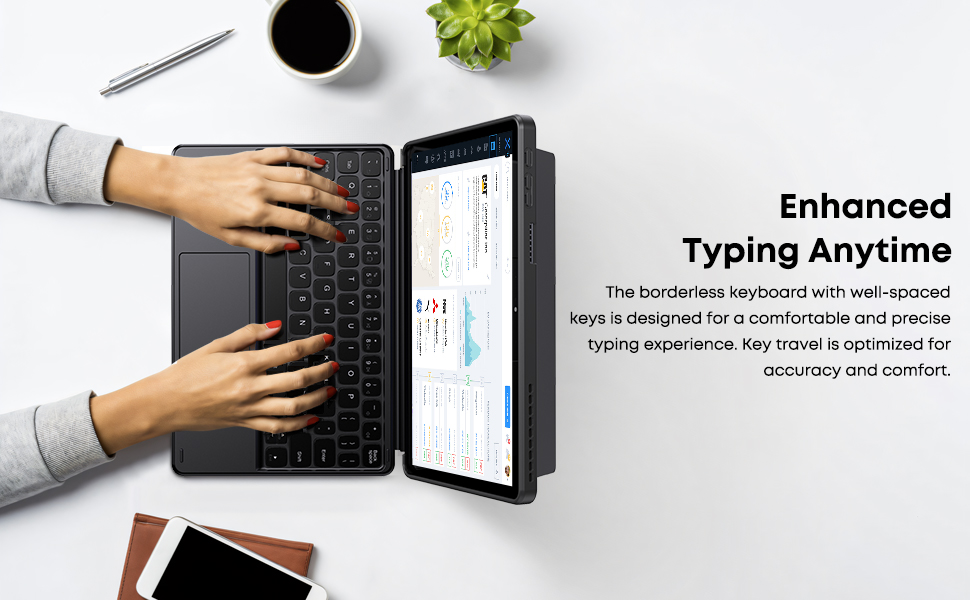
Image: The Smart Keyboard attaches magnetically to the Hi10 X1/X2 tablet, providing instant power and a great typing experience without needing charging or pairing.
3. Einrichtung
- Anbringen der Tastatur: Align the magnetic docking interface of the keyboard with the corresponding pins on your CHUWI Hi10 X2 or Hi10 X1 tablet. The magnets will guide the keyboard into place, establishing an instant connection.
- Verwendung des Seitenständers: The keyboard case includes a built-in stand. Fold out the stand from the back of the case to prop up your tablet at a comfortable viewing- oder Tippwinkel.
- Erste Verwendung: No initial charging or Bluetooth pairing is required for the keyboard to function with your compatible CHUWI tablet once magnetically docked.
Video: This video demonstrates the installation of the CHUWI Hi10 X1 keyboard and showcases the protective case. It illustrates how to attach the tablet to the keyboard and utilize the case's features.
4. Bedienungsanleitung
- Tippen: Begin typing immediately after docking your tablet. The keyboard provides a familiar layout for efficient text input.
- Touchpad-Nutzung: The integrated touchpad supports standard mouse functions and multi-touch gestures.
- Tippen mit einem Finger: Links Klick.
- Zwei-Finger-Tippen: Rechtsklick.
- Scrollen mit zwei Fingern: Scrollen Sie nach oben oder unten.
- Pinch-to-Zoom: Verwenden Sie zwei Finger zum Vergrößern oder Verkleinern.
- Detaching the Keyboard: Gently pull the tablet away from the magnetic docking interface to detach the keyboard.
5. Wartung
- Reinigung: Use a soft, dry, lint-free cloth to clean the keyboard and touchpad surfaces. For stubborn marks, slightly dampBefeuchten Sie das Tuch mit Wasser. Vermeiden Sie aggressive Chemikalien oder scheuernde Materialien.
- Lagerung: When not in use, keep the keyboard attached to the tablet to protect the screen and keys. Store in a cool, dry place away from direct sunlight and extreme temperatures.
- Handhabung: Avoid placing heavy objects on the keyboard or bending it excessively to prevent damage to the keys or internal components.
6. Fehlerbehebung
- Tastatur reagiert nicht:
- Ensure the tablet is correctly docked to the magnetic interface.
- Um die Verbindung zurückzusetzen, trennen Sie die Tastatur und schließen Sie sie wieder an.
- Restart your CHUWI tablet.
- Touchpad funktioniert nicht:
- Check if the touchpad has been accidentally disabled (refer to your tablet's settings for input devices).
- Ensure the touchpad surface is clean and free from obstructions.
- Try detaching and reattaching the keyboard.
- Keys Sticking or Unresponsive:
- Clean around the affected keys with a soft, dry brush or compressed air to remove any debris.
- Vermeiden Sie es, Flüssigkeiten auf die Tastatur zu verschütten.
7. Spezifikationen
| Marke: | CHUWI |
| Modellnummer: | CHUWI Hi10 X1 Tablet Keyboard (Compatible with Hi10 X2) |
| Kompatible Geräte: | Hi10 X1 tablet, Hi10 X2 tablet |
| Konnektivitätstechnologie: | Magnetic Docking Interface (faster than Bluetooth) |
| Tastaturbeschreibung: | Numeric (Standard QWERTY layout with touchpad) |
| Besondere Merkmale: | Foldable, Lightweight, Portable, Integrated Touchpad, Magnetic Connection |
| Farbe: | Schwarz |
| Material: | Silikon |
| Artikelgewicht: | 9.9 Unzen |
| Paketabmessungen: | 9.88 x 7.8 x 0.67 Zoll |
| Enthaltene Komponenten: | Hi10 X1 Tablet Keyboard |
8. Garantie und Support
Your CHUWI Hi10 X2 Tablet Keyboard is covered by a 1-year service period, valid immediately after purchase. CHUWI is committed to providing high-quality products and excellent service.
For any questions or support needs, CHUWI offers lifetime factory professional support and 24-hour online assistance. Please refer to the contact information provided with your tablet or visit the official CHUWI webWebsite für weitere Details.


