1. Einleitung
This manual provides instructions for the iClever BK08 Foldable Bluetooth Keyboard with Touchpad. Please read this manual thoroughly before using the product to ensure proper operation and to maximize its features. This device is designed for portability and multi-device compatibility, offering a convenient input solution for various operating systems.
2. Packungsinhalt
- iClever BK08 Foldable Bluetooth Keyboard with Touchpad
- USB-C-Ladekabel
- Tragetasche
- Stativhalterung
- Benutzerhandbuch (dieses Dokument)
3. Produktüberschreitungview
The iClever BK08 is a compact, tri-fold Bluetooth keyboard featuring an integrated touchpad. Its design prioritizes portability and multi-device functionality, making it suitable for various computing environments.

Figure 3.1: iClever BK08 Foldable Bluetooth Keyboard unfolded, shown with a smartphone on an included stand.
3.1 Hauptmerkmale
- Faltbares Design: Allows for ultra-compact storage and easy transport.
- Integriertes Touchpad: Provides navigation, scrolling, and clicking capabilities, eliminating the need for a separate mouse.
- Konnektivität mehrerer Geräte: Supports pairing with up to three devices, enabling seamless switching.
- Leise Scherenschaltertasten: Designed for comfortable and low-noise typing.
- Langlebige Konstruktion: Features a reinforced hinge and metal base for stability.
- Lange Akkulaufzeit: Offers extended usage on a single charge with USB-C fast charging.

Figure 3.2: The compact dimensions of the iClever BK08 keyboard, highlighting its portability for travel and work.

Figure 3.3: Details of the keyboard's tri-fold mechanism, sturdy hinges, balance feet, and the included multi-angle adjustable stand.
4. Einrichtung
4.1 Aufladen der Tastatur
Before initial use, fully charge the keyboard. Connect the provided USB-C cable to the keyboard's charging port and a compatible USB power source. The charging indicator light will illuminate during charging and turn off when fully charged.

Figure 4.1: The keyboard's USB-C charging port and indicators for battery life and charging duration.
4.2 Koppeln mit Geräten (Bluetooth)
The iClever BK08 keyboard can be paired with up to three Bluetooth-enabled devices.
- Unfold the keyboard to power it on. The power indicator light will turn on.
- Drücken Sie die Fn gleichzeitig mit einer der Bluetooth-Kanaltasten drücken (Q, W, oder E) to select a channel. For example, drücke Fn + Q for channel 1.
- Drücken Fn+C to enter pairing mode. The selected channel indicator light will flash rapidly.
- Aktivieren Sie auf Ihrem Gerät (Smartphone, Tablet, Laptop) Bluetooth und suchen Sie nach verfügbaren Geräten.
- Select "iClever BK08 Keyboard" from the list of available devices.
- Follow any on-screen prompts to complete the pairing process. The channel indicator light will stop flashing and remain solid when successfully paired.

Figure 4.2: The keyboard's ability to connect to multiple devices across different operating systems.

Figure 4.3: Switching between paired devices with a single tap for seamless workflow.
4.3 Umschalten zwischen Geräten
Sobald die Verbindung mit mehreren Geräten hergestellt ist, können Sie durch Drücken der Taste zwischen ihnen wechseln. Fn Schlüssel zusammen mit dem entsprechenden Bluetooth-Kanalschlüssel (Q, W, oder E).
5. Bedienungsanleitung
5.1 Tastaturlayout und Funktionstasten
The iClever BK08 features a 65-key layout with scissor switch keys for a comfortable typing experience. It includes dedicated function keys (F1-F12) and special shortcuts accessible via the Fn Schlüssel.

Figure 5.1: The internal structure of the scissor switch keys, designed for quiet and precise typing.
5.2 Touchpad-Gesten
The integrated touchpad supports various multi-gesture functions for efficient navigation. It includes physical left and right click buttons for traditional mouse functionality.
- One Finger Click: Links Klick.
- Zwei-Finger-Klick: Rechtsklick.
- Slide One Finger: Bewegen Sie den Cursor.
- One Finger Quick Click to Hold and Drag: Elemente auswählen und verschieben.
- Two Fingers Move Vertically or Horizontally: Scroll content.
- Two Fingers Pinch In/Out: Zoom in/out (functionality may vary by OS).

Figure 5.2: A user interacting with the multi-gesture touchpad for navigation.
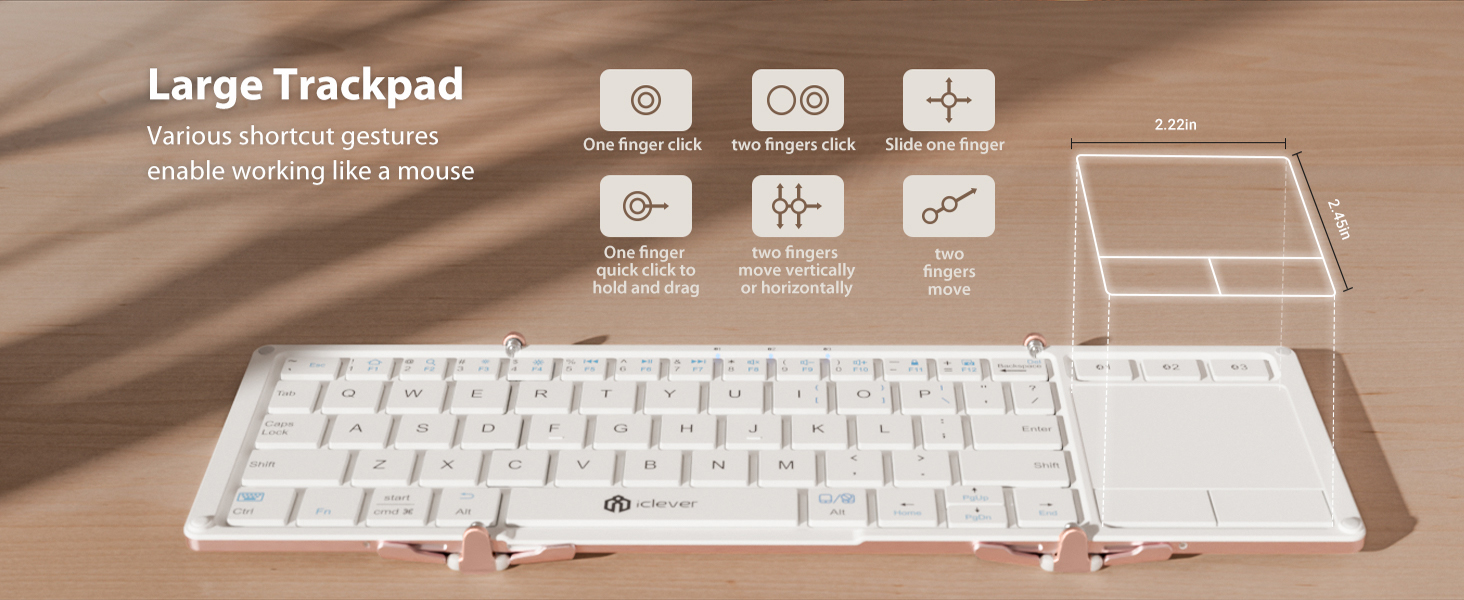
Figure 5.3: Visual guide to common touchpad gestures supported by the keyboard.
5.3 Kabelgebundener Modus
The keyboard supports a wired connection via its USB-C port. This allows for direct connection to a device, bypassing Bluetooth, which can be useful for initial setup of new systems or in environments where Bluetooth is restricted. Simply connect the keyboard to your device using the USB-C cable.
6. Wartung
6.1 Reinigung
To clean the keyboard, gently wipe the keys and surface with a soft, damp Verwenden Sie kein scharfes Tuch oder Scheuermittel. Stellen Sie vor der Reinigung sicher, dass die Tastatur ausgeschaltet und von allen Stromquellen getrennt ist.
6.2 Batteriepflege
To prolong battery life, avoid exposing the keyboard to extreme temperatures. Charge the keyboard regularly, even if not in frequent use. The auto-sleep function when folded helps conserve power.
7. Fehlerbehebung
- Tastatur verbindet sich nicht über Bluetooth: Ensure Bluetooth is enabled on your device and the keyboard is in pairing mode (Fn + C). Try restarting both the keyboard and your device.
- Touchpad reagiert nicht: Verify the keyboard is fully unfolded and powered on. Ensure the touchpad is not accidentally disabled (check function keys for a touchpad toggle).
- Tasten reagieren nicht: Check battery level and charge if necessary. Ensure the keyboard is properly paired or connected via wired mode.
- Unterbrechungsverbindung: Move the keyboard closer to your device to reduce interference. Avoid using the keyboard near other strong wireless signals.
8. Spezifikationen
| Besonderheit | Detail |
|---|---|
| Technische Daten | 6.23 x 3.54 x 0.59 Zoll (gefaltet) |
| Artikelgewicht | 7.1 Unzen |
| Konnektivitätstechnologie | Bluetooth Low Energy (wireless only) |
| Tastaturbeschreibung | 65-key tri-fold Bluetooth keyboard with touchpad, aluminum frame, non-backlit laptop-style keys (<50 dB), 3-device switch |
| Besonderheit | Built-in touchpad, pocket-size fold, 3-device switch, USB-C fast charge (210mAh, 2-hour auto-sleep), aluminum frame, lightweight, hotkeys for Windows/Mac |
| Kompatible Geräte | Laptops & Desktops (Windows 10 +), MacBook & iMac (macOS 10.13 +), iPad (10.2/Pro/Air), iPhone (keyboard use only), Android phones & tablets (Android 8 +), Chromebooks |
| Material | Aluminium |
9. Garantie und Support
iClever products are designed for reliability and performance. For warranty information, technical support, or further assistance, please refer to the warranty card included in your package or visit the official iClever webWebsite. Bewahren Sie Ihren Kaufbeleg für Garantieansprüche auf.


