1. Einleitung
This manual provides essential information for the safe and efficient use of your AOC CQ27G4ZH 27-inch Curved Gaming Monitor. Please read this manual thoroughly before operating the device and retain it for future reference. The AOC CQ27G4ZH monitor features a 27-inch QHD (2560x1440) curved VA panel with a 1500R curvature, a 300Hz refresh rate, and a 0.3ms response time, designed for an immersive visual experience.
2. Sicherheitshinweise
- Energiequelle: Verwenden Sie ausschließlich das mit dem Monitor gelieferte Netzteil. Stellen Sie sicher, dass die Steckdose ordnungsgemäß geerdet ist.
- Belüftung: Blockieren Sie keine Lüftungsöffnungen. Sorgen Sie für ausreichend Platz um den Monitor herum, um eine ordnungsgemäße Luftzirkulation zu gewährleisten.
- Platzierung: Stellen Sie den Monitor auf eine stabile, ebene Fläche. Vermeiden Sie direkte Sonneneinstrahlung, Wärmequellen und übermäßige Feuchtigkeit.
- Reinigung: Vor der Reinigung den Netzstecker ziehen. Ein weiches, trockenes Tuch verwenden. Keine flüssigen oder Aerosolreiniger verwenden.
- Wartung: Versuchen Sie nicht, dieses Produkt selbst zu warten. Überlassen Sie alle Wartungsarbeiten qualifiziertem Servicepersonal.
3. Lieferumfang
Prüfen Sie, ob alle Komponenten in der Verpackung vorhanden sind:
- AOC CQ27G4ZH Monitor
- HDMI-Kabel
- Netzkabel
- Benutzerhandbuch (dieses Dokument)
4. Einrichtung
4.1 Montage des Ständers
- Nehmen Sie die Monitor- und Standfußkomponenten vorsichtig aus der Verpackung.
- Befestigen Sie den Standfuß mit den mitgelieferten Schrauben am Standhals.
- Secure the assembled stand to the back of the monitor until it clicks into place. Ensure it is firmly attached.

Figure 4.1: AOC CQ27G4ZH monitor with its ergonomic stand assembled.
4.2 Anschlusskabel
Connect the necessary cables to the monitor and your computer or console.
- Stromkabel: Schließen Sie das Netzkabel an den Stromeingang des Monitors und anschließend an eine geerdete Steckdose an.
- Videokabel: Connect one end of the HDMI or DisplayPort cable to the corresponding port on your monitor and the other end to your computer's graphics card or console. For optimal performance (300Hz refresh rate), use the DisplayPort connection.
- Audioausgang: Bei Bedarf können Sie Kopfhörer oder externe Lautsprecher an die 3.5-mm-Audioausgangsbuchse des Monitors anschließen.

Abbildung 4.2: Rückseite view of the monitor displaying the HDMI, DisplayPort, and audio output ports.
4.3 Erstes Einschalten
After connecting all cables, press the power button located on the monitor to turn it on. The monitor should automatically detect the input signal. If not, you may need to manually select the input source using the On-Screen Display (OSD) menu.
5. Bedienung des Monitors
5.1 Bildschirmmenü (OSD)
The OSD menu allows you to adjust various monitor settings. Navigate the OSD using the joystick or buttons typically located on the back or bottom edge of the monitor.

Figure 5.1: The OSD control joystick, used for navigating monitor settings.
5.2 Bildeinstellungen
- Helligkeit Kontrast: Passen Sie diese Ihren Bedürfnissen an. viewing-Umgebung.
- Farbtemperatur: Select from preset modes (e.g., Warm, Cool, Normal) or customize RGB values.
- HDR-Modus: Enable High Dynamic Range for compatible content to enhance contrast and color depth. Note that HDR performance can vary based on content and system configuration.

Figure 5.2: Visual comparison of Standard Dynamic Range (SDR) and High Dynamic Range (HDR) display modes.
5.3 Gaming-Funktionen
- Aktualisierungsrate: The monitor supports up to 300Hz via DisplayPort. Ensure your graphics card settings are configured to utilize the maximum refresh rate.
- Ansprechzeit: The 0.3ms response time minimizes motion blur. This can often be adjusted in the OSD (e.g., Overdrive settings).
- Adaptive Synchronisierung: This technology synchronizes the monitor's refresh rate with your GPU's frame rate to eliminate screen tearing and stuttering. Enable it in the OSD and your graphics card control panel.
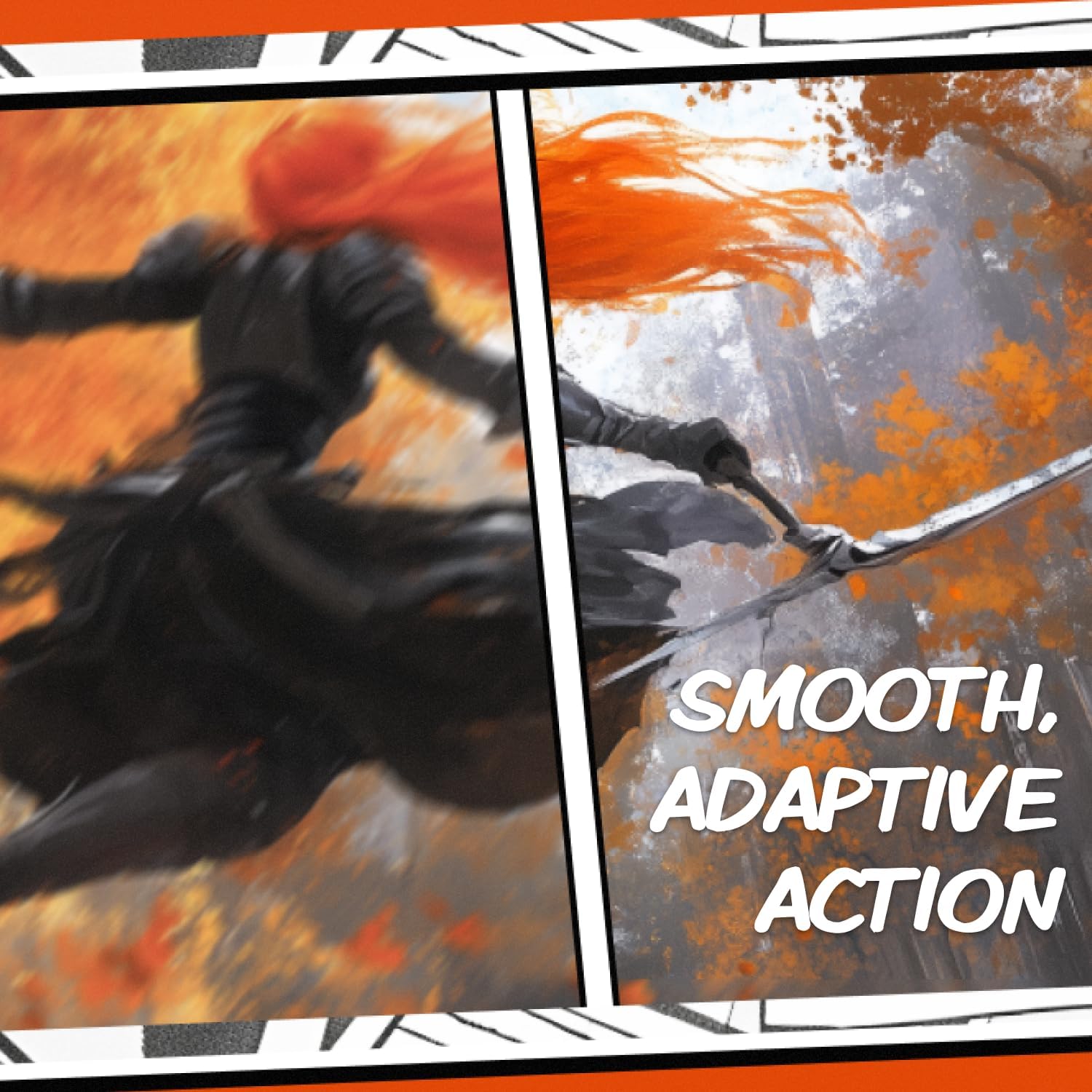
Figure 5.3: The monitor rendering a dynamic scene, showcasing smooth visual performance.
5.4 Technologien für die Augenversorgung
- Flimmerfrei: This technology reduces screen flickering, which can cause eye strain during prolonged use.
- Schwaches blaues Licht: Adjusting this setting can reduce the emission of harmful blue light, promoting eye comfort.

Figure 5.4: An illustration of Flicker-Free technology in action, reducing visual discomfort.
6. Wartung
6.1 Reinigung des Monitors
Um den Monitor zu reinigen, stellen Sie sicher, dass er ausgeschaltet und vom Stromnetz getrennt ist.
- Bildschirm: Wischen Sie den Bildschirm vorsichtig mit einem weichen, fusselfreien Tuch ab. Bei hartnäckigen Flecken leicht andrücken.ampen the cloth with water or a specialized screen cleaner (ensure it is alcohol-free and ammonia-free). Do not spray liquid directly onto the screen.
- Exterieur: Verwenden Sie ein weiches, trockenes Tuch, um den Monitor abzuwischen.asing. Avoid abrasive materials or harsh chemicals.
6.2 Speicherung
Wenn Sie den Monitor längere Zeit lagern, trennen Sie alle Kabel und verpacken Sie ihn in der Originalverpackung, um ihn vor Staub und Beschädigungen zu schützen. Lagern Sie ihn an einem kühlen, trockenen Ort.
7. Fehlerbehebung
Sollten Sie Probleme mit Ihrem Monitor haben, beachten Sie bitte die folgenden häufig auftretenden Probleme und Lösungen:
- Kein Strom:
- Stellen Sie sicher, dass das Netzkabel sowohl am Monitor als auch an der Steckdose fest angeschlossen ist.
- Überprüfen Sie, ob die Steckdose funktioniert, indem Sie ein anderes Gerät anschließen.
- Kein Signal:
- Check that the video cable (HDMI or DisplayPort) is securely connected to both the monitor and your computer/console.
- Stellen Sie sicher, dass im OSD-Menü des Monitors die richtige Eingangsquelle ausgewählt ist.
- Verify your computer/console is powered on and outputting a signal.
- Anzeigeprobleme (z. B. unscharfes Bild, falsche Farben):
- Adjust the resolution and refresh rate settings in your operating system to match the monitor's native resolution (2560x1440) and desired refresh rate.
- Setzen Sie die Bildeinstellungen des Monitors über das OSD-Menü auf die Werkseinstellungen zurück.
- Aktualisieren Sie Ihre Grafikkartentreiber.
- Flickering or Stuttering:
- Ensure Adaptive Sync is enabled in both the monitor's OSD and your graphics card control panel.
- Check for external interference.
- HDR Issues:
- Ensure HDR is enabled in both the monitor's OSD and your operating system's display settings.
- Some users report that HDR performance can be inconsistent on PC. Adjusting settings or using SDR mode might provide a better experience depending on your preference and content.
8. Spezifikationen
| Besonderheit | Spezifikation |
|---|---|
| Modellnummer | CQ27G4ZH |
| Bildschirmgröße | 27 Zoll |
| Panel-Typ | VA |
| Krümmung | 1500R |
| Auflösung | 2560 x 1440 (QHD) |
| Seitenverhältnis | 16:9 |
| Bildwiederholrate | 300 Hz (DisplayPort), 144 Hz (HDMI) |
| Ansprechzeit | 0.3 ms (MPRT) |
| Konnektivität | 2x HDMI 2.0, 1x DisplayPort 1.4, 1x Audioausgang |
| VESA-Kompatibilität | Ja |
| Abmessungen (LxBxH) | 9.43 x 24.1 x 20.33 Zoll |
| Gewicht | 19.76 Pfund |
9. Garantie und Support
9.1 Garantieinformationen
Your AOC CQ27G4ZH monitor is covered by the following warranty program:
- 3-Year Zero Dead Pixel: Coverage for monitors with zero bright or dark pixels.
- 3-jähriger Vorabaustausch: If a defect occurs, a replacement unit will be shipped to you.
- 1-Year One-Time Accidental Damage: Coverage for accidental damage during the first year of ownership.

Abbildung 9.1: Überview of the AOC Re-Spawned Warranty Program.
Bitte bewahren Sie Ihren Kaufbeleg für Garantieansprüche auf.
9.2 Technischer Support
For further assistance, technical support, or warranty claims, please visit the official AOC support website or contact their customer service. Refer to the documentation included with your product for specific contact details or visit AOC-Unterstützung.


