1. Einleitung
This manual provides detailed instructions for the proper setup, operation, and maintenance of your MageGee K2 Wired RGB Backlit 104-Key Ergonomic Keyboard. Please read this manual thoroughly before using the product to ensure optimal performance and longevity.
2. Packungsinhalt
The MageGee K2 Keyboard package includes the following items:
- MageGee K2 Wired RGB Backlit 104-Key Ergonomic Keyboard
- Benutzerhandbuch (dieses Dokument)
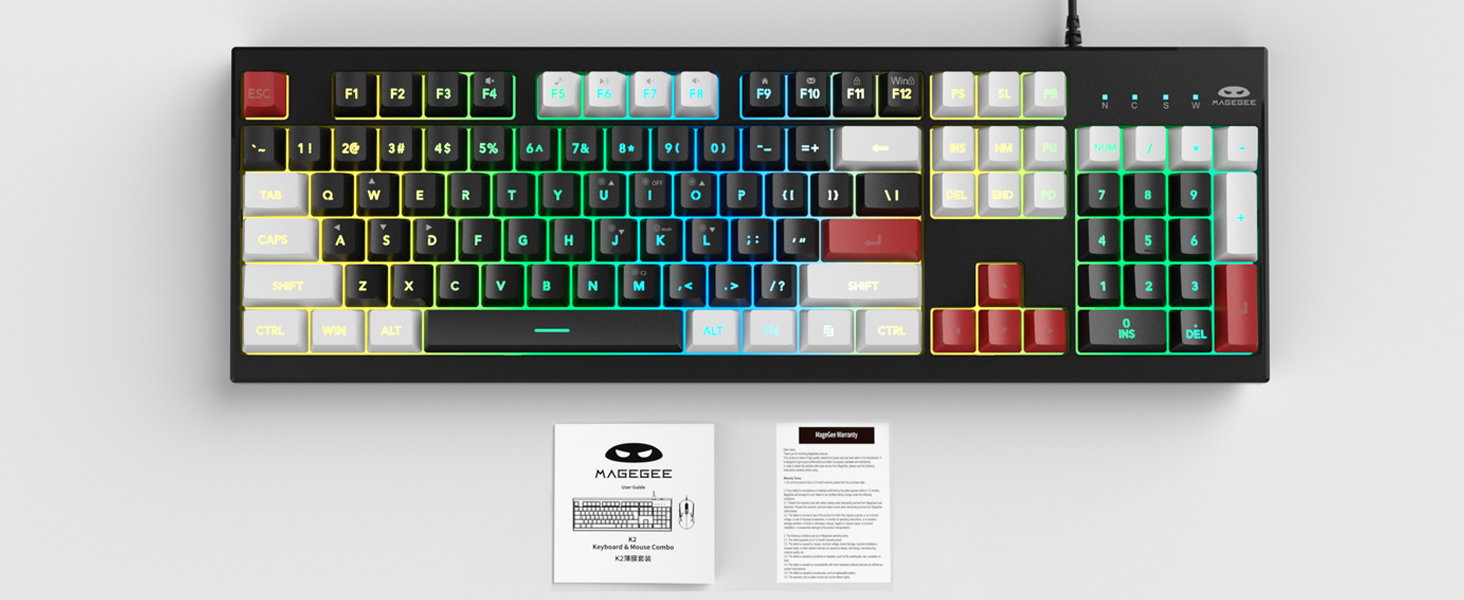
Image: MageGee K2 Keyboard shown with its accompanying user manual.
3. Einrichtungsanweisungen
3.1 Anschließen der Tastatur
- Locate an available USB port on your computer (PC, laptop, or Mac).
- Plug the USB connector of the MageGee K2 keyboard into the USB port.
- The keyboard is plug-and-play and should be automatically recognized by your operating system (Windows 2000/XP/ME/Vista/7/8/10, Android, Linux, Mac). No additional drivers are typically required.
3.2 Einstellen der Tastaturhöhe
The keyboard features a foldable bracket at the bottom, allowing you to adjust its height for a more comfortable typing angle.
- To raise the keyboard, gently pull out the foldable feet located on the underside of the keyboard.
- To lower the keyboard, fold the feet back into their recessed positions.

Image: The MageGee K2 Keyboard demonstrating its ergonomic design with adjustable feet.
4. Bedienungsanleitung
4.1 RGB-Hintergrundbeleuchtungssteuerung
The MageGee K2 keyboard features vibrant RGB backlighting with multiple modes and brightness levels. Use the following key combinations to control the lighting:
- FN+L: Helligkeit der Hintergrundbeleuchtung erhöhen.
- Fn + J: Hintergrundbeleuchtungshelligkeit verringern.
- Fn + K: Switch between different backlight modes.
- Fn + M: Switch between constant color and multi-color backlight modes.
- FN+I: Hintergrundbeleuchtung ein-/ausschalten.

Image: Visual guide to RGB backlight control keys on the MageGee K2 Keyboard.
4.2 Multimedia-Kurzbefehle
Access common multimedia functions quickly using the FN key in combination with the F1-F12 keys:
- FN + F1-F12: Quickly switch between multimedia playback, volume adjustment, and other functions. Refer to the keycap legends for specific functions.
4.3 Anti-Ghosting und N-Key-Rollover
The MageGee K2 keyboard features advanced anti-ghosting technology, allowing up to 19 keys to be pressed simultaneously without conflicts. This ensures accurate and fast input, especially during gaming or rapid typing.
- 19-Tasten-Rollover: Allows simultaneous pressing of multiple keys without issues.
- Fn + W: Switch between the W, A, S, D keys and the arrow keys for enhanced gaming control.
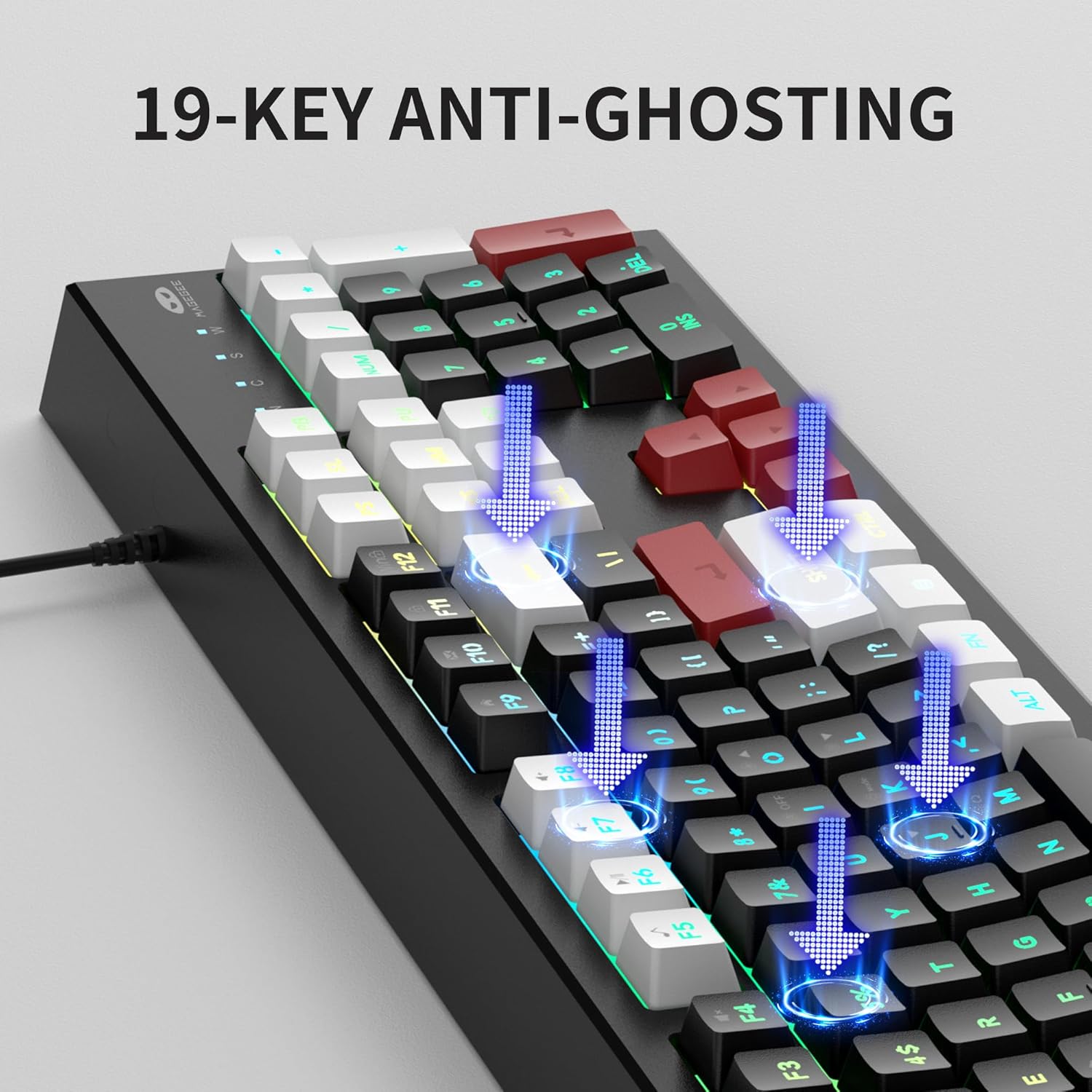
Image: Illustration of 19-key anti-ghosting functionality on the MageGee K2 Keyboard.
4.4 Ergonomisches Design
The keyboard is designed with carefully crafted high and low keys and a stepped layout to provide an ergonomic angle, reducing strain during long typing sessions and promoting comfortable finger movement.
5. Wartung
5.1 Reinigung der Tastatur
- Trennen Sie die Tastatur vor der Reinigung vom Computer.
- Verwenden Sie ein weiches,amp cloth to wipe the surface of the keyboard. Avoid using harsh chemicals or abrasive materials.
- Zum Reinigen der Zwischenräume der Tastenkappen verwenden Sie Druckluft, um Staub und Schmutz zu entfernen.
5.2 Allgemeine Pflege
- Avoid exposing the keyboard to extreme temperatures, direct sunlight, or high humidity.
- While the keyboard is designed to be waterproof, avoid submerging it in liquids. In case of accidental spills, disconnect immediately and allow it to dry completely before reconnecting.
- Versuchen Sie nicht, die Tastatur auseinanderzunehmen, da dies zum Verlust der Garantie führen kann.
6. Fehlerbehebung
6.1 Tastatur reagiert nicht
- Stellen Sie sicher, dass das USB-Kabel sowohl an die Tastatur als auch an den Computer fest angeschlossen ist.
- Versuchen Sie, die Tastatur an einen anderen USB-Anschluss Ihres Computers anzuschließen.
- Starten Sie Ihren Computer neu.
- Testen Sie die Tastatur an einem anderen Computer, um festzustellen, ob das Problem an der Tastatur oder am ursprünglichen Computer liegt.
6.2 Backlighting Not Working or Incorrect
- Stellen Sie sicher, dass die Hintergrundbeleuchtung eingeschaltet ist. FN+I.
- Passen Sie die Helligkeit mit folgenden Mitteln an: FN+L (Erhöhung) und Fn + J (verringern).
- Wechseln Sie durch verschiedene Modi mit Fn + K Und Fn + M.
6.3 Tasten werden nicht registriert oder es werden doppelte Eingaben gemacht
- Clean the keyboard as described in the Maintenance section to remove any debris under the keycaps.
- Stellen Sie sicher, dass die Tastatur direkt an den Computer und nicht über einen USB-Hub angeschlossen ist, da dies manchmal zu Strom- oder Signalproblemen führen kann.
7. Spezifikationen
| Besonderheit | Detail |
|---|---|
| Marke | MageGee |
| Modell | K2 |
| Farbe | Knight Red |
| Konnektivitätstechnologie | USB verkabelt |
| Tastaturbeschreibung | Ergonomic, 104 Keys |
| Besondere Merkmale | RGB Backlighting, Foldable Bracket, 19-Key Anti-Ghosting, Multimedia Shortcuts |
| Kompatible Geräte | Gaming Console, Laptop, PC (Win2000, XP, ME, Vista, Win7, Win8, Win10, Android, Linux, Mac) |
| Material | Plastik |
| Artikelgewicht | 2.07 Pfund |
| Verpackungsabmessungen | 17.68 x 7.09 x 1.93 Zoll |
| Hersteller | MAGEGEE |

Image: Detailed dimensions of the MageGee K2 Keyboard.
8. Offizielles Produktvideo
Video: Offizielles Produktvideoasing the MageGee K2 PC Gaming Keyboard features and RGB lighting.
9. Garantie und Support
MageGee products are designed for reliability and performance. For any issues or inquiries, please refer to the following information:
- After-Sales System: The product is supported by MageGee's after-sales system. For specific warranty details or technical support, please contact the retailer or visit the official MageGee webWebsite.
- Rückgaberecht: This product typically comes with a 30-day return policy. Please check with your point of purchase for exact return terms.


