1. Einleitung
The Vretti K2 is a portable thermal label printer designed for various labeling needs in home, office, and business environments. It offers inkless printing, Bluetooth connectivity for mobile devices (Android and iOS), and a compact design for ease of use. This manual provides detailed instructions for setup, operation, maintenance, and troubleshooting to ensure optimal performance of your device.
2. Packungsinhalt
Bevor Sie beginnen, überprüfen Sie bitte, ob alle Artikel im Paket vorhanden sind:
- Vretti K2 Label Maker x1
- Typ-C-Kabel x1
- 50x30mm Paper Rolls x1 (pre-installed inside the machine)
- Benutzerhandbuch x1
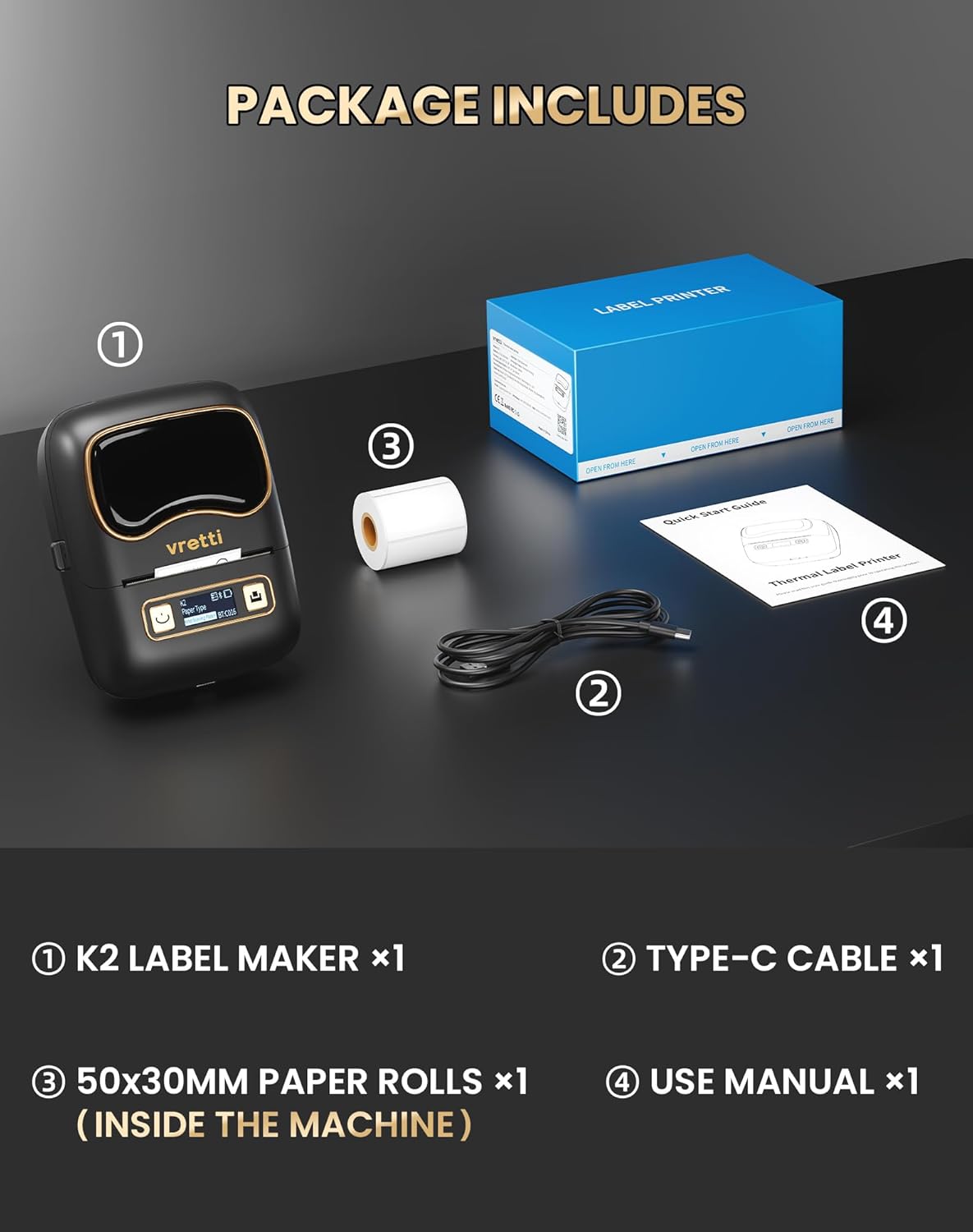
Image: Contents of the Vretti K2 label printer package, including the printer, USB-C cable, a roll of labels, and the user manual.
3. Spezifikationen
| Besonderheit | Spezifikation |
|---|---|
| Modellname | K2 |
| Drucktechnologie | Thermal |
| Konnektivitätstechnologie | Bluetooth, USB |
| Kompatible Geräte | Laptop, PC, Smartphone, Tablet |
| Max Print Resolution (DPI) | 203 dpi |
| Druckgeschwindigkeit | 9 mm/s |
| Maximale Blattkapazität | 100 |
| Unterstützte Etikettenbreite | 20-50 mm |
| Batteriekapazität | 1500 mAh |
| Ladeschnittstelle | USB Typ C |
| Abmessungen (L x B x H) | 15.7 x 9.5 x 6.4 cm (4.53 x 3.54 x 2.44 Zoll) |
| Gewicht | 0.49 Pfund |

Bild: Überview of Vretti K2 features including no ink needed, Bluetooth connectivity, lightweight, 1500mAh battery, wireless printing, high resolution, 9mm/s fast printing, and USB Type-C.
4. Einrichtung
4.1 Aufladen des Druckers
Before first use, fully charge the Vretti K2 printer using the provided Type-C cable. Connect the cable to the printer's charging port and a compatible USB power adapter (not included). The charging indicator light will show the charging status.
4.2 Ladeetiketten
- Open the printer cover by gently pressing the release button or sliding the cover open, depending on the model.
- Insert the label roll into the paper compartment, ensuring the labels face upwards and the roll is properly aligned.
- Pull a small portion of the label paper out past the print head.
- Schließen Sie die Druckerabdeckung ordnungsgemäß.
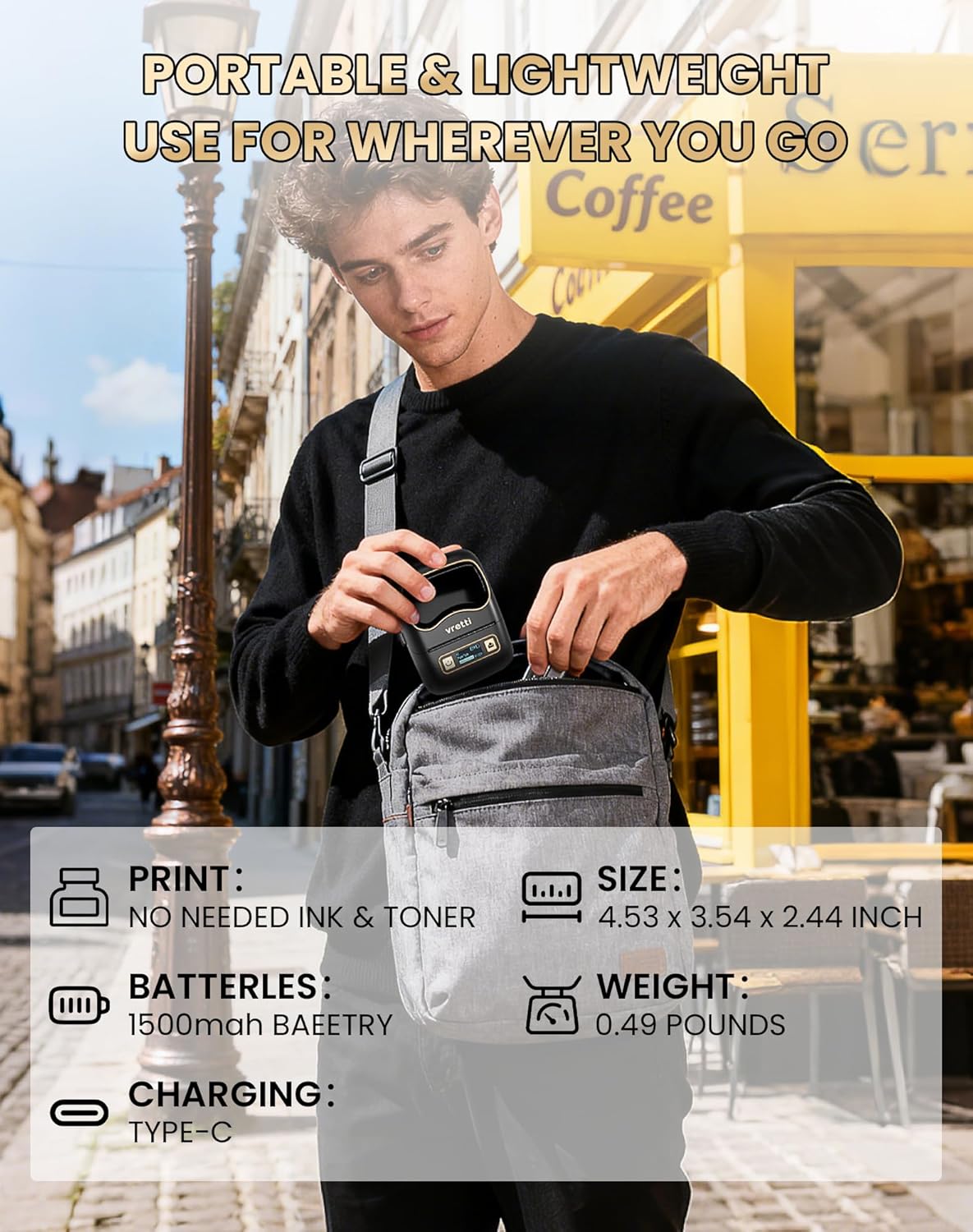
Image: The Vretti K2 printer with various label sizes (20-50mm width) shown, demonstrating how different label rolls fit into the printer.
4.3 Download und Installation der App
The Vretti K2 printer operates with the XeasyLabel mobile application. Download the app from your device's app store:
- Für Android-Geräte: Suchen nach "XeasyLabel" on the Google Play Store.
- Für iOS-Geräte: Suchen nach "XeasyLabel" on the Apple App Store.
Installieren Sie die Anwendung auf Ihrem Smartphone oder Tablet.

Image: The Vretti K2 printer next to a smartphone displaying the XEasyLabel app interface, highlighting Bluetooth 5.0 connectivity and app download options for Android and iOS.
4.4 Bluetooth-Verbindung
- Ensure your Vretti K2 printer is powered on.
- Aktivieren Sie Bluetooth auf Ihrem Mobilgerät.
- Open the XeasyLabel application.
- Within the app, navigate to the device connection section.
- Select your Vretti K2 printer (usually identified as "K2" or a similar name) from the list of available devices to establish a Bluetooth connection.

Image: A three-step guide showing how to connect the Vretti K2 printer via Bluetooth and begin editing and printing labels using the XEasyLabel app on a smartphone.
5. Bedienungsanleitung
5.1 Etiketten erstellen und drucken
- After connecting your printer via Bluetooth, open the XeasyLabel app.
- Select a template or create a new label design. The app offers various fonts, icons, frames, and intelligent features like scanning and image recognition.
- Customize your label with text, images, barcodes, or serial numbers.
- Vorview Ihr Etikett, um sicherzustellen, dass es wie gewünscht aussieht.
- Tap the print button in the app. The printer will automatically detect the label size and print without requiring ink or toner.
5.2 Anwendungsszenarien
The Vretti K2 printer is versatile and suitable for a wide range of applications:
- Büro: File labels, lamp labels, memo labels, visitor labels.
- Geschäft: Address labels, product labels, price labels, gift labels.
- Heim: Toy labels, food labels, drug labels, general organization labels.
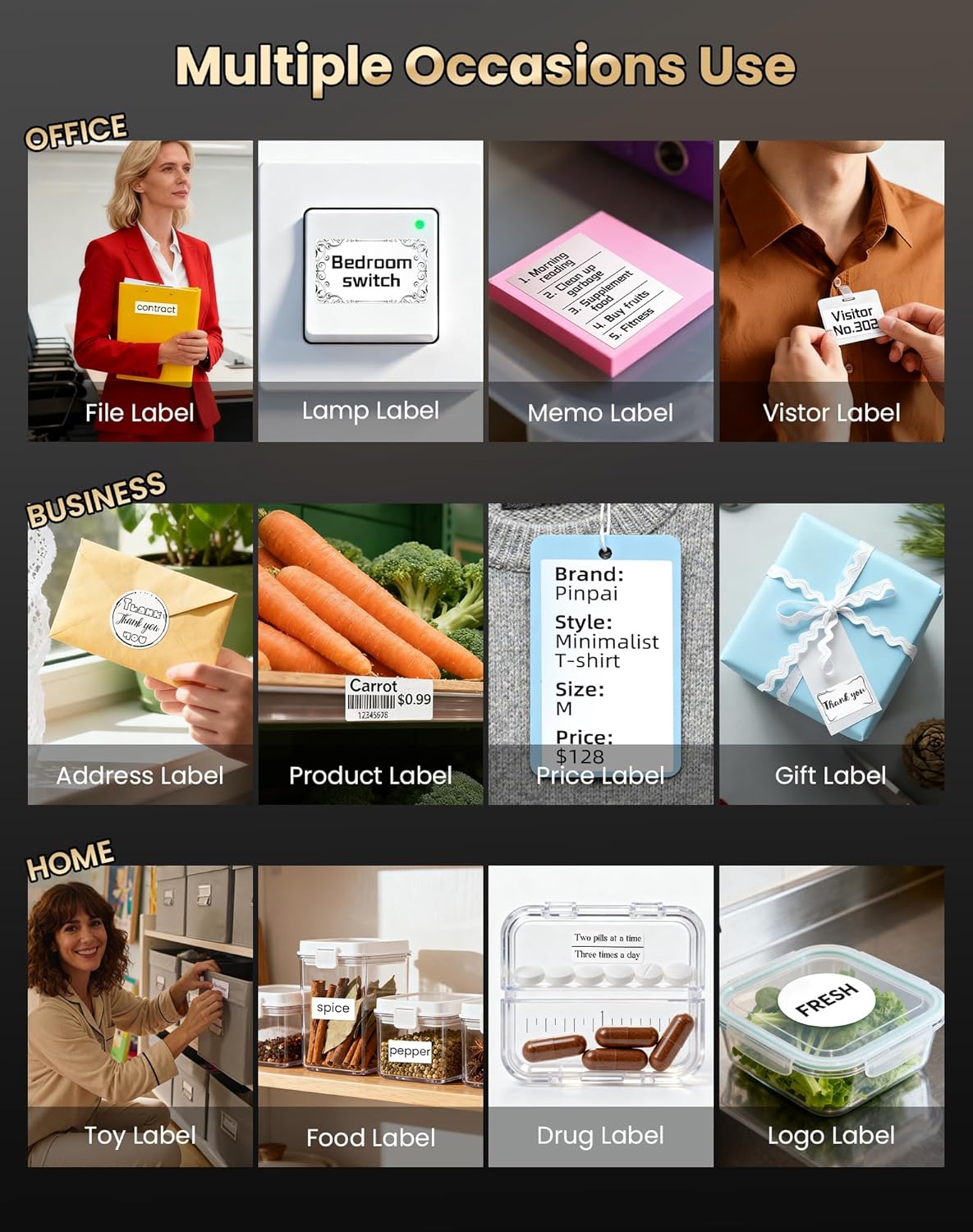
Bild: Examples of Vretti K2 label printer use in office, business, and home settings, showing various label types like file, product, and food labels.

Bild: Weitere Beispieleamples of Vretti K2 label printer applications, including clothing tags, food containers, and cable labeling, demonstrating its versatility.
6. Wartung
6.1 Reinigung des Druckkopfes
Um die Druckqualität zu erhalten, reinigen Sie den Druckkopf regelmäßig. Verwenden Sie dazu ein Wattestäbchen, das Sie leicht andrücken.ampMit Isopropylalkohol reinigen. Die Oberfläche des Druckkopfs vorsichtig abwischen. Vor der Verwendung sicherstellen, dass der Drucker ausgeschaltet und vollständig trocken ist.
6.2 Batteriepflege
- Vermeiden Sie häufiges vollständiges Entladen des Akkus.
- Laden Sie den Drucker regelmäßig auf, auch wenn er nicht benutzt wird, um die Batterielebensdauer zu verlängern.
- Bewahren Sie den Drucker an einem kühlen, trockenen Ort auf, wenn er längere Zeit nicht benutzt wird.
7. Fehlerbehebung
If you encounter issues with your Vretti K2 printer, refer to the following common problems and solutions:
- Drucker verbindet sich nicht über Bluetooth:
- Stellen Sie sicher, dass der Drucker eingeschaltet ist und sich in Reichweite Ihres Mobilgeräts befindet.
- Stellen Sie sicher, dass Bluetooth auf Ihrem Gerät aktiviert ist.
- Starten Sie sowohl den Drucker als auch Ihr Mobilgerät neu.
- Check if the XeasyLabel app has Bluetooth permissions enabled.
- Schlechte Druckqualität:
- Reinigen Sie den Druckkopf wie im Abschnitt Wartung beschrieben.
- Verwenden Sie unbedingt hochwertige Thermotransferetiketten.
- Check the label roll for proper installation and ensure it is not damaged.
- Etiketten werden nicht korrekt eingezogen:
- Ensure the label roll is inserted correctly and aligned.
- Prüfen Sie, ob der Papierweg durch Hindernisse blockiert ist.
- Make sure the label type selected in the app matches the physical labels.
- Drucker lässt sich nicht einschalten:
- Charge the printer for at least 30 minutes.
- Versuchen Sie es mit einem anderen USB-C-Kabel und Netzteil.
For further assistance, consult the XeasyLabel app's help section or contact customer support.
8. Garantie und Support
8.1 Garantieinformationen
The Vretti K2 Thermal Label Printer comes with a standard manufacturer's warranty. Please refer to the warranty card included in your package or contact Vretti customer service for specific details regarding warranty duration and coverage.
8.2 Kundendienst
If you require technical support, have questions about your product, or need assistance with warranty claims, please contact Vretti customer support through their official webWebsite oder die in Ihrer Produktdokumentation angegebenen Kontaktinformationen.


