Einführung
This manual provides comprehensive instructions for the XBG B15 Tri-Mode Wireless Mouse. It covers setup, operation, maintenance, and troubleshooting to ensure optimal performance and user experience. Please read this manual thoroughly before using the device.

Bild: Draufsicht view of the XBG B15 Tri-Mode Wireless Mouse, showcasing its ergonomic design and central DPI button.
Packungsinhalt
Überprüfen Sie, ob alle Artikel im Paket vorhanden sind:
- 1 x XBG B15 Tri-Mode Wireless Mouse
- 1 x USB-Ladekabel
- 1 x Benutzerhandbuch (dieses Dokument)
Produkt überview
Familiarize yourself with the components of your XBG B15 Wireless Mouse.

Image: Diagram illustrating the various parts of the XBG B15 mouse, including the left button, right button, scroll wheel, forward button, backward button, DPI button, ON/OFF switch, mode switch, and USB receiver.
The mouse features an ergonomic design that conforms to the natural curvature of the human palm, providing a comfortable grip for extended use. Its soft, durable, skin-like surface resists fingerprints.

Bild: Nahaufnahme view of the XBG B15 mouse highlighting its ergonomic shape and textured grip for comfortable handling.
The mouse is compatible with various desktop surfaces, including resin, wood, fabric, paper, and metal.
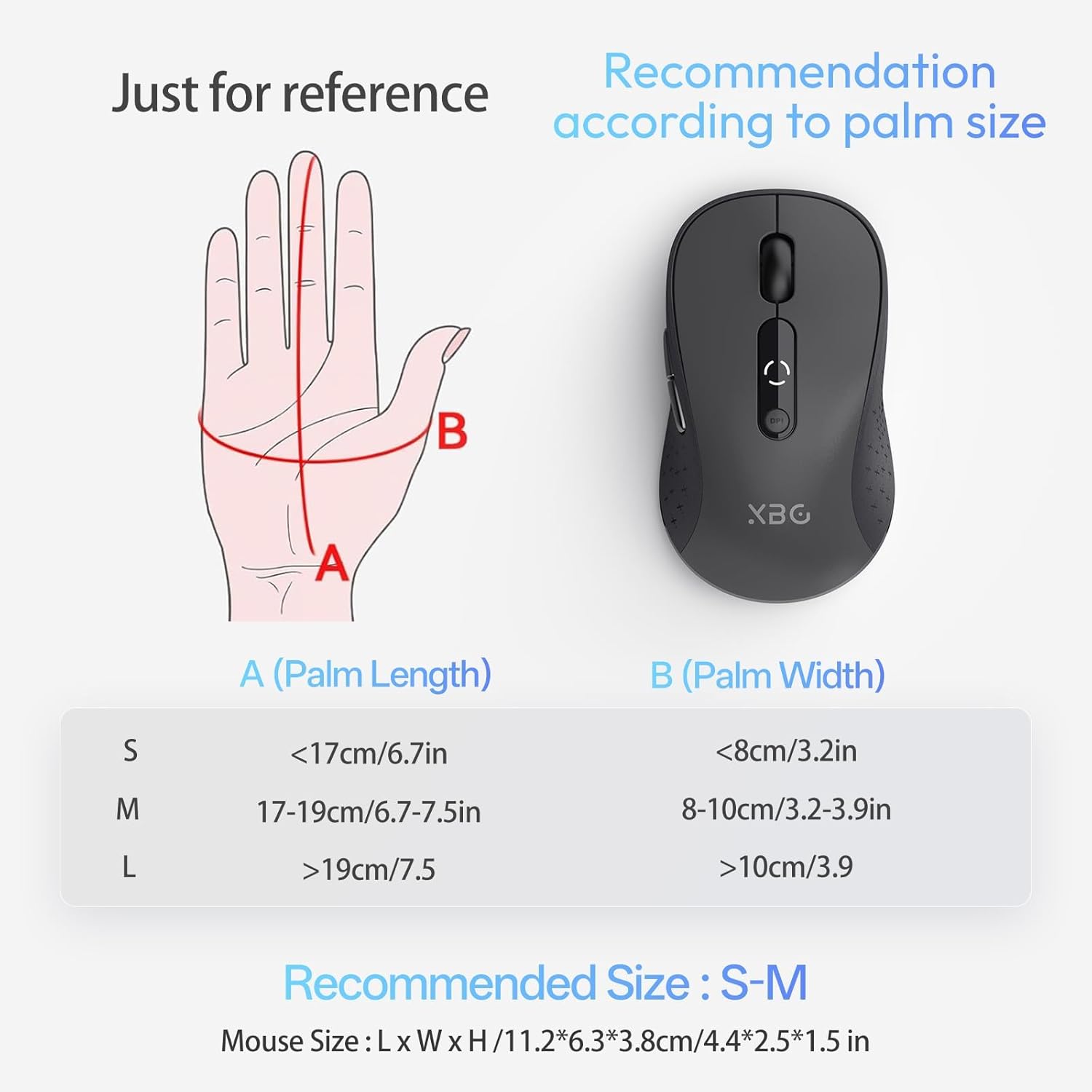
Image: The XBG B15 mouse shown on different surface types (resin, wood, fabric, paper, metal) to demonstrate its versatility.
Aufstellen
The XBG B15 mouse offers three connection modes: 2.4GHz Wireless, Bluetooth 5.0, and Bluetooth 4.0. You can switch between these modes using the 'Mode Switch' button located on the underside of the mouse.

Image: Illustration showing the XBG B15 mouse connecting to a desktop PC via 2.4G wireless and to a laptop and tablet via Bluetooth (BT1 and BT2), indicating its tri-mode capability.
A mode switch indicator light on the bottom of the mouse will show the current connection mode:
- Rotlicht: 2.4G Wireless-Modus
- Blaues Licht: Bluetooth 1 (BT1) Mode
- Grünes Licht: Bluetooth 2 (BT2) Mode

Image: Close-up of the underside of the XBG B15 mouse, showing the mode switch and the corresponding indicator lights (Red for 2.4G, Blue for BT1, Green for BT2).
2.4GHz-Funkverbindung
- Schalten Sie die Maus mit dem EIN/AUS-Schalter an der Unterseite ein.
- Switch the mode to 2.4G (Red Light).
- Stecken Sie den USB-Empfänger in einen freien USB-Port Ihres Computers.
- The computer should automatically detect and install the mouse.
Bluetooth Connection (BT1/BT2)
- Schalten Sie die Maus mit dem EIN/AUS-Schalter an der Unterseite ein.
- Switch the mode to either BT1 (Blue Light) or BT2 (Green Light).
- Press and hold the 'Mode Switch' button for 3-5 seconds until the indicator light starts flashing rapidly. This indicates the mouse is in pairing mode.
- On your device (laptop, tablet, PC), go to Bluetooth settings.
- Suchen nach new devices and select "XBG B15" from the list.
- Nach erfolgreicher Kopplung hört die Kontrollleuchte auf zu blinken und leuchtet einige Sekunden lang dauerhaft, bevor sie erlischt.
- To connect to a second Bluetooth device, switch to the other Bluetooth mode (BT2 if you used BT1, or vice versa) and repeat steps 3-6.
Bedienungsanleitung
DPI-Anpassung
The mouse features 5 adjustable DPI levels (800/1000/1200/1600/2400) to suit various tasks such as office work, graphic design, or gaming. Press the DPI button located below the scroll wheel to cycle through the DPI settings. The current DPI level will be displayed on the mouse's built-in indicator.
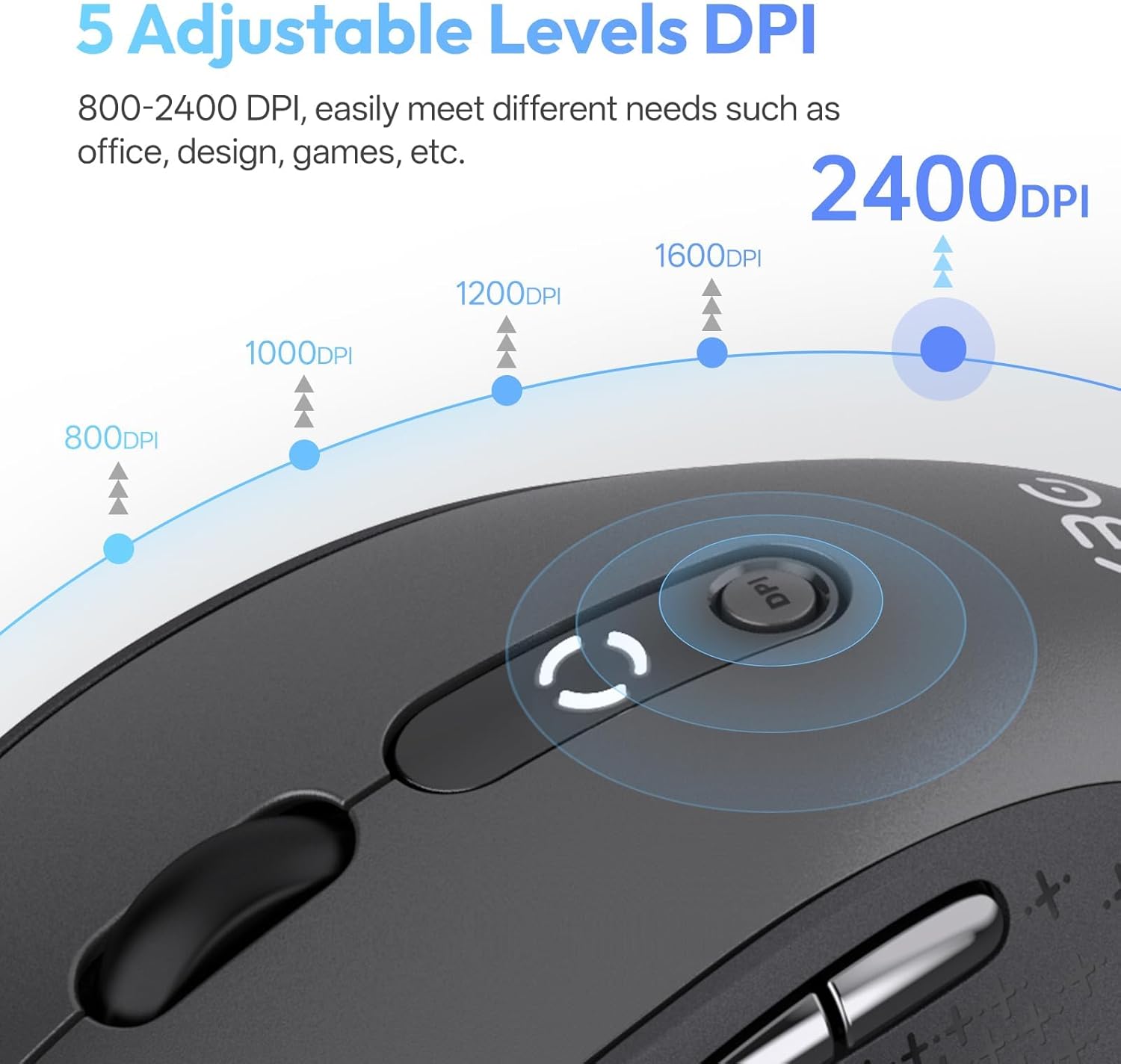
Image: Diagram illustrating the 5 adjustable DPI levels (800, 1000, 1200, 1600, 2400) and how to change them using the DPI button on the XBG B15 mouse.
Funktion für geräuschloses Klicken
The XBG B15 mouse is designed with silent buttons, providing a tactile click feel without producing audible noise. This feature is beneficial in quiet environments such as libraries, offices, or during late-night use.

Image: A person using the XBG B15 mouse silently in an office environment, with a baby sleeping in the background, demonstrating the noiseless click feature.
Automatischer Schlafmodus
To conserve battery life, the mouse will automatically enter sleep mode after 5 minutes of inactivity. To wake the mouse, simply move it or click any button.
Wartung
Aufladen der Maus
The XBG B15 mouse is equipped with a built-in 500 mAh rechargeable battery and a Type-C charging port. Connect the provided USB charging cable to the mouse's Type-C port and to a USB power source (e.g., computer USB port, wall adapter). A full charge takes approximately 2 hours and can provide months of use.

Image: The XBG B15 mouse connected to a charging cable via its Type-C port, illustrating the recharging process and highlighting its 500mAh battery capacity.
Batterieanzeige
The mouse features a 3-level battery indicator to monitor the remaining power:
- 3 Lichter an: Batterie 100 %-75 %
- 2 Lichter an: Batterie 75 %-50 %
- 1 Licht an: Batterie unter 50 %

Image: Close-up of the XBG B15 mouse's display, showing the 3-level battery indicator and its corresponding battery percentage-Bereiche.
Reinigung
Um die Maus zu reinigen, wischen Sie ihre Oberfläche vorsichtig mit einem weichen, fusselfreien Tuch ab.amp Verwenden Sie kein Tuch. Vermeiden Sie aggressive Chemikalien oder Scheuermittel, da diese die Oberfläche beschädigen können.
Fehlerbehebung
- Maus reagiert nicht:
- Stellen Sie sicher, dass die Maus eingeschaltet ist.
- Prüfen Sie den Akkustand und laden Sie ihn bei Bedarf auf.
- For 2.4G connection, ensure the USB receiver is securely plugged into the computer. Try a different USB port.
- For Bluetooth connection, ensure the mouse is in the correct Bluetooth mode (BT1 or BT2) and is paired with your device. Re-pair if necessary.
- Versuchen Sie, Ihren Computer oder Ihr Gerät neu zu starten.
- Unterbrechungsverbindung:
- Bewegen Sie die Maus näher an den Empfänger oder das Bluetooth-fähige Gerät heran.
- Vermeiden Sie die Benutzung der Maus auf Metalloberflächen, da diese die drahtlosen Signale stören können.
- Stellen Sie sicher, dass sich keine anderen starken drahtlosen Störquellen in der Nähe befinden.
- DPI-Einstellung ändert sich nicht:
- Stellen Sie sicher, dass Sie die dafür vorgesehene DPI-Taste drücken.
- Check if the mouse is fully charged.
Technische Daten
| Besonderheit | Detail |
|---|---|
| Modell | B15-Schwarz |
| Konnektivitätstechnologie | Bluetooth 5.0/4.0, 2.4GHz Wireless (USB) |
| DPI-Stufen | 800, 1000, 1200, 1600, 2400 (einstellbar) |
| Akku-Typ | Wiederaufladbares Lithium-Polymer |
| Batteriekapazität | 500 mAh |
| Ladeanschluss | Typ C |
| Technische Daten | 4.4 x 2.5 x 0.04 Zoll |
| Artikelgewicht | 2.65 Unzen |
| Besondere Merkmale | Ergonomic Design, Portable, Silent Click, 3-Level Battery Indicator, Automatic Sleep |
| Kompatibilität | Windows, Mac, Linux, Android |
Garantie und Support
The XBG B15 Tri-Mode Wireless Mouse comes with a manufacturer's warranty. For specific warranty details, please refer to the documentation included with your purchase or contact XBG customer support. If you encounter any issues not covered in this manual, please reach out to our support team for assistance.
Weitere Hilfe finden Sie unter XBG Store on Amazon.


