1. Einleitung
The MCHOSE G75 Pro is a versatile 75% layout wireless mechanical keyboard designed for optimal performance and user experience. It features a gasket-mounted structure with 5 layers of sound and shock-absorbing dampening, vibrant RGB backlighting, and tri-mode connectivity (2.4GHz wireless, Bluetooth, and wired USB-C). The keyboard also supports hot-swappable switches, allowing for easy customization and maintenance.
2. Packungsinhalt
Bitte überprüfen Sie, ob alle Artikel in Ihrem Paket vorhanden sind:
- MCHOSE G75 Pro Wireless Mechanical Keyboard
- USB-C-auf-USB-A-Kabel
- 2.4-GHz-Funkempfänger
- Tastenkappenabzieher
- Benutzerhandbuch (dieses Dokument)
3. Produktüberschreitungview
The MCHOSE G75 Pro features a compact 75% layout, which includes function keys, arrow keys, and a navigation cluster, while minimizing desk space. Its robust construction incorporates a gasket-mounted design for a flexible and comfortable typing feel.

Image: The MCHOSE G75 Pro keyboard showcasing sein kompaktes 75%-Layout.
Internally, the keyboard utilizes a 5-layer dampening system, including Poron foam, IXPE foam, and a PET film, to enhance typing acoustics and reduce vibrations, providing a satisfying sound profile.

Image: Diagram illustrating the 5-layer gasket-mounted dampening structure of the keyboard.
The keyboard offers flexible connectivity options through a mode switch located on the side, allowing seamless transitions between wired, 2.4GHz wireless, and Bluetooth modes.
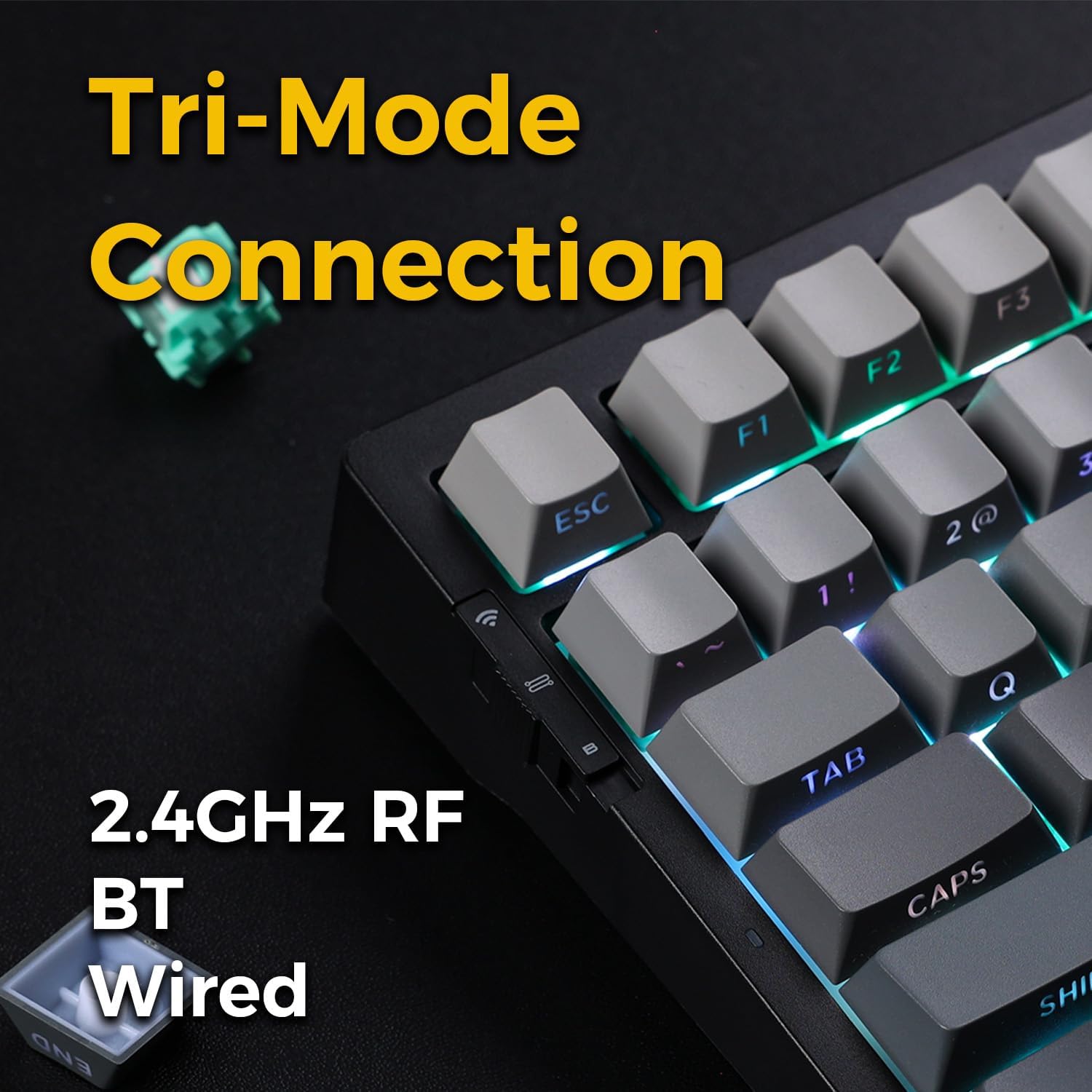
Image: Close-up of the tri-mode connection switch and USB-C port on the keyboard's side.
4. Einrichtung
4.1 Erstaufladung
Before first use, connect the keyboard to a USB power source using the provided USB-C cable. The keyboard is equipped with 2 Lithium Polymer batteries. A full charge ensures optimal wireless performance.
4.2 Verbindungsmodi
The MCHOSE G75 Pro supports three connection modes: Wired, 2.4GHz Wireless, and Bluetooth. Use the switch on the side of the keyboard to select your desired mode.
4.2.1 Kabelverbindung
- Stellen Sie den Modusschalter an der Tastatur auf die Position „Kabelgebunden“.
- Verbinden Sie das USB-C-Ende des Kabels mit der Tastatur und das USB-A-Ende mit Ihrem Computer.
- Die Tastatur wird von Ihrem Betriebssystem automatisch erkannt.
4.2.2 2.4-GHz-Funkverbindung
- Stellen Sie den Modusschalter auf der Tastatur auf die Position „2.4G“.
- Insert the 2.4GHz wireless receiver into an available USB port on your computer.
- The keyboard should connect automatically. If not, press and hold the Fn key + the 2.4G key (usually indicated by a wireless icon) for 3 seconds to initiate pairing.
4.2.3 Bluetooth-Verbindung
- Stellen Sie den Modusschalter an der Tastatur auf die Position „BT“.
- Aktivieren Sie Bluetooth auf Ihrem Computer oder Gerät und suchen Sie nach neuen Geräten.
- Drücken und halten Sie auf der Tastatur Fn + 1, Fn + 2, oder Fn + 3 for 3 seconds to enter pairing mode for one of the three available Bluetooth channels. The indicator light will flash rapidly.
- Select 'MCHOSE G75 Pro' from the list of available devices on your computer.
- Once paired, the indicator light will stop flashing. You can switch between paired Bluetooth devices by pressing Fn + 1, Fn + 2, oder Fn + 3 knapp.
5. Bedienungsanleitung
5.1 Schlüsselfunktionen
The MCHOSE G75 Pro utilizes an Fn (Function) key for accessing secondary key functions, including multimedia controls, lighting adjustments, and system shortcuts. Refer to the keycap legends for specific Fn combinations.
Common Fn Key Combinations:
- Fn+F1-F12: Access multimedia controls or system functions (e.g., volume, play/pause, brightness).
- Fn + Pfeiltasten: Adjust RGB lighting effects (e.g., brightness, speed, direction).
- Fn + Rücktaste: Löschen.
- Fn + Gewinnen: Windows-Taste sperren/entsperren.
5.2 RGB-Hintergrundbeleuchtung
The keyboard features customizable RGB backlighting with south-facing LEDs for enhanced visibility and compatibility with various keycap profiles. You can adjust lighting modes, colors, and brightness.
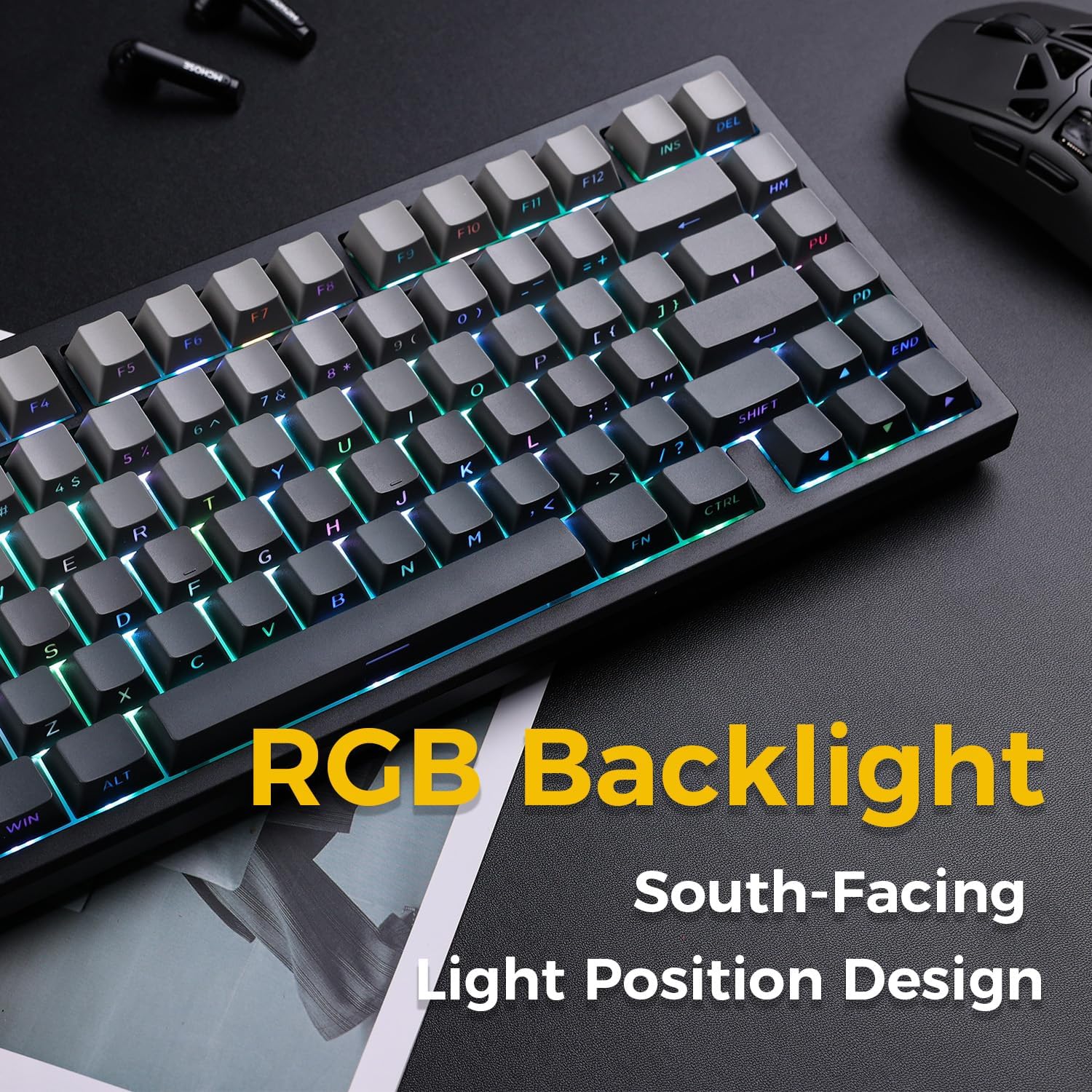
Image: The MCHOSE G75 Pro keyboard displaying its vibrant RGB backlighting.
Adjusting RGB Effects:
- Fn + \|: Durchlaufen Sie verschiedene Lichteffekte.
- Fn +: Decrease lighting speed.
- Fn + >: Increase lighting speed.
- Fn + Aufwärtspfeil: Helligkeit erhöhen.
- Fn + Pfeil nach untenHelligkeit verringern.
5.3 Hot-Swap-fähige Schalter
The MCHOSE G75 Pro is equipped with hot-swappable sockets, allowing you to easily change mechanical switches without soldering. This feature enables customization of typing feel and sound.

Image: The keyboard with several keycaps and switches removed, demonstrating the hot-swappable feature.
Schalterspezifikationen:
The keyboard may come with Matcha Latte Switch V2 or Cabbage Tofu Switch V2, depending on the variant.
- Matcha Latte Switch V2:
Operating Force: 45±8gf
Pre Travel: 2.0±0.4mm
Total Travel: 3.6±0.2mm - Cabbage Tofu Switch V2:
Operating Force: 45±5gf
Vorlauf: 1.9 ± 0.3 mm
Travel distance: 4.0±0.5mm
6. Wartung
6.1 Reinigung
Um das Aussehen und die Funktionalität der Tastatur zu erhalten:
- Trennen Sie die Tastatur vor der Reinigung vom Computer.
- Mit einem weichen, fusselfreien Tuch leichtampAnschließend mit Wasser oder einer milden Reinigungslösung abwischen, um die Tastenkappen und den Deckel zu reinigen.asing.
- For dust and debris between keycaps, use compressed air or the provided keycap puller to remove keycaps and clean thoroughly.
- Vermeiden Sie die Verwendung aggressiver Chemikalien oder Scheuermittel.
6.2 Austausch von Tastenkappen und Schaltern
The included keycap puller can be used to carefully remove keycaps. For switch replacement, use a switch puller (not included unless specified) to gently remove the existing switch. Align the new 3-pin or 5-pin mechanical switch with the hot-swap socket and press firmly until it clicks into place. Ensure pins are not bent during installation.
7. Fehlerbehebung
7.1 Tastatur reagiert nicht
- Stellen Sie sicher, dass die Tastatur ausreichend geladen ist.
- Check the mode switch to confirm it is set to the correct connection type (Wired, 2.4G, or BT).
- Bei kabelgebundener Verbindung versuchen Sie es mit einem anderen USB-Anschluss oder Kabel.
- For 2.4GHz wireless, ensure the receiver is securely plugged in and try re-pairing (Fn + 2.4G key).
- For Bluetooth, ensure Bluetooth is enabled on your device and try re-pairing (Fn + 1/2/3).
- Starten Sie Ihren Computer neu.
7.2 RGB Backlighting Not Working/Incorrect
- Stellen Sie sicher, dass die Tastatur eingeschaltet ist.
- Use Fn key combinations (e.g., Fn + Up/Down Arrow) to adjust brightness.
- Cycle through lighting effects using Fn + \|.
- If specific keys are not lighting up, check if the switch is properly seated or if the LED is damaged.
7.3 Software Compatibility (Windows/macOS)
While the keyboard functions plug-and-play, some advanced customization may require dedicated software. Please note that official software might have limited language support or compatibility issues, particularly with macOS. For optimal functionality, ensure you have the latest drivers or software from the MCHOSE official webWebsite, sofern verfügbar.
8. Spezifikationen
| Besonderheit | Detail |
|---|---|
| Modellnummer | MC-G75 |
| Layout | 75 % |
| Konnektivität | 2.4-GHz-Funkverbindung, Bluetooth, Kabelgebunden (USB-C) |
| Tastaturtyp | Mechanisch |
| Montageart | Dichtung montiert |
| Dampening Layers | 5 Layers (Poron Foam, IXPE Foam, PET Film) |
| Hintergrundbeleuchtung | RGB-LEDs, nach Süden ausgerichtet |
| Tastenkappen | Doppelschuss-PBT |
| Schalter | Hot-Swappable (3-pin/5-pin compatible) |
| Batterie | 2 Lithium-Polymer-Batterie (im Lieferumfang enthalten) |
| Kompatible Geräte | PC |
| Artikelgewicht | 3.05 Pfund (ca. 1.38 kg) |
| Verpackungsabmessungen | 14.96 x 7.17 x 2.17 Zoll (ca. 38 x 18.2 x 5.5 cm) |
9. Garantie und Support
Informationen zur Garantie und zum technischen Support finden Sie auf der offiziellen MCHOSE-Website. webBesuchen Sie unsere Website oder wenden Sie sich an Ihren Händler. Bewahren Sie Ihren Kaufbeleg für Garantieansprüche auf.