1. Einleitung
This manual provides essential information for the proper setup, operation, and maintenance of your OSCOO T10 1TB External SSD Hard Drive. Please read this manual thoroughly before using the device to ensure optimal performance and longevity. The OSCOO T10 is a high-speed portable solid-state drive designed for efficient data transfer and storage across various devices.
2. Sicherheitshinweise
- Setzen Sie das Gerät keinen extremen Temperaturen, Feuchtigkeit oder direkter Sonneneinstrahlung aus.
- Lassen Sie das Gerät nicht fallen und setzen Sie es keinen starken Stößen aus.
- Halten Sie das Gerät von starken Magnetfeldern fern.
- Versuchen Sie nicht, das Gerät selbst zu zerlegen oder zu reparieren. Dadurch erlischt die Garantie.
- Ensure proper ventilation when in use, especially during prolonged data transfers, as the metal casing acts as a heatsink and may become warm.
3. Packungsinhalt
- OSCOO T10 1TB External SSD Hard Drive
- Lanyard (for portability)
4. Produktüberschreitungview
The OSCOO T10 features a robust zinc alloy housing and a unique push-pull mechanism for its dual USB-A and USB-C connectors. This design ensures durability and broad compatibility.
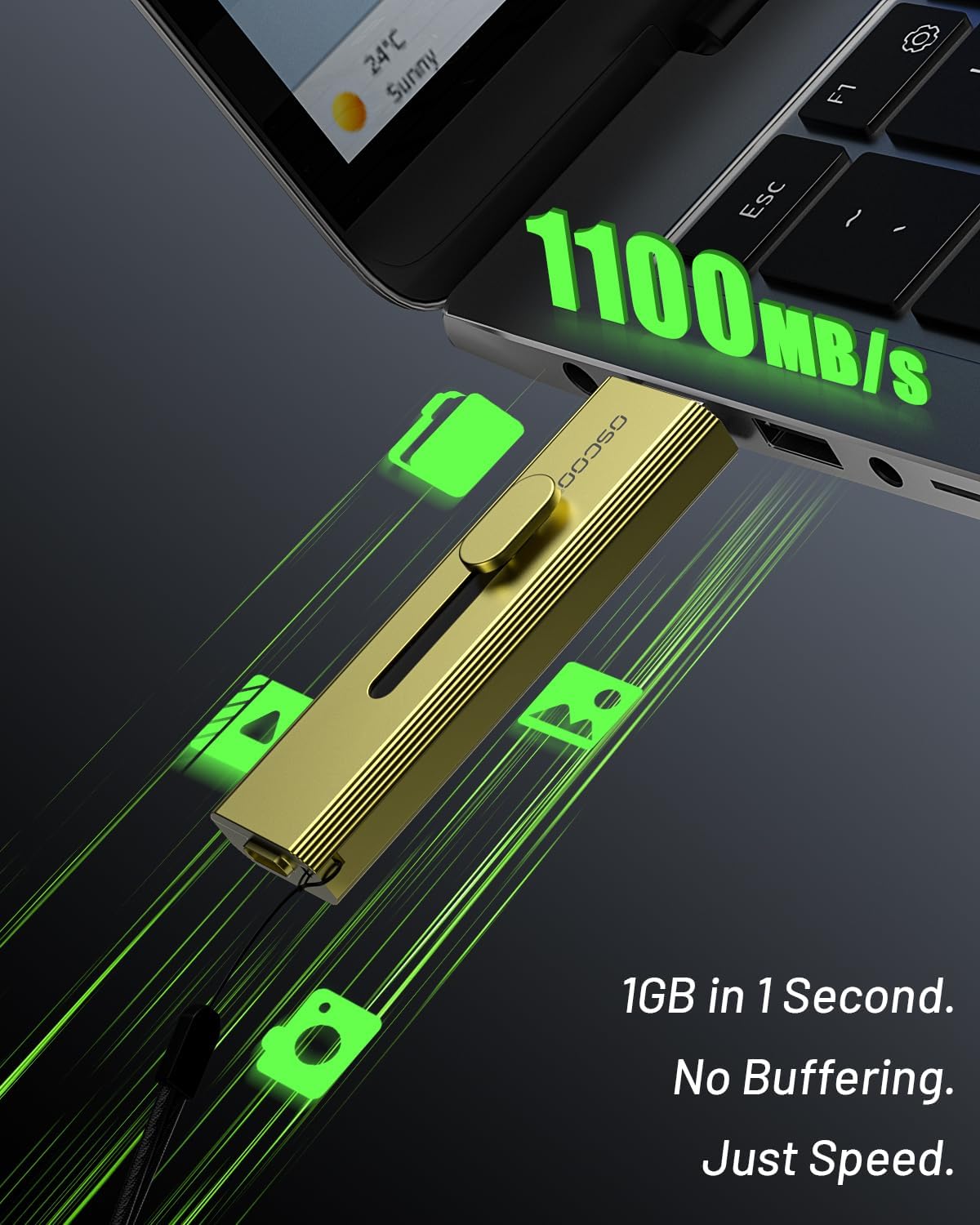
Image: OSCOO T10 External SSD showing its dual USB-A and USB-C connectors.
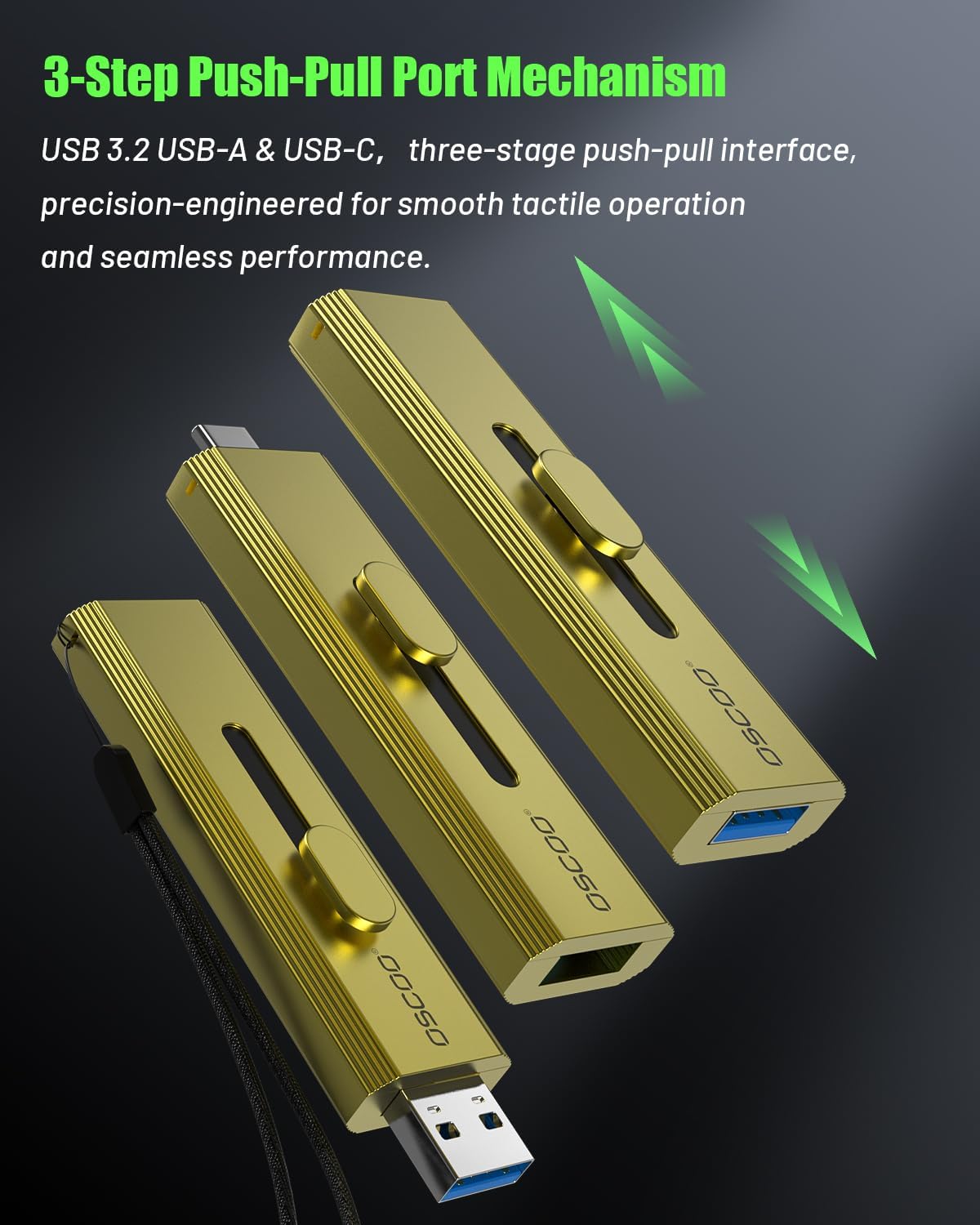
Image: Close-up of the OSCOO T10's push-pull mechanism, highlighting the sliding connector for USB-A and USB-C.
Video: Ein überview of the OSCOO T10 Portable SSD, demonstrating its design, dual connectivity, and high-speed capabilities.
5. Einrichtung und Verbindung
The OSCOO T10 is a plug-and-play device. No drivers are typically required for most operating systems.
5.1. Connecting to iPhone/iOS Devices (iPhone 15 series or later)
The OSCOO T10 can be directly connected to compatible iPhone models (iPhone 15 series or later) via its USB-C port for direct recording and file Übertragung.
Video: Demonstrates how to connect the OSCOO T10 to an iPhone 15 Pro and transfer files mit dem Files-App.
5.2. Verbindung zu Android-Geräten herstellen
Connect the OSCOO T10 to your Android smartphone or tablet via its USB-C port. The device will typically be recognized as an external storage device (OTG) in your file Manager.
Video: Illustrates connecting the OSCOO T10 to an Android device and accessing its contents through the My Files-Anwendung.
5.3. Connecting to Computers (Mac/Laptop/Desktop)
The OSCOO T10 can be connected to your computer using either the USB-A or USB-C connector. Simply slide the appropriate connector out and plug it into an available port on your computer. The device will appear as an external drive.
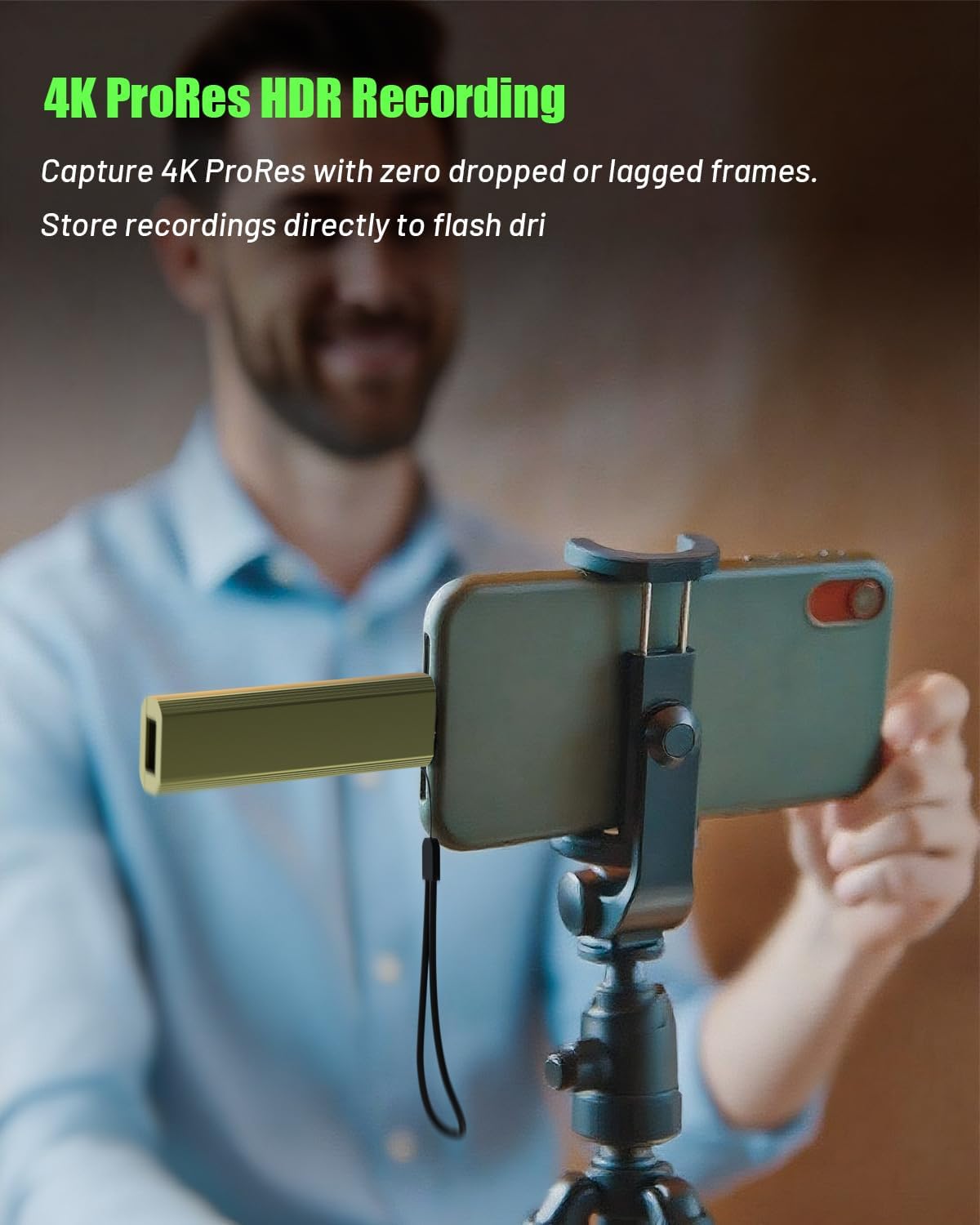
Image: The OSCOO T10 External SSD connected to a laptop's USB-A port.
6. Bedienungsanleitung
6.1. Datenübermittlung
Once connected, the OSCOO T10 functions like any standard external storage device. You can drag and drop fileSie können den Text kopieren und einfügen oder die Funktion Ihres Geräts verwenden. file management system to move data.
- From Phone/Tablet to SSD: Navigieren Sie zum files on your phone/tablet, select them, and choose to 'Share' or 'Move' them to the OSCOO T10 drive, which will appear in your file manager (e.g., 'Files' on iOS, 'My Files' or 'OTG' on Android).
- From SSD to Phone/Tablet: Open the OSCOO T10 drive in your phone/tablet's file manager, select the desired files, and choose to 'Move' or 'Copy' them to your device's internal storage or a specific folder.
- Zum/Vom Computer: Open the OSCOO T10 drive from 'My Computer' (Windows) or 'Finder' (Mac). Drag and drop files between your computer's drives and the OSCOO T10.

Image: Visual guide on locating the connected OSCOO T10 in both iPhone and Android file Manager.
6.2. 4K ProRes Recording (iPhone 15/16/17 Series)
For iPhone 15/16/17 Pro and Pro Max models, the OSCOO T10 supports direct 4K 120fps ProRes recording. Connect the SSD to your iPhone's USB-C port, open the Camera app, and select ProRes recording. Ensure the SSD is properly connected and recognized before starting recording to prevent data loss.

Image: A user recording 4K ProRes video directly to the OSCOO T10 connected to an iPhone.
7. Wartung
- Reinigung: Reinigen Sie die Außenseite der SSD mit einem weichen, trockenen Tuch. Verwenden Sie keine flüssigen Reiniger oder Lösungsmittel.
- Lagerung: Bewahren Sie das Gerät bei Nichtgebrauch an einem kühlen, trockenen Ort auf.
- Wärmemanagement: Die Zinklegierung casing is designed for heat dissipation. It is normal for the device to become warm during heavy use or prolonged transfers. Ensure it is not covered or placed in an enclosed space during operation.
- Sicherer Ausstieg: Always safely eject the SSD from your computer or mobile device before unplugging it to prevent data corruption.
8. Fehlerbehebung
| Ausgabe | Mögliche Ursache | Lösung |
|---|---|---|
| Gerät nicht erkannt | Improper connection, incompatible device, or driver issue. | Ensure the connector is fully inserted. Try a different USB port or device. For computers, check device manager for driver updates. For phones, ensure OTG is enabled if required by your device. |
| Langsame Übertragungsgeschwindigkeiten | Using a lower-speed USB port (e.g., USB 2.0), cable limitations, or system overhead. | Connect to a USB 3.2 Gen 2 (or higher) port for optimal speeds. Ensure your device supports USB 3.2 Gen 2. Avoid running multiple demanding applications during transfer. |
| Das Gerät erwärmt sich während des Gebrauchs. | Normal operation, especially during large file Überweisungen. | This is expected as the metal casing dissipates heat. Ensure adequate airflow around the device. If it becomes excessively hot to touch, discontinue use and contact support. |
| Cannot fit next to another USB device | Physical size of the SSD. | The device has a slightly wider body. Use an alternative USB port if available, or a short USB extension cable if necessary. |
| Data corruption | Improper ejection, power loss during transfer, or hardware fault. | Always safely eject the device. Ensure stable power supply. If issues persist, back up data and consider formatting the drive (this will erase all data). |
9. Spezifikationen
| Besonderheit | Detail |
|---|---|
| Digitale Speicherkapazität | 1 TB |
| Festplattenschnittstelle | USB 2.0/3.0 (Compatible with USB 3.2 Gen 2 for optimal speeds) |
| Konnektivitätstechnologie | USB (Type-C and Type-A dual interface) |
| Lesegeschwindigkeit (Max.) | Up to 1100MB/s (with USB 3.2 Gen2x2, USB 3.2 Gen2, or Thunderbolt 4/5 interfaces) |
| Besondere Merkmale | Backward Compatible, Dust Resistant, Native Command Queuing, Portable, Waterproof (limited) |
| Artikelgewicht | 1.61 Unzen |
| Produktabmessungen (L x B x H) | 2.88 x 0.5 x 0.87 Zoll |
| Gehäusematerial | Zinklegierung |
| Kompatible Geräte | Desktop, Gaming Console, Laptop, Smartphone (iPhone 15 series, Android), Tablet |
10. Garantie und Support
Your OSCOO T10 External SSD Hard Drive comes with a standard manufacturer's warranty. For specific warranty terms and conditions, please refer to the product packaging or contact OSCOO customer support directly. If you encounter any issues or have questions not covered in this manual, please visit the official OSCOO webWebsite oder wenden Sie sich an den Kundendienst, um Unterstützung zu erhalten.
OSCOO Customer Support: Visit the OSCOO Store on Amazon


