Einführung
This manual provides detailed instructions for setting up and using your Rapoo 9360M Wireless Keyboard and Mouse Combo. This combo offers versatile connectivity, supporting up to four devices across multiple operating systems, enhancing your productivity and workspace efficiency.

Image: The Rapoo 9360M wireless keyboard and mouse combo, featuring a sleek black design.
Packungsinhalt
- Rapoo 9360M Kabellose Tastatur
- Rapoo M300G Silent Wireless Mouse
- USB 2.4-GHz-Empfänger
- 2 x AAA-Batterien (für die Tastatur)
- 1 x AA-Batterie (für die Maus)
- Kurzanleitung (dieses Handbuch)
Installationsanweisungen
1. Einlegen der Batterie
- Tastatur: Öffnen Sie das Batteriefach an der Unterseite der Tastatur. Legen Sie zwei AAA-Batterien ein und achten Sie dabei auf die richtige Polarität (+/-). Schließen Sie das Fach.
- Maus: Open the battery compartment on the underside of the mouse. Insert one AA battery, ensuring correct polarity (+/-). Close the compartment. The USB 2.4GHz receiver is typically stored inside the mouse's battery compartment for convenience.
2. Konnektivitätsoptionen
The Rapoo 9360M combo supports connection via a 2.4GHz USB receiver or Bluetooth 5.0/4.0, allowing connection to up to four devices simultaneously.
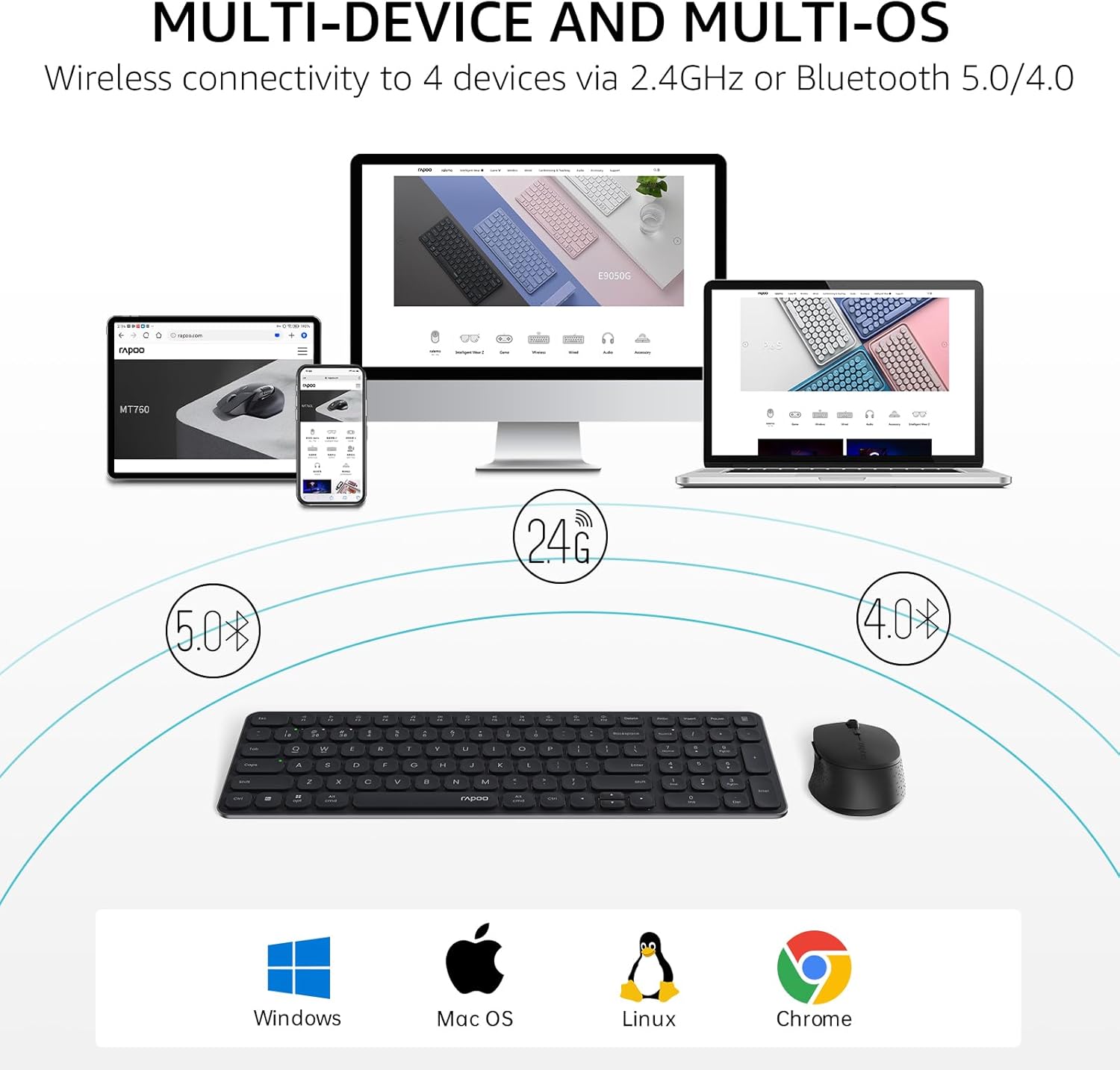
Image: Multi-device and multi-OS connectivity diagram for the Rapoo 9360M combo.
2.1. 2.4GHz USB Receiver Connection
- Remove the USB 2.4GHz receiver from the mouse's battery compartment.
- Stecken Sie den Empfänger in einen freien USB-Anschluss Ihres Computers.
- Tastatur und Maus sollten sich automatisch mit Ihrem Gerät verbinden.
2.2. Bluetooth-Kopplung
The keyboard and mouse can each pair with up to three Bluetooth devices (BT1, BT2, BT3).
Keyboard Bluetooth Pairing:
- Halten Sie die Fn + 1, Fn + 2, oder Fn + 3 key combination for 3 seconds to select a Bluetooth channel. The indicator light above the '1', '2', or '3' key will flash slowly.
- Drücken und halten Sie die gleiche Fn + 1/2/3 key combination again for 3 seconds until the indicator light flashes rapidly. This indicates the keyboard is in pairing mode.
- Gehen Sie auf Ihrem Gerät (Computer, Tablet, Smartphone) zu den Bluetooth-Einstellungen und suchen Sie nach neuen Geräten.
- Select "Rapoo BT3.0 Keyboard" or "Rapoo BT5.0 Keyboard" from the list and follow the on-screen prompts to complete pairing.
Mouse Bluetooth Pairing:
- Press the Bluetooth button on the underside of the mouse to switch between BT1, BT2, or BT3 channels. The indicator light will flash slowly.
- Press and hold the Bluetooth button for 3 seconds until the indicator light flashes rapidly. This indicates the mouse is in pairing mode.
- Öffnen Sie auf Ihrem Gerät die Bluetooth-Einstellungen und suchen Sie nach neuen Geräten.
- Select "Rapoo BT3.0 Mouse" or "Rapoo BT5.0 Mouse" from the list and follow the on-screen prompts to complete pairing.
Bedienungsanleitung
1. Umschaltung mehrerer Geräte
Tastatur und Maus ermöglichen ein nahtloses Umschalten zwischen angeschlossenen Geräten.
- Tastatur: Drücken Fn + 1, Fn + 2, Fn + 3 to switch between Bluetooth devices, or Fn + 4 to switch to the 2.4GHz USB receiver connection. The corresponding indicator light will illuminate.
- Maus: Press the Bluetooth button on the underside of the mouse to cycle through BT1, BT2, BT3, and 2.4GHz connections. The indicator light will show the active channel.
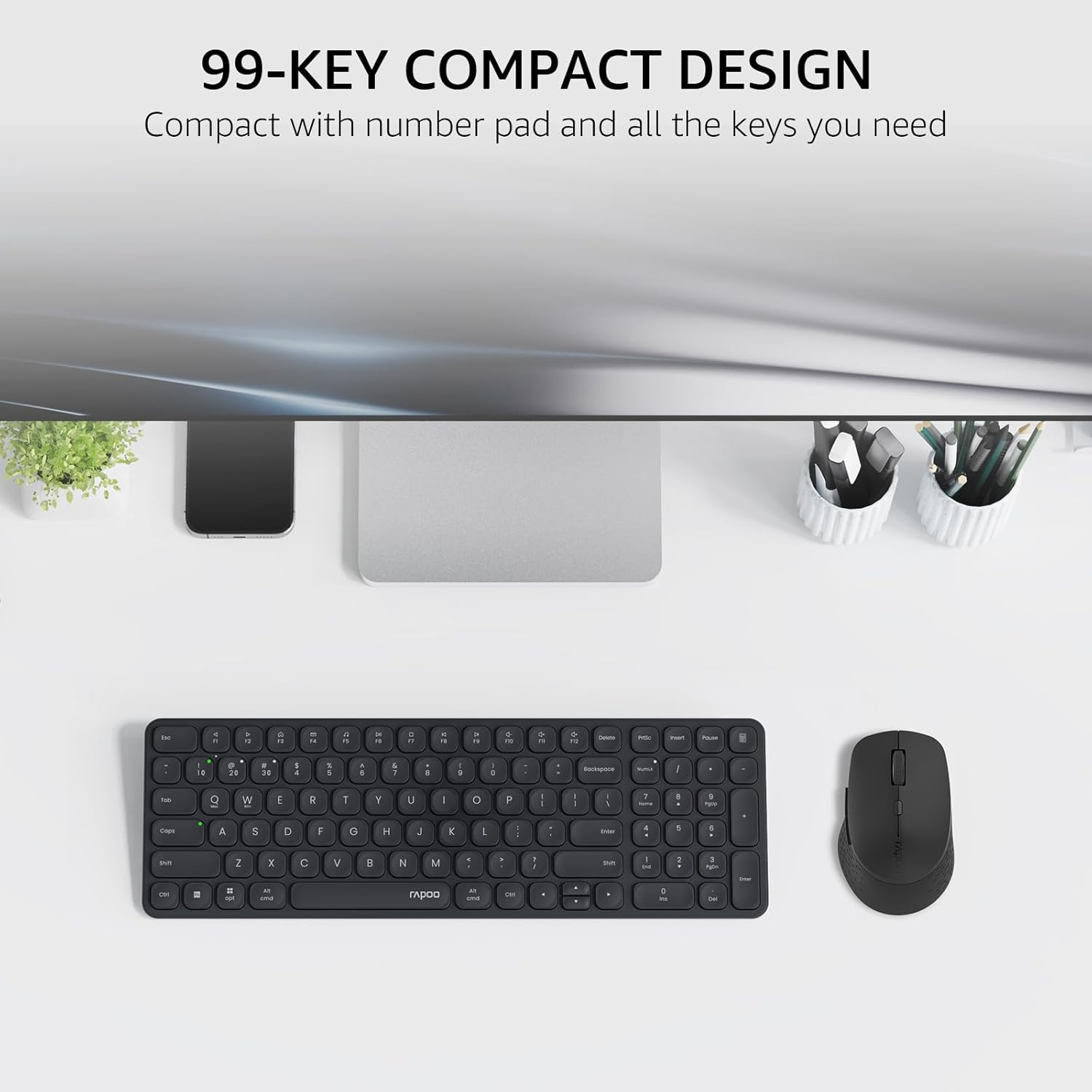
Image: The compact 99-key design of the Rapoo 9360M keyboard and mouse.
2. Multimedia-Tasten
The keyboard features dual-system multimedia keys for quick access to common functions.
- To use multimedia functions (e.g., play/pause, volume control), press the Fn key simultaneously with the desired F-key (F1-F12).
- The keyboard supports both Windows and Mac OS shortcuts.
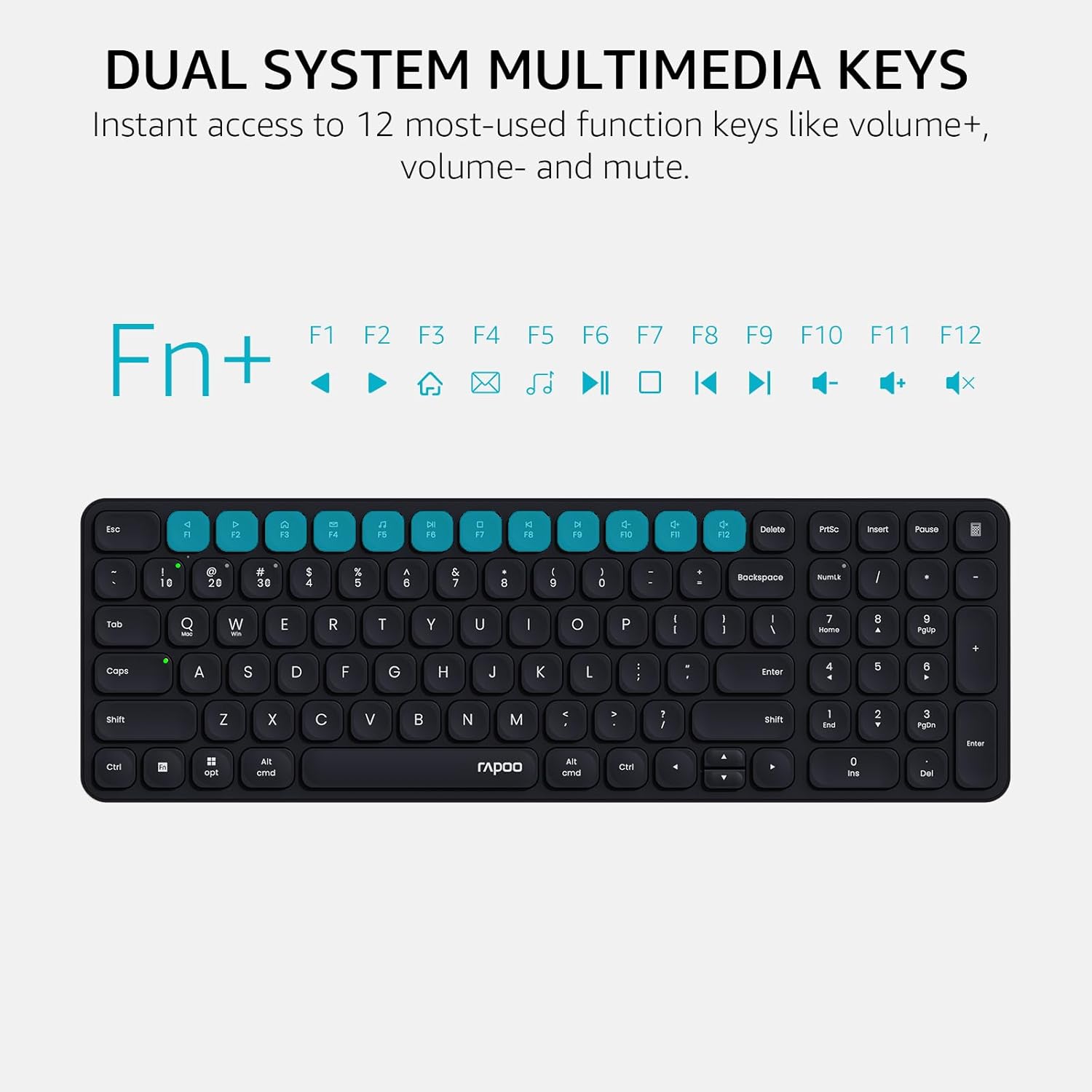
Image: Dual system multimedia keys on the Rapoo 9360M keyboard.
3. DPI-Anpassung der Maus
The M300G mouse offers 5 adjustable DPI settings for precise cursor control.
- Press the DPI button located on the top of the mouse (usually behind the scroll wheel) to cycle through the preset DPI values: 800, 1000, 1200, 1600, and 2400.
- Select the DPI setting that best suits your preference and screen resolution.
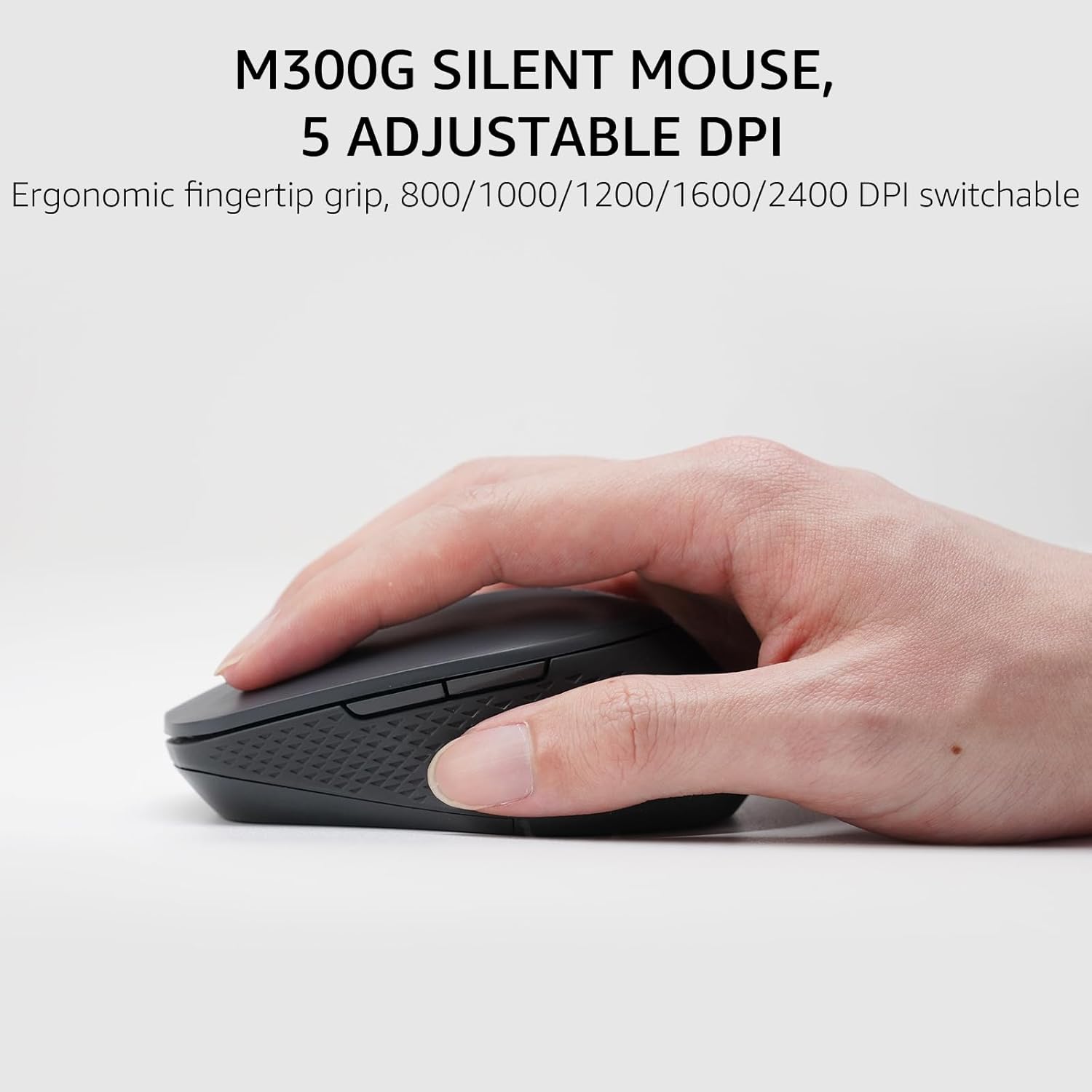
Image: The M300G Silent Mouse with 5 adjustable DPI settings.
4. Kontrollleuchten
The keyboard includes indicator lights for device connection and capitalization status.
- Geräteanzeige: Located above the '1', '2', '3', and '4' keys, these lights indicate which device channel is currently active.
- Feststellanzeige: A dedicated light indicates when Caps Lock is active.
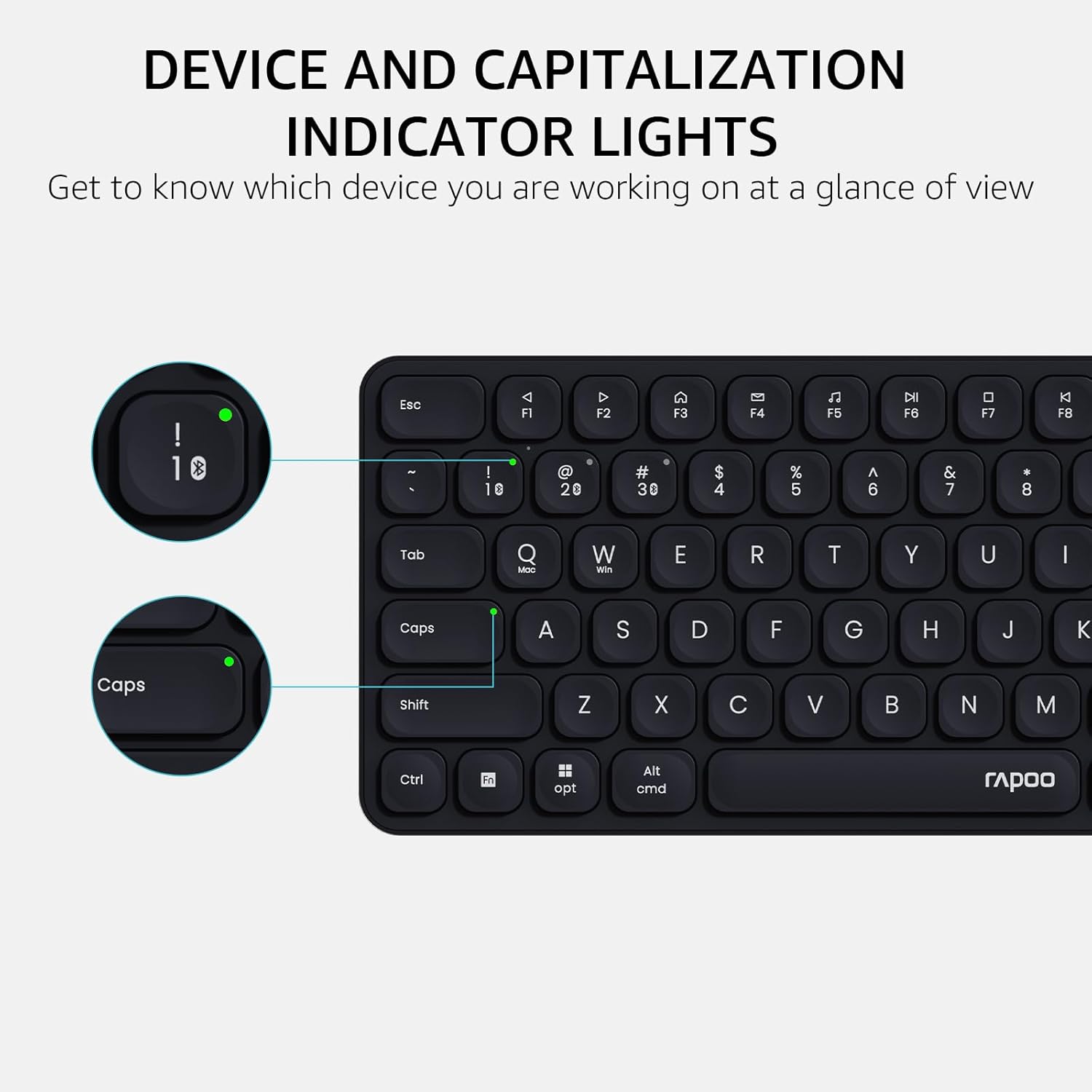
Image: Device and capitalization indicator lights on the keyboard.
Wartung
- Reinigung: Reinigen Sie Tastatur und Maus mit einem weichen, trockenen Tuch. Bei hartnäckigem Schmutz verwenden Sie ein leicht feuchtes Tuch.amp Man kann ein Tuch mit milder Seife verwenden, wobei darauf zu achten ist, dass keine Flüssigkeit in die Geräte gelangt.
- Batteriewechsel: Replace batteries when the low battery indicator appears or when performance degrades. Ensure to use the correct battery types (AAA for keyboard, AA for mouse) and dispose of old batteries responsibly.
- Lagerung: When not in use for extended periods, remove batteries to prevent leakage. Store in a cool, dry place.
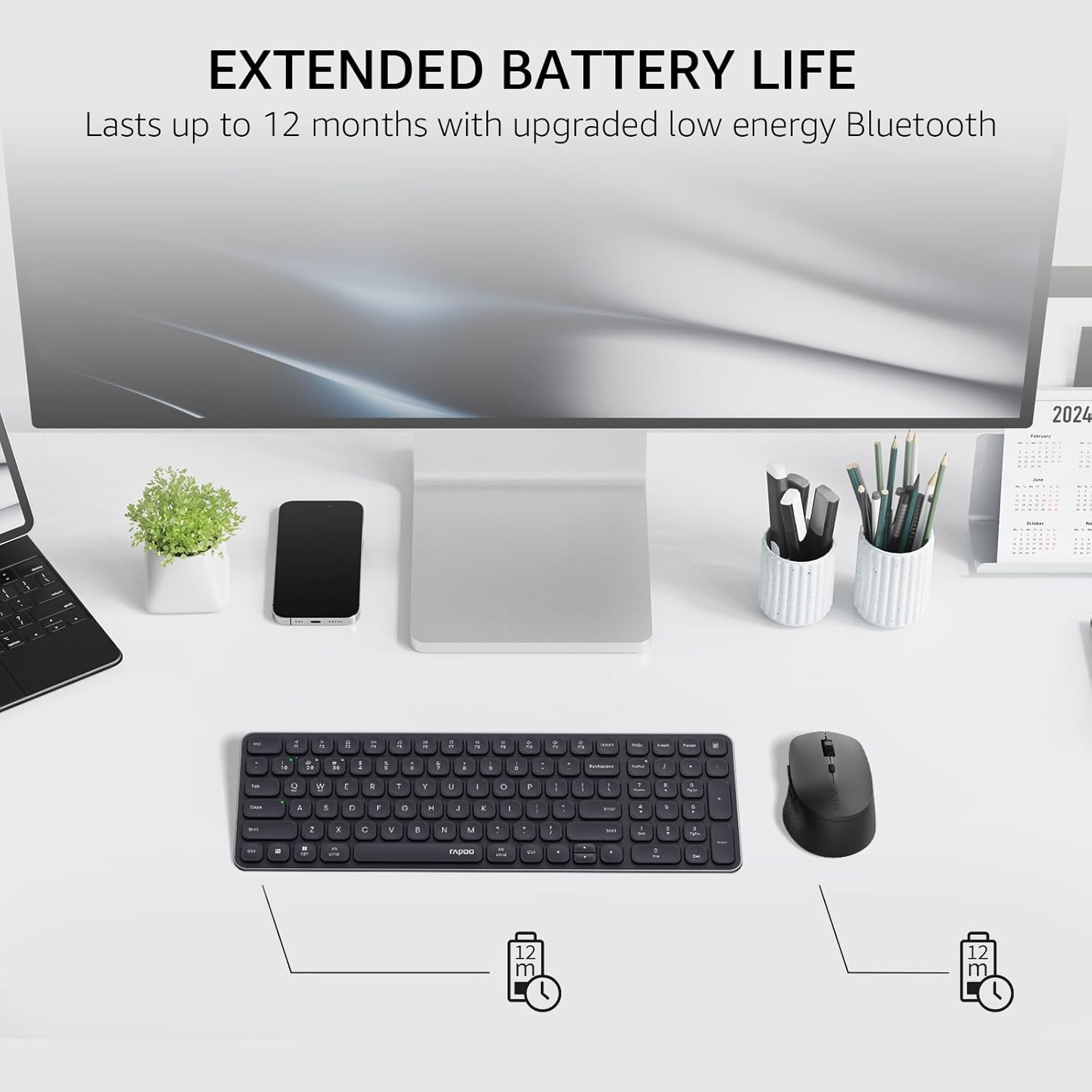
Image: Illustration of extended battery life for the keyboard and mouse.
Fehlerbehebung
- Gerät verbindet sich nicht:
- Stellen Sie sicher, dass die Batterien richtig eingelegt sind und ausreichend geladen sind.
- For 2.4GHz connection, ensure the USB receiver is securely plugged into a working USB port.
- Stellen Sie für eine Bluetooth-Verbindung sicher, dass Bluetooth auf Ihrem Gerät aktiviert ist und sich Tastatur/Maus im Kopplungsmodus befinden. Versuchen Sie, die Geräte erneut zu koppeln.
- Switch to a different channel (Fn + 1/2/3/4 for keyboard, button on mouse) to ensure you are on the correct connection mode.
- Verzögerung oder zeitweise Verbindungsunterbrechung:
- Bringen Sie Tastatur/Maus näher an den Empfänger oder das Bluetooth-Gerät heran.
- Avoid using the devices near strong interference sources (e.g., Wi-Fi routers, other wireless devices).
- Tauschen Sie die Batterien aus, wenn sie schwach sind.
- Keys or mouse buttons unresponsive:
- Überprüfen Sie den Batteriestand.
- Ensure the device is connected to the correct channel.
- Starten Sie Ihren Computer oder Ihr Gerät neu.
Technische Daten
| Besonderheit | Detail |
|---|---|
| Modellnummer | 9360 Mio. |
| Tastaturlayout | 99-key with number pad and arrow keys |
| Mausmodell | M300G Silent Mouse |
| Konnektivität | Bluetooth 5.0/4.0, 2.4GHz Radio Frequency |
| Unterstützung für mehrere Geräte | Up to 4 devices (1 x 2.4GHz, 3 x Bluetooth) |
| Kompatible Betriebssysteme | Windows, Mac OS, Linux, Chrome |
| Tastaturbatterie | 2 x AAA-Batterien (im Lieferumfang enthalten) |
| Mausbatterie | 1 x AA Batterie (im Lieferumfang enthalten) |
| Maus-DPI-Einstellungen | 800/1000/1200/1600/2400 (adjustable) |
| Tastaturabmessungen | 14.29 x 4.69 x 0.79 Zoll (36.3 x 11.9 x 2 cm) |
| Abmessungen der Maus | 4.09 x 2.57 x 1.47 Zoll (10.39 x 6.54 x 3.73 cm) |
| Artikelgewicht | 13.9 ounces (keyboard and mouse combined) |
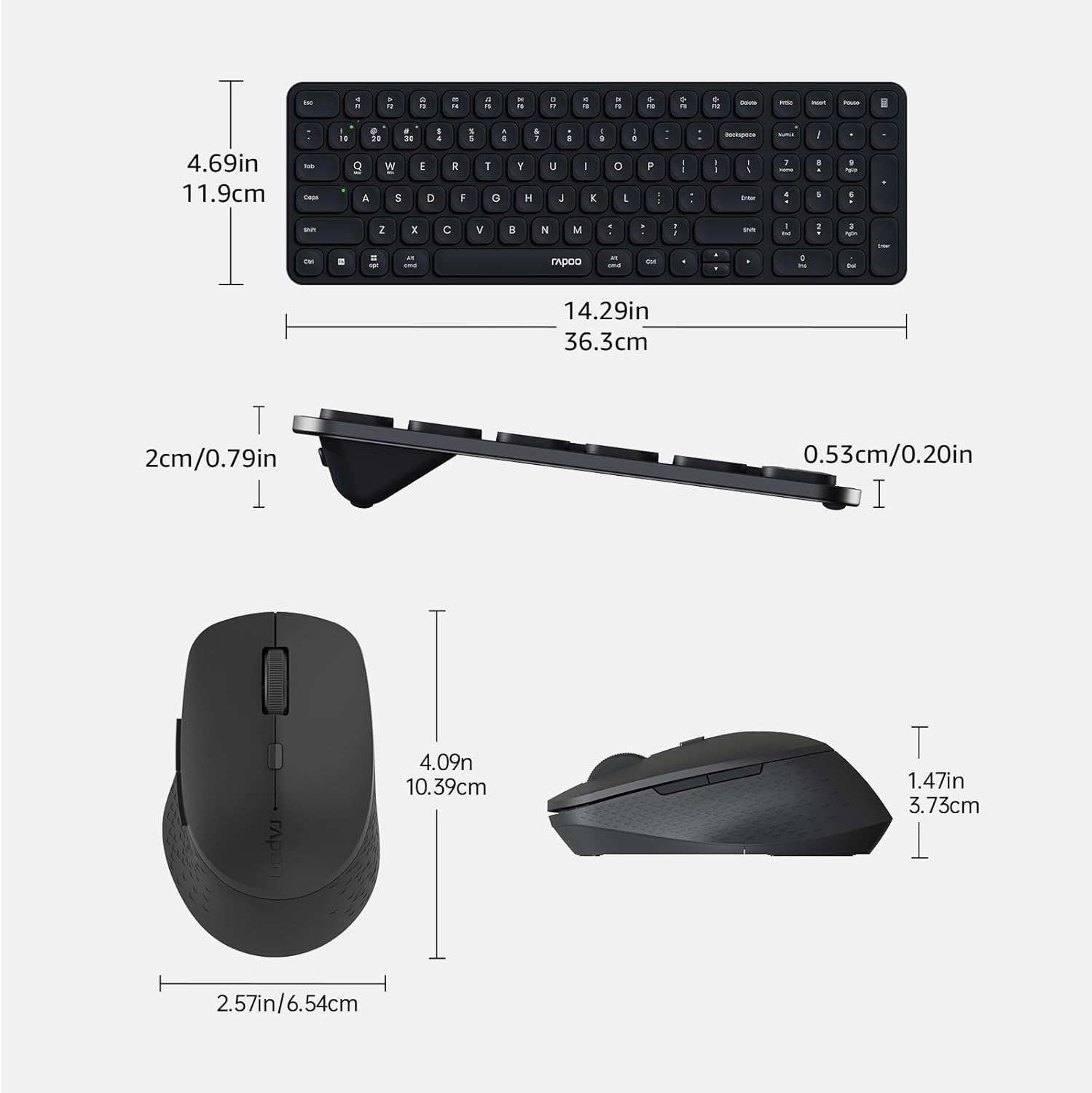
Image: Dimensions of the Rapoo 9360M keyboard and M300G mouse.
Garantie und Support
Informationen zur Garantie und zum technischen Support finden Sie auf der offiziellen Rapoo-Website. webBesuchen Sie unsere Website oder wenden Sie sich an Ihren Händler vor Ort. Bewahren Sie Ihren Kaufbeleg für Garantieansprüche auf.


