1. Einleitung
The Rapoo 8000S is a wireless keyboard and mouse set designed for versatile use across various operating systems and devices. This compact and sleek combo offers reliable 2.4 GHz wireless connectivity, a high-performance 1300 DPI optical mouse, and a spill-resistant keyboard. It is engineered for efficiency and comfort, providing a seamless user experience for both work and leisure.
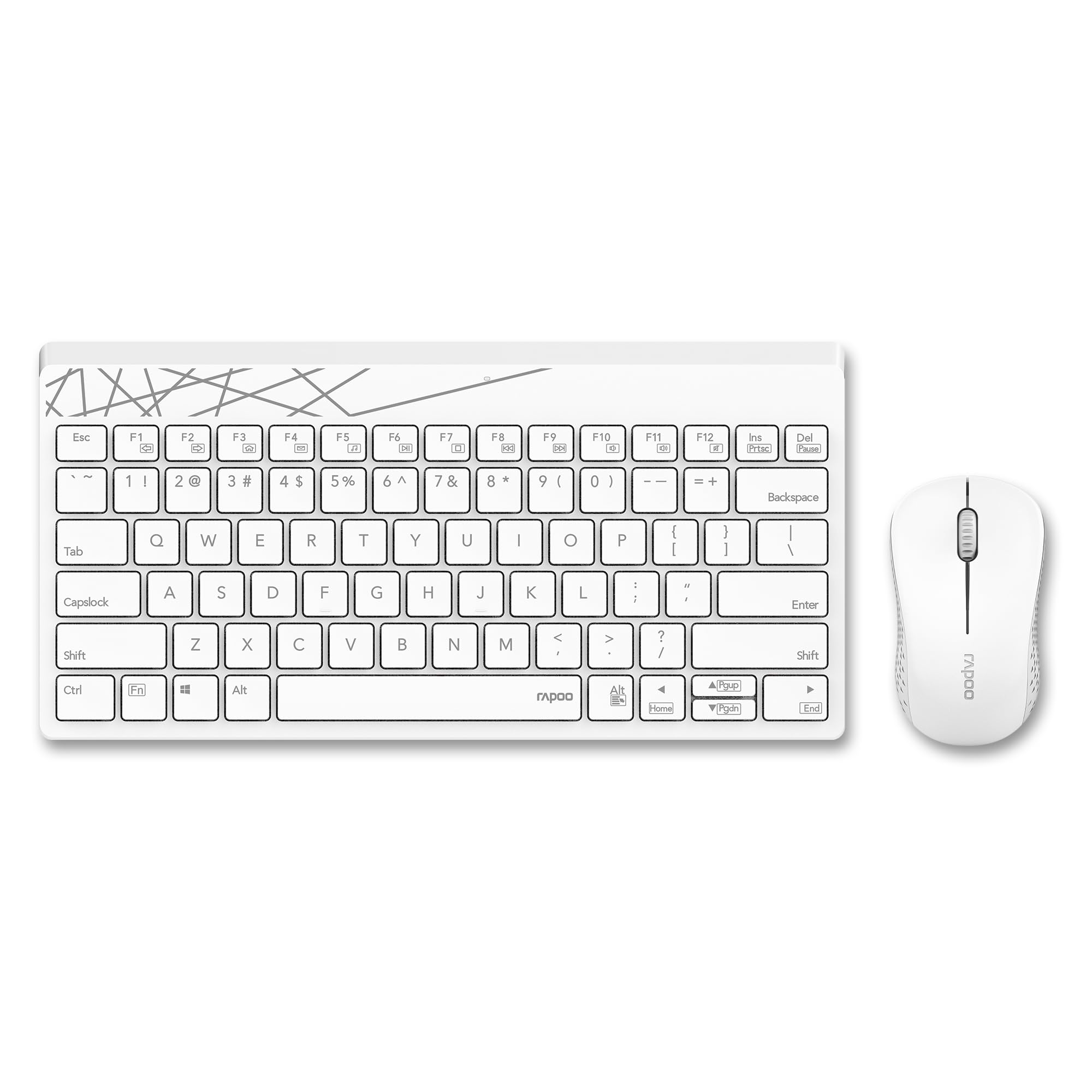
Image: The Rapoo 8000S wireless keyboard and mouse set in white, showcasing dank seines kompakten Designs.
2. Einrichtungsanweisungen
2.1 Packungsinhalt
- Rapoo 8000S Wireless Keyboard
- Rapoo Wireless Maus
- USB-Empfänger
- 1 AA-Batterie (vorinstalliert oder im Lieferumfang enthalten)
2.2 Einlegen der Batterie
The Rapoo 8000S keyboard and mouse are powered by AA batteries. A battery is typically included with the product.
- Für die Maus: Open the battery compartment cover located on the underside of the mouse. Insert the AA battery, ensuring correct polarity (+/-). Close the cover.
- Für die Tastatur: Open the battery compartment cover on the underside of the keyboard. Insert the AA battery, ensuring correct polarity (+/-). Close the cover.
2.3 Anschließen des USB-Empfängers
The Rapoo 8000S uses a 2.4 GHz wireless connection via a USB receiver.
- Locate the USB receiver, usually stored within the mouse's battery compartment or packaged separately.
- Plug the USB receiver into an available USB port on your computer, laptop, tablet, or smart TV.
- Das System sollte die benötigten Treiber automatisch erkennen und installieren. Dies kann einige Augenblicke dauern.
- Nach der Installation sollten Tastatur und Maus einsatzbereit sein.
2.4 Kompatibilität
The Rapoo 8000S is compatible with a wide range of operating systems and devices.
- Betriebssysteme: Windows, iOS, Android, Mac
- Geräte: Laptops, Personal Computers, Tablets, Smartphones, Smart Televisions
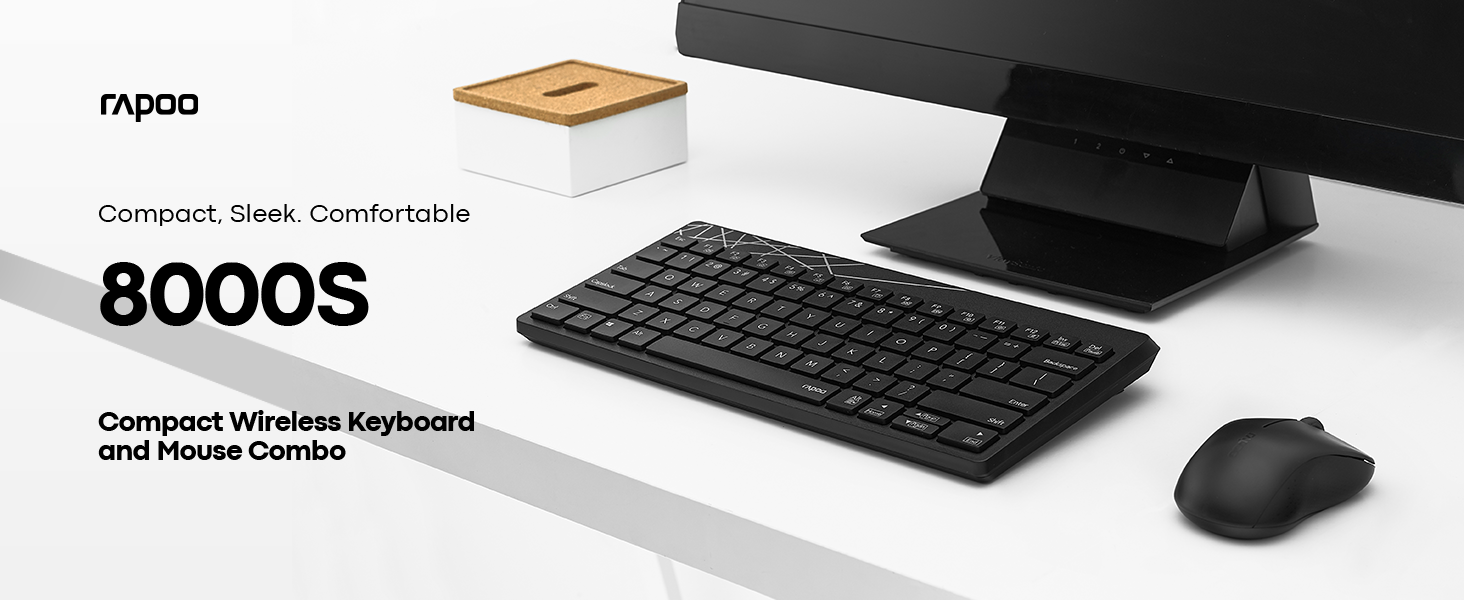
Image: A computer screen displaying both Windows and Apple logos, indicating broad compatibility of the Rapoo 8000S.
3. Bedienungsanleitung
3.1 Basic Keyboard and Mouse Functions
Once connected, the keyboard and mouse function like standard input devices. The keyboard features a membrane design for comfortable typing, and the mouse provides accurate optical tracking.
3.2 Multimedia-Hotkeys
The keyboard includes dedicated multimedia hotkeys for quick access to various functions.
- Media Player-Steuerung: Play/Pause, Stop, Previous Track, Next Track
- Lautstärkeregelung: Volume Up, Volume Down, Mute
- Weitere Funktionen: Homepage, Email, My Computer
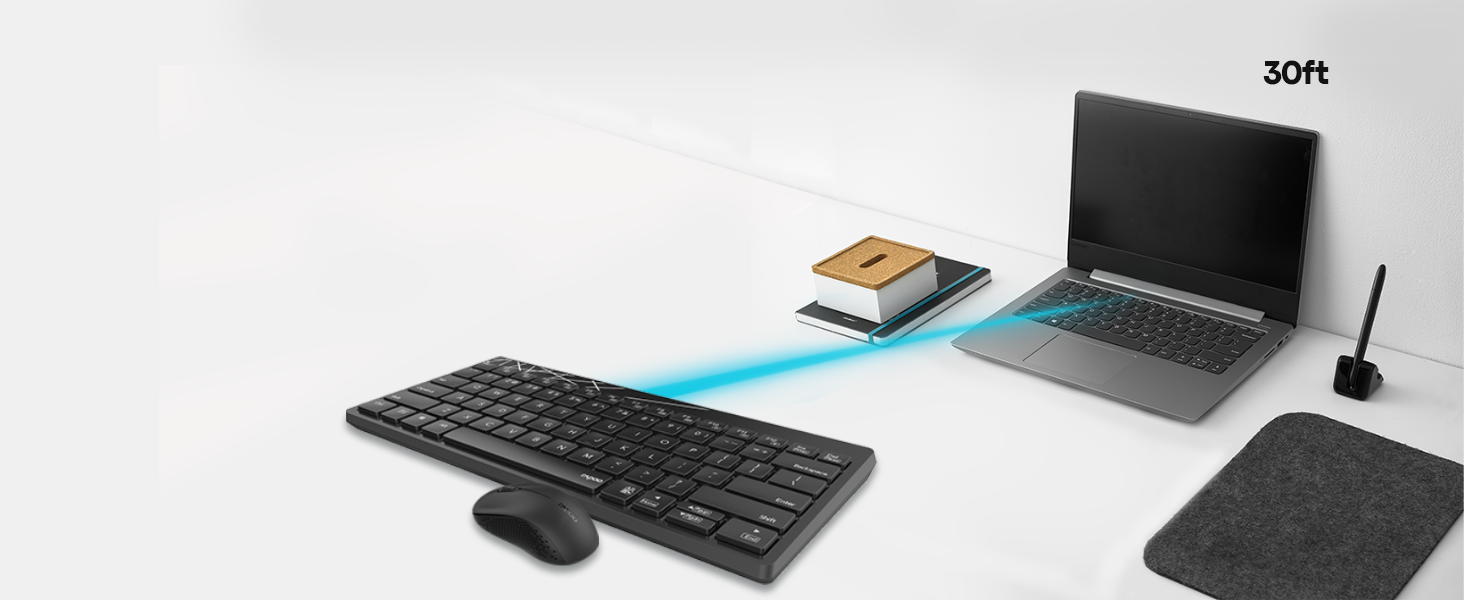
Image: A close-up of the Rapoo 8000S keyboard, highlighting the multifunction keys for media and system control.
3.3 Mouse DPI Control
The mouse features a 1300 DPI (Dots Per Inch) high-performance optical tracking engine, providing accurate and smooth cursor control. This fixed DPI setting is optimized for general use and precision on various surfaces.
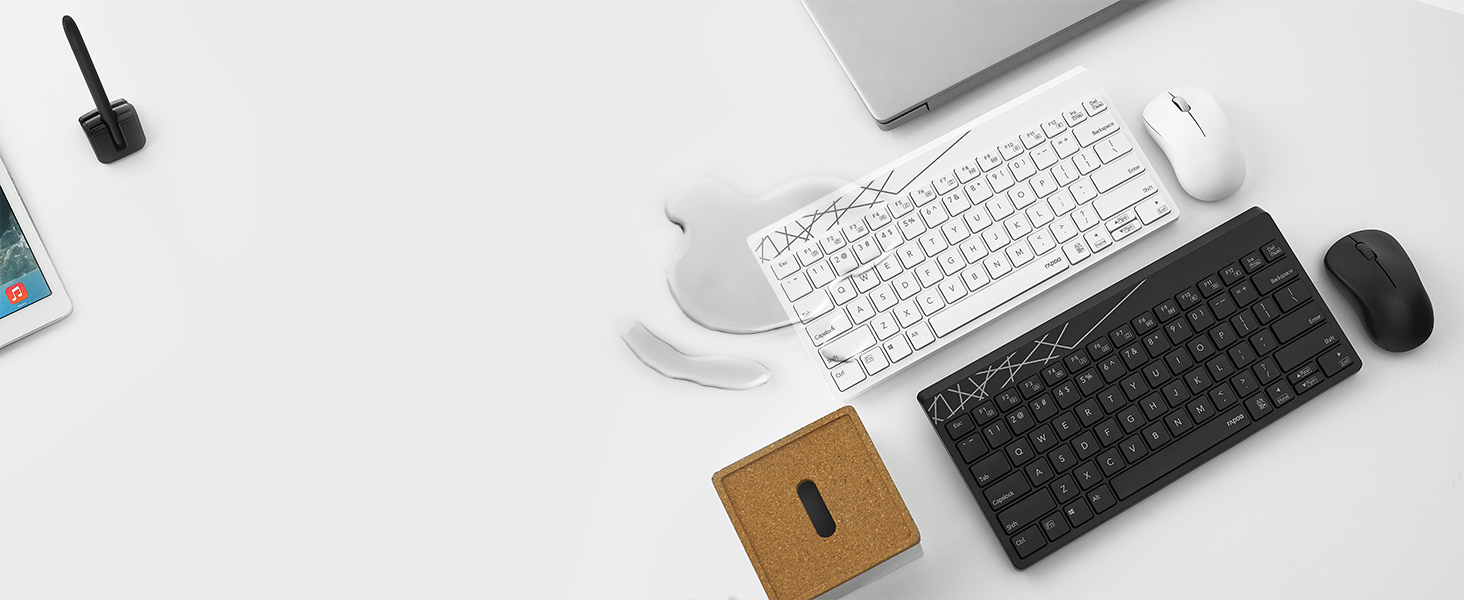
Image: The Rapoo 8000S mouse on a mousepad, with a visual representation of 1300 DPI for precise control.
3.4 Drahtlose Reichweite
The 2.4 GHz wireless connection provides a reliable operating range of up to 30 feet (approximately 10 meters), allowing flexible placement of your devices.

Image: A visual representation of the Rapoo 8000S keyboard and mouse connected wirelessly to a laptop from a distance of 30 feet.
4. Wartung
4.1 Reinigung
To maintain optimal performance and appearance, regularly clean your keyboard and mouse.
- Verwenden Sie ein weiches, trockenes Tuch, um die Oberflächen abzuwischen.
- Bei hartnäckigen Verschmutzungen leicht dampBefeuchten Sie das Tuch mit Wasser oder einer milden Reinigungslösung. Vermeiden Sie übermäßige Feuchtigkeit.
- Keine Scheuer- oder Lösungsmittel verwenden.
4.2 Auslaufsicheres Design
The keyboard features a spill-resistant design, which helps protect it from accidental liquid spills. In case of a spill:
- Immediately disconnect the USB receiver from your device.
- Drehen Sie die Tastatur um, damit eventuell vorhandene Flüssigkeit ablaufen kann.
- Wipe the keyboard thoroughly with a dry cloth.
- Allow the keyboard to air dry completely before reconnecting and using it again.
Note: While spill-resistant, this design does not guarantee full waterproofing. Avoid submerging the keyboard in liquid.
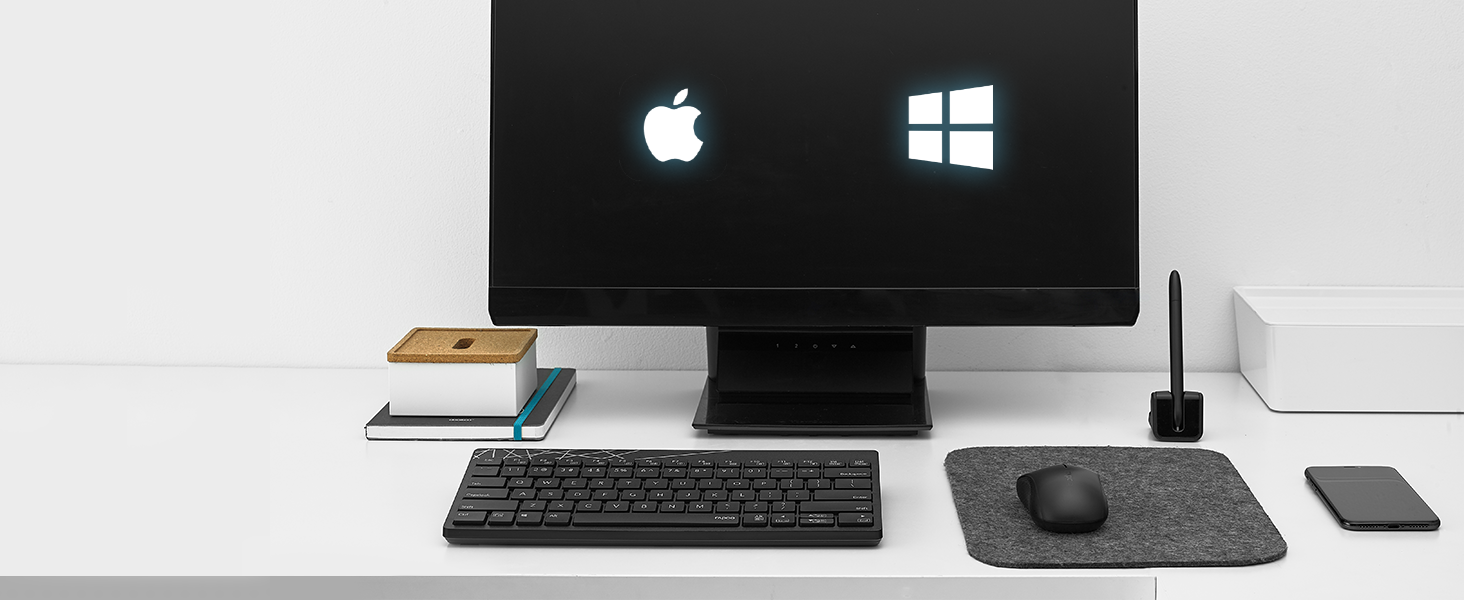
Image: A white Rapoo 8000S keyboard with liquid spilled on it, demonstrating its spill-resistant design.
4.3 Batterielebensdauer und Batterieaustausch
With Rapoo's energy-saving technology and power switch, the keyboard and mouse can achieve a battery life of up to 9 months. When the battery is low, the indicator light on the device may flash, or performance may degrade.
- Replace the AA battery in the respective device (keyboard or mouse) following the instructions in Section 2.2.
- Ensure to dispose of used batteries responsibly according to local regulations.
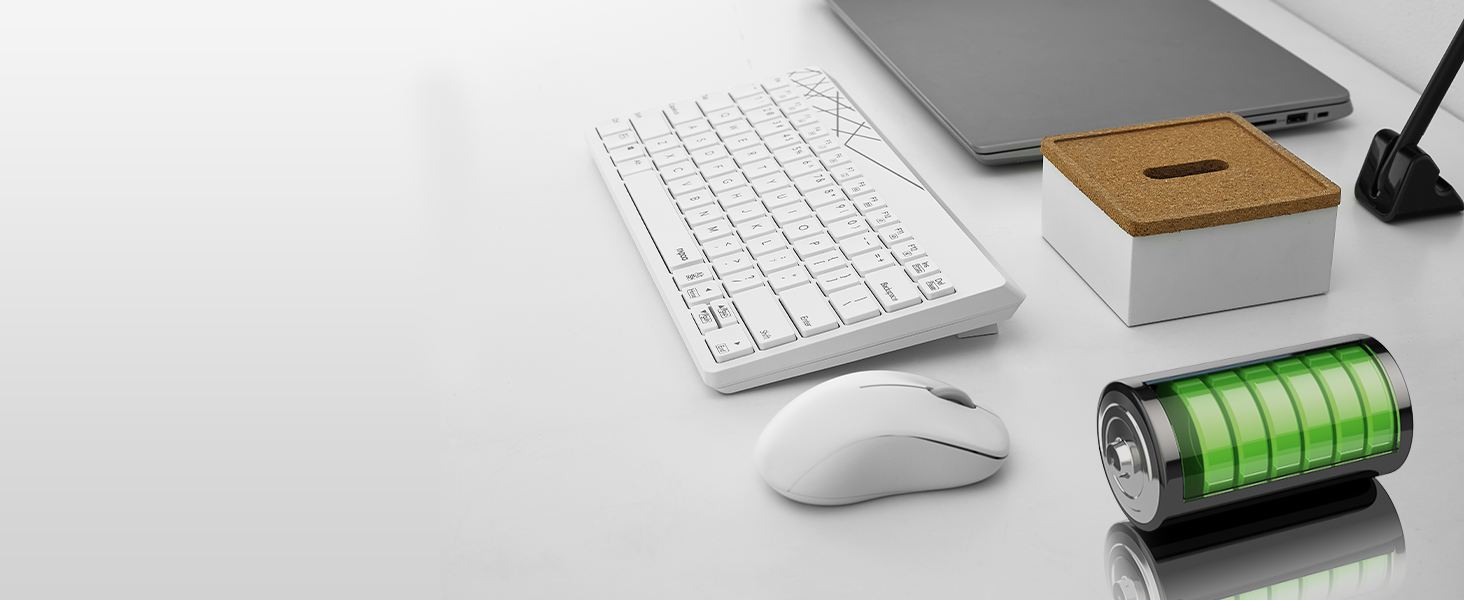
Image: The Rapoo 8000S keyboard and mouse with a visual representation of long battery life, indicated by battery icons.
5. Fehlerbehebung
If you encounter issues with your Rapoo 8000S set, try the following troubleshooting steps:
- Keine Reaktion von Tastatur/Maus:
- Ensure the batteries are correctly installed and not depleted. Replace if necessary.
- Check if the power switch on both the keyboard and mouse is turned ON.
- Verify that the USB receiver is securely plugged into a working USB port. Try a different USB port.
- Um Reichweitenprobleme auszuschließen, bringen Sie Tastatur und Maus näher an den USB-Empfänger heran.
- Starten Sie Ihren Computer oder Ihr Gerät neu.
- Verzögerung oder intermittierende Verbindung:
- Ensure there are no large metal objects or other wireless devices (e.g., Wi-Fi routers, cordless phones) operating too close to the receiver, which might cause interference.
- Try plugging the USB receiver into a different USB port, preferably one on the front of your computer or via a USB extension cable to bring it closer to the devices.
- Ersetzen Sie die Batterien.
- Mauszeiger bewegt sich nicht flüssig:
- Ensure the mouse's optical sensor is clean and free from dust or debris.
- Verwenden Sie die Maus auf einer sauberen, nicht reflektierenden Oberfläche oder einem Mauspad.
- Bestimmte Tasten funktionieren nicht:
- Check for any physical obstructions under the key.
- If the keyboard has experienced a spill, ensure it is completely dry.
6. Spezifikationen
| Besonderheit | Detail |
|---|---|
| Marke | Rapoo |
| Modell | 8000S |
| Konnektivitätstechnologie | 2.4-GHz-Funkfrequenz |
| Kompatible Geräte | Laptop, Personal Computer, Television, Tablet, Smartphone |
| Tastaturbeschreibung | Membran |
| Mausbewegungserkennung | Optisch |
| Maus-DPI | 1300 DPI |
| Besondere Merkmale | Ergonomic, Lightweight, Spillproof Keyboard |
| Stromquelle | Battery Powered (1 AA battery per device) |
| Akkulaufzeit | Bis zu 9 Monate |
| Technische Daten | 28.5 x 13.9 x 2.4 cm (Tastatur) |
| Artikelgewicht | 390 g (Gesamt) |
| Ursprungsland | China |
7. Garantieinformationen
The Rapoo 8000S Keyboard and Mouse Set typically comes with a 3-year limited warranty. This warranty covers manufacturing defects and ensures the product functions as intended under normal use. Please retain your proof of purchase for warranty claims.
For detailed warranty terms and conditions, please refer to the warranty card included in your product packaging or visit the official Rapoo webWebsite.
8. Kundendienst
If you require further assistance, have questions, or encounter issues not covered in this manual, please contact Rapoo customer support.
- Online-Hilfe: Besuchen Sie die offizielle Rapoo webWebseite mit häufig gestellten Fragen, Treiber-Downloads und Kontaktinformationen zum Support.
- E-Mail/Telefon: Refer to your product packaging or the Rapoo webAuf dieser Website finden Sie die genauen Kontaktdaten in Ihrer Region.


