AULA WIN60 HE PRO 60% Mechanical Gaming Keyboard User Manual
Model: WIN60 HE PRO | Brand: AULA
1. Einleitung
This manual provides detailed instructions for the AULA WIN60 HE PRO 60% Mechanical Gaming Keyboard. Designed for high-performance gaming, this keyboard features Hall Effect magnetic switches, rapid trigger mode, an 8000Hz polling rate, and customizable RGB lighting. Please read this manual thoroughly to ensure proper setup, operation, and maintenance of your keyboard.
Figure 1: AULA WIN60 HE PRO 60% Mechanical Gaming Keyboard with highlighted features.
2. Einrichtung
2.1 Auspacken
Nehmen Sie alle Komponenten vorsichtig aus der Verpackung. Stellen Sie sicher, dass folgende Teile vorhanden sind:
AULA WIN60 HE PRO Keyboard
USB-C-Kabel
Tastenkappenabzieher
Zusätzliche Schalter (falls enthalten)
Video 1: Unboxing the AULA WIN60 HE Gaming Keyboard, showing the contents including the keyboard, USB-C cable, and switch puller.
2.2 Anschließen der Tastatur
Suchen Sie den USB-C-Anschluss auf der Rückseite der Tastatur.
Schließen Sie das mitgelieferte USB-C-Kabel an die Tastatur an.
Stecken Sie das andere Ende des USB-C-Kabels in einen freien USB-Anschluss Ihres Computers.
The keyboard will automatically be recognized by your operating system (Windows PC/Laptop compatible).
Note: This keyboard is not compatible with PlayStation 5/4 (PS5/PS4) and OBOX.
2.3 Driver Installation (Web-Based)
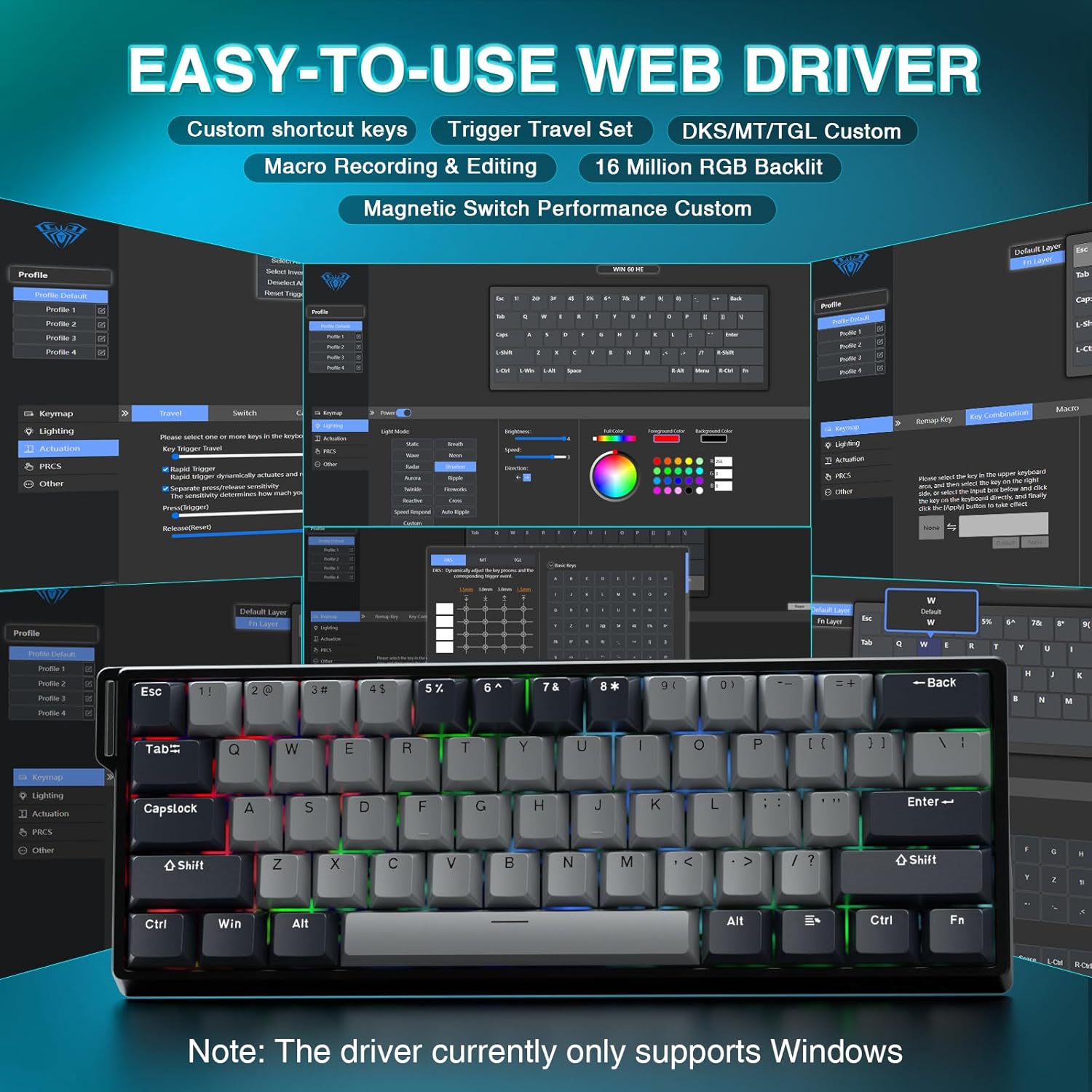
The AULA WIN60 HE PRO utilizes a web-based driver for customization, eliminating the need for software downloads.
Stellen Sie sicher, dass Ihr Computer mit dem Internet verbunden ist.
Öffnen Sie Ihre bevorzugte web Browser.
Navigate to the official AULA web driver portal (refer to the product packaging or manufacturer's webWebsite für die genaue URL).
Der web interface will allow you to customize settings directly.
Abbildung 2: Benutzerfreundlich web driver interface for customization.
Hinweis: Die web driver currently only supports Windows operating systems.
3. Bedienung
3.1 Hall Effect Magnetic Switches & Rapid Trigger
The AULA WIN60 HE PRO features advanced Hall Effect magnetic switches, which detect key presses using magnetic fields rather than physical contact. This design provides:
Einstellbare Betätigung: Customize the actuation point of each key to your preference for faster response or more deliberate presses.
Schnellauslösemodus: Allows keys to activate and deactivate based on movement rather than a fixed actuation point, enabling ultra-fast repeated inputs and precise control, especially beneficial for FPS games. The ultra-low RT step distance is 0.02mm.
Haltbarkeit: Absence of physical contact reduces wear and tear.
Figure 3: Rapid Trigger technology for enhanced gaming performance.
Video 2: Demonstrating the hot-swappable magnetic switches, including Gray Wood Magnetic Switch and Wing Chun Magnetic Switch variants.
3.2 8000Hz Abtastrate
The keyboard features an 8000Hz polling rate, meaning it reports key presses to your computer 8000 times per second. This results in:
Ultra-Fast Response Times: Minimizes input lag for immediate in-game actions.
Präzisionssteuerung: Ensures every keystroke is registered accurately and without delay.
Figure 4: 8000Hz Hyper-Polling Technology for minimal latency.
3.3 Dynamische RGB-Beleuchtung
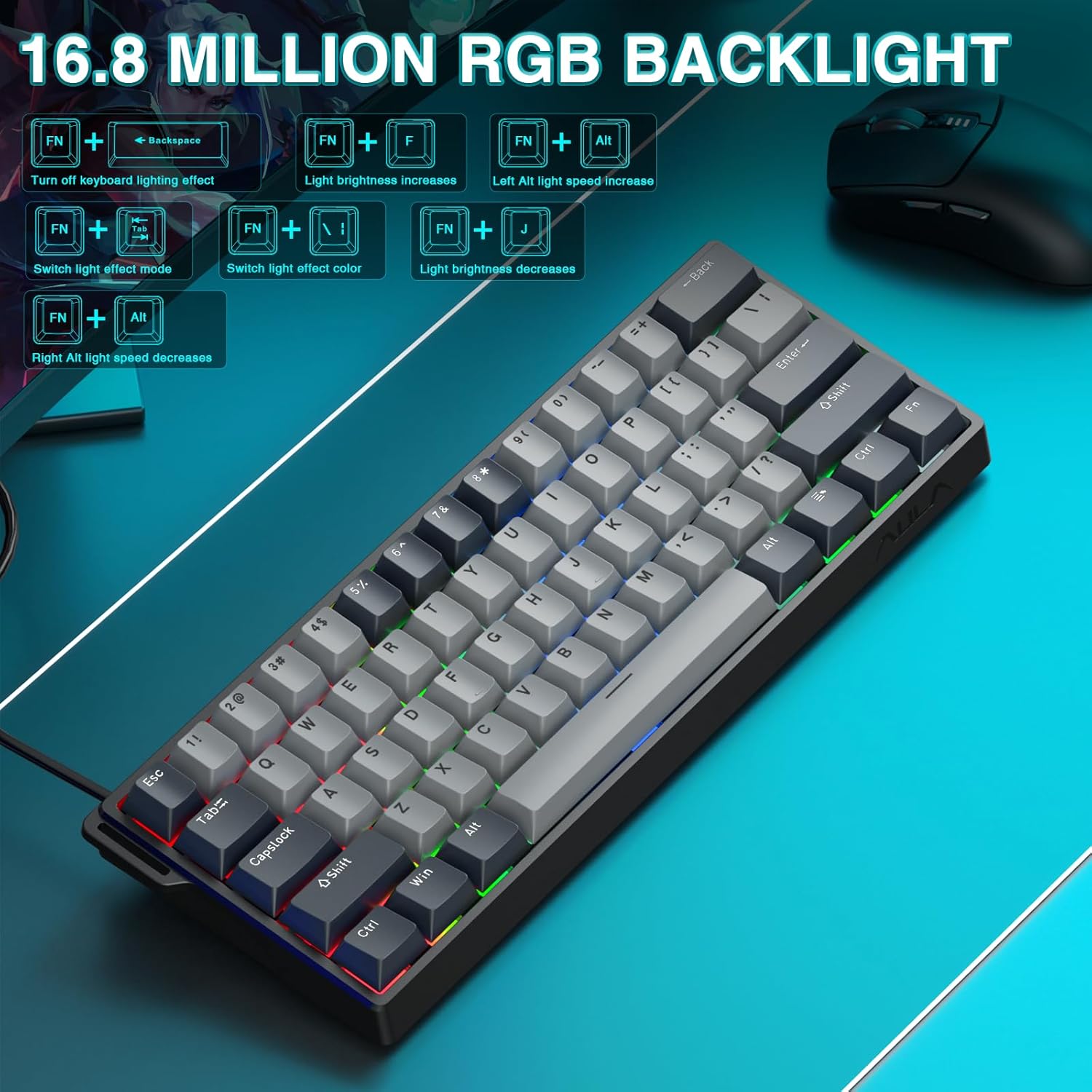
The keyboard offers 16.8 million customizable RGB color options and various lighting effects. Use the following key combinations for quick adjustments:
RGB Lighting Control Hotkeys
Tastenkombination
Funktion
FN + Rücktaste
Turn off keyboard lighting effect
FN + [
Die Lichthelligkeit nimmt zu
FN + ]
Die Lichthelligkeit nimmt ab
FN + {
Left Alt light speed increase
FN + }
Right Alt light speed decrease
FN + \
Lichteffektmodus wechseln
FN + Alt
Lichteffektfarbe wechseln
Figure 5: RGB Backlight controls and effects.
3.4 Customization with Web Treiber
Der web-based driver provides extensive customization options:
Tastenzuordnung: Assign any function to any key.
Makroerstellung: Komplexe Befehlssequenzen aufzeichnen und einer einzelnen Taste zuweisen.
Anpassung der RGB-Beleuchtung: Fine-tune lighting effects, colors, and patterns beyond the basic hotkeys.
Einstellung des Betätigungspunkts: Precisely set the actuation distance for each magnetic switch.
Zugriff auf die web driver as described in Section 2.3.
4. Wartung
4.1 Reinigung der Tastatur
Um optimale Leistung und ein ansprechendes Erscheinungsbild zu gewährleisten:
Trennen Sie die Tastatur vor der Reinigung vom Computer.
Mit einem weichen, fusselfreien Tuch leichtampAnschließend mit Wasser oder einer milden Reinigungslösung abwischen, um die Tastenkappen und das Gehäuse zu reinigen.
Für Staub und Schmutz zwischen den Tastenkappen verwenden Sie Druckluft.
Vermeiden Sie aggressive Chemikalien oder Scheuermittel.
4.2 Hot-Swap-fähige Schalter
The AULA WIN60 HE PRO features hot-swappable magnetic switches, allowing for easy replacement or customization without soldering.
Use the provided keycap puller to gently remove the keycap.
Use a switch puller (not explicitly mentioned as included, but implied by "hot-swappable" and video) to carefully remove the switch.
Align the new switch with the socket and press firmly until it clicks into place.
Tauschen Sie die Tastenkappe aus.
Caution: Apply gentle force to avoid damaging the switch sockets.
5. Fehlerbehebung
5.1 Tastatur reagiert nicht
Stellen Sie sicher, dass das USB-C-Kabel sowohl mit der Tastatur als auch mit dem Computer fest verbunden ist.
Versuchen Sie, die Tastatur an einen anderen USB-Anschluss Ihres Computers anzuschließen.
Testen Sie die Tastatur an einem anderen Computer, um systemspezifische Probleme auszuschließen.
Starten Sie Ihren Computer neu.
5.2 RGB-Beleuchtung funktioniert nicht
Check if the lighting is turned off using the FN + Rücktaste Hotkey.
Passen Sie die Helligkeit an mit FN + [ or FN + ].
Stellen Sie sicher, dass web driver settings haven't disabled lighting.
5.3 Keys Sticking or Not Registering
Reinigen Sie den Bereich um die betroffene Tastenkappe, um eventuelle Verunreinigungen zu entfernen.
Wenn ein bestimmter Schalter defekt ist, sollten Sie ihn mithilfe der Hot-Swap-Funktion austauschen (siehe Abschnitt 4.2).
Check the actuation point settings in the web driver; it might be set too high or too low for your preference.
6. Spezifikationen
Besonderheit
Detail
Modell
WIN60 HE PRO
Tastaturtyp
60% Mechanische Gaming-Tastatur
Schaltertyp
Hall Effect Magnetic Switch, Hot-Swappable
Konnektivität
USB-C kabelgebunden
Abfragerate
8000 Hz
Besondere Merkmale
Rapid Trigger Mode, Adjustable Actuation, RGB Backlit, Programmable Keys, Hotkeys and Media Keys, Portable
Kompatible Geräte
Laptop, PC Windows (Not compatible with PS5/PS4, OBOX)
Technische Daten
11 x 5 x 1.1 Zoll (27.94 x 12.7 x 2.79 cm)
Artikelgewicht
2.18 Pfund (0.99 kg)
Hersteller
AULA
Figure 6: Detailed comparison of AULA WIN60 HE series magnetic switches.
7. Garantie und Support
For warranty information, technical support, or service inquiries, please refer to the warranty card included with your product or visit the official AULA/CORBOBO webWebsite. Sie können sich auch direkt über Ihre Kaufplattform an den Verkäufer wenden, um Unterstützung zu erhalten.