Einführung
This manual provides detailed instructions for the setup, operation, and maintenance of your SOLAKAKA KI99 Pro 96% Wireless Mechanical Keyboard. Please read this manual thoroughly before using the product to ensure proper functionality and to maximize your user experience.
Produkteigenschaften
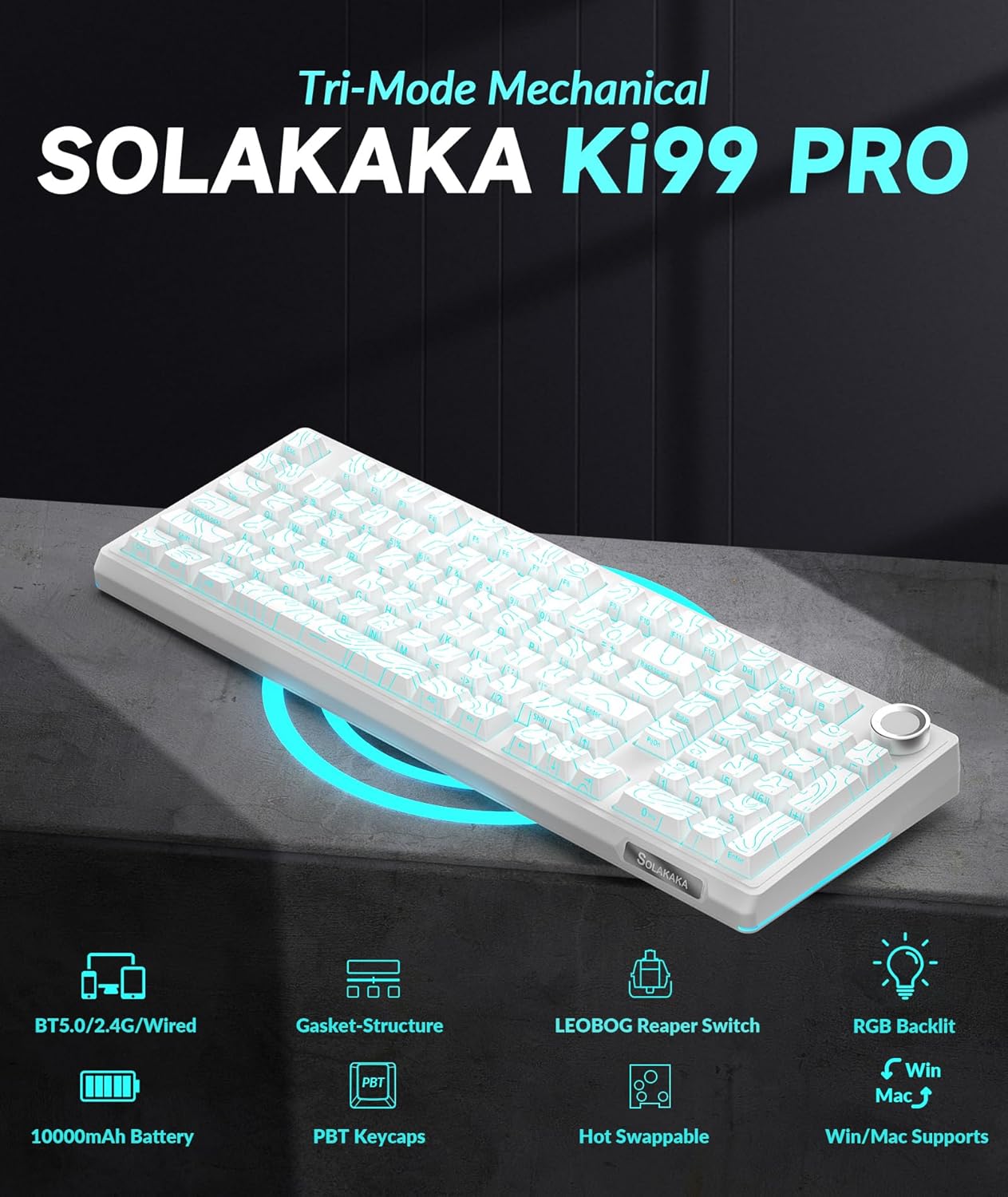
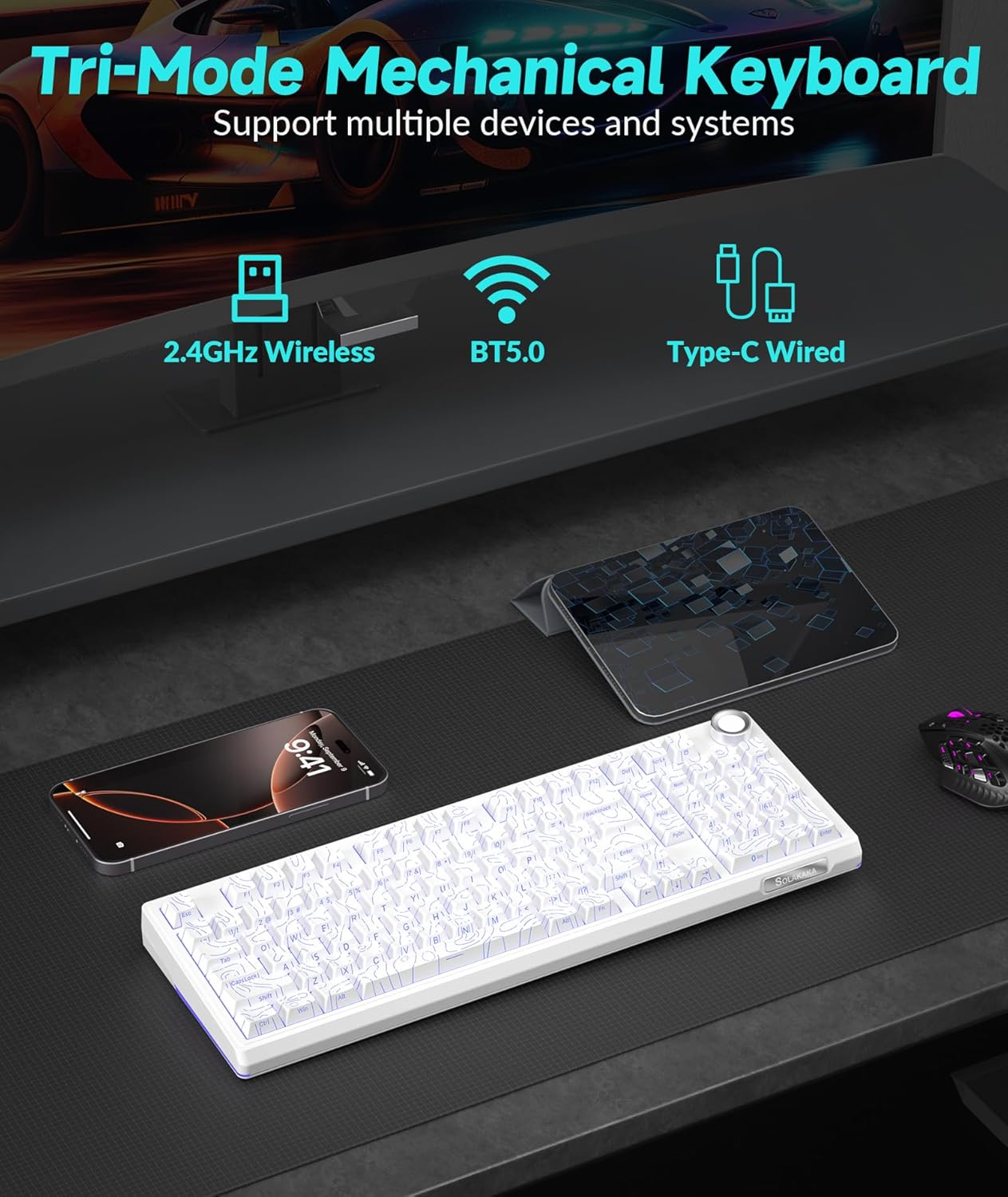
- Triple-mode Connectivity: Supports Bluetooth 5.0, 2.4GHz wireless, and Type-C wired connections for versatile use across various devices and operating systems (Windows, macOS).
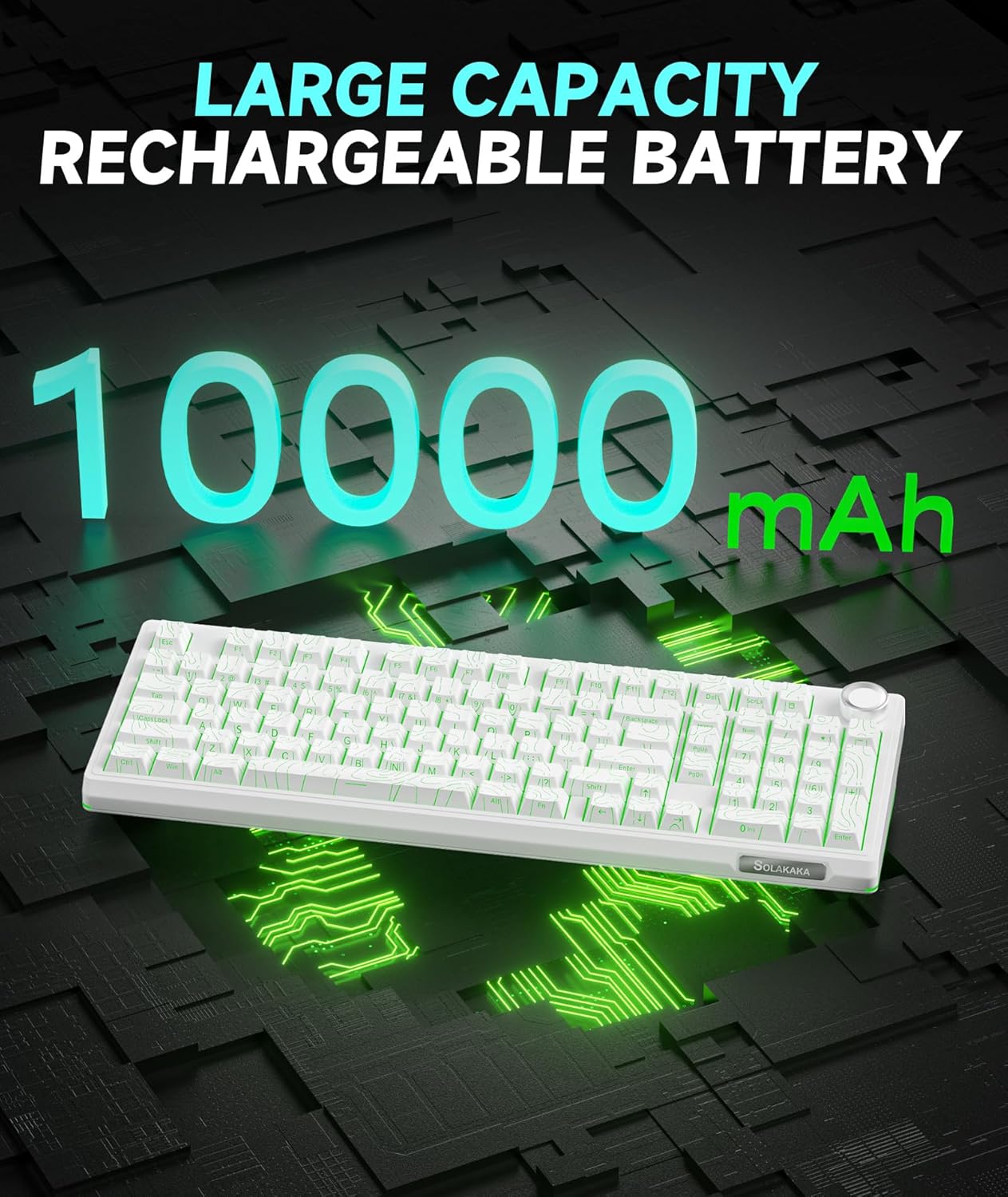
- Langlebige Batterie: Equipped with a 10,000mAh high-capacity battery for extended use.
- 96% Layout: Integrates most functional keys of a full-size keyboard in a compact form factor, including a dedicated numeric keypad.
- Multifunktionsknopf: Allows for easy adjustment of volume, media playback, and RGB lighting brightness.
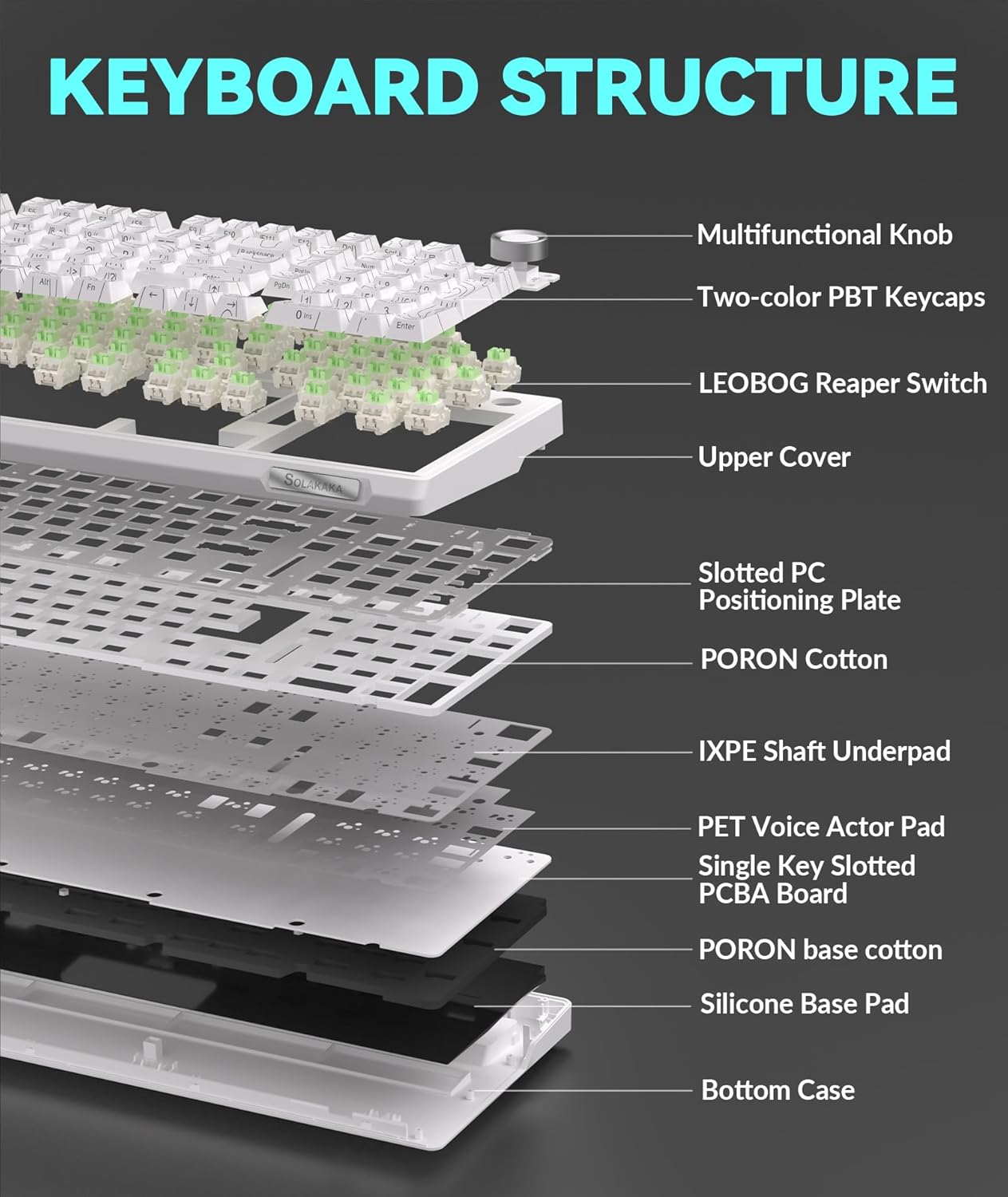
- Gasket Structure & Five-layer Noise Reduction: Designed to reduce key vibration and noise, providing a smooth and quiet typing experience.
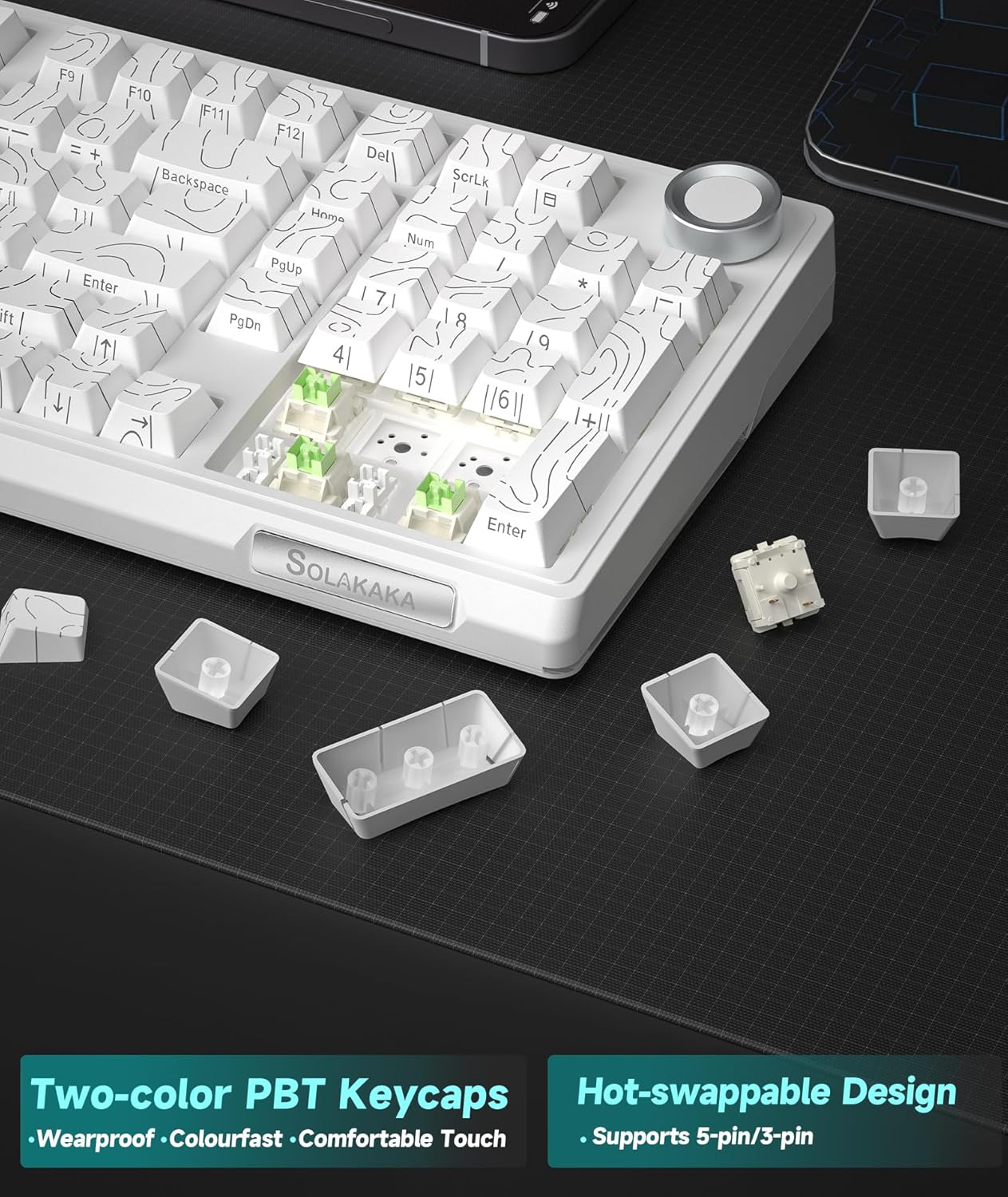
- Hot-Swap-fähige Schalter: Features a 1.2mm flex-cut hot-swappable PCB and PC board, compatible with 3-pin and 5-pin switches for personalized tactile customization without soldering.
- High-quality PBT Keycaps: Dual-color injection molded PBT keycaps offer wear and fade resistance, maintaining clear characters and vibrant colors.
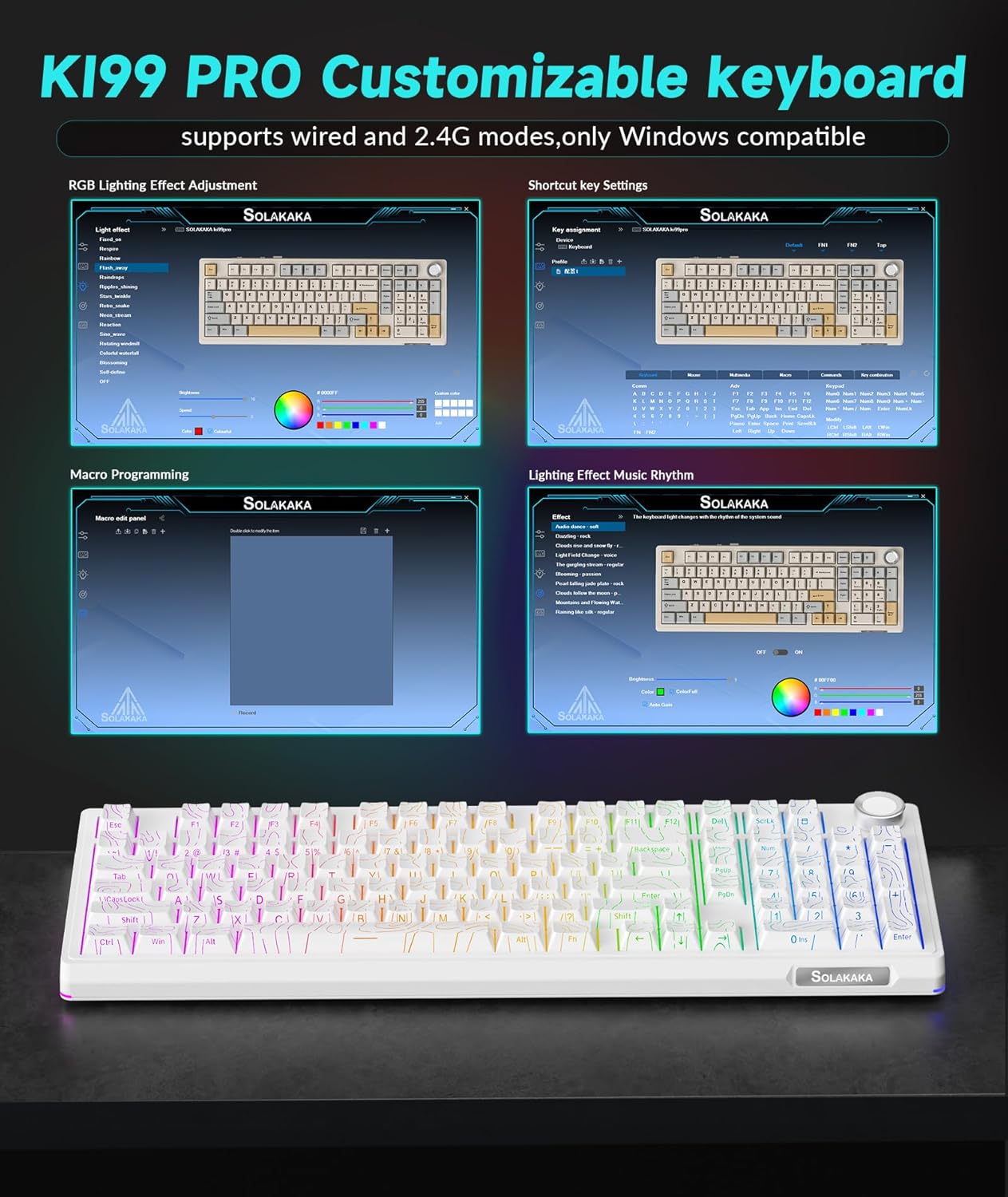
- Customizable Driver Software: Allows reprogramming key functions, adjusting RGB lighting effects, and customizing macro programming (Windows compatible for 2.4G and wired modes).
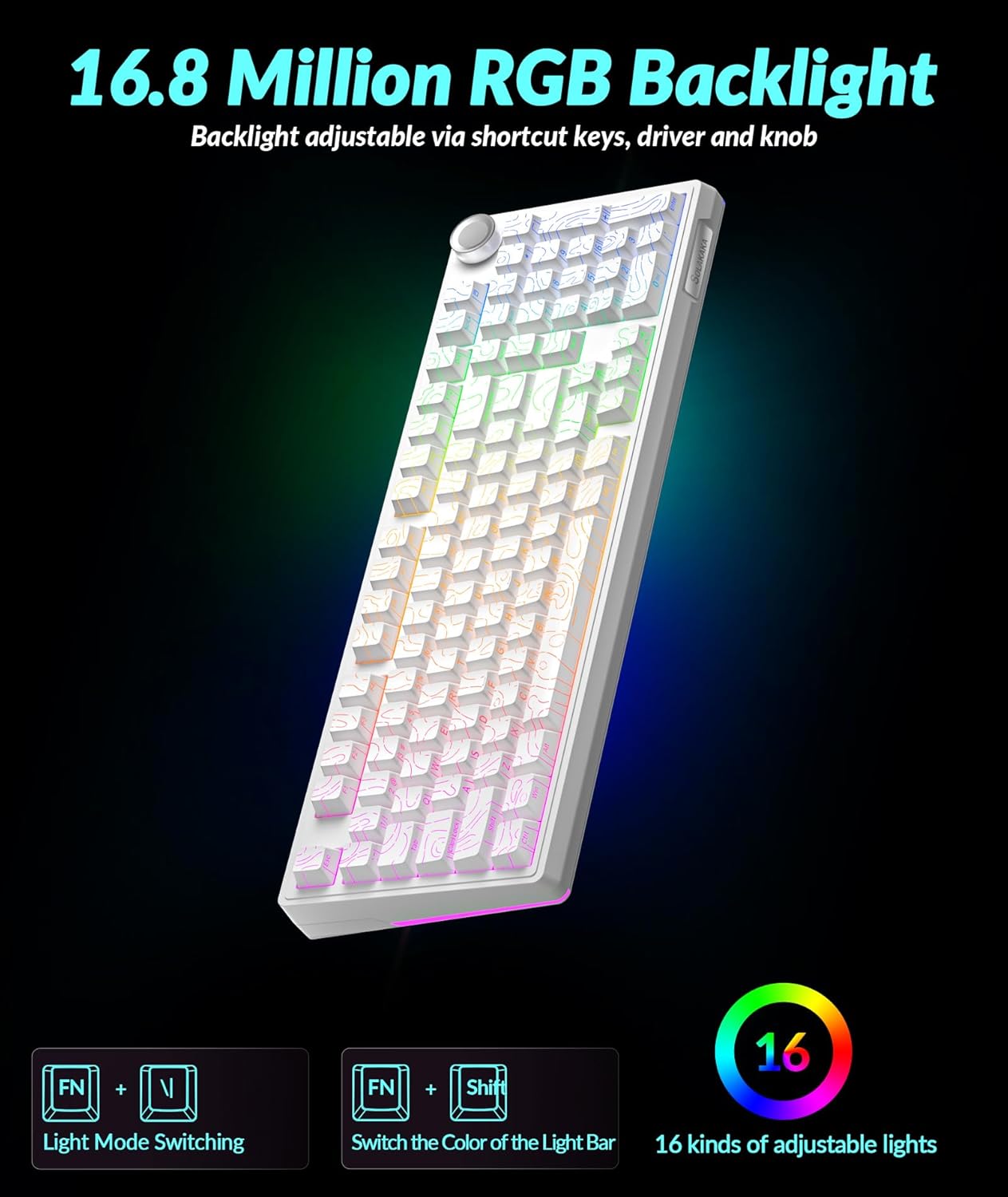
- Lebendige RGB-Beleuchtung: Full-key RGB lighting and side RGB light bars with 16.8 million color options, adjustable via driver software or shortcut keys.
Installationsanweisungen
Konnektivitätsmodi
The KI99 Pro keyboard supports three connection modes: Wired (USB-C), 2.4GHz Wireless, and Bluetooth 5.0. A switch on the keyboard allows selection between these modes.
1. Kabelgebundener Modus (USB-C)
- Toggle the mode switch on the keyboard to the wired position.
- Verbinden Sie das mitgelieferte USB-C-Kabel der Tastatur mit dem USB-Anschluss Ihres Computers.
- Die Tastatur wird von Ihrem Betriebssystem automatisch erkannt.
2. 2.4-GHz-Funkmodus
- Toggle the mode switch on the keyboard to the 2.4GHz wireless position.
- Locate the 2.4GHz USB receiver, typically stored in a compartment on the keyboard.
- Stecken Sie den 2.4-GHz-USB-Empfänger in einen freien USB-Anschluss Ihres Computers.
- Die Tastatur sollte sich automatisch verbinden.
3. Bluetooth 5.0-Modus
- Toggle the mode switch on the keyboard to the Bluetooth position.
- Drücken und halten Fn + 1, Fn + 2, oder Fn + 3 to enter pairing mode for one of the three available Bluetooth channels. The corresponding key will flash blue, indicating it is ready for pairing.
- On your device (PC, laptop, smartphone), enable Bluetooth and search for "KI99pro 5.0".
- Select the keyboard to connect. The blue light will become solid once connected.
- Zum Umschalten zwischen gekoppelten Bluetooth-Geräten kurz drücken Fn + 1/2/3.
Aufladen der Tastatur
The keyboard is equipped with a 10,000mAh battery. To charge, connect the USB-C cable to the keyboard and a power source (e.g., computer USB port, USB wall adapter). The charging indicator will show the charging status.
Bedienungsanleitung
Multifunktionsknopf
The knob located on the top right of the keyboard provides quick access to several functions:
- Drehen: Adjusts system volume (clockwise to increase, counter-clockwise to decrease).
- Drücken: Plays/pauses media.
- Drücken und halten: May cycle through lighting brightness levels or modes (refer to specific lighting controls).
RGB-Beleuchtungssteuerung
The keyboard features full-key RGB backlighting and side RGB light bars. Lighting effects can be adjusted using shortcut keys or the customization software.
- Fn + \|: Switches RGB backlight effects.
- Fn + ← / →: Adjusts lighting effects speed.
- Fn + ↑ / ↓: Regelt die Helligkeit der Hintergrundbeleuchtung.
- Fn + Shift: Switches side light mode.
- Fn + Alt: Switches side light brightness.
- Fn + ?: Switches side light color.
- Fn + Esc: Restores factory lighting settings.
Anpassungssoftware
The KI99 Pro supports driver software for advanced customization. This software is compatible with Windows operating systems when the keyboard is connected via wired or 2.4GHz wireless mode. It allows users to:
- Reprogram key functions.
- Adjust RGB lighting effects in detail.
- Create and customize macro programming.
Please visit the official SOLAKAKA website to download the latest version of the customization software.
Wartung
Reinigung der Tastatur
- Vor der Reinigung die Tastatur von allen Stromquellen und Geräten trennen.
- Mit einem weichen, fusselfreien Tuch leichtampAnschließend mit Wasser oder einer milden Reinigungslösung abwischen, um die Tastenkappen und das Gehäuse zu reinigen.
- Avoid excessive moisture and do not spray cleaning solutions directly onto the keyboard.
- Verwenden Sie Druckluft, um Staub und Schmutz zwischen den Tastenkappen zu entfernen.
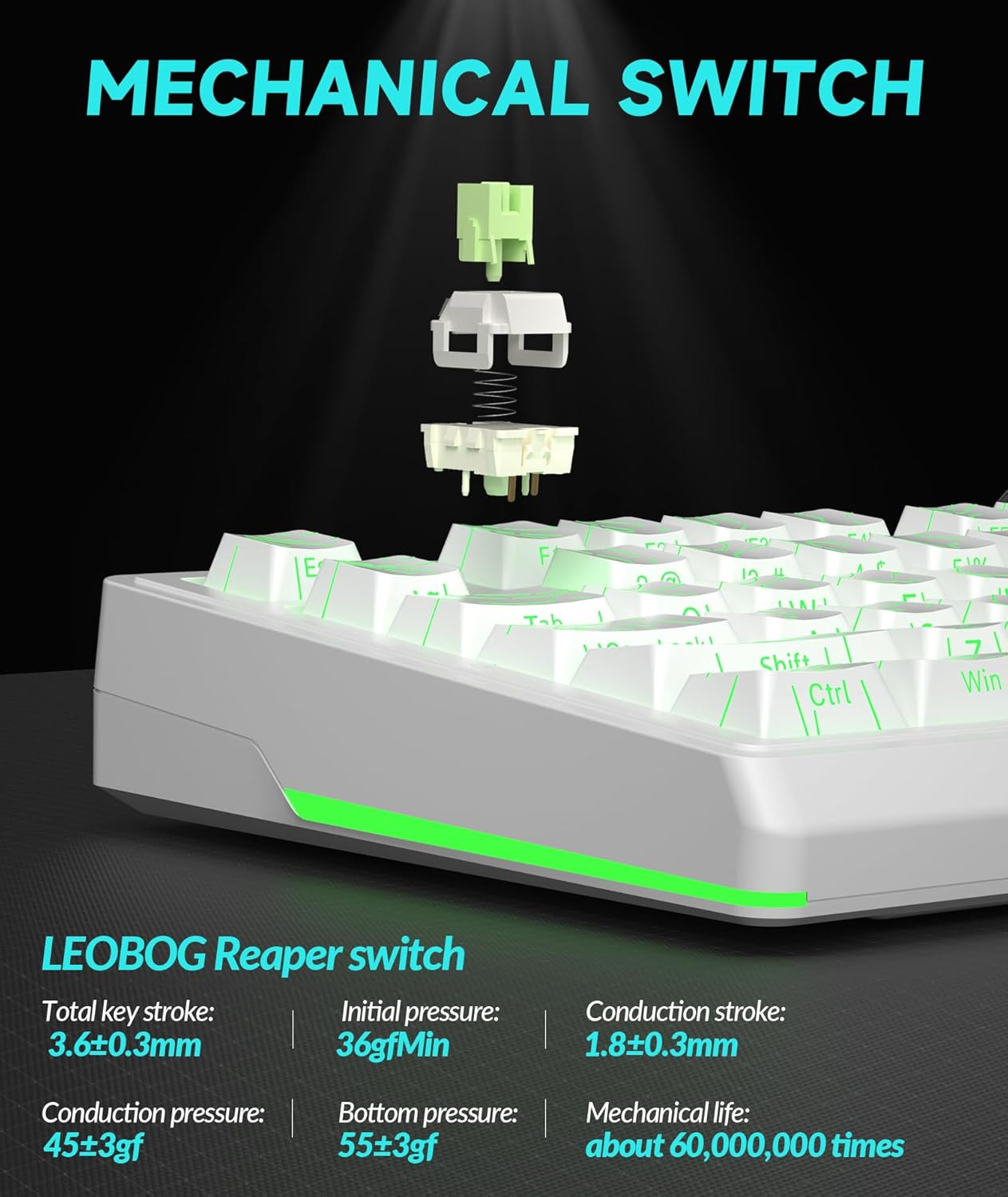
Hot-Swap-fähige Schalter
The KI99 Pro features hot-swappable switches, allowing for easy replacement without soldering. This enables customization of typing feel and sound.
- Entfernen Sie die Tastenkappe vorsichtig mit einem Tastenkappenabzieher.
- Use a switch puller to carefully extract the switch from the PCB. Ensure the switch is pulled straight up to avoid bending the pins.
- Richten Sie die Pins des neuen 3- oder 5-poligen Schalters an den Löchern auf der Leiterplatte aus.
- Drücken Sie den neuen Schalter fest ein, bis er einrastet. Vergewissern Sie sich, dass er richtig sitzt und einwandfrei funktioniert, bevor Sie die Tastenkappe wieder anbringen.
Fehlerbehebung
| Problem | Mögliche Ursache | Lösung |
|---|---|---|
| Tastatur reagiert im drahtlosen Modus nicht. | Low battery, incorrect mode selected, receiver not plugged in (2.4GHz), not paired (Bluetooth), out of range. |
|
| Tasten werden nicht registriert oder es werden doppelte Eingaben getätigt. | Dust/debris under keycap/switch, faulty switch, software issue. |
|
| Die RGB-Beleuchtung funktioniert nicht oder ist fehlerhaft. | Lighting settings incorrect, software glitch. |
|
| Tastatur lädt nicht. | Faulty cable, power source, or keyboard port. |
|
Technische Daten
| Marke | SOLAKAKA |
| Modellnummer | KI99PRO |
| Tastaturbeschreibung | Mechanisch |
| Konnektivitätstechnologie | 2.4-GHz-Funk, Bluetooth 5.0, USB-C-Kabel |
| Kompatible Geräte | Laptop, PC, Smartphone (Windows, macOS) |
| Besondere Merkmale | Customizable, Hot-Swappable, Multifunctional Knob, Programmable, RGB Backlighting |
| Tastenkappenmaterial | PBT (Dual-color injection molded) |
| Batteriekapazität | 10,000 mAh (2 Lithium-Ionen-Akkus im Lieferumfang enthalten) |
| Artikelgewicht | 3.27 Pfund |
| Verpackungsabmessungen | 17.13 x 6.73 x 2.13 Zoll |
| Hersteller | SOLAKAKA |
Garantie und Support
For warranty information, technical support, or further assistance, please refer to the official SOLAKAKA webBesuchen Sie die Website oder kontaktieren Sie direkt den Kundenservice. Details zur Produktregistrierung und zu Garantieansprüchen finden Sie in der Regel auf den Supportseiten des Herstellers.
Manufacturer: SOLAKAKA
Besuchen Sie die SOLAKAKA Store Weitere Produkt- und Supportinformationen finden Sie hier.


