Einführung
This manual provides detailed instructions for the SGIN Android Tablet SGIN-T12. It covers setup, operation, maintenance, and troubleshooting to ensure optimal use of your device. The SGIN-T12 features a 10.51-inch Full HD IPS display, an Octa-Core processor, 6GB RAM, 128GB internal storage, and runs on Android 13. It supports 5G WiFi, Bluetooth 5.0, and GPS functionality.
1. Einrichtung
1.1 Packungsinhalt
Überprüfen Sie, ob alle Artikel im Paket vorhanden sind:
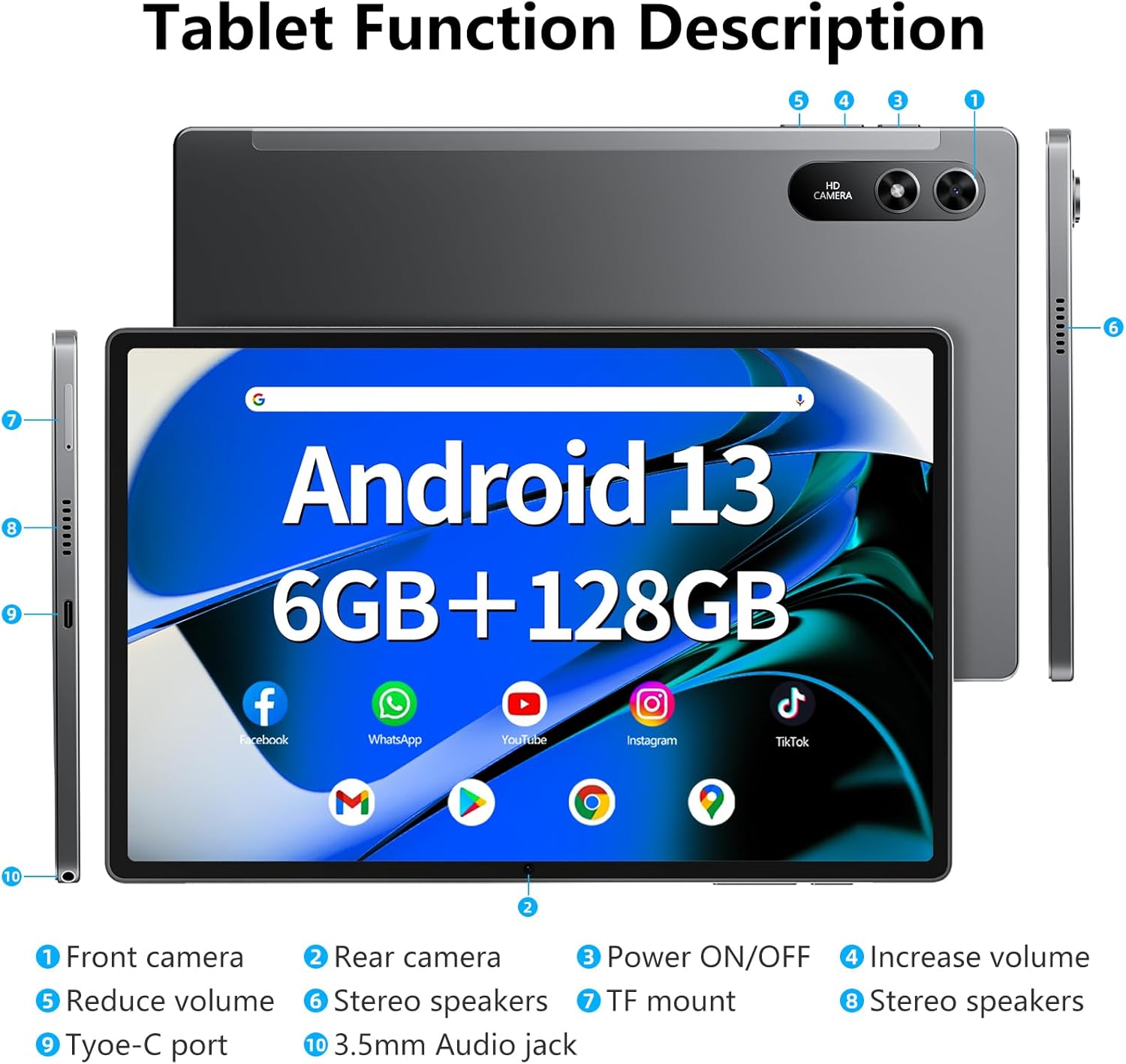
Image: The SGIN-T12 tablet, power adapter, USB-C charging cable, SIM ejector tool, and user manual.
- SGIN Android Tablet SGIN-T12
- Netzteil
- USB-C-Ladekabel
- SIM-Auswerferwerkzeug
- Bedienungsanleitung
1.2 Geräteaufbau
Machen Sie sich mit den physischen Komponenten und Anschlüssen Ihres Tablets vertraut.

Image: Labeled diagram of the SGIN-T12 tablet indicating the location of the front camera, rear camera, power ON/OFF button, volume increase/decrease buttons, stereo speakers, TF card slot, Type-C charging port, and 3.5mm audio jack.
- Frontkamera
- Rückfahrkamera
- Ein-/Ausschalter
- Taste zum Erhöhen der Lautstärke
- Taste zum Reduzieren der Lautstärke
- Stereo-Lautsprecher
- TF mount (MicroSD card slot)
- Stereo-Lautsprecher
- Typ-C-Anschluss
- 3.5-mm-Audiobuchse
1.3 Erstaufladung
Before first use, fully charge the tablet. Connect the USB-C charging cable to the tablet's Type-C port and the power adapter to a wall outlet. The charging indicator will show the charging status.
1.4 Ein-/Ausschalten
- So schalten Sie das Gerät ein: Press and hold the Power ON/OFF button until the SGIN logo appears.
- So schalten Sie das Gerät aus: Press and hold the Power ON/OFF button until the power options appear on the screen. Select "Power off" and confirm.
- Neustarten: From the power options, select "Restart."
1.5 Ersteinrichtungsassistent
Beim ersten Einschalten führt Sie das Tablet durch den Ersteinrichtungsprozess:
- Wählen Sie Ihre bevorzugte Sprache.
- Stellen Sie eine Verbindung zu einem Wi-Fi-Netzwerk her.
- Review und die Allgemeinen Geschäftsbedingungen akzeptieren.
- Melden Sie sich mit Ihrem Google-Konto an oder erstellen Sie ein neues. Dies ist erforderlich, um auf den Google Play Store und andere Google-Dienste zuzugreifen.
- Richten Sie eine Bildschirmsperre ein (PIN, Muster oder Passwort).
- Nehmen Sie die weiteren Einstellungen gemäß den Anweisungen vor.
2. Bedienungsanleitung
2.1 Grundlegende Navigation
- Klopfen: Berühren Sie den Bildschirm einmal, um ein Element auszuwählen oder eine Anwendung zu öffnen.
- Tippen und Halten: Touch and hold an item to access contextual menus or move icons.
- Wischen: Ziehen Sie mit dem Finger über den Bildschirm, um durch Seiten oder Listen zu scrollen.
- Prise: Verwenden Sie zwei Finger, um Bilder zu vergrößern oder zu verkleinern. web Seiten.
2.2 Wi-Fi-Verbindung
So stellen Sie eine Verbindung zu einem drahtlosen Netzwerk her:
- Gehe zu Einstellungen > Netzwerk & Internet > W-lan.
- WLAN ein-/ausschalten On.
- Wählen Sie das gewünschte Netzwerk aus der Liste aus.
- Geben Sie gegebenenfalls das Passwort ein und tippen Sie auf Verbinden.
2.3 Bluetooth-Kopplung
Zum Koppeln mit einem Bluetooth-Gerät (z. B. Kopfhörer, Tastatur):
- Gehe zu Einstellungen > Verbundene Geräte > Bluetooth.
- Bluetooth ein-/ausschalten On.
- Stellen Sie sicher, dass sich Ihr Bluetooth-Gerät im Kopplungsmodus befindet.
- Select the device from the "Available devices" list and follow any on-screen prompts to complete pairing.
2.4 Kamerabetrieb
Das Tablet verfügt über eine 5-Megapixel-Frontkamera und eine 13-Megapixel-Rückkamera.

Image: The SGIN-T12 tablet showcasing its front camera for video calls and rear camera for capturing images.
- Öffnen Sie die Kamera Anwendung.
- Tippen Sie auf das Kamerasymbol, um zwischen der Vorder- und der Rückkamera umzuschalten.
- Tippen Sie auf den Auslöser, um ein Foto aufzunehmen oder die Videoaufnahme zu starten/stoppen.
- Access various camera modes and settings within the app.
2.5 Speicherverwaltung
The tablet comes with 128GB of internal storage and supports expansion up to 256GB via a TF (MicroSD) card.
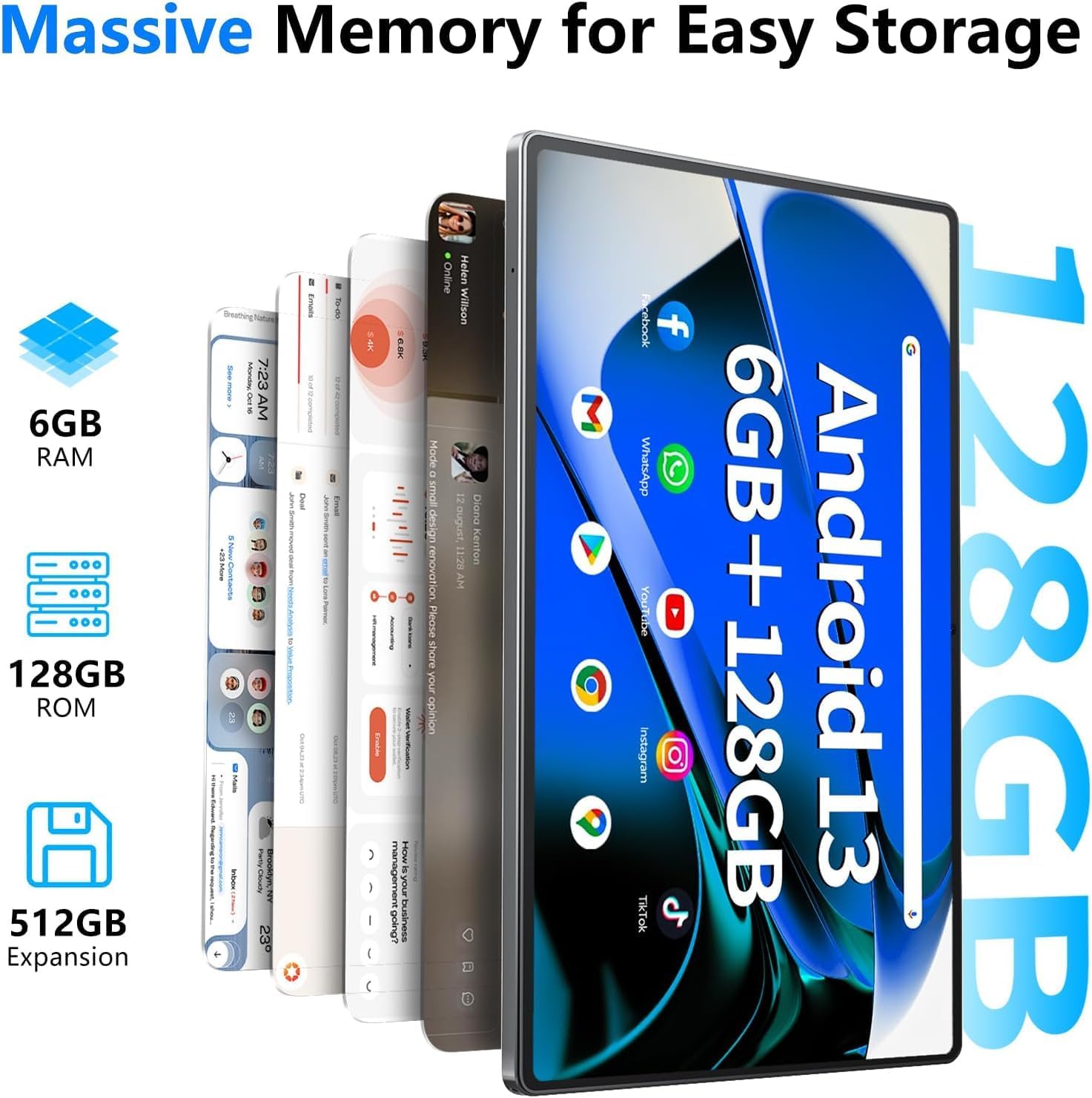
Image: Visual representation of the tablet's memory specifications, highlighting 6GB RAM, 128GB ROM, and support for up to 512GB external storage expansion.
- Einlegen einer TF-Karte: Use the provided SIM ejector tool to open the TF card slot. Insert the MicroSD card with the gold contacts facing down, then close the tray.
- Speicherverwaltung: Gehe zu Einstellungen > Lagerung Zu view Speichernutzung und -verwaltung files.
2.6 Audioeinstellungen
The tablet features dual stereo speakers and a 3.5mm audio jack.

Image: The SGIN-T12 tablet illustrating its four-speaker stereo system for an immersive audio experience.
- Lautstärkeregelung: Use the physical volume buttons on the side of the tablet or adjust volume in Einstellungen > Schall und Vibration.
- Kopfhöreranschluss: Schließen Sie handelsübliche 3.5-mm-Kopfhörer für ungestörtes Musikhören an.
2.7 GPS-Funktionalität
Das Tablet verfügt über GPS für Navigation und standortbezogene Dienste.
- Sicherstellen Standort services are enabled in Einstellungen > Standort.
- Use pre-installed mapping applications or download others from the Google Play Store for navigation.
3. Wartung
3.1 Batteriepflege

Image: The SGIN-T12 tablet highlighting its 6200mAh battery, designed for extended use.
- Vermeiden Sie häufiges vollständiges Entladen des Akkus.
- Setzen Sie das Tablet keinen extremen Temperaturen aus.
- Verwenden Sie ausschließlich das mitgelieferte Ladegerät oder ein zertifiziertes, kompatibles Ladegerät.
- Wenn das Tablet längere Zeit nicht benutzt wird, laden Sie es vor der Lagerung auf etwa 50 % auf.
3.2 Gerät reinigen
- Verwenden Sie ein weiches, fusselfreies Tuch, um Bildschirm und Gehäuse zu reinigen.
- Bei hartnäckigen Flecken leicht dampReinigen Sie das Tuch mit Wasser oder einem für elektronische Bildschirme geeigneten Reiniger.
- Vermeiden Sie die Verwendung von aggressiven Chemikalien, scheuernden Materialien oder übermäßiger Feuchtigkeit.
3.3 Softwareaktualisierungen
Prüfen Sie regelmäßig, ob Software-Updates verfügbar sind, und installieren Sie diese, um optimale Leistung und Sicherheit zu gewährleisten.
- Gehe zu Einstellungen > System > Systemaktualisierung.
- Folgen Sie den Anweisungen auf dem Bildschirm, um nach verfügbaren Aktualisierungen zu suchen und diese zu installieren.
4. Fehlerbehebung
| Problem | Lösung |
|---|---|
| Das Tablet lässt sich nicht einschalten. | Stellen Sie sicher, dass der Akku geladen ist. Schließen Sie das Tablet an das Ladegerät an und warten Sie einige Minuten, bevor Sie versuchen, es erneut einzuschalten. |
| Der Bildschirm reagiert nicht. | Perform a forced restart by pressing and holding the Power ON/OFF button for approximately 10-15 seconds until the device restarts. |
| Probleme mit der WLAN-Verbindung. | Restart your Wi-Fi router. On the tablet, toggle Wi-Fi off and then on again. Forget the network and reconnect. |
| Anwendungen stürzen ab oder frieren ein. | Close and reopen the application. Clear the app's cache in Einstellungen > Apps > [App-Name] > Speicher & CacheSollte das Problem weiterhin bestehen, deinstallieren Sie die App und installieren Sie sie anschließend neu. |
| Langsame Leistung. | Nicht benötigte Anwendungen schließen. Cache und temporäre Dateien leeren. files. Consider performing a factory reset if performance issues are severe and persistent (back up data first). |
| "Reboot errors" or "Failed to load" messages. | Attempt multiple restarts. If the issue persists, a factory reset may be required. Warning: A factory reset will erase all data on the device. Back up important files, bevor Sie fortfahren. If the problem continues after a factory reset, contact customer support. |
5. Spezifikationen
| Besonderheit | Detail |
|---|---|
| Modell | SGIN-T12 |
| Betriebssystem | Android 13 |
| Bildschirmgröße | 10.51 Zoll |
| Bildschirmauflösung | 1920 x 1200 Pixel (FHD IPS) |
| Prozessor | Octa-Core (2 GHz ARM_Cortex_A5) |
| RAM | 6 GB DDR4 SDRAM |
| Interner Speicher | 128 GB |
| Erweiterbarer Speicher | Supports up to 256GB TF card (MicroSD) |
| Frontkamera | 5 Megapixel |
| Rückfahrkamera | 13 Megapixel |
| Batteriekapazität | 6200 mAh Lithium-Ionen |
| Durchschnittliche Akkulaufzeit | Bis zu 6 Stunden |
| Kabellose Konnektivität | 5G Wi-Fi (802.11bgn), Bluetooth 5.0 |
| Navigation | GPS |
| Häfen | Type-C, 3.5mm Audio Jack, TF Card Slot |
| Abmessungen (LxBxH) | 10.51 x 6.36 x 0.3 Zoll |
| Artikelgewicht | 2.2 Pfund |
6. Garantie und Support
6.1 Produktgarantie
The SGIN Android Tablet SGIN-T12 comes with a 1 Jahr eingeschränkte Garantie Diese Garantie gilt ab Kaufdatum und deckt Herstellungs- und Verarbeitungsfehler bei normalem Gebrauch ab. Sie deckt keine Schäden ab, die durch Missbrauch, Unfälle, unbefugte Änderungen oder Naturkatastrophen verursacht wurden.
Bitte bewahren Sie Ihren Kaufbeleg für Garantieansprüche auf.
6.2 Kundendienst
For technical assistance, troubleshooting not covered in this manual, or warranty inquiries, please contact SGIN customer support. Refer to the contact information provided on the SGIN official webWebsite oder Ihre Kaufdokumentation.
Sie können auch die folgende besuchen: SGIN Store on Amazon für zusätzliche Produktinformationen und Ressourcen.