Einführung
The GUSGU G7 Wireless Gaming Controller is a versatile and high-performance device designed for an immersive gaming experience across multiple platforms. Featuring an interactive screen for easy configuration, Hall Effect joysticks and triggers for precision, and dual-mode connectivity, this controller is built for serious gamers.
Hauptmerkmale
- Interactive Screen & Programmable Buttons: Configure settings directly on the controller's display. Four programmable back buttons allow for custom shortcuts and macros.
- Hall-Effekt-Joysticks und -Trigger: Experience drift-free precision with Hall sensing technology. Customizable dead zones and dual-stage trigger locks enhance control.
- 6-Axis Gyroscope & Asymmetric Motors: Enjoy precise motion control for aiming and steering, complemented by realistic 4-level vibration feedback for immersive gameplay.
- Dual-Mode-Konnektivität: Seamlessly switch between Bluetooth 5.1, 2.4GHz wireless, and USB-C wired connections.
- Lange Akkulaufzeit: The 1000mAh battery provides up to 18 hours of gameplay on a single charge.
- Precise 8-Way D-Pad & Conductive Silicone Buttons: Designed for accurate control and comfortable, quiet presses during long gaming sessions.
- 3.5mm Kopfhörerbuchse: Supports game audio output when the controller is connected via USB cable to Switch or PS4.
Installationshandbuch
Packungsinhalt:
- GUSGU G7 Wireless Gaming Controller
- USB-C Charging/Wired Cable
- 2.4-GHz-Wireless-Dongle
- Bedienungsanleitung
Grundgebühr:
Before first use, fully charge the controller using the provided USB-C cable. Connect the USB-C end to the controller and the USB-A end to a compatible power source (e.g., computer USB port, USB wall adapter). The interactive screen will indicate charging status.
Ein-/Ausschalten:
Zum Einschalten drücken Sie die H Taste. Zum Ausschalten halten Sie die Taste H button for 3 seconds until the screen turns off.
Anschließen des Controllers:
The GUSGU G7 supports multiple connection modes:
1. 2.4GHz Wireless Connection (Recommended for PC):
- Stecken Sie den 2.4-GHz-Funkdongle in einen freien USB-Anschluss Ihres PCs oder eines kompatiblen Geräts.
- Schalten Sie den Controller ein.
- On the controller's interactive screen, navigate to Modus und wählen Sie Dongle. The controller will automatically pair with the dongle.

Image: GUSGU G7 Controller displaying the 2.4GHz wireless connection mode on its interactive screen, with the wireless dongle shown.
2. Bluetooth 5.1 Connection (for iOS, Android, Switch, PS4):
- Schalten Sie den Controller ein.
- On the controller's interactive screen, navigate to Modus and select the desired platform (e.g., Android, iOS, Schalten, PS4).
- Enable Bluetooth on your device (phone, tablet, Switch console, PS4).
- Suchen nach "GUSGU G7" in the Bluetooth device list and select it to pair.

Image: GUSGU G7 Controller with various compatible devices like PC, mobile, and consoles displayed around it.
3. USB-C Wired Connection:
- Connect the USB-C cable to the controller and the other end to your PC or compatible console.
- Der Controller schaltet automatisch in den kabelgebundenen Modus.

Image: Close-up of the GUSGU G7 Controller, highlighting its USB-C port for wired connection and charging.
Bedienungsanleitung
Interactive Screen Navigation:
Halten Sie die H button for 3 seconds to access the main menu on the interactive screen. Use the joysticks or D-pad to navigate through options and the A/B buttons for confirmation/back.

Image: GUSGU G7 Controller displaying the interactive display screen with various settings menus, emphasizing ease of use without external apps.
Programmable Back Buttons (M1-M4):
The four back buttons (M1, M2, M3, M4) can be programmed to perform single actions or complex macros. Access the Programm option in the interactive screen menu to set up custom commands.

Image: The underside of the GUSGU G7 Controller, highlighting the programmable macro buttons (M1, M2, N1, N2) for custom commands.
Adjusting Joystick Dead Zones:
To eliminate stick drift and fine-tune precision, use the interactive screen to adjust joystick dead zones from 0-50% via the Todeszone Einstellung.

Image: Diagram illustrating the adjustable dead zone feature of the GUSGU G7's Hall Effect joysticks, showing precision control.
Zwei-Stage Trigger Locks:
The Hall Effect triggers feature dual-stage locks. Use the physical switches on the underside of the controller to toggle between rapid short-press firing and full-press precision control, adapting to different game genres.

Image: Visual representation of the GUSGU G7's Hall Effect two-stage triggers, demonstrating their use in different gaming scenarios.
Vibrations-Feedback:
The asymmetric dual motors provide four adjustable levels of vibration feedback. Adjust the intensity via the Vibration setting on the interactive screen to suit your preference.

Bild: Intern view of the GUSGU G7 Controller showing the asymmetric motors and illustrating the four levels of vibration feedback.
6-Achsen-Gyroskop:
The built-in 6-axis gyroscope enables precise motion control for aiming, steering, and action gameplay. This feature is automatically active when supported by the game.
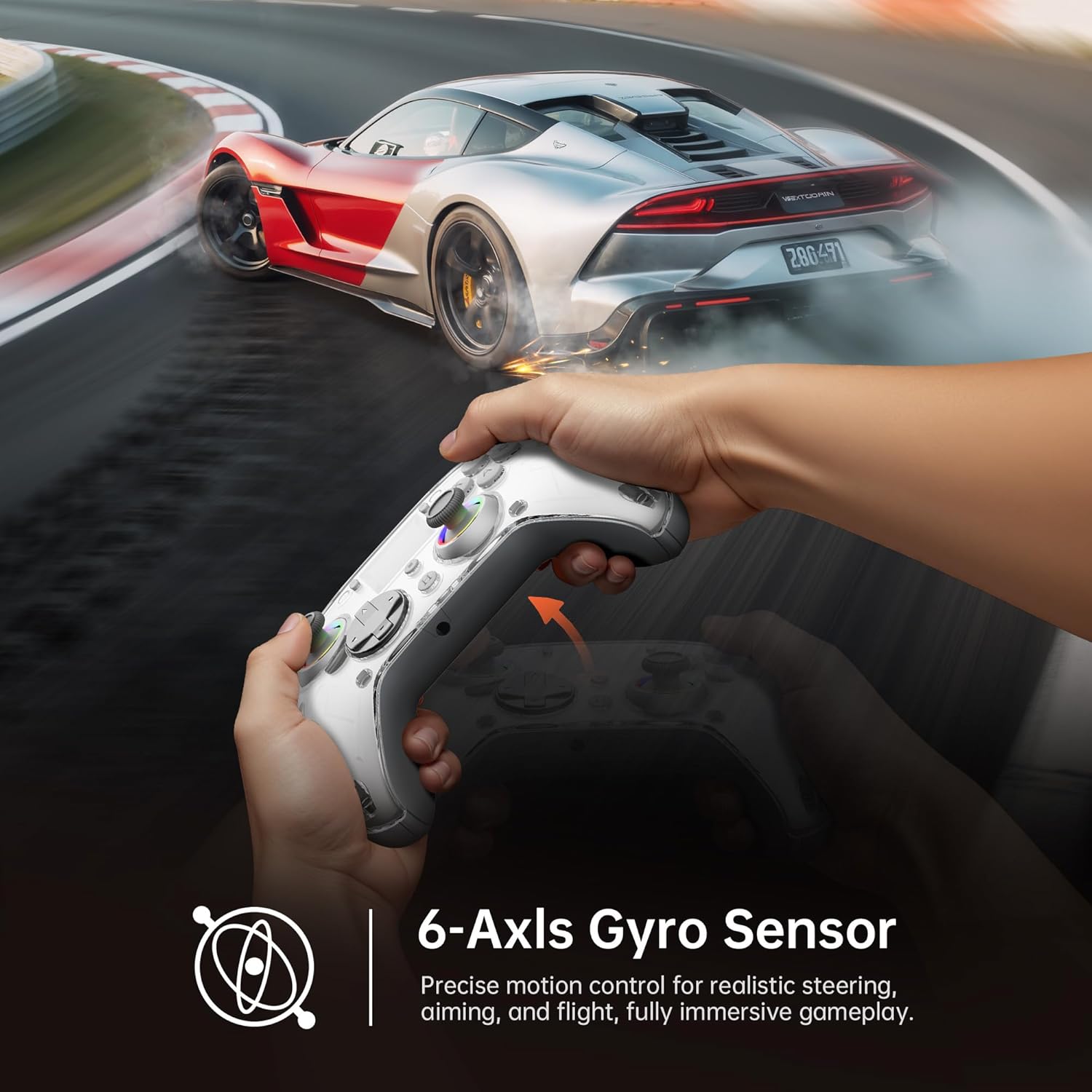
Image: Diagram illustrating the 6-Axis Gyro Sensor in the GUSGU G7 Controller, showing its application in precise motion control for gaming.
Changing Button Layouts:
Switch between Xbox and Switch button layouts (A/B/X/Y mapping) via the Layout setting on the interactive screen to match your preferred gaming style or console.
Headphone Jack Usage:
The 3.5mm headphone jack supports game audio output when the controller is connected via USB cable to a Nintendo Switch or PlayStation 4. Audio output is not supported on PC or mobile phones through this jack.
Offizielles Produktvideo:
Video: Offizielles Produktvideoasing the GUSGU G7 Wireless Gaming Controller's features and functionality.
Wartung
- Halten Sie den Controller sauber, indem Sie ihn mit einem weichen, trockenen Tuch abwischen.
- Vermeiden Sie es, den Controller extremen Temperaturen, hoher Luftfeuchtigkeit oder direkter Sonneneinstrahlung auszusetzen.
- Der Controller darf nicht auseinandergenommen werden, da dies zum Erlöschen der Garantie führt.
- Bewahren Sie den Controller an einem kühlen, trockenen Ort auf, wenn Sie ihn nicht verwenden.
Fehlerbehebung
Controller stellt keine Verbindung her:
- Stellen Sie sicher, dass der Controller vollständig aufgeladen ist.
- Verify the correct connection mode is selected on the interactive screen (2.4GHz, Bluetooth, or Wired).
- Stellen Sie bei Bluetooth-Verbindungen sicher, dass Bluetooth auf Ihrem Gerät aktiviert ist und sich der Controller im Kopplungsmodus befindet.
- Versuchen Sie, sowohl den Controller als auch das Gerät, mit dem Sie die Verbindung herstellen, neu zu starten.
- Bei Verwendung von 2.4 GHz stellen Sie sicher, dass der Dongle sicher eingesteckt ist und von Ihrem Gerät erkannt wird.
Stick Drift or Input Issues:
- Calibrate the joysticks and triggers via the Kalibrierung option in the interactive screen menu.
- Adjust the joystick dead zones using the Todeszone Einstellung.
Vibration funktioniert nicht:
- Überprüfen Sie die Vibration setting on the interactive screen and ensure it's not set to 0%.
- Stellen Sie sicher, dass das Spiel, das Sie spielen, Vibrationsfeedback unterstützt.
Technische Daten
| Besonderheit | Detail |
|---|---|
| Modellnummer | GUSGU G7 |
| Konnektivität | Bluetooth 5.1, 2.4-GHz-Funkverbindung, USB-C-Kabelverbindung |
| Abfragerate | 1000Hz (Wired/2.4GHz) |
| Joysticks & Trigger | Hall-Effekt |
| Batteriekapazität | 1000mAh (Up to 18 hours gameplay) |
| Gyroskop | 6-Achsen |
| Vibration | Asymmetric Dual Motors (4 levels) |
| Kompatibilität | PC (Windows 10+), iOS (14.0+), Android (9.0+), Nintendo Switch, PS4, Tesla Arcade (Not compatible with Xbox or PS5) |
| Gewicht | 15.5 Unzen |
| Hersteller | Shenzhen Wojiayoupin Technology Co., Ltd. |
Garantie und Support
For warranty information, technical support, or customer service inquiries, please refer to the contact details provided on the product packaging or visit the official GUSGU webWebsite.


