1. Einleitung
This manual provides essential information for the installation, operation, and maintenance of your ZOTAC Gaming GeForce RTX 5060 Twin Edge OC graphics card. Designed for high-performance gaming, this card features the NVIDIA Blackwell architecture, DLSS 4, 8GB GDDR7 memory, and PCIE 5.0 support, all within a compact, SFF-ready design. Please read this manual thoroughly before installation and use to ensure optimal performance and longevity of your product.
2. Lieferumfang
Überprüfen Sie, ob alle Artikel im Paket vorhanden sind:
- ZOTAC GAMING GeForce RTX 5060 Twin Edge OC graphics card
- Benutzerhandbuch (dieses Dokument)
- Kurzanleitung
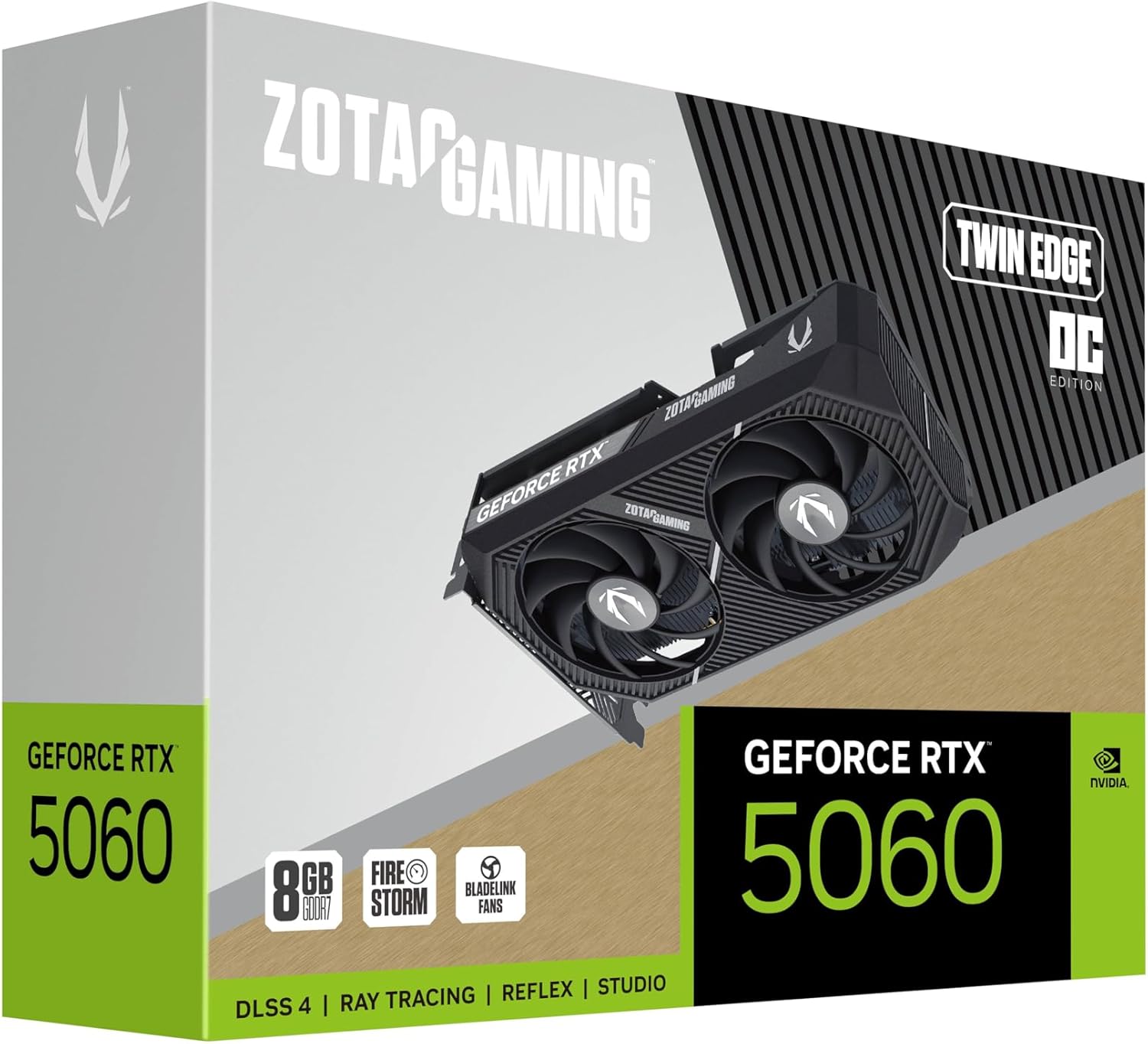
Image: The retail packaging for the ZOTAC Gaming GeForce RTX 5060 Twin Edge OC graphics card.
3. Produktüberschreitungview
Familiarize yourself with the physical components of your graphics card.

Bild: Vorderseite view der Grafikkarte, zeigenasing the dual 90mm BladeLink fans and ZOTAC GAMING branding.

Bild: Rückseite view of the graphics card, showing the 3 DisplayPort 2.1b and 1 HDMI 2.1b output ports.

Abbildung: Seite view of the graphics card, highlighting its compact two-slot design.
4. Spezifikationen
Key technical specifications of the ZOTAC Gaming GeForce RTX 5060 Twin Edge OC graphics card:
| Besonderheit | Spezifikation |
|---|---|
| Grafik-Coprozessor | GeForce RTX 5060 |
| Chipsatz-Marke | NVIDIA |
| Videospeicher | 8 GB GDDR7 |
| Speicherschnittstelle | 128-Bit |
| Speichergeschwindigkeit | 28 Gbit/s |
| PCIe-Schnittstelle | PCIE 5.0 |
| Anzeigeausgänge | 3 x DisplayPort 2.1b, 1 x HDMI 2.1b |
| Max Auflösung | 7680x4320 (8K Ready) |
| Unterstützung für mehrere Bildschirme | 4 Anzeigen |
| Kühlsystem | Dual 90mm BladeLink fans, Composite Heatpipes, Pass-thru Airflow Design |
| Stromanschluss | 8-pin PCIe |
| Abmessungen (LxBxH) | 8.7 x 1.6 x 0.1 Zoll (220.5 x 41.6 x 120.25 mm) |
| Gewicht | 1.57 Pfund |
5. Einrichtung und Installation
5.1 Checkliste vor der Installation
- Stellen Sie sicher, dass Ihr Netzteil die empfohlene Wattzahl erfüllt.tage for your system, including the new graphics card.
- Schalten Sie Ihren Computer aus und trennen Sie das Netzkabel von der Steckdose.
- Ground yourself to discharge any static electricity before handling components.
5.2 Hardware-Installation
- Öffnen Sie das Gehäuse Ihres Computers.
- Locate an available PCI Express 5.0 x16 slot on your motherboard.
- Remove any expansion slot covers that correspond to the graphics card's two-slot width.
- Carefully align the graphics card with the PCIe slot and press down firmly until it is securely seated. Ensure the retention clip on the PCIe slot locks into place.
- Befestigen Sie die Grafikkarte mit Schrauben am Gehäuse.
- Connect the 8-pin PCIe power connector from your PSU to the graphics card. Ensure a firm connection.
- Schließen Sie Ihr Computergehäuse.
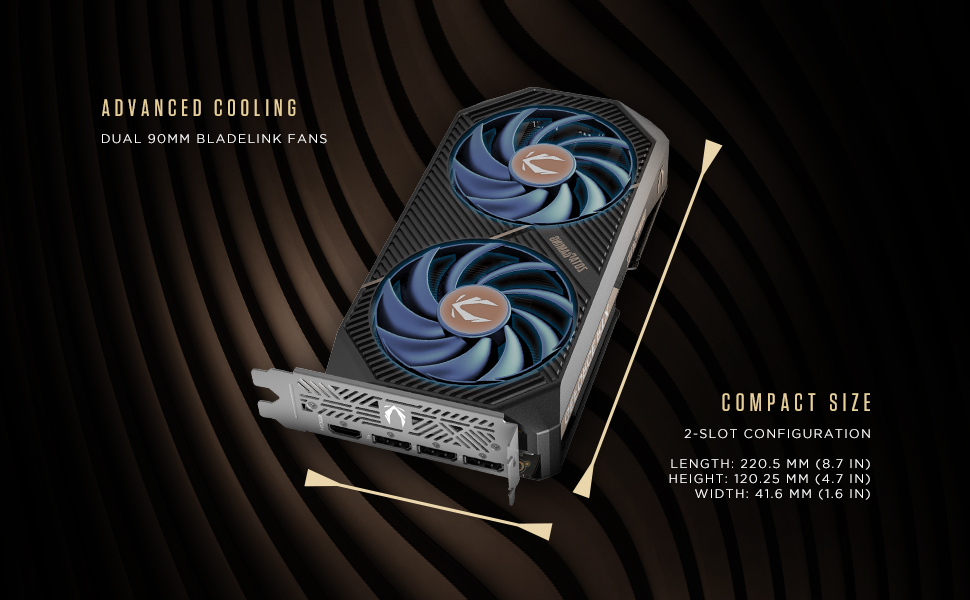
Image: Illustration of the graphics card's compact dimensions and dual fan cooling system, aiding in installation planning.
5.3 Treiberinstallation
- Schließen Sie das Netzkabel wieder an und schalten Sie Ihren Computer ein.
- Verbinden Sie das Displaykabel (HDMI oder DisplayPort) von der Grafikkarte mit Ihrem Monitor.
- Once the operating system loads, download the latest NVIDIA drivers for your GeForce RTX 5060 from the official NVIDIA webSeite? ˅ (www.nvidia.com/drivers).
- Folgen Sie den Anweisungen auf dem Bildschirm, um die Treiberinstallation abzuschließen. Ein Neustart des Systems kann erforderlich sein.
6. Bedienung Ihrer Grafikkarte
6.1 Treiberaktualisierungen
Regularly update your graphics drivers to ensure optimal performance, stability, and access to the latest features and game optimizations. NVIDIA releases new drivers frequently, which can be downloaded from their official website or through the GeForce Experience application.
6.2 ZOTAC GAMING Utilities
ZOTAC provides utility software, such as FireStorm, which allows you to monitor your graphics card's performance, adjust fan speeds, and customize lighting (if applicable). Refer to the ZOTAC webWebsite für weitere Informationen und Downloads.
6.3 Anzeigekonfiguration
Utilize the NVIDIA Control Panel to configure display settings, including resolution, refresh rate, and multi-monitor setups. This software is installed with the graphics drivers.
7. Wartung
7.1 Reinigung
- Periodically clean the fans and heatsink of your graphics card to prevent dust buildup, which can impede cooling performance.
- Use compressed air to gently blow dust out of the heatsink fins and fan blades. Hold the fan blades in place to prevent them from spinning excessively during cleaning.
- Ensure your computer is powered off and unplugged before performing any cleaning.
7.2 Luftstrom
Maintain good airflow within your PC case. Ensure that case fans are properly configured to draw cool air in and expel hot air out. Avoid obstructing the graphics card's fans or exhaust vents.

Image: Visual representation of the card's pass-through airflow design for faster heat release and the metal backplate for enhanced rigidity.
8. Fehlerbehebung
In diesem Abschnitt werden häufig auftretende Probleme mit Ihrer Grafikkarte behandelt.
| Problem | Mögliche Ursache | Lösung |
|---|---|---|
| Keine Displayausgabe | Incorrect cable connection, unseated card, no power, driver issue | Ensure display cables are securely connected. Reseat the graphics card. Verify the 8-pin PCIe power connector is fully inserted. Install or update drivers. |
| System instability or crashes | Outdated drivers, overheating, insufficient PSU power | Update graphics drivers. Monitor temperatures using ZOTAC FireStorm or other tools. Ensure PSU meets requirements. |
| Fans not spinning or excessive noise | Dust buildup, fan control settings, faulty fan | Clean fans and heatsink. Check fan speed settings in ZOTAC FireStorm. Contact support if a fan is faulty. |
| Low performance in games | Outdated drivers, incorrect game settings, CPU bottleneck | Ensure latest drivers are installed. Adjust in-game graphics settings. Verify other system components are not limiting performance. |
9. Garantie und Support
ZOTAC provides dedicated customer support and warranty coverage for its products.
9.1 Garantieumfang
Your ZOTAC Gaming GeForce RTX 5060 Twin Edge OC graphics card typically comes with a 3-year coverage. Please register your product on the official ZOTAC website to activate and verify your warranty terms and conditions, as they may vary by region.
9.2 Kundendienst
For technical assistance, troubleshooting, or warranty claims, please utilize ZOTAC's support resources:
- Online Chat: Access 24/7 online chat support via the ZOTAC webWebsite.
- RMA Program: For hardware issues requiring repair or replacement, refer to the Return Merchandise Authorization (RMA) program details on the ZOTAC support page.
- Online-Communities: Engage with other users and find solutions on ZOTAC's official forums and social media channels.
Besuchen Sie die offizielle ZOTAC-Website. webWebsite für die aktuellsten Supportinformationen: www.zotac.com/support

Bild: Überview of ZOTAC's online communities and dedicated customer support services, including warranty coverage and RMA program.


