1. Einleitung
Thank you for choosing the NIMO 17.3" IPS FHD Laptop. This manual provides essential information for setting up, operating, maintaining, and troubleshooting your device. Please read it carefully to ensure optimal performance and longevity of your laptop.
The NIMO N171 laptop features a 17.3-inch Full HD IPS display, powered by an Intel Core i3-1215U processor, 8GB of DDR4 RAM, and a 256GB PCIe SSD. It comes pre-installed with Windows 11 Home and includes a backlit keyboard with a fingerprint reader for enhanced security and convenience.

Image: NIMO 17.3 inch IPS FHD Laptop, showcasing dank seines großen Displays und seines eleganten Designs.
2. Einrichtung
2.1 Auspacken und erste Inspektion
Nehmen Sie alle Komponenten vorsichtig aus der Verpackung. Stellen Sie sicher, dass folgende Teile vorhanden sind:
- 1 x Nimo N171 Laptop
- 1 x Typ-C 65W PD Schnellladegerät
- 1 x Benutzerhandbuch (dieses Dokument)
- Windows 11 Home (vorinstalliert)
Inspect the laptop for any physical damage. If any damage is found, contact customer support immediately.
2.2 Laden des Laptops
Before first use, fully charge the laptop battery. Connect the provided 65W Type-C PD Fast Charger to the laptop's Type-C charging port and then to a power outlet. The charging indicator light will illuminate.

Image: The 65W Type-C PD Charger, illustrating its compact design and compatibility with various devices.
2.3 Erstes Einschalten und Windows-Einrichtung
Press the power button located on the laptop. The laptop will boot up and guide you through the Windows 11 Home setup process. Follow the on-screen instructions to configure language, region, network, and user accounts.
3. Bedienungsanleitung
3.1 Darstellung und Visualisierung
The NIMO N171 features a 17.3-inch Full HD (1920x1080) IPS anti-glare display, offering wide viewing angles and vibrant colors. Adjust brightness using the function keys (Fn + Fx keys, refer to keyboard layout for specific keys).

Image: The 17.3-inch FHD IPS display, highlighting its immersive viewErfahrung mit schmalen Rändern.
3.2 Tastatur und Eingabe
The laptop is equipped with a full-size backlit keyboard and a numeric keypad. The backlight can be toggled or adjusted using dedicated function keys. The touchpad supports multi-touch gestures for navigation.

Image: Close-up of the backlit keyboard and integrated fingerprint reader on the touchpad.
3.3 Fingerabdruckleser
For secure and quick login, utilize the built-in fingerprint reader located on the touchpad. Configure your fingerprint in Windows Settings > Accounts > Sign-in options.
3.4 WebCamera Privacy Shield
Die integrierte webcam features a physical privacy shield. Slide the cover to the left to open the camera and to the right to close it, ensuring your privacy when the camera is not in use.
3.5 Anschlussmöglichkeiten
The laptop offers a variety of ports for connecting peripherals and external displays:
- USB 3.2 Gen1: Hochgeschwindigkeits-Datenübertragung.
- USB 2.0: Standard-USB-Anschluss.
- USB Typ C: For data transfer and charging (65W PD).
- Standard HDMI 1.4: Anschluss an externe Monitore oder Fernseher.
- Micro-SD-Kartensteckplatz: Speicherplatz erweitern oder übertragen files von Speicherkarten.
- Audiobuchse: Schließen Sie Kopfhörer oder externe Lautsprecher an.
- Steckplatz für Kensington-Schloss: Zur physischen Sicherheit.

Image: Diagram illustrating the various connectivity ports on the NIMO laptop.
3.6 Batteriemanagement
The laptop is equipped with a large capacity battery, providing up to 7 hours of usage. For optimal battery health, avoid frequently draining the battery completely and store the laptop in a cool, dry place.

Image: Visual representation of the laptop's battery capacity and typical usage scenarios.
4. Wartung
4.1 Reinigung
Verwenden Sie ein weiches, fusselfreies Tuch, um den Bildschirm und die Außenflächen zu reinigen. Bei hartnäckigen Flecken dampBefeuchten Sie das Tuch leicht mit Wasser oder einem für Bildschirme geeigneten Reiniger. Vermeiden Sie scharfe Chemikalien oder Scheuermittel.
4.2 Softwareaktualisierungen
Regularly check for and install Windows updates to ensure your system has the latest security patches and performance improvements. You can find updates in Windows Settings > Windows Update.
4.3 Speicherverwaltung
In regelmäßigen Abständenview and manage your 256GB SSD storage. Delete unnecessary fileDeinstallieren Sie nicht benötigte Anwendungen und erwägen Sie Cloud-Speicher für große Datenmengen. fileum eine optimale Systemleistung aufrechtzuerhalten.
5. Fehlerbehebung
In diesem Abschnitt werden häufig auftretende Probleme behandelt, die bei Ihrem NIMO-Laptop auftreten können.
- Laptop lässt sich nicht einschalten: Ensure the charger is properly connected and the battery has sufficient charge. Try holding the power button for 10-15 seconds to perform a hard reset.
- Der Bildschirm ist leer oder flackert: Restart the laptop. If connected to an external display, try disconnecting and reconnecting the HDMI cable.
- Probleme mit der WLAN- oder Bluetooth-Verbindung: Check if Wi-Fi/Bluetooth is enabled in Windows settings. Restart your router or the laptop. Update network drivers if necessary.
- Langsame Leistung: Schließen Sie unnötige Anwendungen. Überprüfen Sie im Task-Manager, ob Hintergrundprozesse viele Ressourcen verbrauchen. Stellen Sie sicher, dass auf der SSD ausreichend Speicherplatz frei ist.
- Tastatur oder Touchpad reagieren nicht: Starten Sie den Laptop neu. Stellen Sie sicher, dass keine externen Geräte Störungen verursachen.
Sollten Sie auf anhaltende Probleme stoßen, die hier nicht behandelt werden, konsultieren Sie bitte den Abschnitt Garantie und Support, um Hilfe zu erhalten.
6. Spezifikationen
Detailed technical specifications for the NIMO N171 Laptop:
| Besonderheit | Spezifikation |
|---|---|
| Marke | NIMO |
| Modellname | Nimo N171G |
| Bildschirmgröße | 17.3 Zoll |
| Bildschirmauflösung | 1920 x 1080 Pixel (FHD) |
| Prozessor | Intel Core i3-1215U (6 Kerne, bis zu 4.4 GHz) |
| RAM | 8 GB DDR4 (3200 MHz) |
| Festplatte | 256 GB PCIe SSD |
| Grafik-Coprozessor | Integrierte Grafik (Intel) |
| Betriebssystem | Windows 11 Home |
| Kabelloser Typ | 802.11a/b/g/n/ac (Wi-Fi 6) |
| Bluetooth | Bluetooth 5.2 |
| USB-Anschlüsse | 1x USB 2.0, 3x USB 3.0, 2x USB Type-C (1 for PD charging) |
| HDMI-Anschluss | HDMI 2.1 |
| WebNocken | 2-MP-Rückseite Webcam Resolution (with privacy shield) |
| Besondere Merkmale | Fingerprint Reader, Backlit Keyboard, HD Audio, Memory Card Slot, Numeric Keypad |
| Durchschnittliche Akkulaufzeit | 5-7 Stunden |
| Artikelgewicht | 4.6 Pfund |
| Technische Daten | 15.66 x 9.99 x 0.74 Zoll |
7. Garantie und Support
NIMO is committed to providing high-quality products and customer satisfaction.
7.1 Herstellergarantie
Ihr NIMO-Laptop ist durch eine umfassende Versicherung abgedeckt. 2 Jahr Herstellergarantie from Nimo Direct Inc. This warranty covers defects in materials and workmanship under normal use. Please retain your proof of purchase for warranty claims.

Image: Illustration of NIMO's 2-year support commitment.
7.2 90-Day Hassle-Free Returns
Nimo Direct Inc. bietet ein 90-tägiges Rückgaberecht. If you are not satisfied with your purchase, you may return the product within 90 days from the date of purchase. Please refer to the return policy details provided at the time of purchase or contact customer support.
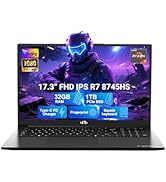
Image: Visual representation of the 90-day return policy.
7.3 Kundenbetreuung
For any product-related questions, technical support, or warranty claims, please contact our professional customer service team:
- E-Mail: service@nimopc.com
- Telefon: Refer to your product packaging or NIMO's official website for current phone support numbers.
- Online: Besuchen Sie die offizielle NIMO-Website. webWebsite mit häufig gestellten Fragen und weiteren Support-Ressourcen.
Our dedicated support team is available to assist you and resolve any issues promptly.

Image: Depiction of NIMO's professional customer assistance team.


