1. Einleitung
This manual provides essential information for setting up, operating, and maintaining your KOOSMILE Mini Laptop P8. The P8 is an 8-inch 2-in-1 convertible laptop featuring Windows 11 Pro, an Intel N150 processor, 12GB LPDDR5 RAM, and a 512GB SSD. Its compact design and versatile modes make it suitable for various tasks and environments.
2. Packungsinhalt
Bitte prüfen Sie das Paket auf folgende Artikel:
- KOOSMILE Mini Laptop P8 x1
- PD Adapter x1
- Active Stylus x1
- HDMI-Kabel x1
- 1 x USB-Hub
- Benutzerhandbuch x1
3. Produktüberschreitungview
Familiarize yourself with the physical components and ports of your KOOSMILE Mini Laptop P8.
3.1. Hauptmerkmale
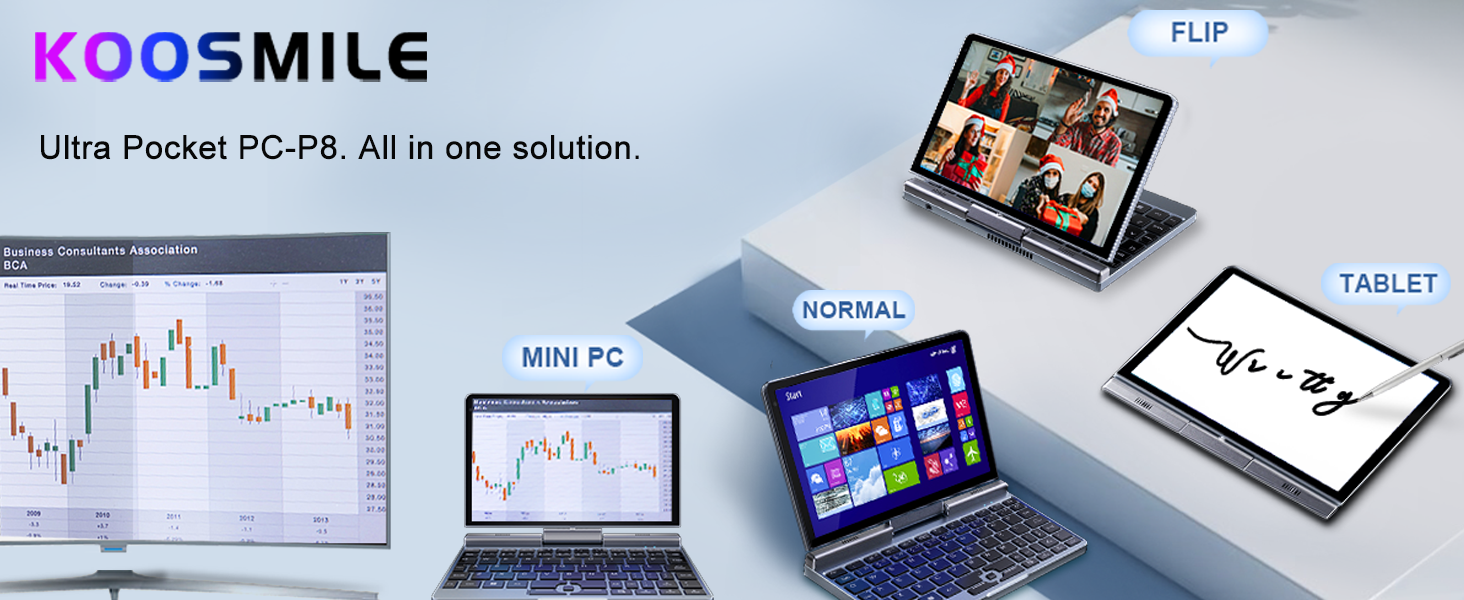
Bild: Überview of the KOOSMILE P8 Mini Laptop highlighting its key features including Intel N150 CPU, 12GB LPDDR5 RAM, SSD storage, 0.78kg weight, 2MP camera, and 8-inch HD IPS screen.
3.2. Anschlüsse und Tasten
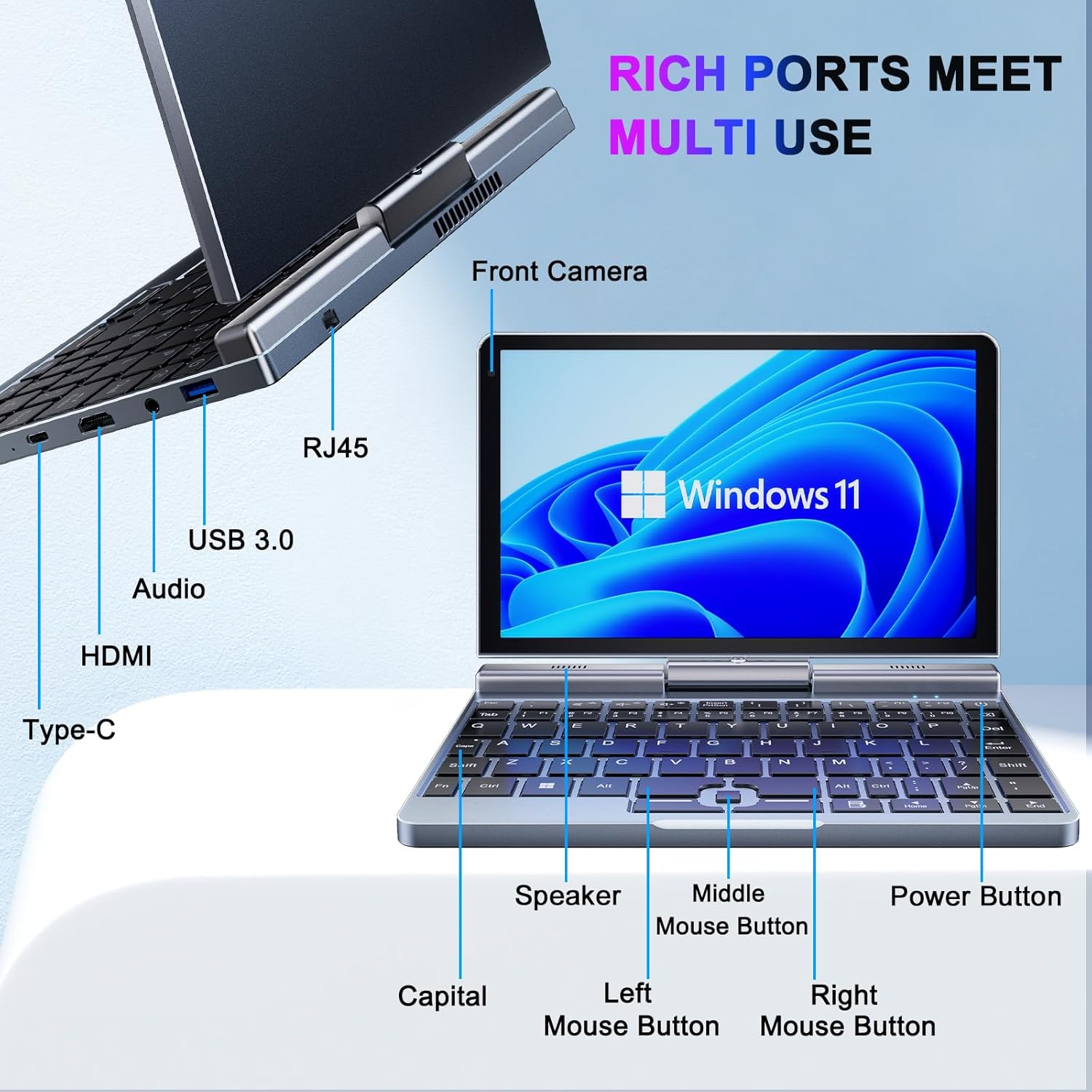
Bild: Detailliert view of the KOOSMILE P8 Mini Laptop's side ports and keyboard layout, labeling the RJ45 Ethernet port, USB 3.0, Audio jack, HDMI, Type-C port, Front Camera, Speaker, Middle Mouse Button, Left Mouse Button, Right Mouse Button, Power Button, and Capital key.
- USB 3.0-Anschluss: Zum Anschließen von USB-Geräten.
- USB-Typ-C-Anschluss: For data transfer, charging, and DisplayPort (DP) video output.
- HDMI-Anschluss: Zum Anschluss externer Displays.
- Audiobuchse: Für Kopfhörer oder externe Lautsprecher.
- RJ45-Ethernet-Port: Für kabelgebundene Netzwerkverbindung.
- Netzschalter: Zum Ein-/Ausschalten des Geräts oder zum Versetzen in den Ruhemodus.
- Frontkamera: 2MP camera for video calls and conferencing.
4. Einrichtung
Follow these steps for initial setup of your KOOSMILE Mini Laptop P8.
- Laden Sie das Gerät auf: Connect the PD Adapter to the USB Type-C port on the laptop and plug it into a power outlet. Allow the device to charge fully before first use.
- Einschalten: Halten Sie den Ein-/Ausschalter gedrückt, bis der Bildschirm aufleuchtet.
- Windows 11 Pro-Installation: Folgen Sie den Anweisungen auf dem Bildschirm, um die Ersteinrichtung von Windows 11 Pro abzuschließen, einschließlich Sprachauswahl, Netzwerkverbindung und Erstellung des Benutzerkontos.
- Peripheriegeräte anschließen: If desired, connect the included USB Hub, external mouse, or other peripherals to the available USB ports.
5. Bedienungsanleitung
This section covers basic operation and usage modes of your device.
5.1. Ein-/Ausschalten und Schlafmodus
- Einschalten: Drücken Sie die Einschalttaste.
- Schlafmodus: Briefly press the Power Button while the device is on. Press again to wake.
- Abschalten: From the Windows desktop, click the Start button, then Power, and select 'Shut down'.
- Neustart: From the Windows desktop, click the Start button, then Power, and select 'Restart'.
5.2. 2-in-1 Convertible Modes
The KOOSMILE P8 features a 180° rotating screen, allowing it to transform into multiple modes:
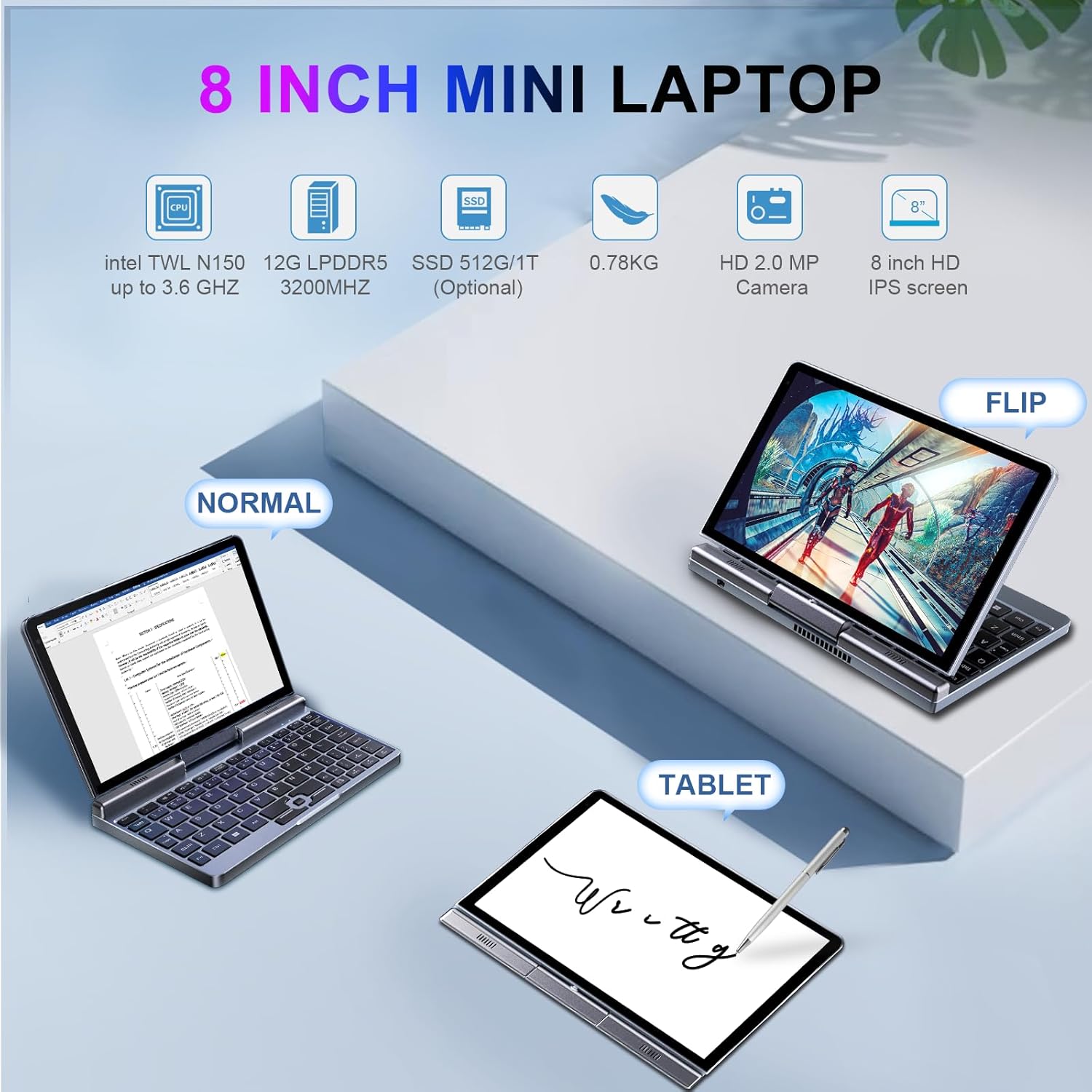
Image: The KOOSMILE P8 Mini Laptop shown in three different modes: Normal (laptop), Flip (tent/stand), and Tablet mode, demonstrating its 180-degree screen rotation capability.
- Laptop-Modus: Standard configuration for typing and traditional computing.
- Tablet-Modus: Rotate the screen 180° and fold it back against the keyboard for a full touchscreen experience. Windows will automatically switch to tablet interface.
- Zelt-/Ständermodus: Position the device in an inverted 'V' shape or with the keyboard facing down for media consumption or presentations.
5.3. Touchscreen- und Stiftnutzung
The 8-inch HD touch screen supports multi-touch gestures and input from the included active stylus.
- Touch-Gesten: Use standard Windows touch gestures for navigation, zooming, and scrolling.
- Aktiver Stift: The stylus allows for precise input, drawing, and note-taking. Ensure the stylus is charged if it requires power.
5.4. Anschluss für externes Display
Connect your laptop to an external monitor or TV using the HDMI or USB Type-C (DisplayPort Alt Mode) ports.

Image: The KOOSMILE P8 Mini Laptop connected to an external monitor via HDMI, illustrating its Type-C DisplayPort (DP) out and HDMI DisplayPort (DP) out capabilities for extended display.
- HDMI: Use the included HDMI cable to connect to an HDMI-compatible display.
- USB Typ C: If your external display supports DisplayPort over USB-C, you can use a compatible USB-C to DisplayPort cable.
- Bildschirmeinstellungen: Nach dem Verbinden drücken Windows-Taste + P to select your preferred display mode (Duplicate, Extend, Second screen only).
6. Konnektivität
The KOOSMILE P8 offers various connectivity options.
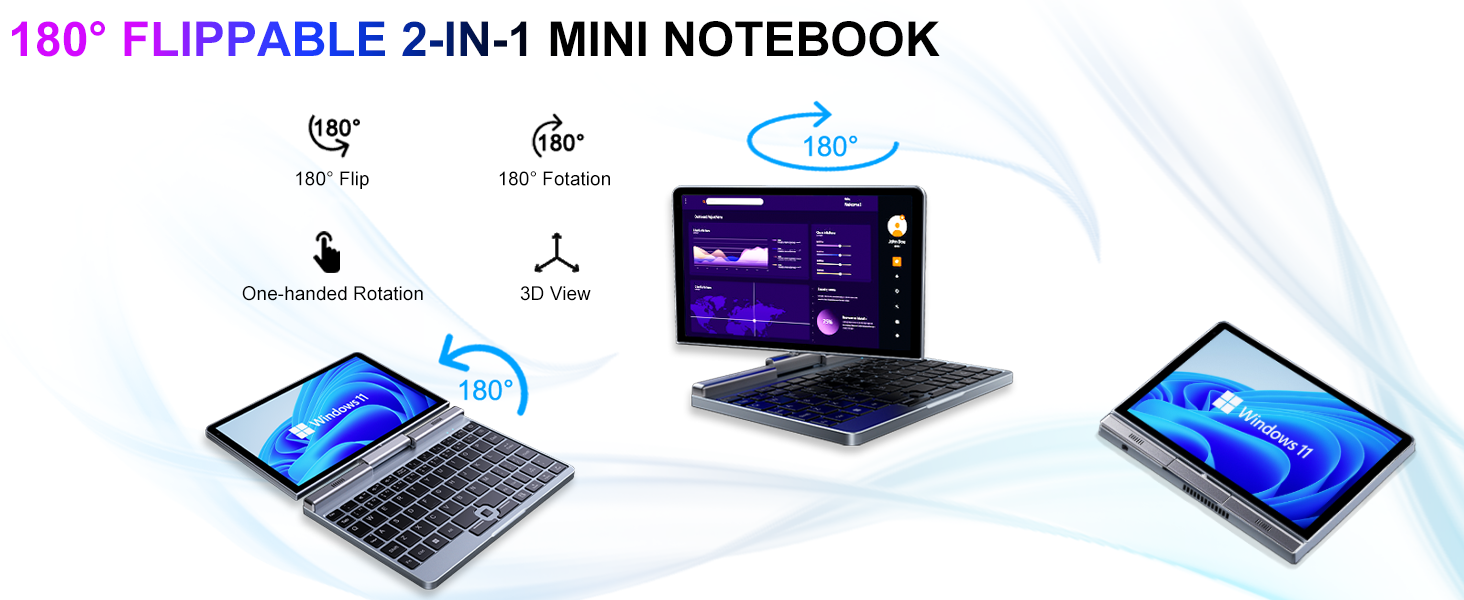
Image: Graphic illustrating the high-speed connectivity of the KOOSMILE P8 Mini Laptop, featuring Wi-Fi 6 and Bluetooth 5.2, with comparison bars showing improved speed, capacity, and reduced delay compared to Wi-Fi 5.
6.1. WiFi Verbindung
- Klicken Sie auf das WLAN-Symbol in der Taskleiste.
- Wählen Sie das gewünschte Netzwerk aus und geben Sie gegebenenfalls das Passwort ein.
- The device supports Wi-Fi 6 for faster and more stable wireless connections.
6.2. Bluetooth-Kopplung
- Gehe zu Einstellungen > Bluetooth & Geräte > Bluetooth.
- Turn on Bluetooth and select 'Add device'.
- Choose the device you wish to pair and follow the on-screen instructions.
- The device supports Bluetooth 5.2 for efficient wireless accessory connections.
6.3. Wired Ethernet
- Connect an Ethernet cable to the RJ45 port on the laptop for a stable wired network connection.
7. Wartung
Die richtige Pflege gewährleistet die Langlebigkeit und Leistungsfähigkeit Ihres Geräts.
- Reinigung: Verwenden Sie ein weiches, fusselfreies Tuch, um Bildschirm und Gehäuse zu reinigen. Bei hartnäckigen Flecken dampBefeuchten Sie das Tuch leicht mit Wasser oder einem für Bildschirme geeigneten Reiniger. Vermeiden Sie aggressive Chemikalien.
- Belüftung: Stellen Sie sicher, dass die Lüftungsöffnungen nicht blockiert sind, um eine Überhitzung zu verhindern.
- Batteriepflege: For optimal battery life, avoid fully discharging the battery frequently. Store the device in a cool, dry place if not used for extended periods.
- Software-Updates: Aktualisieren Sie Windows und Treiber regelmäßig, um Systemstabilität und Sicherheit zu gewährleisten.
8. Fehlerbehebung
In diesem Abschnitt werden häufig auftretende Probleme behandelt.
8.1. Screen Orientation Issues
- Automatische Drehung: When switching between laptop and tablet modes, the screen should automatically adjust its orientation.
- Manuelle Drehung: If the screen does not rotate automatically or is stuck in an incorrect orientation, press Windows Key + A to open the Quick Settings panel. Look for the 'Rotation lock' tile and ensure it is off. You can also go to Einstellungen > System > Anzeige and manually change the 'Display orientation'.
8.2. Gerät lässt sich nicht einschalten
- Überprüfen Sie die Leistung: Ensure the PD adapter is securely connected to the laptop and a working power outlet.
- Batteriestand: Wenn der Akku vollständig entladen ist, kann es einige Minuten dauern, bis das Gerät eingeschaltet werden kann.
- Kaltstart: Disconnect the charger, then press and hold the Power Button for 15-20 seconds. Reconnect the charger and attempt to power on again.
8.3. WLAN-Verbindungsprobleme
- WLAN ein-/ausschalten: Turn Wi-Fi off and on again from the Quick Settings or Windows Settings.
- Router neu starten: Starten Sie Ihren WLAN-Router und Ihr Modem neu.
- Vergessen Sie das Netzwerk: In Windows Settings, forget the problematic Wi-Fi network and reconnect.
9. Spezifikationen
Detailed technical specifications for the KOOSMILE Mini Laptop P8.
| Besonderheit | Spezifikation |
|---|---|
| Prozessor | Intel N150 (4 Cores/4 Threads, up to 3.6 GHz) |
| RAM | 12 GB LPDDR5 3200 MHz |
| Lagerung | 512 GB SSD (erweiterbar auf bis zu 2 TB) |
| Anzeige | 8-inch HD Touch Screen, 1280x800 pixels |
| Betriebssystem | Windows 11 Pro |
| Grafik | Intel UHD-Grafik (integriert) |
| Kabellose Konnektivität | Wi-Fi 6, Bluetooth 5.2 |
| Häfen | 1x USB 3.0, 1x USB Type-C (DP Out), 1x HDMI (DP Out), 1x Headphone Jack, 1x RJ45 Ethernet |
| Kamera | 2MP Frontkamera |
| Gewicht | 0.78 kg (1.72 Pfund) |
| Abmessungen (LxBxH) | 7.87 x 5.51 x 0.79 Zoll |
| Batterie | 36.5 WH, PD 30W Charging |
9.1. Leistung überview
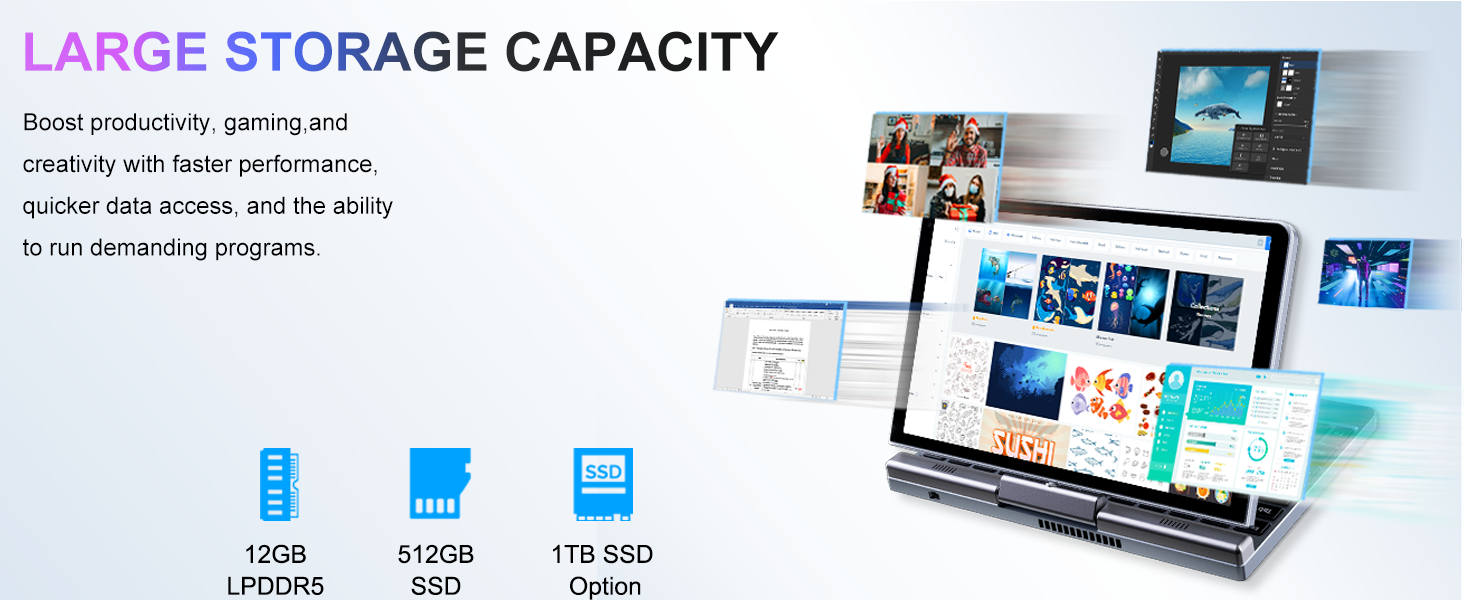
Image: Graphic detailing the performance aspects of the KOOSMILE P8 Mini Laptop, highlighting the Intel TwinLake N150 processor (4 cores, 4 threads, 3.6GHz turbo frequency, 10nm process) and Intel UHD Graphics for smooth content streaming and immersive experiences.
9.2. Speicherkapazität
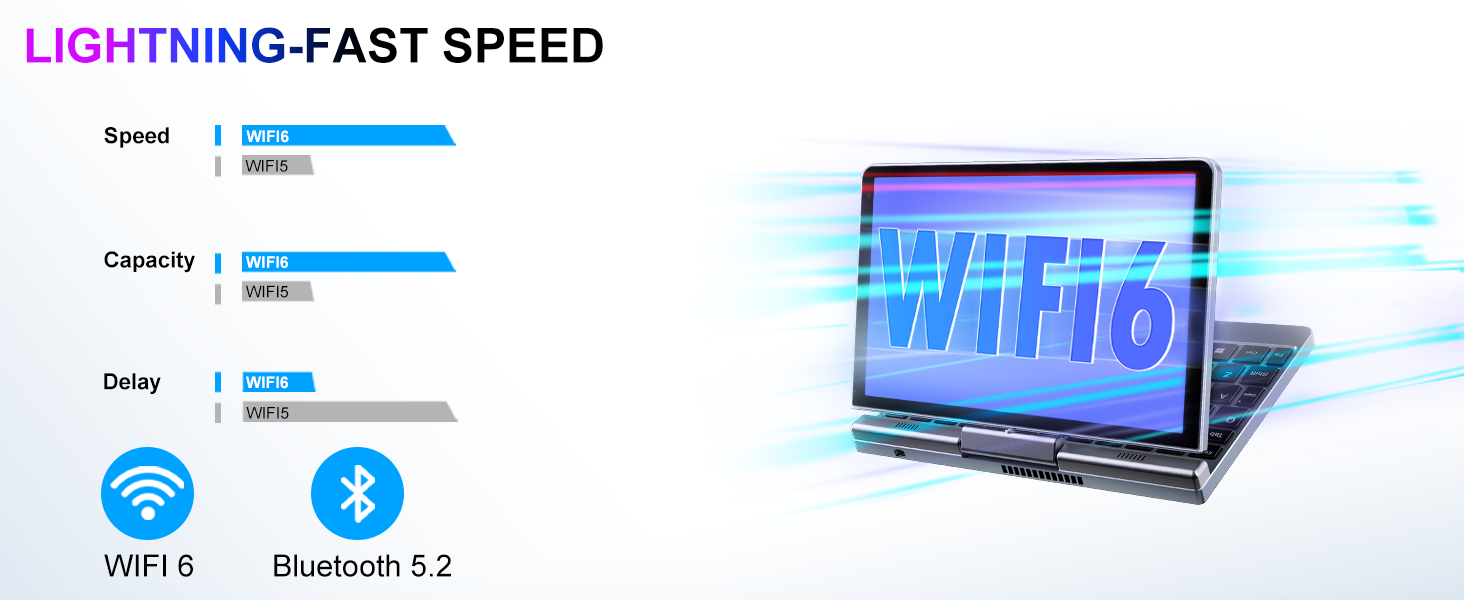
Image: Graphic illustrating the large storage capacity of the KOOSMILE P8 Mini Laptop, featuring 12GB LPDDR5 RAM, 512GB SSD, and an option for 1TB SSD, designed to boost productivity and handle demanding programs.
9.3. Compact Size and Weight
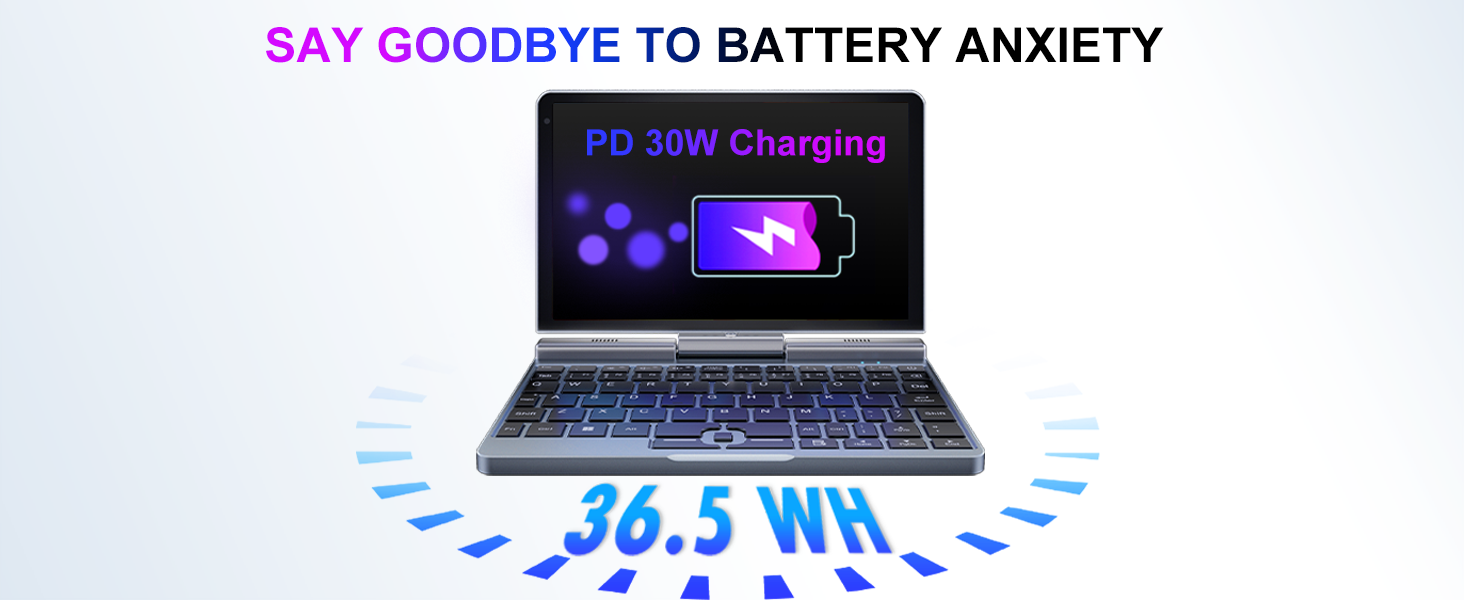
Image: Graphic demonstrating the ultra-compact size and light weight of the KOOSMILE P8 Mini Laptop, showing its 8.0-inch portable screen, 0.78-inch thin profile, and 0.78kg weight, compared to a smartphone for scale.
9.4. Batterieinformationen
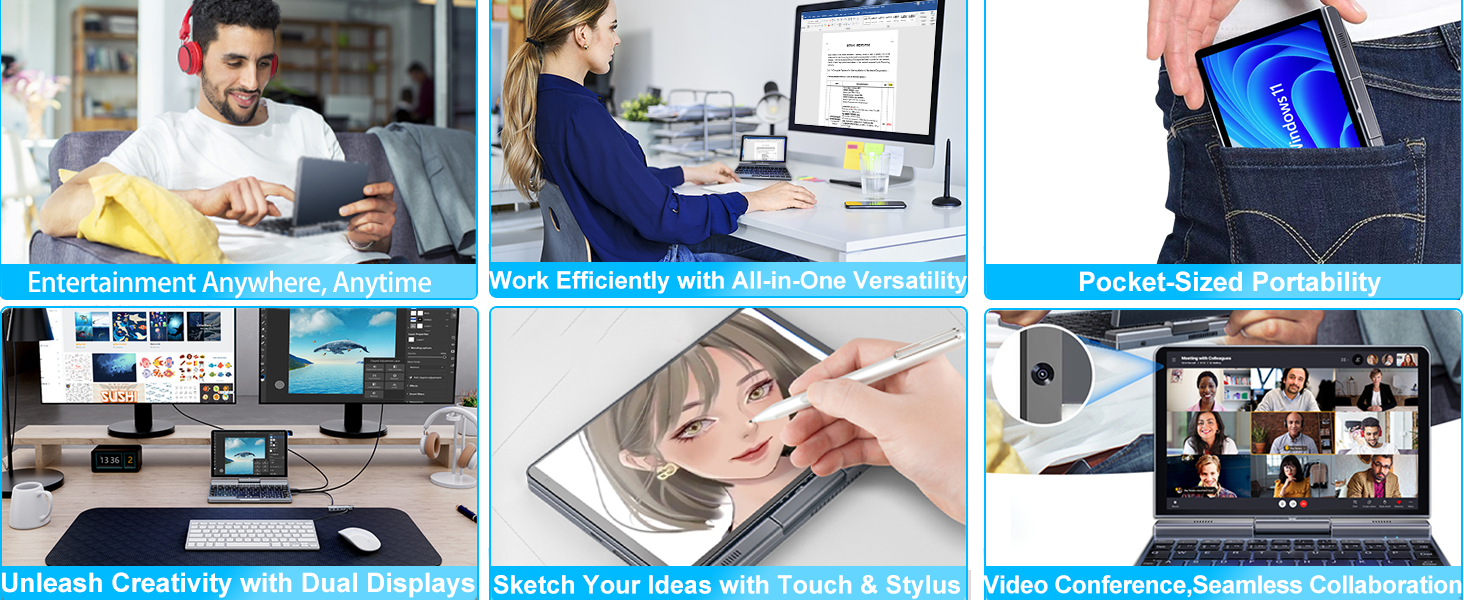
Image: Graphic highlighting the battery features of the KOOSMILE P8 Mini Laptop, indicating 36.5 WH battery capacity and PD 30W charging support to alleviate battery anxiety.
10. Garantie und Support
Your KOOSMILE Mini Laptop P8 comes with a 1-year warranty. For technical assistance, troubleshooting, or warranty claims, please contact our customer support team. We provide 24-hour customer support to ensure a worry-free experience.
Die detaillierten Garantiebedingungen entnehmen Sie bitte der in Ihrer Verpackung enthaltenen Garantiekarte.


