1. Einleitung
This manual provides detailed instructions for the installation, operation, and maintenance of your Jennov 5MP Wireless Security Camera System P48. This system includes an 8-channel NVR with a built-in monitor and four 5MP wireless cameras, designed for both indoor and outdoor surveillance. Please read this manual thoroughly before using the product to ensure proper setup and functionality.
2. Packungsinhalt
Verify that all items listed below are included in your package. If any items are missing or damaged, please contact Jennov customer support.
- 4 x Security Cameras (Outdoor Wireless)
- 1 x NVR Monitor
- 1 x P48 Security System (Integrated NVR with Monitor)
- 1 x 1TB Hard Disk (Pre-installed)
- 1 x Ethernet-Kabel
- 1 x Maus
- 4 x Hole Stickers (for camera mounting)
- 4 x Camera Bases
- 1 x NVR-Netzteil
- 4 x Camera Power Supplies
- 1 x HDMI-Kabel
- 1 x Warnaufkleber
- 1 x Benutzerhandbuch (dieses Dokument)
- 1 x Screws Pack (for mounting)
3. Produktüberschreitungview
The Jennov P48 system is a comprehensive wireless security solution designed for ease of use and reliable performance. Key features include:
- 5MP HD-Auflösung: Cameras capture clear, detailed video.
- Kabellose Verbindung: Cameras connect to the NVR wirelessly, simplifying installation.
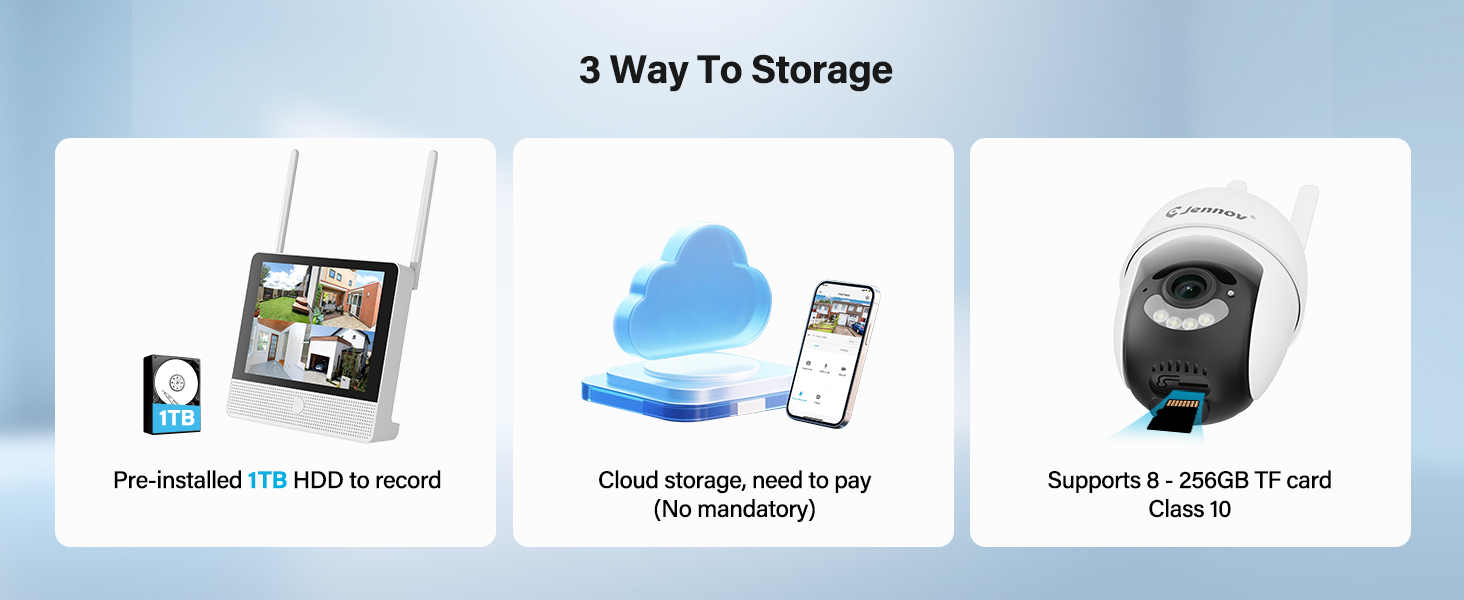
- 1TB HDD Storage: Pre-installed hard drive for local recording without subscription fees.
- Nachtsicht: Verbesserte Sichtbarkeit bei schlechten Lichtverhältnissen bis zu 15 Meter.
- Bewegungserkennung: Löst bei Bewegungserkennung Aufnahmen und Alarme aus.
- IP66 Wetterfest: Cameras are designed to withstand various outdoor weather conditions.
- Plug-and-Play: Simple setup with cameras pre-paired to the NVR.
- Zweiwege-Audio: Kommunizieren Sie über die Kameras mithilfe der mobilen App.
- Fernzugriff: View live feeds and recordings from anywhere via the Jennov app.
3.1 Systemkomponenten

The system consists of a Network Video Recorder (NVR) with an integrated monitor and four wireless IP cameras. The NVR manages video recording, storage, and provides a local viewing interface. The cameras capture video and transmit it wirelessly to the NVR.
3.2 NVR Ports and Connections
- Stromanschluss: Connect the NVR power adapter.
- USB-Anschluss: For connecting the included mouse or a USB drive for backup.
- HDMI-Anschluss: Connect to an external monitor for larger display (optional).
- LAN-Anschluss: Connect to your router for internet access and remote viewing.
- Reset-Taste: Used to reset the NVR to factory settings.
- SD-Kartensteckplatz: For additional local storage (supports up to 256GB TF card, Class 10).
4. Installationsanleitung
4.1 Erste NVR-Einrichtung
- Strom anschließen: Connect the NVR power adapter to the Power Port and plug it into an electrical outlet. The NVR will power on automatically.
- Maus anschließen: Plug the included USB mouse into the USB Port on the NVR.
- Erster Start: The NVR will boot up and display the live view from the pre-paired cameras on its integrated monitor.
- Netzwerkverbindung (optional für Fernzugriff): Für Fernbedienung viewing via the mobile app, connect the NVR's LAN Port to your internet router using the provided Ethernet cable.
4.2 Kamerainstallation
The cameras are designed for both indoor and outdoor use (IP66 rated). Choose mounting locations that provide optimal coverage and are within range of a power outlet.
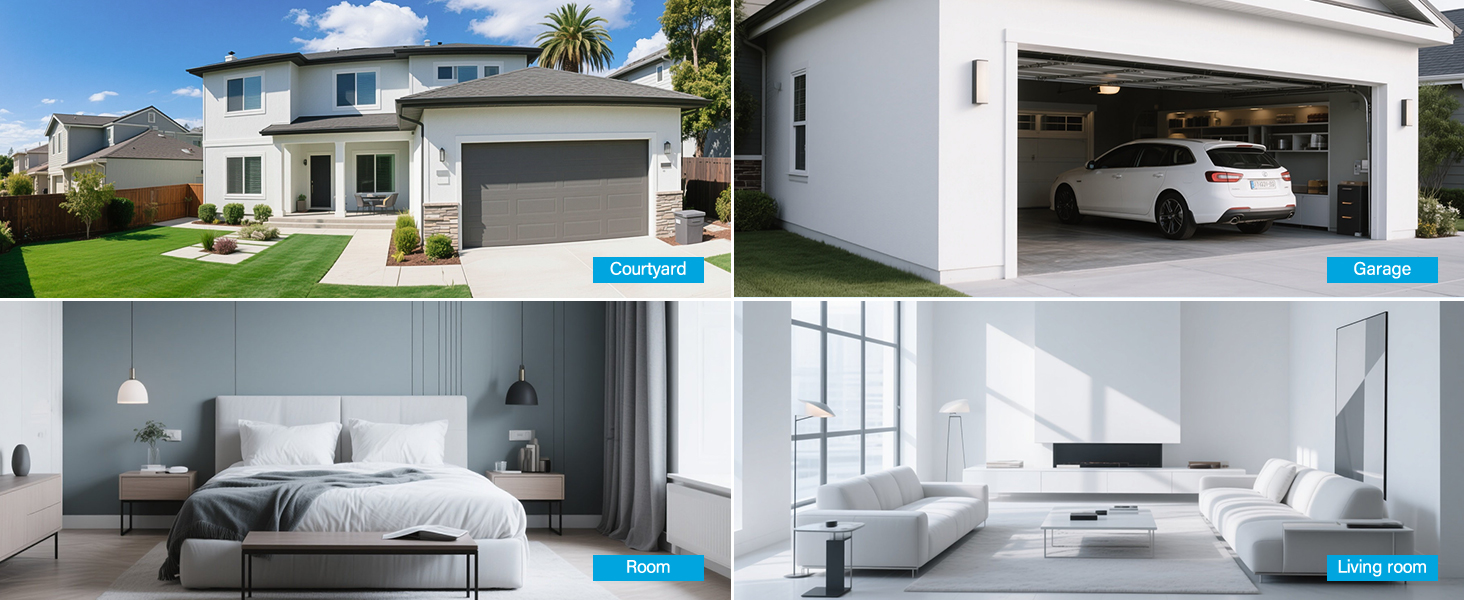
- Ort auswählen: Identify suitable locations for each camera. Consider areas like entryways, driveways, garages, and backyards. Ensure the camera has a clear line of sight to the area you wish to monitor.
- Montage:
- Use the included hole stickers to mark drilling points on the wall or ceiling.
- Bohren Sie gegebenenfalls Vorbohrungen und setzen Sie die Wandanker ein.
- Befestigen Sie die Kamerabasis mit den mitgelieferten Schrauben.
- Attach the camera to the base and adjust its angle.
- Strom anschließen: Connect each camera to its individual power adapter and plug it into an electrical outlet. The cameras will power on and automatically connect to the NVR.
Notiz: The cameras are pre-paired to the NVR. If a camera does not display a live feed, ensure it is powered on and within wireless range of the NVR. You may need to re-pair it if issues persist (refer to Troubleshooting section).
5. Bedienungsanleitung
5.1 Live View und Navigation
Once the system is powered on, the NVR's integrated monitor will display the live feeds from all connected cameras. Use the included mouse to navigate the NVR interface.
- Hauptmenü: Klicken Sie mit der rechten Maustaste irgendwo auf das Live view Bildschirm zum Aufrufen des Hauptmenüs.
- Kanalumschaltung: Click on a specific camera feed to view it in full screen, or use the layout options to change the multi-camera display.
5.2 Aufnahme und Wiedergabe
The system records continuously to the pre-installed 1TB HDD. Recording settings can be adjusted via the NVR's menu.
- Kontinuierliche Aufnahme: The system is configured for 24/7 continuous recording by default.
- Bewegungsaktivierte Aufzeichnung: You can configure cameras to record only when motion is detected, saving storage space.
- Wiedergabe: Wählen Sie im Hauptmenü „Wiedergabe“, um erneut zu hören.view aufgenommenes footage. Sie können nach Datum, Uhrzeit und Ereignistyp (z. B. Bewegungserkennung) suchen.
5.3 Bewegungserkennung und Benachrichtigungen
The cameras feature smart motion detection to alert you to activity.
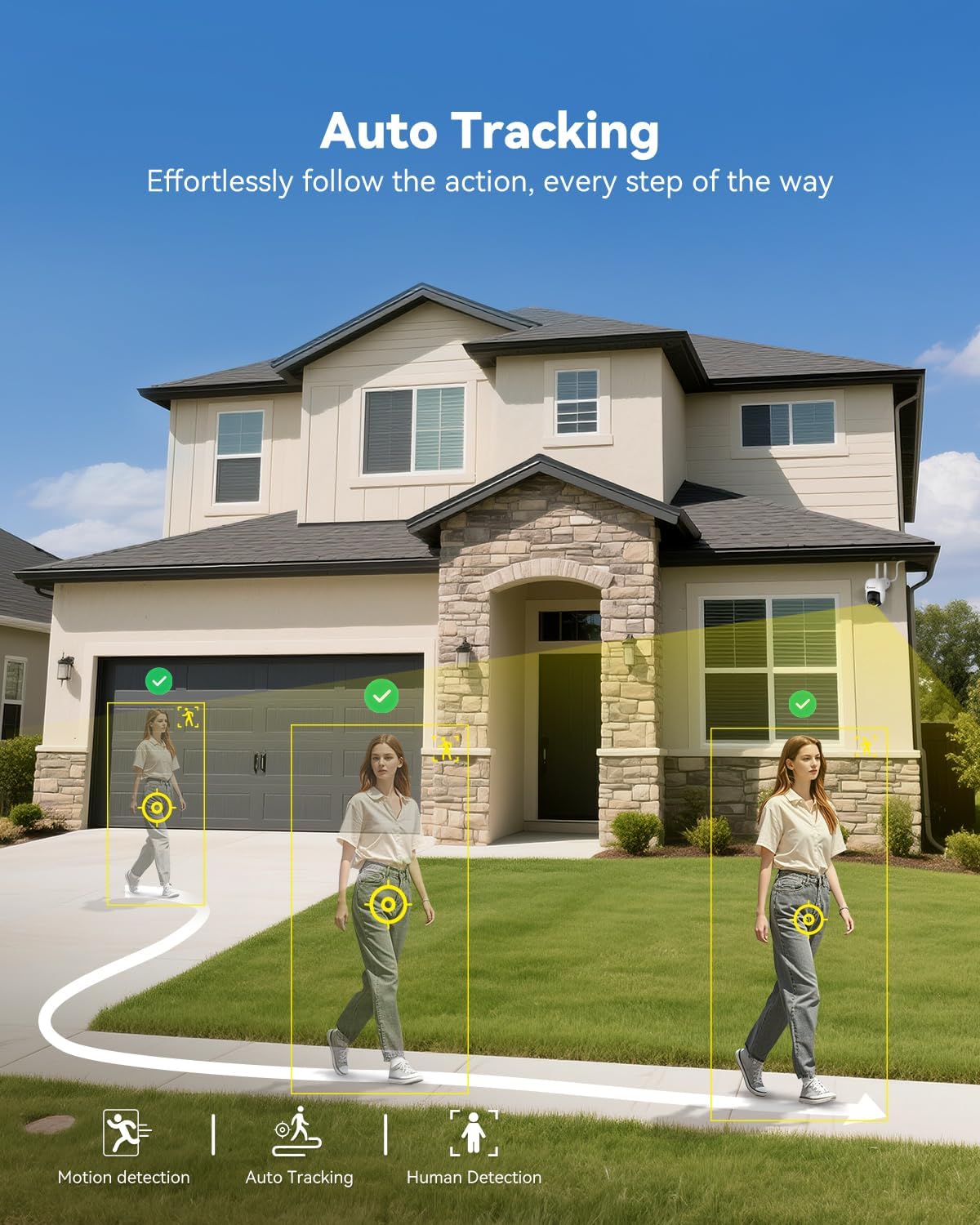
- Konfiguration: Access motion detection settings from the NVR's main menu. You can define detection zones and sensitivity levels for each camera.
- Benachrichtigungen: When motion is detected, the system can trigger recordings, send push notifications to your mobile app (if configured), and activate audible alarms or spotlights on the camera (if supported and enabled).

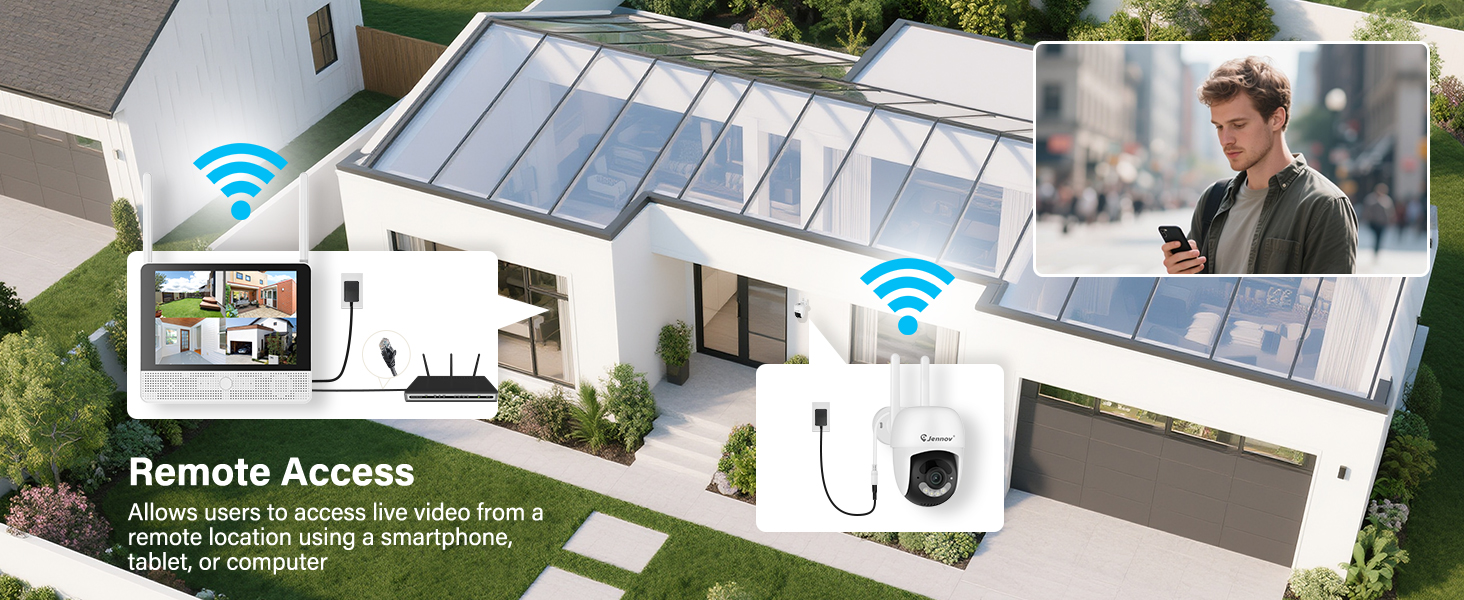
5.4 Fernzugriff (Jennov-App)
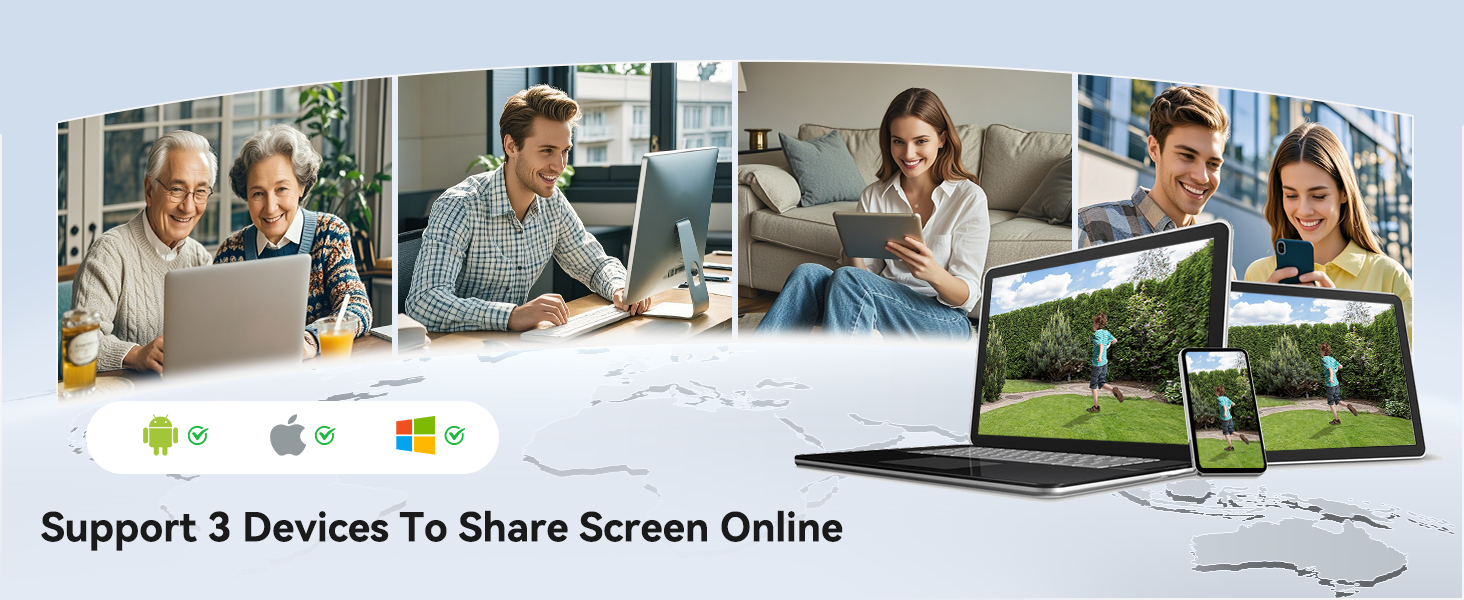
Zu view your cameras remotely, download the Jennov app on your smartphone or tablet.
- Lade App herunter: Suchen nach "Jennov" in your device's app store (iOS or Android).
- Account registrieren: Create a new user account within the app.
- Gerät hinzufügen: Follow the in-app instructions to add your NVR system. This typically involves scanning a QR code displayed on the NVR's monitor or entering the device ID manually.
- Live View & Wiedergabe: Nach dem Hinzufügen können Sie view live feeds, play back recordings, and receive alerts directly on your mobile device.
5.5 Zwei-Wege-Audio
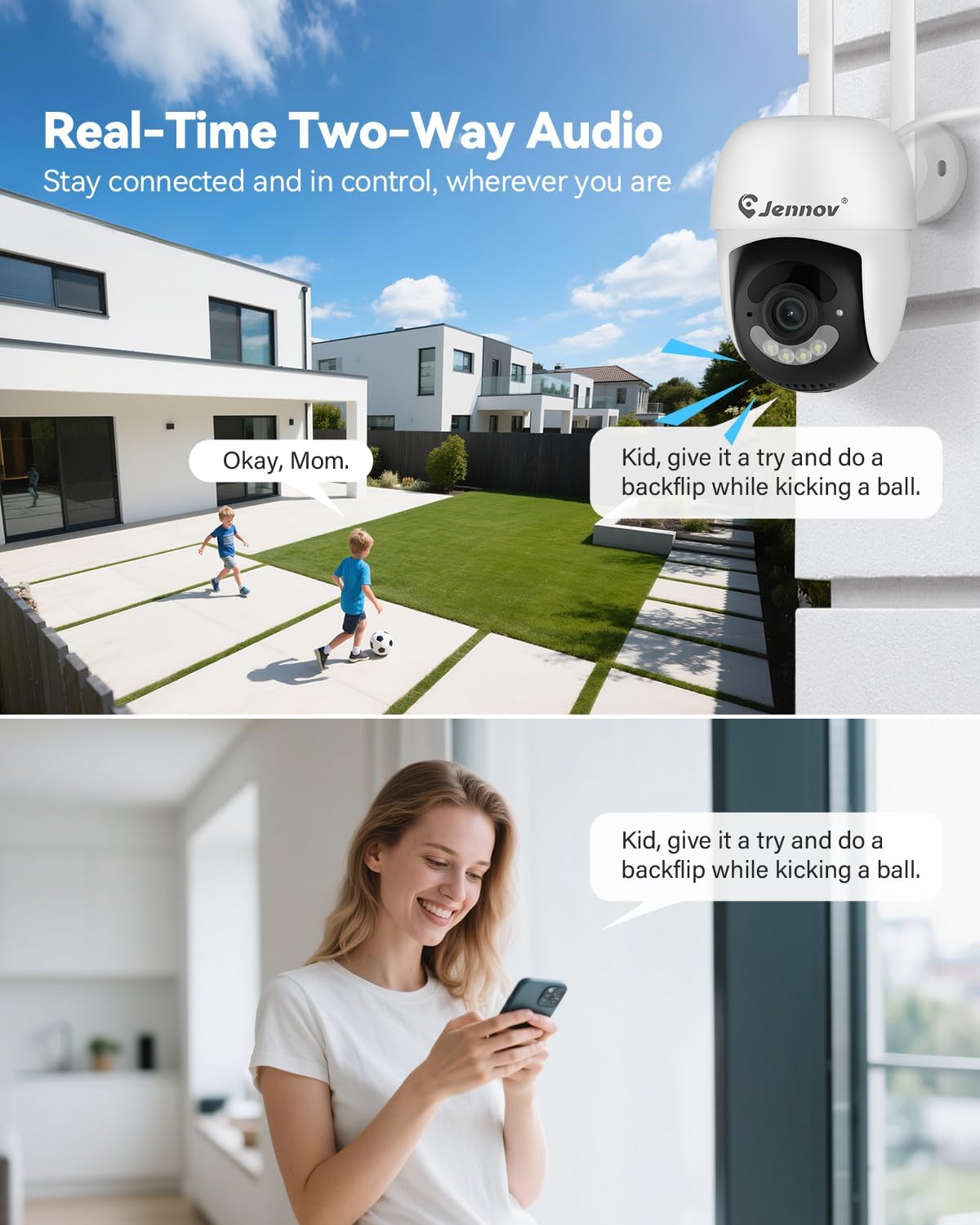
Each camera is equipped with a microphone and speaker, enabling two-way communication through the Jennov app.
- Aktivieren: Im Live view of a specific camera on the app, locate the microphone icon. Tap it to speak, and your voice will be transmitted through the camera's speaker.
- Hören: The camera's microphone will pick up audio from its surroundings, which you can hear through the app.
5.6 Nachtsicht
The cameras automatically switch to night vision mode in low-light conditions, providing clear surveillance even in darkness.

- Automatische Aktivierung: Infrared (IR) LEDs enable black-and-white night vision. Some models may also offer color night vision under certain conditions (e.g., with ambient light or activated spotlight).
- Reichweite: Night vision is effective up to 15 meters (50 feet).
6. Wartung
6.1 Festplattenverwaltung
The 1TB HDD will automatically overwrite the oldest footage when full. No manual intervention is typically required for continuous recording.
- Backup-Footage: If you need to save specific recordings, use the NVR's backup function (via USB port) or download from the mobile app.
- Festplatten-Gesundheitsprüfung: Periodically check the HDD status in the NVR's system settings to ensure proper functioning.
6.2 Reinigung
- Kameras: Reinigen Sie die Kameralinsen vorsichtig mit einem weichen, fusselfreien Tuch.amp cloth to remove dust or smudges. Do not use harsh chemicals.
- NVR: Keep the NVR monitor and unit free from dust. Use a dry, soft cloth for cleaning.
6.3 Firmware-Updates
Periodically check the Jennov website or contact customer support for available firmware updates. Updates can improve system performance, add new features, or address security vulnerabilities. Follow the provided instructions carefully when performing updates.
7. Fehlerbehebung
| Problem | Mögliche Ursache | Lösung |
|---|---|---|
| Kein Bild auf dem NVR-Monitor | NVR not powered on; Power adapter faulty; Monitor cable loose. | Ensure NVR power adapter is securely connected and plugged in. Check power outlet. If using external monitor, ensure HDMI cable is connected properly. |
| Camera not displaying live feed | Camera not powered; Out of wireless range; Not paired with NVR. | Ensure camera power adapter is connected and plugged in. Move camera closer to NVR. If still no feed, re-pair the camera: access NVR menu, go to "Camera Management" and follow instructions to add/re-pair cameras. |
| Cannot access system via mobile app | NVR not connected to internet; Incorrect app settings; Firewall issues. | Ensure NVR is connected to your router via Ethernet cable. Verify your phone has internet access. Double-check device ID/QR code in the app. Ensure router firewall is not blocking NVR access. |
| Schlechte Videoqualität oder Verzögerung | Weak wireless signal; Obstructions; Interference. | Relocate camera or NVR to improve signal strength. Minimize obstructions (thick walls, metal objects). Avoid placing near other wireless devices that may cause interference. |
| Bewegungserkennung funktioniert nicht | Settings incorrect; Sensitivity too low; Detection zone not set. | Access NVR menu, go to "Motion Detection" settings. Adjust sensitivity, define detection zones, and ensure motion recording/alerts are enabled. |
8. Spezifikationen
| Besonderheit | Detail |
|---|---|
| Marke | Jennov |
| Modellnummer | K4-P48HC55AS-V2108-1F2 (P48 System) |
| Konnektivitätstechnologie | Kabellos |
| Auflösung der Videoaufnahme | 5MP (Ultra-HD) |
| Anzahl der Kanäle | 8 (System includes 4 cameras, expandable) |
| Speicherkapazität | 1 TB HDD (pre-installed), supports up to 256GB TF card |
| Stromquelle | Corded Electric (Outlet-Powered Cameras) |
| Artikelabmessungen (L x B x H) | 13.39 x 7.48 x 11.42 Zoll |
| Empfohlene Verwendung | Innen- und Außenüberwachung |
| Nachtsichtbereich | 10-15 Meters (approx. 33-50 feet) |
| Wetterschutz | Schutzart IP66 |
| Betriebstemperatur | -20 °C bis 60 °C (-4 °F bis 140 °F) |
9. Garantie und Support
For warranty information, technical support, or any questions regarding your Jennov P48 Wireless Security Camera System, please refer to the warranty card included in your package or visit the official Jennov website. You can also contact Jennov customer service directly for assistance.
Jennov Official WebWebsite: Visit Jennov Store on Amazon


