Einführung
This user manual provides comprehensive instructions for setting up, operating, maintaining, and troubleshooting your NIMO 15.6" FHD Business Laptop. Please read this manual carefully before using your device to ensure optimal performance and longevity. Keep this manual for future reference.
Lieferumfang
Überprüfen Sie, ob alle Artikel im Paket vorhanden sind:
- 1 x Nimo N156 Laptop
- 1 x Typ-C 100W PD Schnellladegerät
- 1 x Benutzerhandbuch (dieses Dokument)
- Windows 11 Home (vorinstalliert)
- 2 Jahre Garantie, 90 Tage Rückgaberecht
Produkt überview
Familiarize yourself with the key components of your NIMO laptop.

Abbildung 1: Front view of the NIMO 15.6 inch FHD Business Laptop, showcasing its full HD IPS display, Intel Core i5 processor, fingerprint reader, Type-C PD charger port, and backlit keyboard.

Abbildung 2: Close-up of the NIMO laptop's backlit full keyboard, highlighting the integrated webcam shield, fingerprint sensor, and numeric keypad for enhanced productivity and security.

Abbildung 3: Diagram illustrating the multiple ports on the NIMO laptop, including Micro SD slot, USB 2.0, USB 3.0, Headphone Jack, Kensington lock, Type-C (multifunction), Type-C (PD Charger Only), HDMI, and Charge LED.
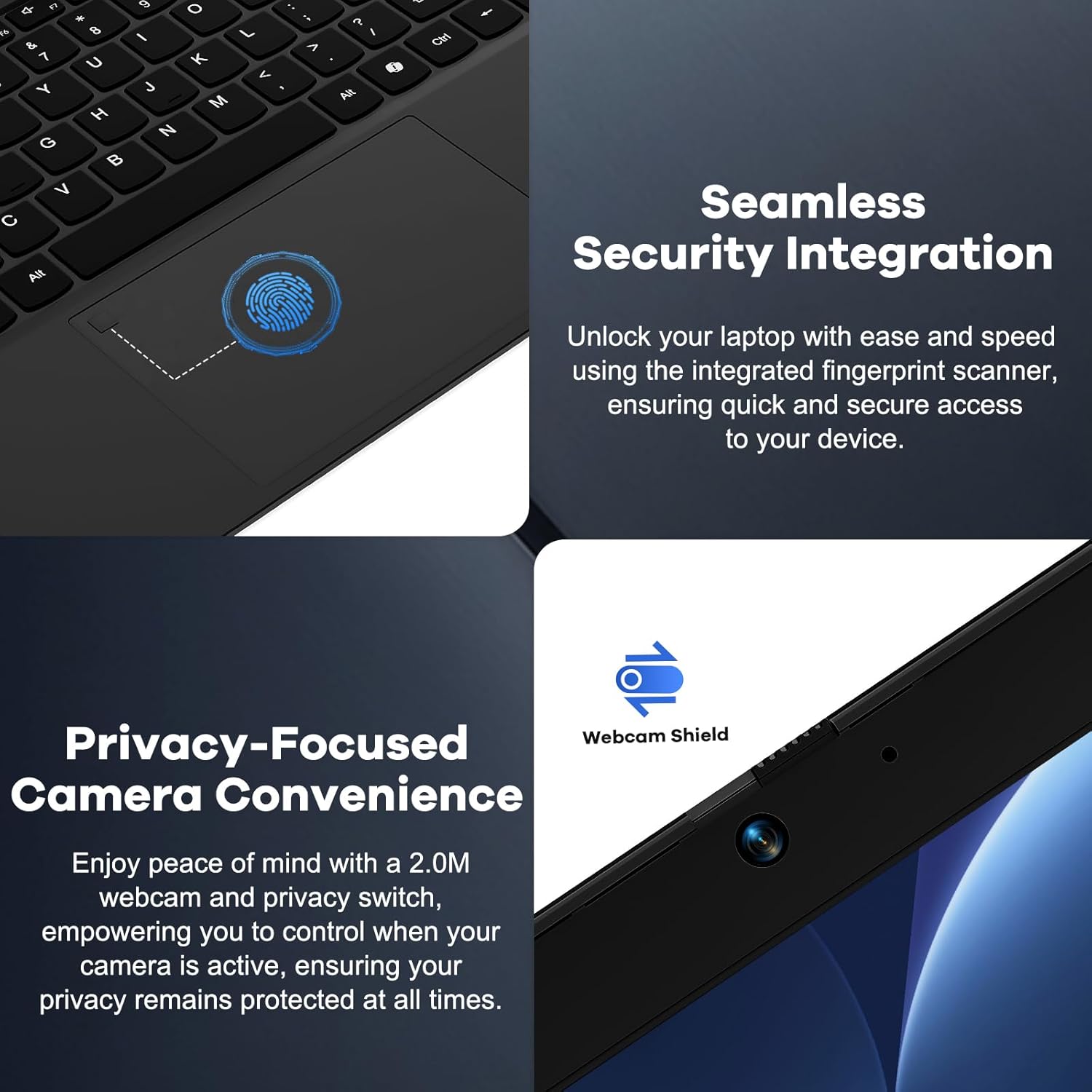
Abbildung 4: Details on the seamless security integration with the fingerprint sensor for quick login and the privacy-focused camera convenience with a built-in webKameraschutz.

Abbildung 5: The compact 100W GaN Type-C PD Fast Charger included with the NIMO laptop, capable of charging to 50% in 15 minutes and compatible with various devices.
Aufstellen
1. Erstes Einschalten
- Auspacken: Nehmen Sie den Laptop und sämtliches Zubehör vorsichtig aus der Verpackung.
- Strom anschließen: Plug the 100W GaN Type-C PD Fast Charger into a power outlet and connect the USB-C cable to the laptop's Type-C charging port. The Charge LED will illuminate.
- Erster Start: Open the laptop lid. The system may power on automatically or you may need to press the power button (located on the top right of the keyboard).
- Windows Setup: Folgen Sie den Anweisungen auf dem Bildschirm, um die Einrichtung von Windows 11 Home abzuschließen. Dazu gehören die Auswahl Ihrer Region und Sprache, die Verbindung mit einem WLAN-Netzwerk und die Erstellung eines Benutzerkontos.
2. Peripheriegeräte anschließen
Your NIMO laptop offers various ports for connecting external devices:
- USB-Geräte: Schließen Sie USB-Sticks, externe Festplatten, Mäuse oder Tastaturen an die USB 2.0- oder USB 3.0-Anschlüsse an.
- Externe Anzeige: Verwenden Sie den HDMI-Anschluss, um einen externen Monitor oder Projektor anzuschließen.
- Audio: Plug headphones or external speakers into the 3.5mm Headphone Jack.
- Speicherkarten: Insert a Micro SD card into the Micro SD slot for additional storage.
Bedienungsanleitung
1. Grundlegende Bedienung
- Ein-/Ausschalten: Press the power button to turn the laptop on. To shut down, click the Start button in Windows, then Power > Shut down.
- Schlafmodus: Close the lid or click the Start button, then Power > Sleep to put the laptop into sleep mode.
- Fingerprint Login: Utilize the integrated fingerprint sensor for quick and secure login to Windows. Register your fingerprints through Windows Settings > Accounts > Sign-in options.
- Tastatur mit Hintergrundbeleuchtung: The keyboard features backlighting for low-light conditions. Use the dedicated function key (Fn + F key combination, typically F3 or F4) to toggle or adjust the backlight brightness.
- WebKamera-Privatsphäre: The laptop includes a physical webcam shield. Slide the switch next to the webcam to cover or uncover the camera lens for privacy.
2. Windows 11-Funktionen
Your laptop comes with Windows 11 Home pre-installed. Explore its features for enhanced productivity and entertainment:
- Snap Layouts: Easily organize open windows on your screen.
- Widgets: Access personalized information at a glance.
- Microsoft Store: Anwendungen herunterladen und installieren.
- Sicherheit: Windows Defender provides built-in antivirus and firewall protection.
Wartung
- Reinigung: Verwenden Sie ein weiches, fusselfreies Tuch, um Bildschirm und Gehäuse zu reinigen. Hartnäckige Flecken lassen sich leicht mit einem feuchten Tuch entfernen.ampBefeuchten Sie das Tuch mit Wasser oder einem Bildschirmreiniger. Vermeiden Sie aggressive Chemikalien.
- Batteriepflege: Um die Akkulaufzeit zu verlängern, sollte der Akku nicht häufig vollständig entladen werden. Es wird empfohlen, den Ladezustand des Akkus möglichst zwischen 20 % und 80 % zu halten. Bewahren Sie den Laptop an einem kühlen, trockenen Ort auf, wenn er längere Zeit nicht benutzt wird.
- Software-Updates: Regularly check for and install Windows updates and driver updates to ensure system stability and security. Go to Windows Settings > Windows Update.
- Speicherverwaltung: Unnötiges regelmäßig entfernen files and applications to free up storage space and improve performance.
Fehlerbehebung
| Problem | Mögliche Ursache | Lösung |
|---|---|---|
| Der Laptop lässt sich nicht einschalten. | Problem mit schwacher Batterie oder defektem Netzteil. | Ensure the charger is properly connected and the power outlet is working. Allow the laptop to charge for at least 30 minutes before attempting to power on again. |
| Der Bildschirm ist leer oder flackert. | Incorrect display settings or driver issue. | Try connecting an external monitor to check if the issue is with the laptop's display. Update graphics drivers. Restart the laptop. |
| Probleme mit der WLAN-Verbindung. | Incorrect network settings or driver issue. | Ensure Wi-Fi is enabled. Restart your router and laptop. Update Wi-Fi drivers. Forget and reconnect to the network. |
| Die Tastaturbeleuchtung funktioniert nicht. | Backlight feature is off or driver issue. | Press the Fn + F key combination (e.g., F3 or F4) to toggle the backlight. Check keyboard settings in Windows. |
Sollte das Problem weiterhin bestehen, konsultieren Sie bitte den Abschnitt Garantie und Support, um Hilfe zu erhalten.
Technische Daten
| Besonderheit | Detail |
|---|---|
| Marke | NIMO |
| Modellname | Nimo N156 |
| Bildschirmgröße | 15.6 Zoll |
| Bildschirmauflösung | 1920 x 1080 Pixel (FHD IPS) |
| Prozessor | Intel Core i5-12450H (8 Kerne, bis zu 4.4 GHz) |
| RAM | 8 GB DDR4 (aufrüstbar) |
| Festplatte | 256 GB PCIe SSD (Upgradable) |
| Grafik-Coprozessor | Intel Integrated Graphics |
| Betriebssystem | Windows 11 Home |
| Kabelloser Typ | 802.11a/b/g/n/ac (WiFi 6) |
| Bluetooth | BT5.2 |
| Häfen | 1x USB 2.0, 3x USB 3.0, Type-C (PD Charger Only), Type-C (Multifunction), HDMI, Headphone Jack, Micro SD Slot |
| Netzteil | 100W GaN Type-C PD Fast Charger |
| Durchschnittliche Akkulaufzeit | 5 Hours (54Wh Smart Battery for up to 9 Hours Standby) |
| Artikelgewicht | 3.8 Pfund |
| Technische Daten | 14.07 x 8.98 x 0.76 Zoll |
| Besondere Merkmale | Tastatur mit Hintergrundbeleuchtung, Fingerabdruckleser, HD-Audio, Speicherkartensteckplatz, Ziffernblock WebKameraschild |
Garantie und Support
NIMO stands behind the quality of its products. Your NIMO laptop comes with the following:
- 2 Jahr Garantie: A 2-Year Warranty from NIMO Direct Inc. covers manufacturing defects and hardware failures.
- 90 Tage problemlose Rückgabe: Profitieren Sie von unserem 90-tägigen Rückgaberecht für Ihre Sicherheit.
- 24/7 Dedicated Support: For any issues or inquiries, dedicated support is available to provide instant resolution.
For warranty claims or technical assistance, please contact NIMO customer support through the contact information provided on the official NIMO webWebsite oder Ihre Kaufdokumentation.
Video: Ein Überview of the NIMO laptop, highlighting its features, performance, and the comprehensive 90-day return policy and 2-year warranty, demonstrating NIMO's commitment to customer satisfaction.


