Einführung
Thank you for choosing the ProtoArc KM310 Dual Mode Mechanical Keyboard and Mouse Kit. This kit provides a versatile and efficient solution for your computing needs, offering both 2.4G wireless and Bluetooth connectivity. The mechanical keyboard features a UK QWERTY layout with responsive red switches, while the ergonomic mouse offers adjustable DPI and quiet clicks. This manual will guide you through the setup, operation, and maintenance of your new device.
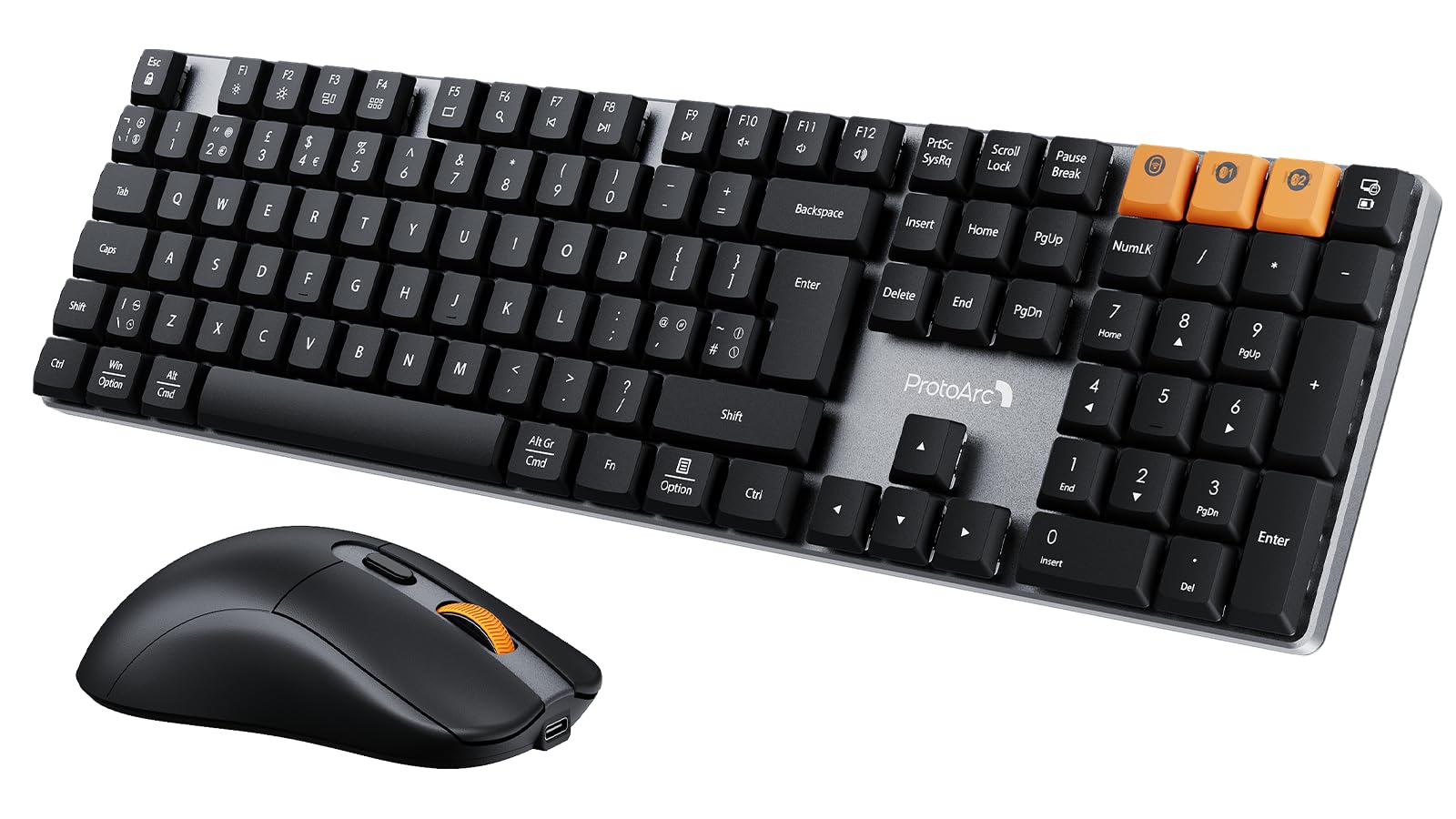
Image: The ProtoArc KM310 keyboard and mouse kit, showcasing its sleek design on a modern desk setup.
Packungsinhalt
- ProtoArc KM310 Mechanical Keyboard
- ProtoArc Kabellose Maus
- USB 2.4G Receiver (stored in the mouse battery compartment)
- USB-C-Ladekabel
- Bedienungsanleitung
Installationsanweisungen
Tastatur-Setup
The keyboard supports both 2.4G wireless and Bluetooth connectivity. You can connect up to three devices simultaneously (one via 2.4G, two via Bluetooth).
2.4G-Drahtlosverbindung:
- Locate the USB 2.4G receiver, typically stored in the mouse's battery compartment.
- Stecken Sie den USB-Empfänger in einen freien USB-Port Ihres Computers.
- Schalten Sie die Tastatur mit dem Netzschalter an der Seite oder Rückseite ein.
- Drücken Fn + 4 to switch the keyboard to 2.4G mode. The indicator light will flash briefly, then remain solid when connected.
Bluetooth-Verbindung (BT1 / BT2):
- Schalten Sie die Tastatur mit dem Netzschalter ein.
- Drücken Fn + Q (für BT1) oder Fn + W (for BT2) to select a Bluetooth channel. The indicator light will flash slowly.
- Um in den Pairing-Modus zu wechseln, halten Sie Fn + Q or Fn + W for 3-5 seconds until the indicator light flashes rapidly.
- On your device (computer, laptop, tablet), enable Bluetooth and search for "ProtoArc KM310".
- Select "ProtoArc KM310" to pair. The indicator light will stop flashing and remain solid when connected.
- Repeat for a second Bluetooth device using Fn + W.
Maus-Setup
The mouse also supports both 2.4G wireless and Bluetooth connectivity.
2.4G-Drahtlosverbindung:
- Ensure the USB 2.4G receiver is plugged into your computer.
- Schalten Sie die Maus mit dem Netzschalter an ihrer Unterseite ein.
- Press the mode switch button on the underside of the mouse until the indicator light shows 2.4G mode (usually green). The mouse should connect automatically.
Bluetooth Verbindung:
- Schalten Sie die Maus mit dem Netzschalter ein.
- Press the mode switch button on the underside of the mouse to cycle through Bluetooth modes (BT1 or BT2, usually blue).
- Press and hold the mode switch button for 3-5 seconds until the indicator light flashes rapidly.
- On your device, enable Bluetooth and search for "ProtoArc Mouse".
- Select "ProtoArc Mouse" to pair. The indicator light will stop flashing and remain solid when connected.

Image: The ProtoArc KM310 keyboard and mouse connected to multiple devices (desktop, laptop, tablet) via 2.4G and Bluetooth.
Bedienungsanleitung
Tastaturfunktionen
- Mechanische Tasten: Die Tastatur verfügt über flache Tasten.file mechanical red switches for a smooth and responsive typing experience with low sound.
- UK QWERTY Layout: Standard UK QWERTY layout with a full numeric keypad.
- Multimedia-Tasten: Verwenden Sie die Fn key in combination with the F-keys (F1-F12) for various multimedia and shortcut functions (e.g., volume control, media playback, brightness adjustment). Refer to the keycap legends for specific functions.
- Verstellbare Neigungsbeine: The keyboard includes adjustable tilt legs on the underside, allowing you to set it at a 6° or 9° angle for improved ergonomic comfort during long typing sessions.

Bild: Eine Nahaufnahme view of the ProtoArc KM310 mechanical keyboard, highlighting the low-profile red switches and keycap design.

Image: The ProtoArc KM310 keyboard from a side angle, demonstrating the adjustable tilt legs set at a 9-degree angle.
Mausfunktionen
- Einstellbare DPI: The mouse offers three adjustable DPI levels: 1000, 1600, and 2400. Press the DPI button (usually located behind the scroll wheel) to cycle through these settings and adjust cursor sensitivity.
- Leiser Klick: Designed for quiet operation, reducing click noise by up to 90%.
- Ergonomisches Design: The mouse features an ergonomic grip for comfortable use, reducing hand fatigue during extended periods.
- Ultraleicht: Weighing approximately 63g, the mouse is designed to be ultra-light, contributing to efficient work and reduced fatigue.

Image: The ProtoArc wireless mouse illustrating its adjustable DPI settings (1000, 1600, 2400) and quiet click feature.

Image: A hand demonstrating the natural and ergonomic grip of the ProtoArc wireless mouse.

Image: A comparison showing the ProtoArc wireless mouse's ultra-lightweight design (63g) compared to a traditional mouse (100g), emphasizing reduced fatigue.
Ladeanleitung
Both the keyboard and mouse are equipped with built-in rechargeable batteries and use a USB-C charging port.
- Laden: Connect the provided USB-C cable to the charging port on the keyboard/mouse and the other end to a USB power source (e.g., computer USB port, wall adapter).
- Ladeanzeige: An indicator light will typically show red during charging and turn off or change color when fully charged.
- Ladezeit: Eine vollständige Aufladung dauert in der Regel 2-3 Stunden.
- Standby-Zeit: The devices offer a standby time of 150-200 days on a full charge.
- Nutzung während des Ladevorgangs: Both devices can be used while charging.
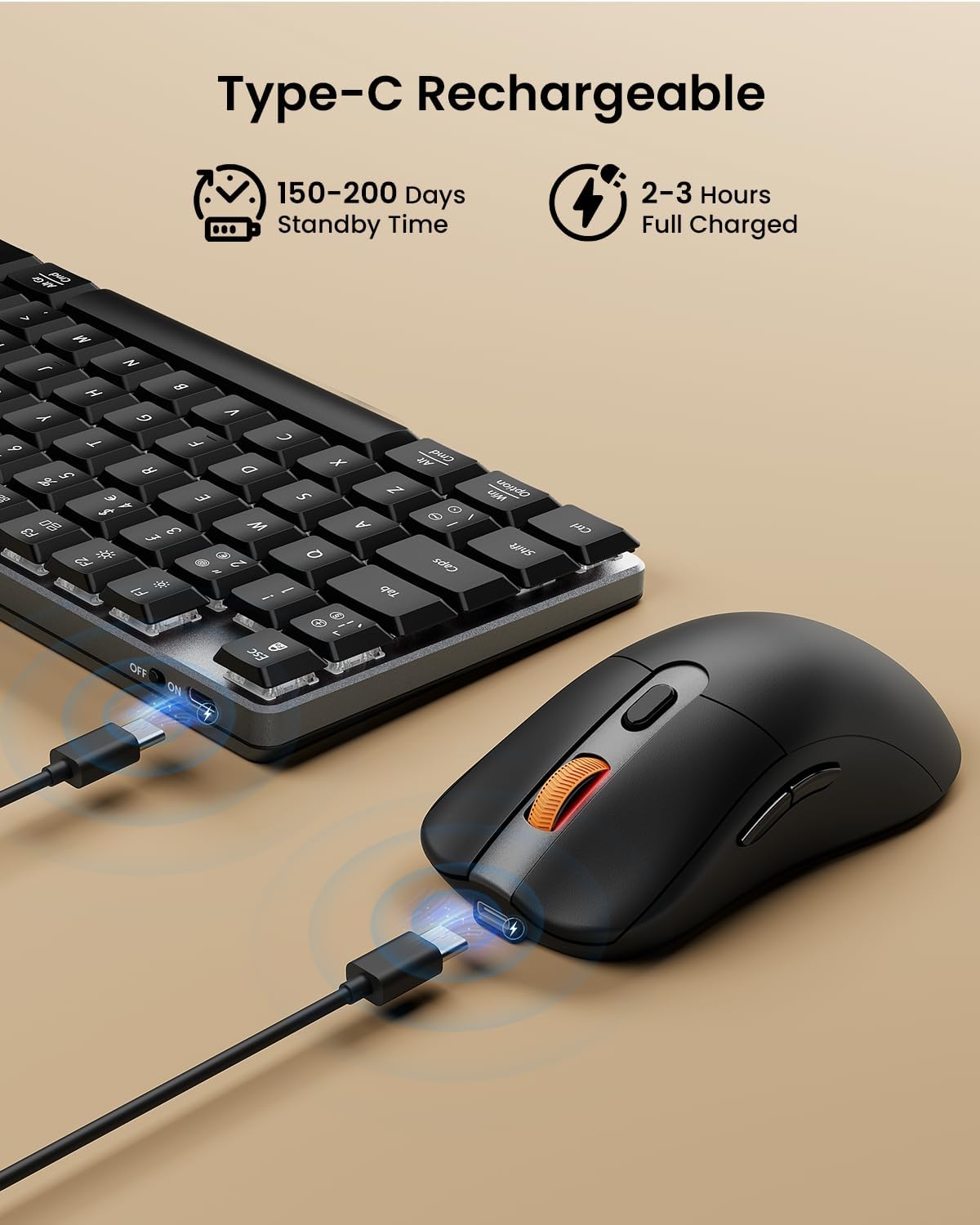
Image: The ProtoArc keyboard and mouse being charged simultaneously via USB-C cables, illustrating the charging ports and cables.
Wartung
- Reinigung: Use a soft, dry cloth to clean the surfaces of the keyboard and mouse. For deeper cleaning, especially between keys, use compressed air. Avoid using harsh chemicals or abrasive materials.
- Lagerung: Schalten Sie die Geräte bei längerem Nichtgebrauch aus, um die Batterielebensdauer zu verlängern. Bewahren Sie sie an einem kühlen, trockenen Ort auf.
- Batteriepflege: Avoid fully discharging the battery frequently. Charge the devices regularly to maintain optimal battery health.
Fehlerbehebung
Tastatur/Maus reagiert nicht:
- Stellen Sie sicher, dass die Geräte eingeschaltet sind.
- Überprüfen Sie den Akkustand und laden Sie ihn bei Bedarf auf.
- Stellen Sie bei einer 2.4-GHz-Verbindung sicher, dass der USB-Empfänger fest an einen funktionierenden USB-Anschluss angeschlossen ist. Versuchen Sie es gegebenenfalls mit einem anderen USB-Anschluss.
- For Bluetooth connection, ensure Bluetooth is enabled on your device and the correct channel (BT1/BT2) is selected on the keyboard/mouse. Try re-pairing the device.
- Move the devices closer to the receiver/device to rule out interference.
Verzögerungen oder Verbindungsabbrüche:
- Ensure there are no strong sources of interference (e.g., Wi-Fi routers, other wireless devices) nearby.
- Versuchen Sie, die Verbindung über den anderen Modus herzustellen (z. B. wenn Sie 2.4 GHz verwenden, versuchen Sie es mit Bluetooth oder umgekehrt).
- Update your computer's Bluetooth drivers if connecting via Bluetooth.
Tasten funktionieren nicht richtig:
- Check for any debris under the keycaps.
- Ensure the keyboard is not in a special mode that might alter key functions.
Technische Daten
| Marke | ProtoArc |
| Modellnummer | KM310 |
| Farbe | Schwarz |
| Konnektivitätstechnologie | Bluetooth, 2.4-GHz-USB-Funk |
| Betriebssystemkompatibilität | Windows, macOS, Linux |
| Besondere Funktionen (Tastatur) | Rechargeable mechanical keyboard, UK QWERTY layout, Red switches, Numeric keypad, Shortcut and multimedia keys, Adjustable tilt legs |
| Special Features (Mouse) | Adjustable DPI (1000/1600/2400), Silent click, Ergonomic grip, Ultra-lightweight (approx. 63g) |
| Kompatible Geräte | Personalcomputer, Laptop, Tablet |
| Tastaturbeschreibung | Mechanisch |
| Bewegungserkennungstechnologie | Optisch |
| Stromquelle | Batteriebetrieben (wiederaufladbar über USB-C) |
| Akku-Standby-Zeit | 150-200 Tage |
| Vollständige Ladezeit | 2-3 Stunden |
Garantie und Support
ProtoArc products are designed for reliability and performance. For any questions, technical support, or warranty claims, please contact ProtoArc customer service. Details can typically be found on the official ProtoArc webWebsite oder über Ihre Einkaufsplattform.
Bitte bewahren Sie Ihren Kaufbeleg für Garantiezwecke auf.


