1. Einleitung
Vielen Dank für Ihren Einkauf.asing the Matbip Switch2 Controller. This advanced model is designed to enhance your gaming experience across multiple platforms, including Nintendo Switch (1st and 2nd generations), Android, iOS (16.0 and above), and Windows PC. Featuring cutting-edge technology such as Hall Sensor sticks, a 6-axis gyro sensor, and customizable functions, this controller offers precise control and immersive feedback.
Please read this manual carefully before use to ensure proper operation and to fully utilize all features.
2. Packungsinhalt
- Matbip Switch2 Pro Controller x 1
- Typ-C Ladekabel x 1
- Benutzerhandbuch x 1
3. Produktüberschreitungview

Abbildung 1: Vorderseite view of the Matbip Switch2 Controller.
Hauptmerkmale:
- Kompatibilität mehrerer Plattformen: Supports Switch (1st & 2nd Gen), Android, iOS (16.0+), and Windows PC.
- Stabile drahtlose Verbindung: Utilizes Bluetooth 5.0 for zero-latency communication up to 10 meters.
- Drift-Zero Hall Sensor Sticks: Non-contact Hall sensors for both joysticks and triggers eliminate drift, offering over 5 million operations durability and ±0.5% high precision.
- Programmable Back Buttons (M1, M2): Customize complex actions with macro programming for enhanced gameplay.
- 6-Achsen-Gyrosensor: High-sensitivity gyro sensor detects subtle movements for precise motion control and aiming.
- Adjustable TURBO Function: Three-speed continuous fire (5/12/20 shots/sec) for rapid actions in games.
- 4-Level HD Vibration: Adjustable vibration intensity (0%/30%/70%/100%) provides immersive tactile feedback.
- Langlebige Batterie: Built-in 1000mAh battery provides up to 20 hours of continuous play on a 4-hour charge, with low battery alerts.
- Ergonomisches Design: Streamlined shape with premium faux leather material and anti-slip coating ensures comfortable grip and reduces fatigue during long gaming sessions.
4. Einrichtung und Verbindung
4.1 Laden des Controllers
Before first use, fully charge the controller. Connect the included Type-C cable to the controller's charging port and the other end to a USB power source (e.g., Switch dock, PC, USB wall adapter). The indicator lights will show charging status. A full charge takes approximately 4 hours.

Abbildung 2: Batteriekapazität und Ladedetails.
4.2 Mit Geräten verbinden
The controller supports wireless Bluetooth 5.0 connection across various platforms.
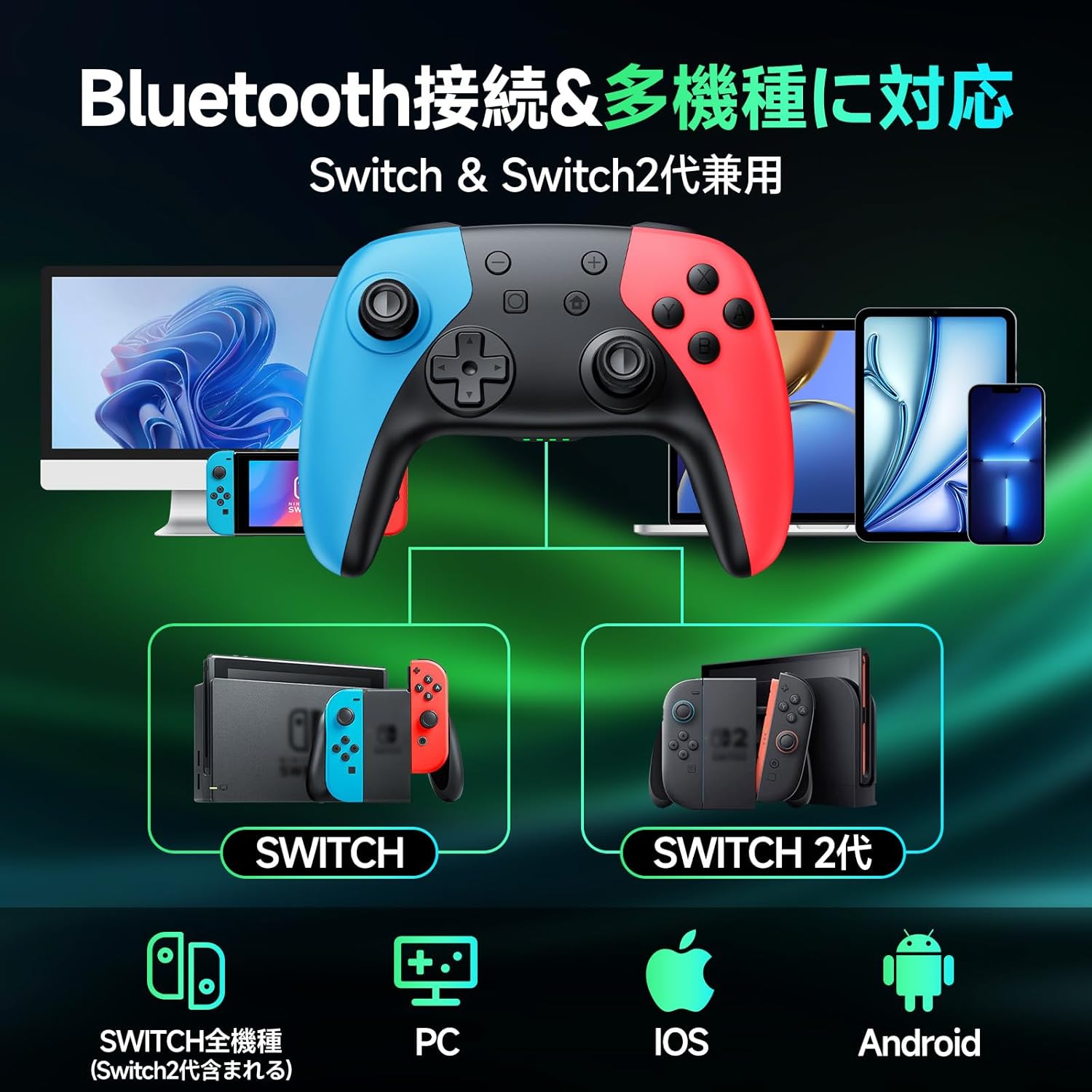
Figure 3: Multi-platform compatibility via Bluetooth.
4.2.1 Nintendo Switch / Switch 2 Connection:
- On your Switch console, go to the HOME Menu.
- Wählen Sie „Controller“ > „Griff/Reihenfolge ändern“.
- Press and hold the HOME button on the Matbip controller for 3 seconds until the indicator lights flash rapidly.
- The controller will automatically pair with the Switch. Once connected, the corresponding player indicator light(s) will remain solid.
4.2.2 Android / iOS / PC Connection:
- Ensure Bluetooth is enabled on your Android/iOS device or PC.
- Press and hold the HOME button on the Matbip controller for 3 seconds to enter pairing mode.
- On your device, search for Bluetooth devices and select "Matbip Controller" (or similar name) from the list.
- Once connected, the indicator lights on the controller will become solid.
5. Bedienungsanleitung
5.1 Hall Sensor Sticks and Triggers
The controller features advanced Hall Sensor technology for both joysticks and triggers, providing superior precision and durability compared to traditional analog sticks. This design prevents stick drift and ensures accurate input with a response speed of just 5ms.

Figure 4: Hall Sensor technology for precise, drift-free control.
5.2 Macro Function (M1/M2 Buttons)
The M1 and M2 buttons on the back of the controller can be programmed to execute a sequence of button presses (macro). This is useful for repetitive actions or complex combos.

Figure 5: Location of programmable M1 and M2 buttons.
Programmierschritte:
- Press and hold the M button (located between M1 and M2) and the M1 or M2 button you wish to program simultaneously. The indicator lights will flash slowly.
- Press the sequence of buttons you want to record (e.g., A, B, X, Y, L, R, D-pad directions, etc.).
- Press the M button again to save the macro. The indicator lights will stop flashing.
- Durch Drücken der programmierten Taste M1 oder M2 wird nun die aufgezeichnete Sequenz ausgeführt.
Löschen eines Makros:
To clear a macro, press and hold the M button and the M1 or M2 button simultaneously, then press the M button again without recording any sequence.
5.3 TURBO-Funktion
The TURBO function allows for continuous rapid firing of a button. There are three adjustable speeds: 5, 12, and 20 shots per second.

Figure 6: TURBO function for automatic rapid fire.
TURBO aktivieren:
- Press and hold the TURBO button (T button).
- While holding TURBO, press the button you want to set for continuous fire (e.g., A, B, X, Y, L, R, ZL, ZR). The button will now continuously fire when held down.
Einstellen der TURBO-Geschwindigkeit:
- While holding the TURBO button, move the Right Analog Stick Up or Down to cycle through the three speeds (5/12/20 shots/sec).
TURBO deaktivieren:
To deactivate TURBO for a specific button, repeat the activation steps. To deactivate TURBO for all buttons, press and hold the TURBO button for 5 seconds.
5.4 Vibrationsanpassung
The controller features 4 levels of HD vibration intensity: 0% (None), 30% (Weak), 70% (Normal), and 100% (Strong).

Figure 7: Four-stage vibration adjustment.
Anpassen der Vibrationsintensität:
- While holding the TURBO button, move the Left Analog Stick Up or Down to cycle through the vibration levels.
5.5 Gyro Sensor Calibration
If you experience issues with motion control or aiming, you may need to calibrate the 6-axis gyro sensor.

Figure 8: 6-axis gyro sensor for directional, viewpoint, and target recognition.
Kalibrierungsschritte:
- Place the controller on a flat, level surface.
- Simultaneously press and hold the X button, Square button, and HOME button until the indicator lights flash, then release.
- The controller will calibrate itself. Once calibration is complete, the indicator lights will stop flashing and return to their normal state.
6. Wartung
- Reinigen Sie den Controller mit einem weichen, trockenen Tuch. Vermeiden Sie die Verwendung von scharfen Chemikalien oder scheuernden Materialien.
- Setzen Sie den Controller keinen extremen Temperaturen, hoher Luftfeuchtigkeit oder direkter Sonneneinstrahlung aus.
- Vermeiden Sie es, den Controller fallen zu lassen oder starken Stößen auszusetzen.
- Press buttons gently. Excessive force is not required and may cause damage over time.
- Bewahren Sie den Controller an einem kühlen, trockenen Ort auf, wenn Sie ihn nicht verwenden.
7. Fehlerbehebung
| Problem | Mögliche Ursache | Lösung |
|---|---|---|
| Der Controller lässt sich nicht einschalten. | Schwache Batterie. | Laden Sie den Controller vollständig auf. |
| Verbindung via Bluetooth nicht möglich. | Controller nicht im Kopplungsmodus; Bluetooth-Störungen; Bluetooth am Gerät deaktiviert. | Ensure controller is in pairing mode (hold HOME button); restart controller and device; check device Bluetooth settings. |
| Stick drift or inaccurate motion control. | Gyro sensor needs calibration. | Perform gyro calibration as described in Section 5.5. |
| TURBO/Vibration not working. | Function not activated or incorrectly set. | Refer to Sections 5.3 and 5.4 for proper activation and adjustment. |
| Die Schaltflächen reagieren nicht. | Niedriger Akkustand; Softwarefehler. | Charge controller; try resetting the controller (if applicable, usually by holding a small reset button or specific button combo). |
Sollte das Problem nach Anwendung der oben genannten Lösungsansätze weiterhin bestehen, wenden Sie sich bitte an den Kundendienst.
8. Spezifikationen
- Marke: Matbip
- Modellnummer: AB1
- Farbe: Mehrfarbig
- Konnektivität: Drahtlose Bluetooth 5.0
- Batteriekapazität: 1000 mAh
- Ladezeit: Ca. 4 Stunden
- Ununterbrochene Spielzeit: Bis zu 20 Stunden
- Abmessungen: 17.2 x 11.7 x 7.3 cm
- Gewicht: 310 g
- Anzahl Tasten: 16
- Besondere Merkmale: 6-axis Gyro Sensor, Macro Function, TURBO Continuous Fire, 4-stage HD Vibration, Hall Sensor Sticks
- Unterstützte Plattformen: Nintendo Switch (all generations), Android, iOS, PC
9. Garantie und Support
This product comes with a 1-year quality warranty from the date of purchase. All products undergo strict quality inspection before shipment and have obtained international certifications including TELEC, CE, FCC, and RoHS.
For any questions, concerns, or technical support, please do not hesitate to contact our customer service. We are committed to providing you with the best possible gaming experience.
When operating buttons, please press gently to ensure longevity of the product.


