Einführung
This manual provides comprehensive instructions for the setup, operation, and maintenance of your memzuoix WM125B Wireless Mouse. Designed for comfort and precision, this 2.4GHz wireless mouse offers adjustable DPI settings and broad compatibility for various computing needs.
Hauptmerkmale:
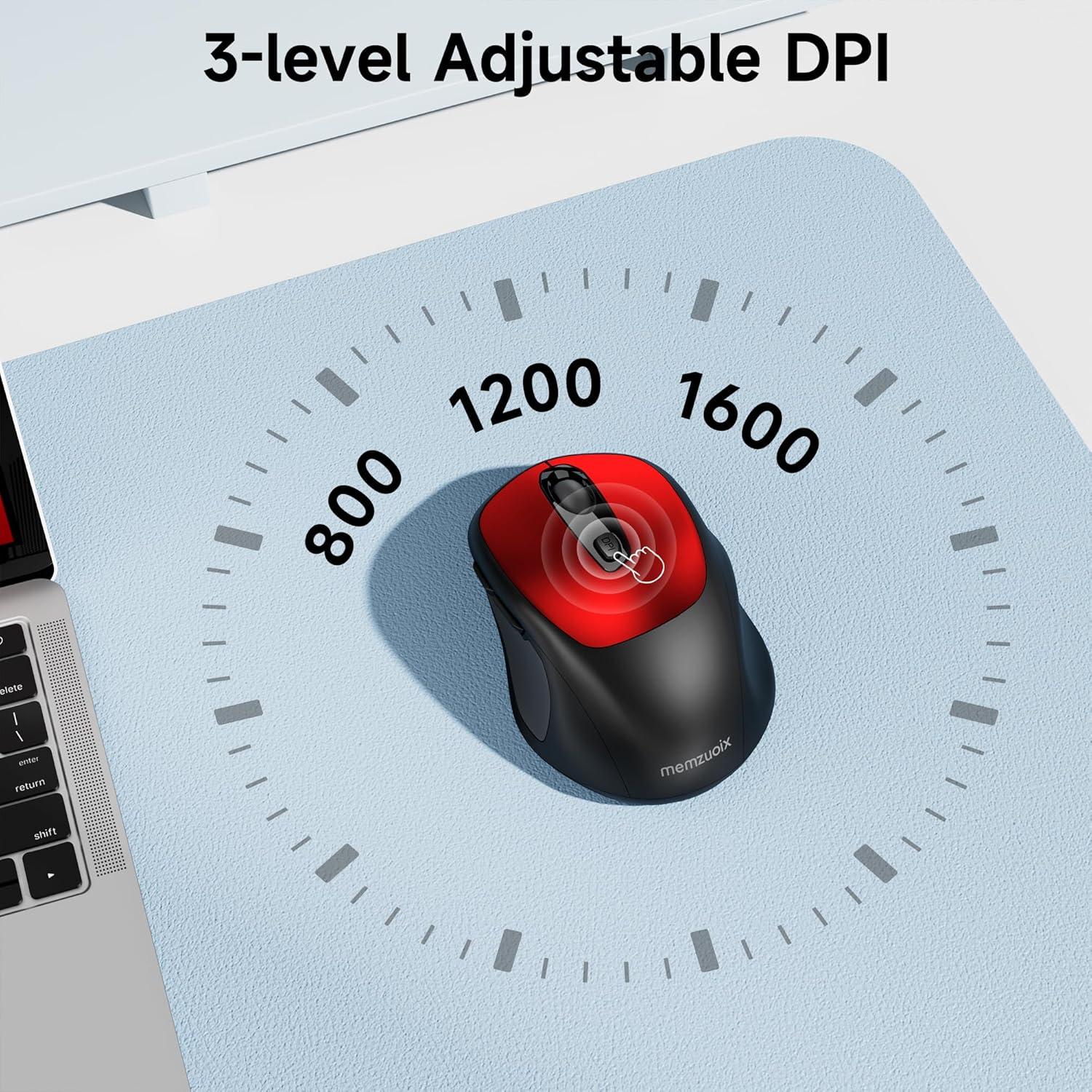
- 3 einstellbare DPI-Stufen: Easily switch between 800, 1200, and 1600 DPI for optimal control.
- Ergonomisches und beidhändig bedienbares Design: Contoured shape with rubberized side grips for comfortable use by both left and right-handed users.
- Plug & Play 2.4GHz Nano Receiver: Instant connectivity without software installation, offering a reliable 33ft range.
- Langlebige Konstruktion: Buttons and scroll wheel tested for 10 million clicks, ensuring long-term reliability.
- Universelle Kompatibilität: Works seamlessly with Windows, macOS, Linux, and ChromeOS devices.
- Tragbares Design: Lightweight and compact, ideal for travel and on-the-go use.
Installationshandbuch
1. Batterien einlegen
- Suchen Sie die Abdeckung des Batteriefachs an der Unterseite der Maus.
- Schieben oder heben Sie den Deckel vorsichtig an, um das Fach zu öffnen.
- Legen Sie zwei AAA-Batterien ein und achten Sie dabei auf die richtige Polarität (+/-).
- Bringen Sie die Abdeckung des Batteriefachs wieder an, bis sie sicher einrastet.

2. Connect USB Receiver
- Locate the nano USB receiver, typically stored within the battery compartment of the mouse.
- Plug the USB receiver into an available USB port on your computer (PC, Mac, laptop, etc.).
- Der Computer sollte die benötigten Treiber automatisch erkennen und installieren. Es ist keine zusätzliche Softwareinstallation erforderlich.

Bedienungsanleitung
1. Ein-/Ausschalten
Locate the ON/OFF switch on the underside of the mouse. Slide the switch to the 'ON' position to activate the mouse. Slide it to 'OFF' when not in use to conserve battery life.
2. Tastenfunktionen
- Linke Taste: Primäre Klickfunktion.
- Rechter Knopf: Sekundärklickfunktion (Kontextmenü).
- Scrollrad: Dokumente nach oben/unten scrollen und web pages. Can also be clicked for middle-button functionality.
- DPI-Taste: Schaltet die DPI-Einstellungen durch (800/1200/1600).
- Vorwärts-Taste: Navigiert vorwärts in web Browser bzw file Entdecker.
- Rückwärts-Taste: Navigiert rückwärts in web Browser bzw file Entdecker.
3. DPI-Empfindlichkeit anpassen
Drücken Sie die DPI-Taste located below the scroll wheel to cycle through the available sensitivity settings: 800 DPI (for precise control), 1200 DPI (standard use), and 1600 DPI (for faster cursor movement). The mouse will indicate the change, often with a brief LED flash.
Wartung
1. Reinigung
Um eine optimale Leistung zu gewährleisten, reinigen Sie Ihre Maus regelmäßig. Verwenden Sie dazu ein weiches, fusselfreies Tuch, das leicht angefeuchtet ist.ampMit Wasser oder einer milden Reinigungslösung abspülen. Scharfe Chemikalien oder scheuernde Materialien vermeiden. Sicherstellen, dass keine Flüssigkeit in die internen Komponenten der Maus eindringt.
2. Batteriewechsel
When the mouse's performance degrades or it stops responding, it may be time to replace the batteries. Follow the steps in the 'Install Batteries' section of this manual to replace the two AAA batteries. Dispose of old batteries responsibly according to local regulations.
Fehlerbehebung
- Maus reagiert nicht:
- Ensure the mouse is switched 'ON' using the power switch on the underside.
- Prüfen Sie, ob die Batterien richtig eingesetzt sind und ausreichend geladen sind. Tauschen Sie sie gegebenenfalls aus.
- Vergewissern Sie sich, dass der USB-Empfänger fest an einen funktionierenden USB-Anschluss Ihres Computers angeschlossen ist. Versuchen Sie es mit einem anderen USB-Anschluss.
- Starten Sie Ihren Computer neu.
- Die Cursorbewegung ist unregelmäßig oder ungenau:
- Verwenden Sie die Maus auf einer sauberen, nicht reflektierenden Oberfläche. Vermeiden Sie Glas oder stark reflektierende Oberflächen.
- Reinigen Sie den optischen Sensor an der Unterseite der Maus mit einem weichen Tuch.
- Try adjusting the DPI setting using the DPI button.
- Connection issues or frequent disconnections:
- Ensure the mouse is within the effective operating range (approximately 33 feet) of the USB receiver.
- Vermeiden Sie die Verwendung der Maus in der Nähe starker elektromagnetischer Störquellen (z. B. anderer drahtloser Geräte, großer Metallgegenstände).
- Re-pair the mouse with the receiver if possible (refer to manufacturer's website for specific pairing instructions if needed, as this model is typically plug-and-play).
Technische Daten
| Besonderheit | Detail |
|---|---|
| Marke | Abonnieren |
| Modellnummer | WM125B |
| Konnektivitätstechnologie | 2.4-GHz-Funk (USB-Nano-Empfänger) |
| DPI-Stufen | 800 / 1200 / 1600 |
| Anzahl der Tasten | 6 (Links, Rechts, Mausrad, DPI, Vorwärts, Rückwärts) |
| Bewegungserkennungstechnologie | Optisch |
| Stromquelle | 2 x AAA-Batterien (nicht im Lieferumfang enthalten) |
| Artikelgewicht | 3.2 Unzen |
| Verpackungsabmessungen | 4.8 x 3.23 x 1.85 Zoll |
| Farbe | Rot |
| Kompatibilität | PC, Mac, Laptop (Windows, macOS, Linux, ChromeOS) |
Garantie und Support
The memzuoix WM125B Wireless Mouse comes with a standard manufacturer's warranty. For specific warranty details, return policies, or technical support, please refer to the product packaging or contact memzuoix customer service directly through their official webWebsite oder den Händler, bei dem das Produkt gekauft wurde.
Weitere Hilfe finden Sie unter memzuoix Store on Amazon.
