1. Einführung und Endeview
Thank you for choosing the Ninkear L12Pro Gaming Mini PC. This compact yet powerful desktop computer is designed to deliver exceptional performance for a wide range of applications, from demanding gaming and 4K video editing to business productivity and multi-display setups. Featuring an Intel Core i9-12900HK processor, 32GB of RAM, and a 1TB NVMe SSD, the L12Pro offers a seamless and responsive computing experience. This manual provides essential information for setting up, operating, maintaining, and troubleshooting your new Mini PC.
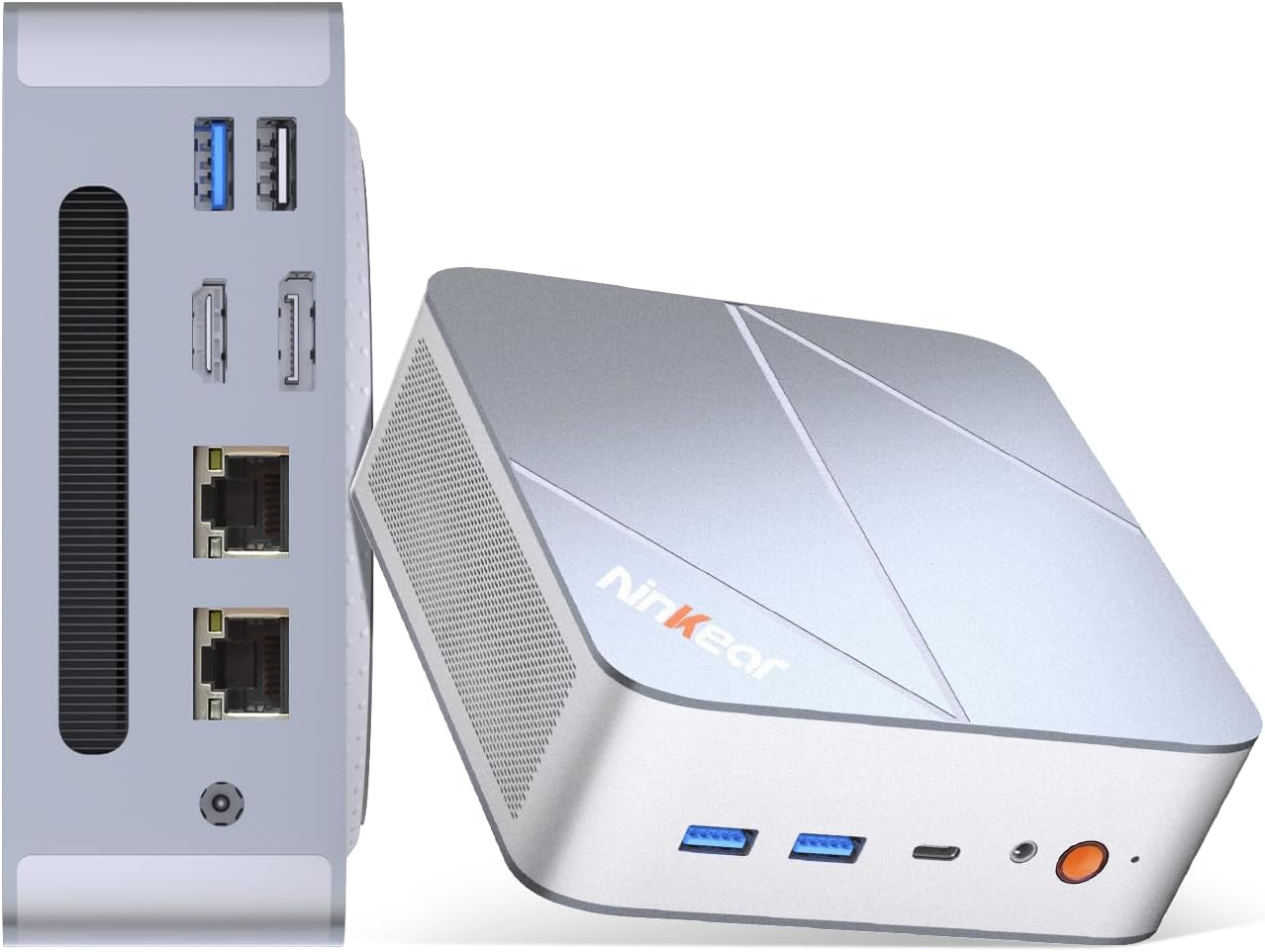
Figure 1.1: Ninkear L12Pro Mini PC - Front and Side View mit Anschlüssen.
2. Produktmerkmale
- Lightning-Fast Performance: Powered by Intel’s 12th Gen i9-12900HK processor (14 cores, 20 threads, up to 5.0GHz), capable of handling 4K video editing, coding, and intensive multitasking.
- Hochgeschwindigkeitsspeicher und -speicher: Equipped with 32GB DDR4 RAM and an ultra-fast 1TB NVMe SSD for instant file access, smooth application performance, and rapid boot times.
- Triple 8K UHD Display Support: Create an immersive multi-screen setup with HDMI 2.0 (up to 4K@60Hz), DisplayPort 1.4 (up to 8K@60Hz), and USB4/Thunderbolt 4 (up to 8K@60Hz) outputs.
- Compact and Flexible Design: Small form factor allows for versatile placement behind monitors, under desks, or in backpacks, offering powerful desktop capabilities in a portable size.
- Erweiterte Konnektivität: Features USB4.0, USB-C, WiFi 6, Bluetooth 5.2, dual 2.5G LAN ports, and multiple USB 3.2 Gen 2 and USB 2.0 ports for comprehensive peripheral support and high-speed data transfer.
- Effizientes Kühlsystem: Designed with an all-metal cooling system for quiet and efficient operation, ensuring stable performance even under heavy loads.
- Erweiterbarer Speicher: Supports additional M.2 NVMe PCIe SSD (up to 4TB) and an optional 2.5-inch HDD for expanded storage capacity.

Figure 2.1: Key Features and Specifications Overview.

Figure 2.2: Triple 8K Display Setup for Enhanced Productivity.

Figure 2.3: Comprehensive Connectivity Options.
3. Lieferumfang
Bitte vergewissern Sie sich nach dem Öffnen des Pakets, dass alle folgenden Artikel vorhanden sind:
- Ninkear L12Pro Mini PC
- HDMI-Kabel
- Netzteil
- Benutzerhandbuch (dieses Dokument)
4. Installationsanleitung
Follow these steps to set up your Ninkear L12Pro Mini PC:
- Mini-PC auspacken: Nehmen Sie den Mini-PC und sämtliches Zubehör vorsichtig aus der Verpackung.
- Anschluss an ein Display:
- Connect one end of the HDMI cable (included) to the HDMI port on the Mini PC and the other end to an available HDMI input on your monitor or TV.
- For DisplayPort or USB4/Thunderbolt 4 connections, use appropriate cables (not included) to connect to compatible displays.
- For triple display setup, connect additional monitors using the available DisplayPort, USB4/Thunderbolt 4, or a USB-C to HDMI/DP adapter (not included).
- Peripheriegeräte anschließen:
- Plug your USB keyboard and mouse into any available USB ports on the Mini PC.
- If using wireless peripherals, ensure their receivers are plugged into a USB port.
- An die Stromversorgung anschließen: Plug the power adapter into the DC-in port on the Mini PC, then plug the other end into a power outlet.
- Netzwerkverbindung (optional):
- For a wired connection, connect an Ethernet cable from your router or modem to one of the 2.5G LAN ports on the Mini PC.
- For a wireless connection, the Mini PC supports WiFi 6. You will configure this after the initial boot.
- Erster Start: Press the power button on the front of the Mini PC. The system will power on and begin the initial setup process for Windows 11 Pro. Follow the on-screen instructions to complete the operating system setup.
5. Bedienungsanleitung
5.1 Ein-/Ausschalten
- Einschalten: Drücken Sie einmal die Einschalttaste.
- Abschalten: Klicken Sie in Windows auf die Schaltfläche „Start“ und wählen Sie dann „Ein/Aus“ > „Herunterfahren“.
- Neustart: Klicken Sie in Windows auf die Schaltfläche „Start“ und wählen Sie dann „Ein/Aus“ > „Neustart“.
- Zwangsabschaltung: If the system is unresponsive, press and hold the power button for approximately 5-7 seconds until the unit powers off. Use this only as a last resort.
5.2 Anzeigekonfiguration
The Ninkear L12Pro supports up to three independent displays simultaneously. After connecting your monitors, Windows will typically detect them automatically. If not, or to configure display settings:
- Klicken Sie mit der rechten Maustaste auf eine leere Stelle auf Ihrem Desktop.
- Wählen Sie „Anzeigeeinstellungen“.
- From here, you can detect displays, arrange them, change resolution, and set display modes (Extend, Duplicate, Second screen only).
5.3 Netzwerkverbindungen
- Kabelgebunden (Ethernet): Ensure an Ethernet cable is connected to one of the 2.5G LAN ports. Windows will automatically establish a connection.
- Drahtlos (Wi-Fi):
- Click the Wi-Fi icon in the system tray (bottom right of the taskbar).
- Wählen Sie das gewünschte WLAN-Netzwerk aus der Liste aus.
- Geben Sie gegebenenfalls das Netzwerkpasswort ein und klicken Sie auf „Verbinden“.
5.4 Externe Geräte anschließen
Der Mini-PC bietet eine Vielzahl von Anschlüssen zum Verbinden externer Geräte:
- USB-Anschlüsse: Use USB 3.2 Gen 2 ports for high-speed devices like external hard drives or SSDs, and USB 2.0 for standard peripherals like keyboards, mice, or printers.
- USB4/Thunderbolt 4: This versatile port supports high-speed data transfer (40Gbps), video output, and power delivery (with compatible devices).
- Audiobuchse: Schließen Sie Kopfhörer oder externe Lautsprecher an die 3.5-mm-Audiobuchse an.
6. Wartung
Proper maintenance ensures the longevity and optimal performance of your Ninkear L12Pro Mini PC:
- Lüftungsschlitze freihalten: Ensure the ventilation openings on the Mini PC are not obstructed. Blocked vents can lead to overheating and reduced performance.
- Regelmäßige Reinigung: Reinigen Sie die Außenseite des Mini-PCs mit einem weichen, trockenen Tuch. Verwenden Sie Druckluft, um Staub aus den Lüftungsschlitzen zu entfernen. Flüssige Reinigungsmittel dürfen nicht direkt auf das Gerät aufgetragen werden.
- Software-Updates: Regularly update your Windows operating system, drivers, and applications to ensure security, stability, and performance.
- Sicheres Herunterfahren: Um Datenbeschädigung zu vermeiden, sollte der Mini-PC stets ordnungsgemäß über das Betriebssystem heruntergefahren werden.
- Umgebungsbedingungen: Operate the Mini PC in a clean, dry environment, away from direct sunlight, excessive heat, and humidity.

Figure 6.1: Smart Cooling System for Quiet Operation.
7. Fehlerbehebung
If you encounter issues with your Ninkear L12Pro Mini PC, refer to the following common problems and solutions:
| Problem | Mögliche Ursache | Lösung |
|---|---|---|
| Kein Strom | Netzteil nicht angeschlossen; Problem mit der Steckdose; Netzteil defekt. | Stellen Sie sicher, dass das Netzteil fest mit dem Mini-PC und einer funktionierenden Steckdose verbunden ist. Versuchen Sie es mit einer anderen Steckdose. |
| Keine Anzeige | Monitor not connected; Incorrect input selected on monitor; Faulty cable; Display driver issue. | Check display cable connections. Ensure monitor is on and set to the correct input source (HDMI, DP, USB-C). Try a different cable or monitor. Update display drivers in Windows. |
| No Internet Connection (Wired) | Ethernet-Kabel nicht angeschlossen; Router-/Modemproblem; Netzwerktreiberproblem. | Check Ethernet cable connection. Restart your router/modem. Check network adapter settings in Windows Device Manager. |
| Keine Internetverbindung (WLAN) | Wi-Fi disabled; Incorrect password; Router too far; Driver issue. | Ensure Wi-Fi is enabled in Windows. Re-enter Wi-Fi password. Move closer to the router. Update Wi-Fi drivers. |
| Langsame Leistung | Too many applications running; Overheating; Low disk space; Malware. | Close unnecessary applications. Ensure vents are clear. Free up disk space. Run a malware scan. |
8. Spezifikationen
Detailed technical specifications for the Ninkear L12Pro Mini PC:
| Besonderheit | Detail |
|---|---|
| Marke | Ninkear |
| Modellnummer | L12Pro |
| Prozessor | Intel Core i9-12900HK (14 Kerne, 20 Threads, bis zu 5.0 GHz) |
| RAM | 32 GB DDR4 (erweiterbar auf bis zu 64 GB) |
| Lagerung | 1TB NVMe SSD (M.2 PCIe 3.0, Expandable up to 4TB) |
| Grafik-Coprozessor | Intel Iris Xe Grafik (96EU) |
| Maximale Bildschirmauflösung | 8K (7680x4320) via DisplayPort/USB4, 4K (4096x2160) via HDMI |
| Videoausgänge | 1x HDMI 2.0, 1x DisplayPort 1.4, 1x USB4/Thunderbolt 4 |
| USB-Anschlüsse | 3x USB 3.2 Gen 2, 1x USB 2.0, 1x USB4/Thunderbolt 4 (Type-C) |
| Netzwerk | Dual 2.5G LAN (RJ45), WiFi 6 (802.11ax) |
| Bluetooth | Bluetooth 5.2 |
| Betriebssystem | Windows 11 Pro |
| Artikelgewicht | 2.51 Pfund (ca. 1.14 kg) |
| Maße | 10.44 x 6.73 x 2.79 Zoll (Verpackungsmaße) |
| Farbe | Premium Brushed Silver |
9. Garantie und Support
The Ninkear L12Pro Mini PC comes with a standard manufacturer's warranty. For specific warranty terms and conditions, please refer to the documentation included with your purchase or visit the official Ninkear webWebsite.
For technical support, troubleshooting assistance, or any inquiries regarding your product, please contact Ninkear customer service through their official channels.
Online-Hilfe: Besuchen Sie die Ninkear Store auf Amazon für häufig gestellte Fragen und Kontaktmöglichkeiten.


