1. Einleitung
This manual provides detailed instructions for the installation, operation, and maintenance of your Girafit GRF-T350SW 3K 5MP Indoor/Outdoor Pan/Tilt/Zoom Wi-Fi Security Camera. Please read this manual thoroughly before using the product to ensure proper functionality and safety. Keep this manual for future reference.
2. Produktüberschreitungview
Hauptmerkmale
- 3K 5MP Resolution with 4X Digital Zoom: Bietet klare und detaillierte Video-Footage.
- 360° Pan and 180° Tilt: Offers comprehensive coverage of your monitoring area.
- AI Person/Pet/Vehicle Detection: Advanced artificial intelligence for accurate identification of subjects, reducing false alerts.
- Automatische Bewegungsverfolgung: Automatically follows detected subjects within the camera's field of view.
- Sternenlicht-Farbnachtsicht: Enhanced low-light performance for vivid color images at night.
- Zweiwege-Audio: Eingebautes Mikrofon und Lautsprecher für Echtzeitkommunikation.
- Auto Alert Siren: Deters intruders with an audible alarm.
- IP65-Wetterschutzklasse: Geeignet für den Außeneinsatz bei unterschiedlichen Wetterbedingungen.
- Flexible Speicheroptionen: Supports encrypted US cloud storage and local Micro SD card storage (up to 256GB).
- 2.4GHz/5GHz Wi-Fi Connectivity: Dual-band Wi-Fi support for stable connection.
Lieferumfang
- Girafit GRF-T350SW Camera Body
- Netzteil
- Befestigungsschrauben und Anker
- Montagevorlage
- Bedienungsanleitung

Figure 2.1: Girafit GRF-T350SW camera showing its pan and tilt capabilities.

Figure 2.2: The Girafit GRF-T350SW camera operating reliably in both rainy and sunny conditions, highlighting its IP65 weatherproof design.
3. Einrichtung
3.1 Physische Installation
- Wählen Sie einen Standort: Select a suitable outdoor or indoor location that provides the desired viewing angle and is within range of your Wi-Fi network. Ensure the power outlet is accessible.
- Montieren Sie die Kamera: Use the provided mounting template to mark drill holes. Secure the mounting bracket to the wall or ceiling using the screws and anchors. Attach the camera to the bracket.
- Strom anschließen: Plug the power adapter into the camera and then into a power outlet. The camera will power on and initiate its startup sequence.
3.2 App-Installation und Kontoerstellung
- Download the Girafit App: Suchen nach 'Girafit' in your smartphone's app store (iOS or Android) and download the official application.
- Ein Konto erstellen: Öffnen Sie die App und folgen Sie den Anweisungen auf dem Bildschirm, um ein neues Konto zu registrieren.
3.3 Netzwerkverbindung
- Gerät hinzufügen: In the Girafit app, tap the '+' icon to add a new device. Select your camera model.
- Folgen Sie den Anweisungen in der App: The app will guide you through connecting the camera to your 2.4GHz or 5GHz Wi-Fi network. This typically involves scanning a QR code displayed on your phone with the camera lens.
- Fertigstellung: Sobald die Verbindung hergestellt ist, ändert sich die Statusanzeige der Kamera, und Sie sehen den Live-Feed in der App.
4. Betrieb
4.1 Schwenk-, Neige- und Zoomsteuerung
Aus dem Leben view in the Girafit app, use the on-screen controls to remotely adjust the camera's viewing angle. The camera supports 360° horizontal pan and 180° vertical tilt. You can also digitally zoom in up to 4X to view Einzelheiten.

Figure 4.1: Visual comparison demonstrating the clarity of 3K 5MP resolution with 4X zoom compared to standard 3MP resolution.
4.2 Bewegungserkennung und automatische Verfolgung
The camera features advanced AI detection capabilities to identify humans, pets, and vehicles. When motion is detected, the camera can automatically track the subject, zoom in, record the event, and send push notifications to your smartphone.
- Erkennung aktivieren: Navigate to the camera settings in the app to enable AI Person/Pet/Vehicle Detection.
- Erkennungszonen festlegen: Definieren Sie spezifische Bereiche innerhalb der Kamera view where you want motion detection to be active.
- Activate Auto Tracking: Enable auto tracking in the settings to allow the camera to follow detected subjects.
- Auto Alert Siren: Configure the camera to trigger an audible siren upon detection to deter unwanted visitors.

Figure 4.2: Illustration of the camera's automatic tracking feature, showing a person being followed with a 4X zoom.

Figure 4.3: The camera's AI accurately detecting a human, a pet, and a vehicle in a home environment.

Figure 4.4: The camera detecting activity in a defined hexagonal area and issuing an auto voice alert.
4.3 Nachtsicht
The GRF-T350SW offers multiple night vision modes for clear surveillance in low-light conditions.
- Sternenlicht-Farbnachtsicht: Utilizes a Starlight Sensor and f/1.6 aperture to capture more light, providing full-color video even in very dim environments.
- Infrarotmodus: Standardmäßige Schwarzweiß-Nachtsicht mit Infrarot-LEDs.
- Spotlight-Modus: Activates built-in spotlights to illuminate the area and capture color video when motion is detected at night.
In den App-Einstellungen können Sie zwischen diesen Modi umschalten oder sie auf Automatikbetrieb einstellen.

Figure 4.5: Visual representation of the camera's Starlight Color Night Vision, Infrared Mode, and Spotlight Mode capabilities.
4.4 Zwei-Wege-Audio
The integrated microphone and speaker allow for two-way communication. You can speak through the camera to visitors or deter intruders directly from your smartphone via the Girafit app.
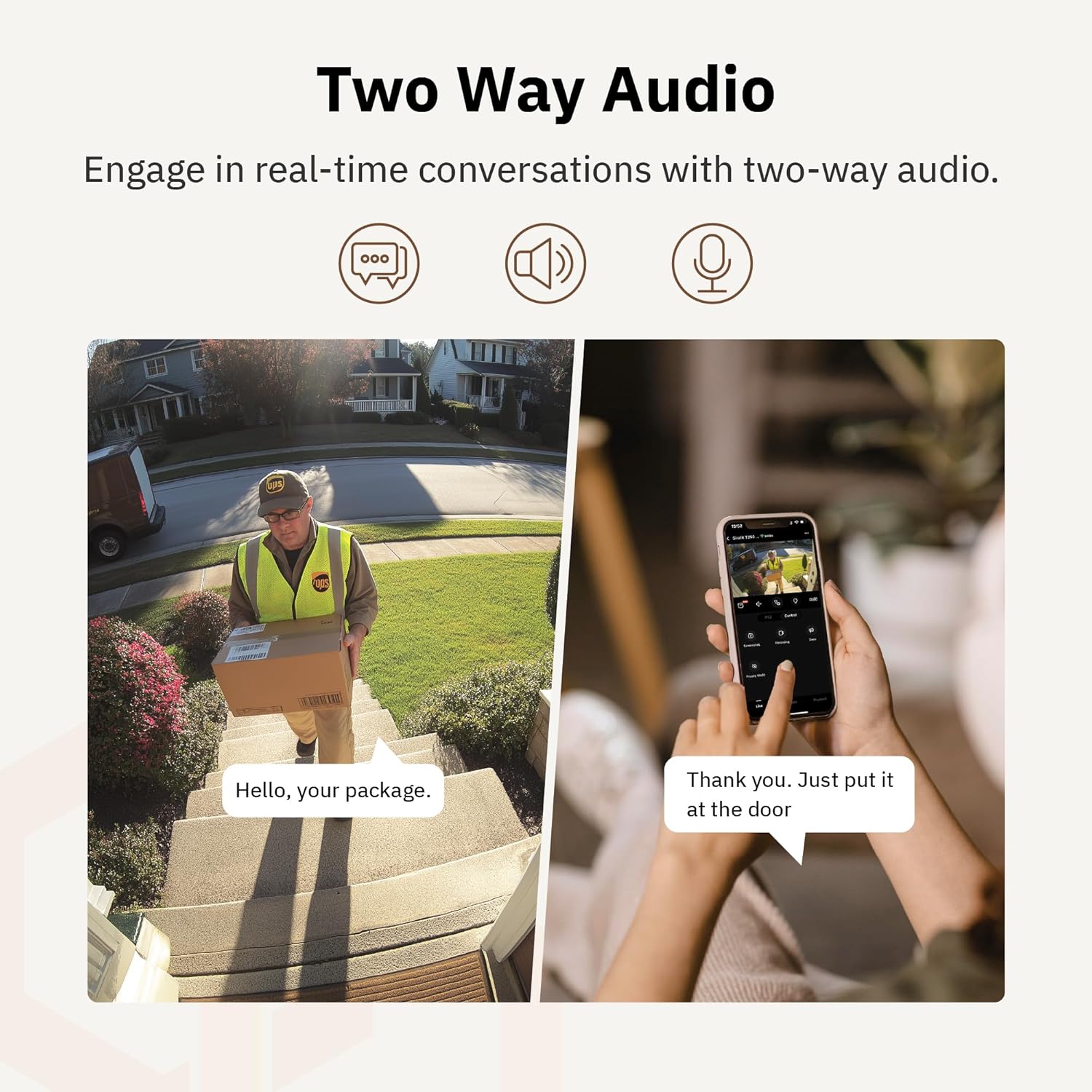
Abbildung 4.6: Ein BspampBeispiel für die Verwendung von Zwei-Wege-Audio zur Kommunikation mit einem Lieferanten an der Tür.
4.5 Datenschutzmodus
For enhanced privacy, the camera features a privacy mode. When activated, the camera lens physically tilts down by 180°, ensuring no live feed is captured or transmitted. This provides 100% privacy protection when needed.

Figure 4.7: The camera in privacy mode, with the lens tilted downwards to ensure no recording or live view.
4.6 Videospeicher
Die Kamera unterstützt zwei primäre Methoden zur Videospeicherung:
- Micro SD Karte: Legen Sie eine Micro-SD-Karte (bis zu 256 GB, nicht im Lieferumfang enthalten) in den dafür vorgesehenen Steckplatz der Kamera ein, um Aufnahmen lokal zu speichern.
- Cloud-Speicher: Girafit offers encrypted cloud storage services in the US. Refer to the app for subscription options and details.
5. Wartung
5.1 Reinigung
To maintain optimal performance, periodically clean the camera lens and housing. Use a soft, damp Mit einem Tuch Staub und Schmutz abwischen. Vermeiden Sie die Verwendung von scharfen Chemikalien oder scheuernden Materialien, die die Linse oder die Oberfläche beschädigen könnten.
5.2 Firmware-Updates
Girafit regularly releases firmware updates to improve camera performance, add new features, and enhance security. Check the Girafit app periodically for available updates and follow the in-app instructions to install them. Ensure the camera has a stable power supply during updates.
6. Fehlerbehebung
- Kamera stellt keine Verbindung zum WLAN her:
- Ensure your Wi-Fi network is 2.4GHz or 5GHz and the password is correct.
- Bringen Sie die Kamera näher an Ihren WLAN-Router heran.
- Starten Sie Ihren Router und die Kamera neu.
- Schlechte Videoqualität:
- Überprüfen Sie Ihre Internetverbindungsgeschwindigkeit.
- Reinigen Sie das Kameraobjektiv.
- Stellen Sie sicher, dass die Kamera ausreichend mit Strom versorgt wird.
- Bewegungserkennung funktioniert nicht:
- Überprüfen Sie, ob die Bewegungserkennung in den App-Einstellungen aktiviert ist.
- Empfindlichkeit und Erfassungszonen anpassen.
- Stellen Sie sicher, dass keine Hindernisse die Sicht der Kamera blockieren. view.
- Probleme mit der Zwei-Wege-Audioübertragung:
- Check microphone and speaker permissions for the Girafit app on your phone.
- Stellen Sie sicher, dass Mikrofon und Lautsprecher der Kamera nicht verdeckt sind.
For further assistance, please contact Girafit customer support.
7. Spezifikationen
| Besonderheit | Beschreibung |
|---|---|
| Modellname | GRF-T350SW |
| Auflösung der Videoaufnahme | 3K (5 MP) |
| Verwendung im Innen- und Außenbereich | Im Freien |
| Konnektivitätstechnologie | Wi-Fi (2.4GHz/5GHz), Wired |
| Stromquelle | Kabelgebundene Elektrik |
| Montagetyp | Wandhalterung |
| Besonderheit | 2-Way Audio, AI Detection (Human/Pet/Vehicle), Auto Tracking, Color Night Vision, IP65 Weatherproof |
| Kompatible Geräte | Desktop, Laptop, Smartphone (Android/iOS) |
| Artikelabmessungen (L x B x H) | 2.63 x 2.63 x 4.76 Zoll |
| Artikelgewicht | 14.7 Unzen |
| Speicheroptionen | Micro-SD-Karte (bis zu 256 GB), Cloud-Speicher |
| UPC | 764742517881 |
8. Garantie und Support
Girafit products are designed for reliability and performance. For warranty information, please refer to the warranty card included with your product or visit the official Girafit website. For technical support, troubleshooting assistance, or any inquiries regarding your Girafit GRF-T350SW camera, please contact Girafit customer service through the contact information provided on the official website or within the Girafit app.


