Einführung
Thank you for choosing the GEEZER AK96 Mechanical Gaming Keyboard. This keyboard features a compact 96-key layout, pre-lubed red mechanical switches, and vibrant LED backlighting. Designed for both gaming and productivity, it offers a responsive typing experience and multi-system compatibility. This manual provides detailed instructions for setup, operation, maintenance, and troubleshooting to ensure optimal performance.
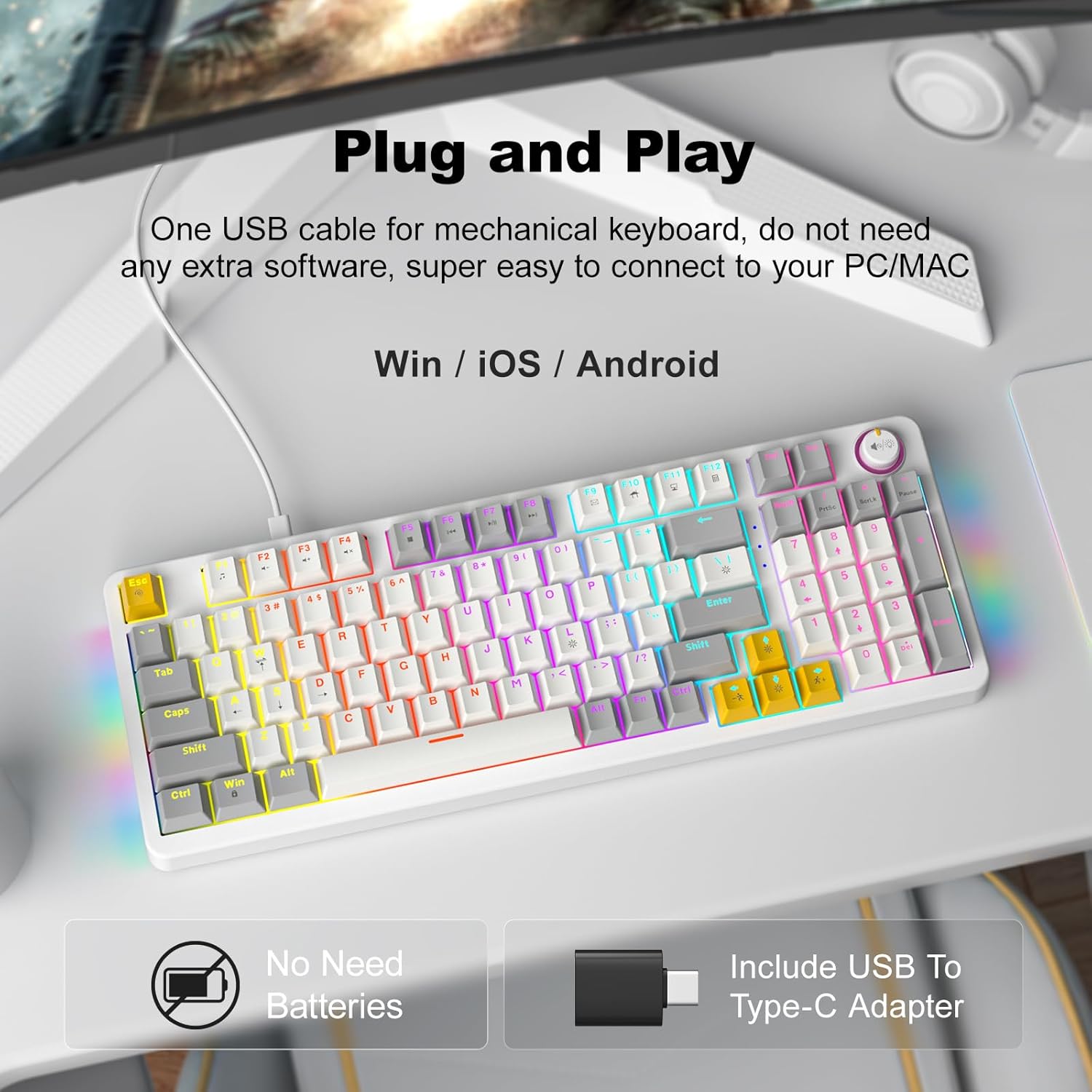
Image: The GEEZER AK96 Mechanical Gaming Keyboard, showcasing its compact layout and colorful backlighting.
Installationsanweisungen
Packungsinhalt:
- GEEZER AK96 Mechanical Gaming Keyboard
- USB-Kabel (Typ-C auf USB-A)
- USB-zu-Typ-C-Adapter
- Benutzerhandbuch (dieses Dokument)
Anschließen der Tastatur:
- Locate the USB Type-C port on the keyboard, typically on the top edge.
- Connect the USB Type-C end of the provided cable to the keyboard.
- Connect the USB-A end of the cable to an available USB port on your PC or Mac. If your device only has Type-C ports, use the included USB to Type-C adapter.
- The keyboard is plug-and-play and should be recognized automatically by your operating system (Windows or Mac) without requiring additional drivers.

Image: Diagram showing the GEEZER AK96 keyboard connected to a PC, Laptop, and Mac using the USB cable and Type-C adapter.
Video: Ein überview of the GEEZER AK96 Mechanical Gaming Keyboard, demonstrating its features and backlighting.
Bedienungsanleitung
Steuerung der Hintergrundbeleuchtung:
The AK96 keyboard features 17 built-in lighting modes and multi-color options, along with side lights for enhanced visual effects. Use the following key combinations to control the backlighting:
- Fn + |: Switch between 17 different backlight modes.
- Fn + Eingabetaste: Turn the backlight On/Off.
- Fn + ↑ / ↓: Helligkeit der Hintergrundbeleuchtung anpassen.
- Fn + ← / →: Change backlight speed.
- Fn + L: Control side atmosphere lights.

Image: The GEEZER AK96 keyboard displaying various LED backlight effects and key combinations for control.
Video: A demonstration of the GEEZER AK96 Mechanical Gaming Keyboard's various LED lighting modes and effects.
Media Control and Volume Knob:
The keyboard is equipped with a dedicated volume knob and quick-access media keys for convenient control over your audio and media playback.
- Lautstärkeregler: Rotate to adjust volume. Press to mute/unmute audio.
- Fn + F1: Media Player
- Fn + F2: Lautstärke runter
- Fn + F3: Lauter
- Fn + F4: Stumm
- Fn + F5: Play to Suspend
- Fn + F6: Vorheriges Lied
- Fn + F7: Spielpause
- Fn + F8: Nächster Titel
- Fn + F9: Email
- Fn + F10: Web Heim
- Fn + F11: Mein Computer
- Fn + F12: Taschenrechner
- Fn + PrtSc: PrtSc (Print Screen)
- Fn + SCRLK: SCRLK (Scroll Lock)
- Fn + Pause: Pause
- Fn + W: Swap W, A, S, D and ↑, ↓, ←, → keys.
- Fn + Gewinnen: Windows-Taste sperren/entsperren.
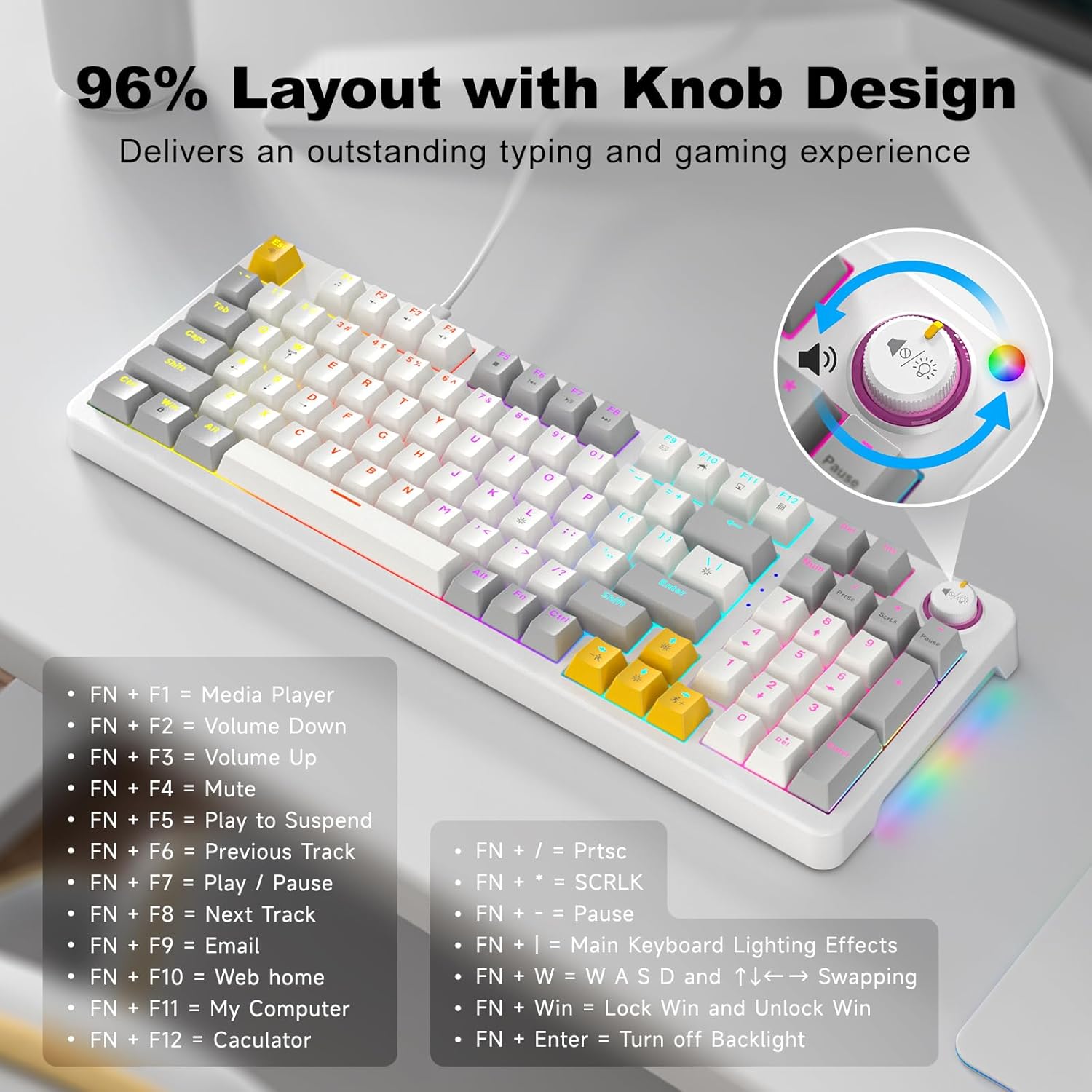
Image: The GEEZER AK96 keyboard highlighting the volume knob and a list of shortcut key functions.
Ergonomische Anpassungen:
The keyboard features two adjustable-height kickstands on the underside. Flip these kickstands out to adjust the typing angle for maximum comfort during extended use. The non-slip rubber pads ensure stability.
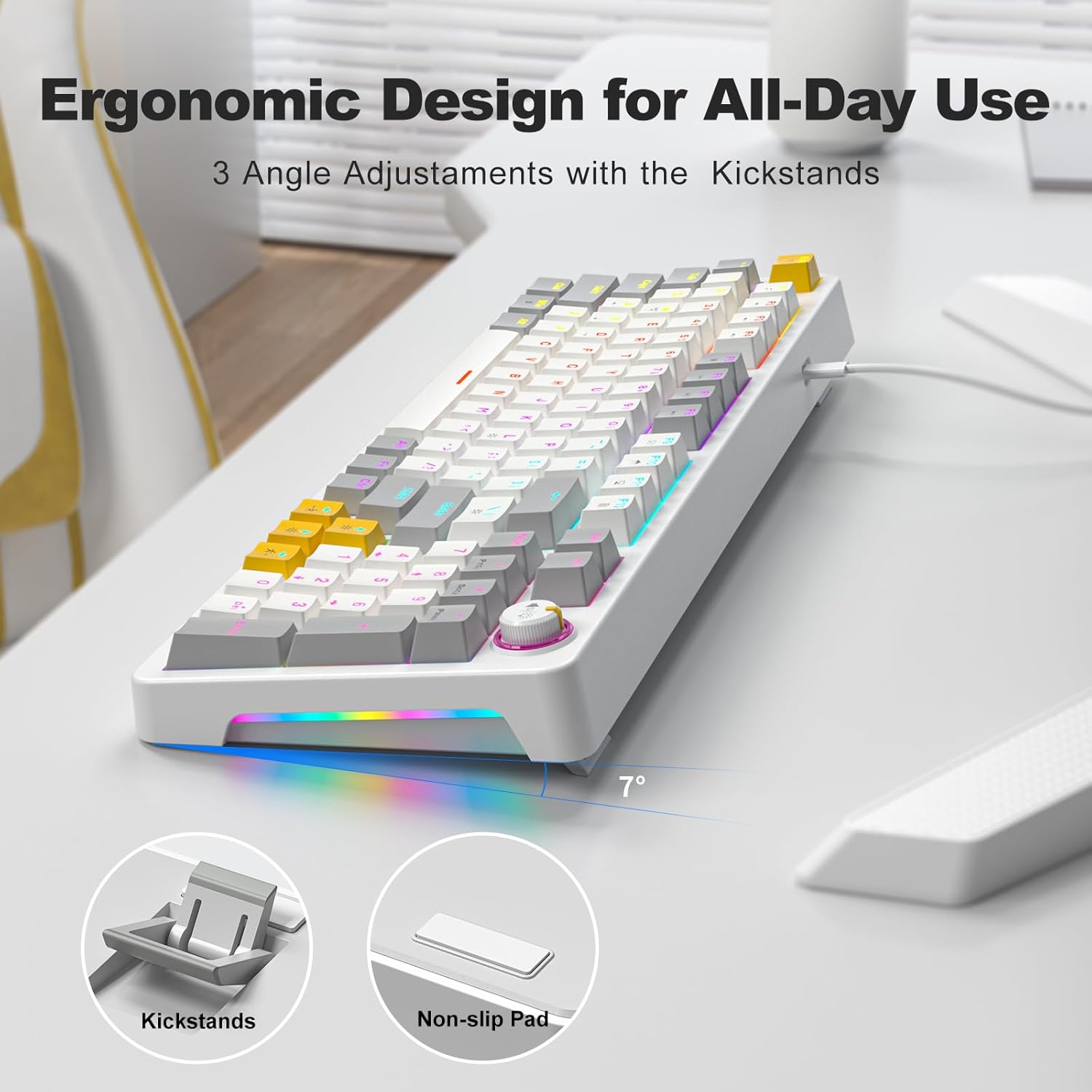
Image: The underside of the GEEZER AK96 keyboard, illustrating the adjustable kickstands and non-slip rubber pads.
Wartung
To ensure the longevity and optimal performance of your GEEZER AK96 Mechanical Gaming Keyboard, follow these maintenance guidelines:
- Reinigung der Tastenkappen: Verwenden Sie ein weiches, damp cloth to wipe down the keycaps. For deeper cleaning, you may carefully remove keycaps (using a keycap puller, if available) and clean them with mild soap and water. Ensure they are completely dry before reattaching.
- Cleaning Switches: Use compressed air to remove dust and debris from between the keycaps and around the switches. Avoid spraying liquids directly into the switches.
- Kabelpflege: Avoid sharp bends or kinks in the USB cable. Store the cable neatly when not in use to prevent damage.
- Allgemeine Pflege: Keep the keyboard away from excessive moisture, extreme temperatures, and direct sunlight. Avoid dropping the keyboard or subjecting it to strong impacts.
Fehlerbehebung
If you encounter any issues with your GEEZER AK96 Mechanical Gaming Keyboard, please refer to the following common troubleshooting steps:
- Tastatur reagiert nicht:
- Stellen Sie sicher, dass das USB-Kabel sowohl mit der Tastatur als auch mit Ihrem Computer fest verbunden ist.
- Versuchen Sie, die Tastatur an einen anderen USB-Anschluss Ihres Computers anzuschließen.
- If using the USB to Type-C adapter, ensure it is properly connected and try a different adapter if possible.
- Starten Sie Ihren Computer neu.
- Hintergrundbeleuchtung funktioniert nicht oder ist fehlerhaft:
- Drücken Fn + Eingabetaste to toggle the backlight On/Off.
- Drücken Fn + | um durch verschiedene Beleuchtungsmodi zu schalten.
- Passen Sie die Helligkeit an mit Fn + ↑ / ↓.
- Ensure your computer's USB port is providing sufficient power.
- Tasten werden nicht registriert oder es werden doppelte Eingaben gemacht:
- Clean the affected key switch with compressed air to remove any debris.
- Stellen Sie sicher, dass die Tastenkappe richtig auf dem Schalter sitzt.
- Test the keyboard on another computer to rule out software or driver issues.
- Volume Knob Not Functioning:
- Stellen Sie sicher, dass die Tastatur ordnungsgemäß angeschlossen ist.
- Check your computer's audio settings to ensure the volume is not controlled by another device or software.
If the issue persists after trying these steps, please contact GEEZER customer support for further assistance.
Technische Daten
| Besonderheit | Detail |
|---|---|
| Modellnummer | AK-96 |
| Layout | 96-Key (96% layout) |
| Schaltertyp | Red Mechanical Switches (Pre-lubed) |
| Tastenkappenmaterial | PBT |
| Hintergrundbeleuchtung | LED Colorful Backlit (17 modes) & 2-Side LED |
| Konnektivität | USB Wired (USB-A to Type-C) |
| Kompatibilität | PC, Mac, Windows, Laptop, Smart TV, Tablet |
| Besondere Merkmale | Volume Knob, Full Key Rollover, Ergonomic Design, Adjustable-height Kickstands, Hotkeys and Media Keys |
| Technische Daten | 15.35 x 5.51 x 1.18 Zoll |
| Artikelgewicht | 1.9 Pfund |
| Farbe | Weiß |
| Material | Plastik |
Garantie und Support
The GEEZER AK96 Mechanical Gaming Keyboard comes with a standard manufacturer's warranty. For detailed information regarding warranty coverage, terms, and conditions, please refer to the product packaging or contact GEEZER customer support directly.
For technical support, troubleshooting assistance, or any product-related inquiries, please visit the official GEEZER website or contact their customer service team. Contact information can typically be found on the product packaging or on the brand's official online store.


