1. Einleitung
This manual provides detailed instructions for the setup, operation, and maintenance of your NETUM NT-1200 and CS7501 QR Industrial Bluetooth Barcode Scanners. Please read this manual thoroughly before using the devices to ensure proper functionality and to maximize their lifespan. These scanners are designed for efficient and reliable barcode reading in various environments, supporting both 1D and 2D barcodes from physical labels and digital screens.
2. Produktüberschreitungview
2.1 Hauptmerkmale
- Hochauflösendes Scannen: Equipped with a megapixel (1280×800) CMOS sensor, the CS7501 scans 1D and 2D barcodes (QR, PDF417, Data Matrix, etc.) from paper or digital screens.
- Vielseitige Konnektivität: Offers 3-in-1 connection options: Bluetooth, 2.4GHz Wireless Adapter, and Wired USB Connection for compatibility with smartphones, computers, POS systems, iPhones, iPads, and laptops.
- Verlängerte Akkulaufzeit: Features a 2400mAh high-capacity battery for up to 12 hours of continuous operation, with real-time battery level indicators.
- Langlebige Konstruktion: Built with ABS plastic and reinforced with TPU material, capable of withstanding drops from up to 4.92 feet (1.5 meters). Ergonomic design for comfortable, extended use.
- Mehrere Scanmodi: NT-1200 offers manual trigger, continuous scanning, and auto-sensing scanning modes.
- Speichermodus: Supports storage of up to 100,000 barcodes when out of wireless range.
2.2 Produktkomponenten
The package typically includes the barcode scanner(s), a charging dock (for NT-1200), a 2.4GHz wireless adapter, and USB cables.

Figure 1: NETUM NT-1200 (right, with dock) and CS7501 (left) Barcode Scanners.

Figure 2: NETUM CS7501 Barcode Scanner, showing its compact design, USB-C cable, and 2.4GHz wireless dongle.

Figure 3: NETUM NT-1200 Barcode Scanner securely placed in its charging and communication dock.
3. Einrichtung
3.1 Erstaufladung
Before first use, fully charge your scanner. Connect the USB cable to the scanner (CS7501) or its charging dock (NT-1200) and then to a power source (e.g., computer USB port, USB wall adapter). The battery indicator will show charging status.
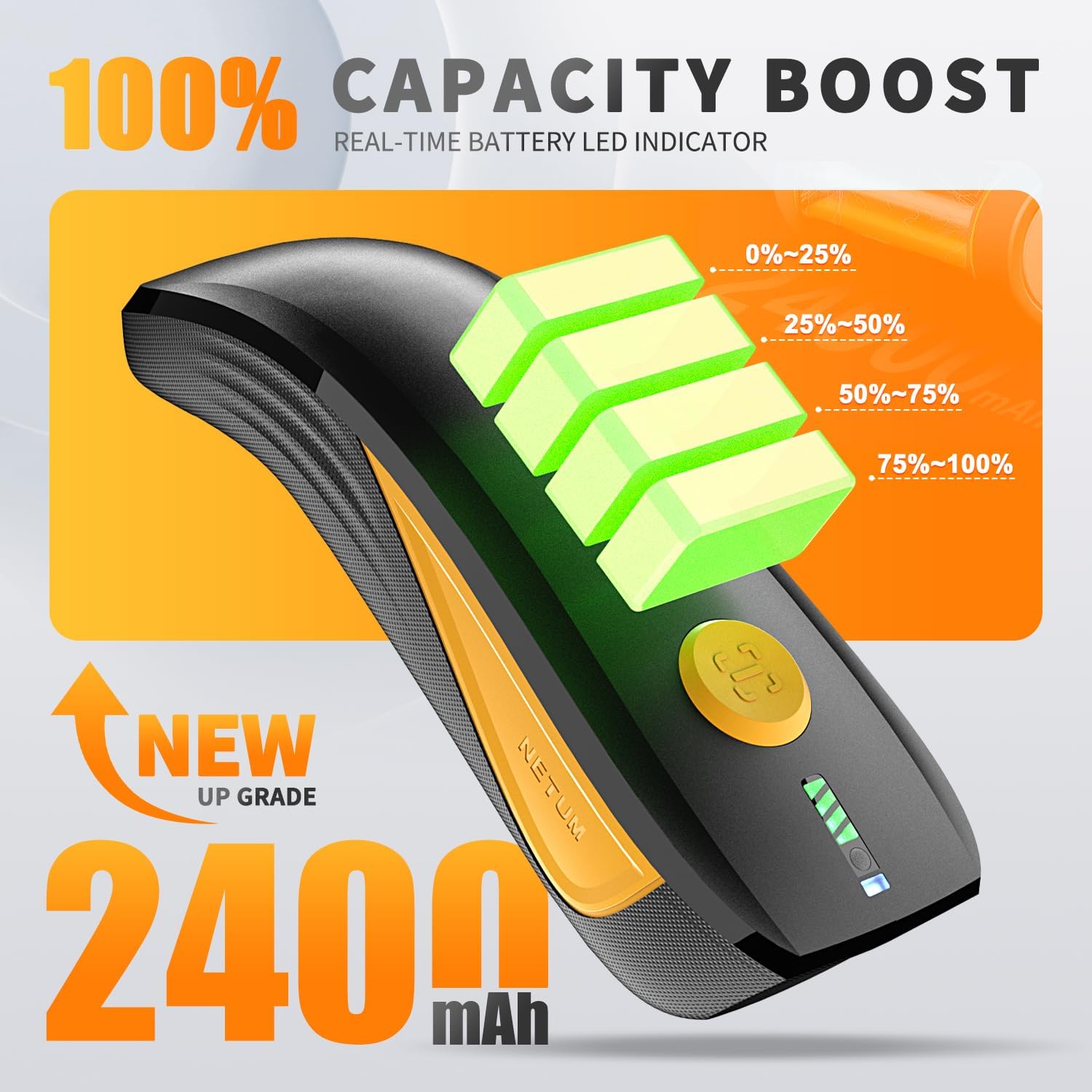
Figure 4: CS7501 scanner displaying real-time battery level indicators (0-25%, 25-50%, 50-75%, 75-100%).
3.2 Konnektivitätsoptionen
Both scanners offer multiple connectivity options. Ensure the scanner is powered on before attempting to connect.
3.2.1 Bluetooth-Verbindung
- Turn on the scanner and switch to Bluetooth mode (refer to the switch button image below).
- Aktivieren Sie auf Ihrem Host-Gerät (Smartphone, Tablet, Computer) Bluetooth und suchen Sie nach verfügbaren Geräten.
- Select the scanner (e.g., "NETUM Barcode Scanner" or similar) from the list to pair.
- Eine erfolgreiche Verbindung wird durch ein spezielles Geräusch oder eine LED-Leuchte am Scanner angezeigt.

Figure 5: The switch button on the CS7501 scanner, allowing selection between Bluetooth and 2.4GHz wireless connection modes. Bluetooth offers a range of up to 10m/33ft.
3.2.2 2.4-GHz-Funkverbindung
- Plug the 2.4GHz wireless adapter (dongle) into an available USB port on your computer.
- Turn on the scanner and switch to 2.4GHz wireless mode (refer to the switch button image above).
- The scanner should automatically connect to the adapter. A successful connection will be indicated by a specific sound or LED light. This mode typically offers a longer range, up to 100m/330ft.
3.2.3 Kabelgebundene USB-Verbindung
Connect the scanner directly to your computer using the provided USB cable. The scanner will function as a USB HID keyboard device, and no additional drivers are usually required. This mode also charges the scanner.
3.3 Initial Configuration (NT-1200)
For the NT-1200, specific settings like scanning modes or data transmission options may require scanning configuration barcodes found in the separate NT-1200 manual. Always refer to the dedicated manual for the NT-1200 for detailed setup barcodes.
4. Bedienungsanleitung
4.1 Scannen von Barcodes
Point the scanner's window at the barcode you wish to scan. Press the trigger button (for manual mode) or allow the scanner to detect the barcode automatically (in auto-sensing mode). A successful scan is usually indicated by a beep and/or a green LED light.

Figure 6: The CS7501 scanner demonstrating its 1MP high-resolution sensor's ability to capture various 1D and 2D barcodes, including QR codes, from different surfaces.
4.2 Scanning Modes (NT-1200)
- Manueller Auslösemodus: Drücken Sie den Auslöser, um jeden Barcode zu scannen.
- Kontinuierlicher Scanmodus: The scanner continuously emits a scan line, reading barcodes as they pass through the field of view ohne den Abzug betätigen zu müssen.
- Automatischer Scanmodus: Der Scanner erkennt automatisch einen Barcode in seinem Erfassungsbereich. view und scannt es ohne manuelle Auslösung.
To switch between these modes, you will need to scan specific configuration barcodes provided in the NT-1200's dedicated manual.
4.3 Speichermodus
When the scanner is out of Bluetooth or 2.4GHz wireless range, it can store scanned barcodes internally. The NT-1200 supports storage of up to 100,000 barcodes. To upload stored data, reconnect the scanner to your host device and scan the "Upload Data" configuration barcode (if applicable, refer to your specific model's manual).
5. Wartung
- Reinigung: Reinigen Sie das Gehäuse des Scanners mit einem weichen, trockenen Tuch. Für das Scanfenster verwenden Sie gegebenenfalls ein Linsenreinigungstuch und ein mildes, nicht scheuerndes Reinigungsmittel. Vermeiden Sie aggressive Chemikalien oder Scheuermittel.
- Lagerung: Bewahren Sie den Scanner an einem kühlen, trockenen Ort fern von direkter Sonneneinstrahlung und extremen Temperaturen auf.
- Batteriepflege: Um eine optimale Akkulaufzeit zu gewährleisten, sollte der Akku nicht häufig vollständig entladen werden. Bei längerer Lagerung sollte der Akku auf etwa 50 % geladen und alle paar Monate erneut aufgeladen werden.
- Fallschutz: While designed to be rugged (withstanding drops up to 4.92 feet / 1.5 meters), avoid unnecessary drops to prolong the device's life.

Figure 7: The CS7501 scanner's robust construction, featuring ABS+TPU materials for enhanced durability and drop protection.
6. Fehlerbehebung
- Scanner Not Connecting:
- Ensure the scanner is powered on and fully charged.
- Verify the correct connectivity mode (Bluetooth, 2.4GHz, USB) is selected on the scanner.
- For Bluetooth, ensure your host device's Bluetooth is enabled and the scanner is paired.
- For 2.4GHz, ensure the dongle is securely plugged in.
- Versuchen Sie, sowohl den Scanner als auch das Host-Gerät neu zu starten.
- Cannot Scan Barcodes:
- Stellen Sie sicher, dass der Barcode sauber, unbeschädigt und gut beleuchtet ist.
- Check the distance and angle between the scanner and the barcode.
- Verify the scanner is in the correct scanning mode (e.g., manual trigger if required).
- Stellen Sie sicher, dass der Scanner den Barcode-Typ unterstützt (1D/2D).
- Clean the scanner's reading window.
- Scanned Data Not Appearing:
- Confirm the scanner is successfully connected to your host device.
- Ensure the cursor is in a text input field on your host device.
- Check if the scanner is in storage mode; if so, upload the data.
- Kurze Akkulaufzeit:
- Stellen Sie sicher, dass der Scanner vor Gebrauch vollständig aufgeladen ist.
- Check the battery health indicators.
- Reduce screen brightness or disable unnecessary features if applicable.
7. Spezifikationen
| Besonderheit | Detail |
|---|---|
| Modellnummern | NT-1200, CS7501 |
| Sensor (CS7501) | Megapixel CMOS (1280×800) |
| Barcode-Kompatibilität | 1D and 2D (QR, PDF417, Data Matrix, GS1 Code128, Aztec, Maxi, etc.) |
| Konnektivitätstechnologie | Bluetooth, 2.4GHz Wireless, USB |
| Bluetooth-Reichweite | Bis zu 10 m |
| 2.4GHz Wireless Range | Bis zu 100 m |
| Kompatible Geräte | Computer, Laptop, POS, Smartphone, iPad, iPhone |
| Stromquelle | Batteriebetrieben |
| Battery Capacity (CS7501) | 2400 mAh |
| Continuous Operation (CS7501) | Bis zu 12 Stunden |
| Fallschutz | Withstands drops from up to 4.92 feet (1.5 meters) |
| Storage Capacity (NT-1200) | Bis zu 100,000 Barcodes |
8. Garantie und Support
NETUM products are designed for reliability and performance. For specific warranty details, please refer to the warranty card included with your product or visit the official NETUM website. For technical support, troubleshooting assistance, or service inquiries, please contact NETUM customer support through the contact information provided on their official webStandort oder Produktverpackung.


