1. Einleitung
Thank you for choosing the KAWA 2K Tiny Dash Cam. This manual provides detailed instructions for the installation, operation, and maintenance of your device. Please read this manual thoroughly before use to ensure proper functionality and to maximize your driving safety and recording experience.
The KAWA Tiny Dash Cam features 2K 1296P QHD recording, voice control, built-in WiFi for app control, G-sensor for emergency recording, WDR/3D DNR for enhanced image quality, and 24-hour parking mode capabilities. A 32GB TF card is included to get you started.
2. Packungsinhalt
Bitte überprüfen Sie, ob alle Artikel in Ihrem Paket vorhanden sind:
- KAWA 2K Tiny Dash Cam (Model CJ5512) x 1
- 1 x 32-GB-Micro-SD-Karte
- Benutzerhandbuch x 1
- 3M Adhesive Tape x 1
- Elektrostatische Aufkleber x 1
- Split Car Charger x 1

Image: KAWA 2K Tiny Dash Cam and its accessories, including a 32GB Micro SD card.
3. Produktüberschreitungview
The KAWA Tiny Dash Cam is designed for discreet installation and powerful performance. Below are its key features and physical dimensions.
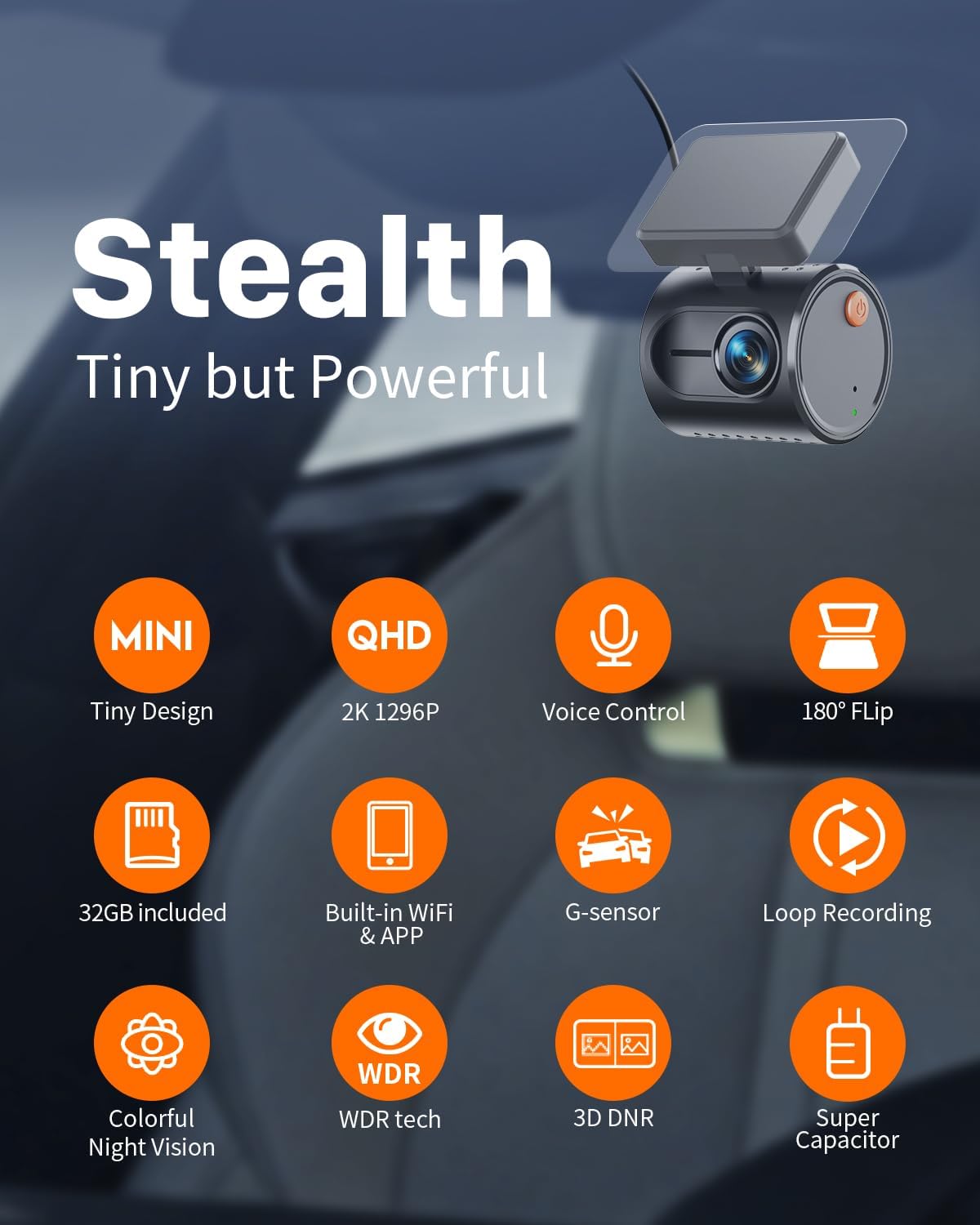
Bild: Überview of the KAWA Tiny Dash Cam's features, including its compact size, 2K resolution, voice control, and various recording technologies.

Image: The compact size of the dash cam, illustrated with dimensions and examples of discreet placement within a vehicle.
4. Einrichtung und Installation
4.1 Einlegen der Micro-SD-Karte
- Stellen Sie sicher, dass die Dashcam ausgeschaltet ist.
- Locate the Micro SD card slot on the dash cam.
- Insert the provided 32GB Micro SD card (or another Class 10 or higher card, up to 128GB) into the slot until it clicks into place.
- Zum Herausnehmen die Karte vorsichtig hineindrücken, bis sie einrastet, dann loslassen.
4.2 Montage der Dashcam
- Clean the chosen area on your windshield, preferably behind the rearview Spiegel, um eine klare Sicht zu gewährleisten view und minimale Behinderung.
- Bringen Sie einen elektrostatischen Aufkleber auf der gereinigten Stelle an. Dies schützt Ihre Windschutzscheibe und erleichtert die Entfernung.
- Bringen Sie das 3M-Klebeband an der Dashcam-Halterung an.
- Press the dash cam firmly onto the electrostatic sticker for at least 30 seconds.
- Adjust the camera angle to ensure it captures the road ahead effectively.
4.3 Stromanschluss
Connect the dash cam to your vehicle's power source using the provided split car charger cable. Route the cable discreetly along the windshield edge and pillar to avoid obstructing your view.

Image: Discreet cable routing for the dash cam power supply and the KAWA app interface on a smartphone.
4.4 App-Download und WLAN-Verbindung
- Download the KAWA app from the App Store (iOS) or Google Play Store (Android).
- Die Dashcam einschalten.
- Open the KAWA app on your smartphone.
- Follow the in-app instructions to connect to the dash cam's built-in WiFi network. The default WiFi name and password can usually be found on the device or in the app.
5. Bedienungsanleitung
5.1 Automatische Aufnahme
Once powered on, the dash cam will automatically begin continuous loop recording. Older files will be overwritten when the Micro SD card is full, ensuring continuous operation.
5.2 Sprachsteuerung
The dash cam supports smart voice commands for hands-free operation. Speak clearly and directly to the device.
- "Foto machen": Erfasst ein Standbild.
- "Video sperren": Saves the current recording segment to the emergency folder, preventing it from being overwritten.
- "WLAN einschalten": Activates the dash cam's WiFi for app connection.
- "Schalten Sie WLAN aus": Deactivates the dash cam's WiFi.
- "Ton einschalten": Enables audio recording.
- "Ton ausschalten": Disables audio recording.

Image: Illustration of voice control functionality while driving, showing various commands.
5.3 Notfallaufzeichnung (G-Sensor)
The built-in G-sensor detects sudden impacts or sharp turns. When triggered, it automatically locks the current video segment, protecting it from being overwritten by loop recording.
5.4 App-Steuerung
Once connected via WiFi, the KAWA app allows you to:
- View lebe footage von der Dashcam.
- Aufgenommene Videos wiedergeben.
- Download videos to your smartphone.
- Teile Videos in sozialen Medien oder auf anderen Plattformen.
- Dashcam-Einstellungen anpassen.
6. Erweiterte Funktionen
6.1 2K Ultra-Clear Resolution
The dash cam records in 2K 1296P QHD resolution, providing clear and detailed footage, essential for capturing license plates and other critical information.
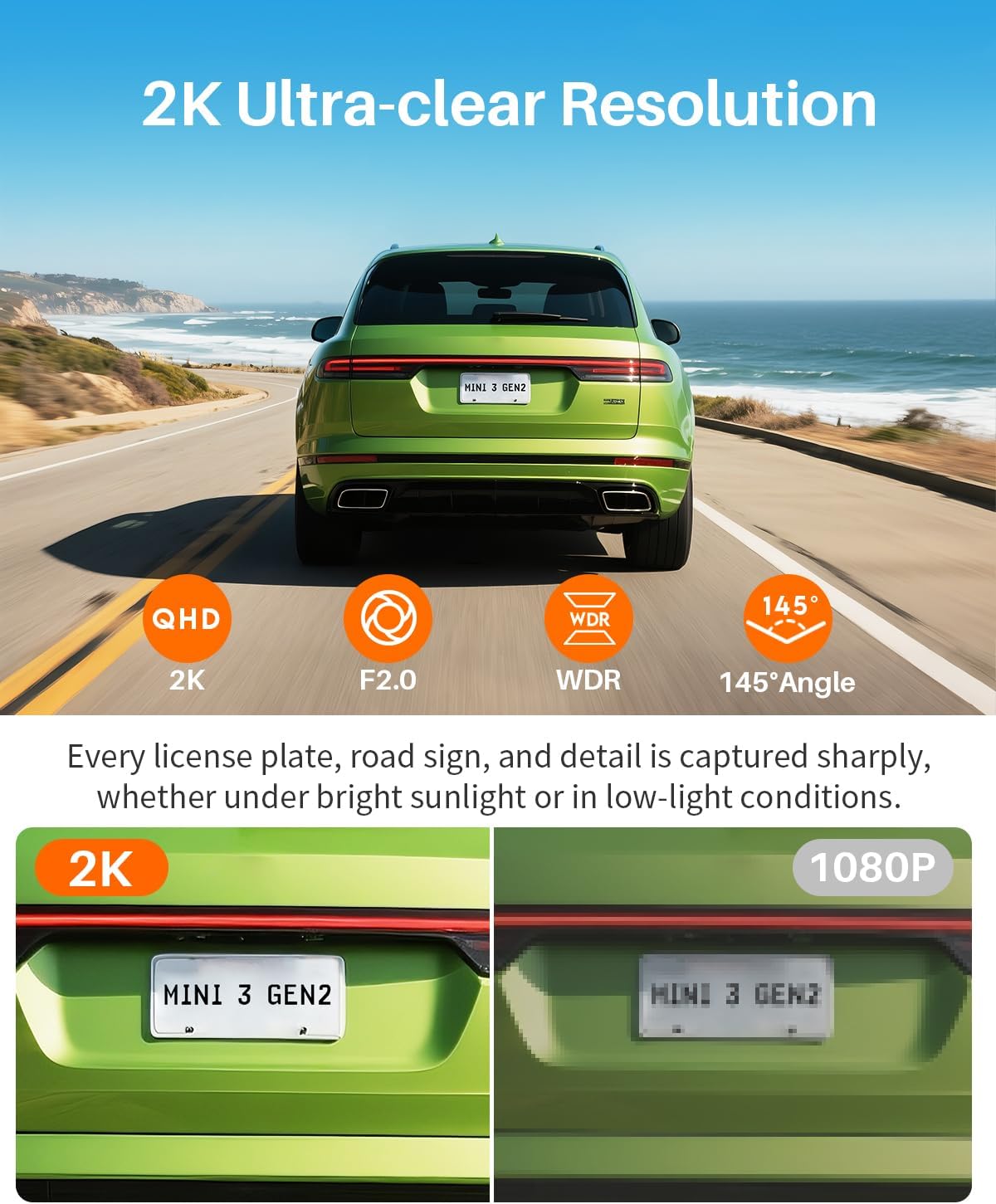
Image: Visual comparison highlighting the clarity of 2K resolution versus 1080P, particularly for license plate readability.
6.2 WDR (Wide Dynamic Range) & 3D DNR (Digital Noise Reduction)
These technologies enhance image quality in challenging lighting conditions, such as bright sunlight, tunnels, or low-light environments, ensuring balanced exposure and reduced noise.
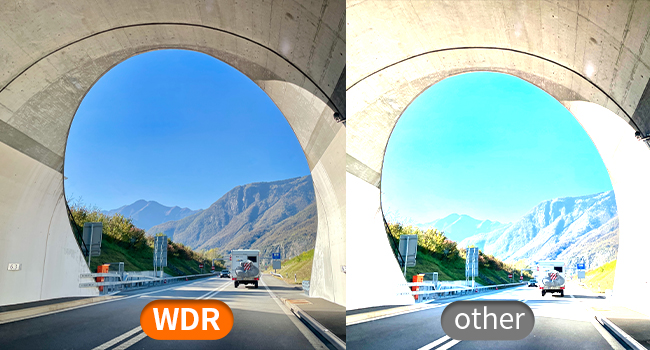
Image: Demonstration of WDR technology providing balanced exposure in high-contrast scenes, such as entering or exiting a tunnel.
6.3 Super-Nachtsicht
Equipped with advanced sensors, the dash cam provides enhanced visibility and detail in low-light and nighttime driving conditions.
6.4 24-Stunden-Parkraumüberwachung
When your vehicle is parked, this feature detects unusual motion or impacts and automatically starts recording, providing surveillance for your car. This feature requires a hardwire kit (sold separately) for continuous power.

Image: Visual explanation of 24-hour parking monitoring, highlighting the need for a hardwire kit and its benefit in recording incidents while parked.
6.5 Zeitrafferaufnahme
In parking mode, time-lapse recording compresses long parking sessions into shorter video files, saving storage space while retaining critical event footage. Zum Beispielample, 30 minutes of recording can be compressed into 1 minute.
6.6 180°-Videodrehung
This feature allows for flexible installation. If the dash cam is mounted upside down, the video can be flipped 180° via the app to ensure correct image display.

Image: Demonstration of the 180-degree video flip feature, allowing for flexible mounting orientations.
7. Wartung
7.1 Verwaltung von Micro-SD-Karten
It is recommended to format the Micro SD card regularly (e.g., once a month) through the dash cam's settings via the app. This helps maintain optimal recording performance and prevents data corruption.
7.2 Reinigung der Linse
Gently wipe the dash cam lens with a soft, lint-free cloth to ensure clear video quality. Avoid using abrasive cleaners.
7.3 Betriebsumgebung
The dash cam is designed to operate within a working temperature range of -4°F (-20°C) to 149°F (65°C) and a storage temperature range of -22°F (-30°C) to 176°F (80°C). Avoid exposing the device to extreme temperatures outside these ranges to prevent damage.
8. Fehlerbehebung
- Dashcam lässt sich nicht einschalten: Ensure the power cable is securely connected to both the dash cam and the car charger, and that the car charger is properly inserted into the vehicle's power outlet. Check if the vehicle's power outlet is active.
- Aufnahmeprobleme: Ensure a Micro SD card is inserted and formatted. Check if the card is full; if so, format it. If issues persist, try a different Micro SD card (Class 10 or higher).
- WiFi connection failure: Ensure the dash cam's WiFi is enabled (can be activated via voice command or app if previously connected). Restart both the dash cam and your smartphone. Try reconnecting through the KAWA app.
- Sprachsteuerung reagiert nicht: Speak clearly and ensure there is minimal background noise. Verify that the voice control feature is enabled in the app settings.
- Schlechte Videoqualität: Clean the dash cam lens. Ensure the protective film has been removed from the lens. Check app settings for resolution and WDR options.
- Parküberwachung funktioniert nicht: Ensure a hardwire kit is installed correctly and providing continuous power to the dash cam. Verify parking mode settings in the app.
For further assistance, please refer to the support section or contact KAWA customer service.
9. Spezifikationen
| Besonderheit | Detail |
|---|---|
| Marke | KAWA |
| Modellname | CJ5512 |
| Videoauflösung | 2K 1296P QHD |
| Besondere Merkmale | Voice control, Built-in WiFi, G-sensor, 24h Parking Monitoring, Time-lapse, WDR, Night vision, Loop recording, 180° Video Flip |
| Konnektivitätstechnologie | W-lan |
| Kompatible Geräte | Smartphone, PC |
| Artikelgewicht | 6.4 Unzen |
| Technische Daten | 7 x 14 x 11 inches (Packaging), Device: 1.82 x 1.53 x 1.42 inches |
| Im Lieferumfang enthaltene Komponenten | Dash Cam, 32GB Micro SD Card, User Manual, 3M adhesive tape, Electrostatic Stickers, Split Car Charger |
| Betriebstemperatur | -4 °F (-20 °C) bis 149 °F (65 °C) |
| Lagertemperatur | -22 °F (-30 °C) bis 176 °F (80 °C) |
10. Garantie und Support
KAWA provides a 1-year free replacement warranty for this product. Our customer service team is committed to responding to all inquiries within 24 hours.
Für Unterstützung kontaktieren Sie uns bitte unter: support@kawa-in.com


